Everything about your Domain India hosting account is in one place: the Hosting page of the client area. From there you open your control panel with one click, copy your login details, point a domain at the account, change plan and renew. This page shows what is on each tab and what lives inside the control panel instead.
For what to manage in the client area versus the control panel, read Managing your hosting account. For every other part of the client area, see the complete client area guide.
Sign in and choose Hosting › My hosting in the menu (/client/services/hosting). Click the panel button on your domain's row to open cPanel or DirectAdmin already signed in, or click Manage for the account page. Its three tabs are Overview (quick links into the panel and the records to point a domain), Access (username, server IP, panel URL and Reset password) and Plan & billing (billing cycle, renewal date, Change plan, Renew now).
1. Find your hosting accounts
- Sign inat the client area.
- Choose Hosting › My hostingin the menu. Every hosting account is listed with its domain, plan and status.
- Open the panel, or the account.The button on the row is labelled after your control panel and opens it in a new tab once the account is Active. Click Manage to see the account page.
2. What the account page shows
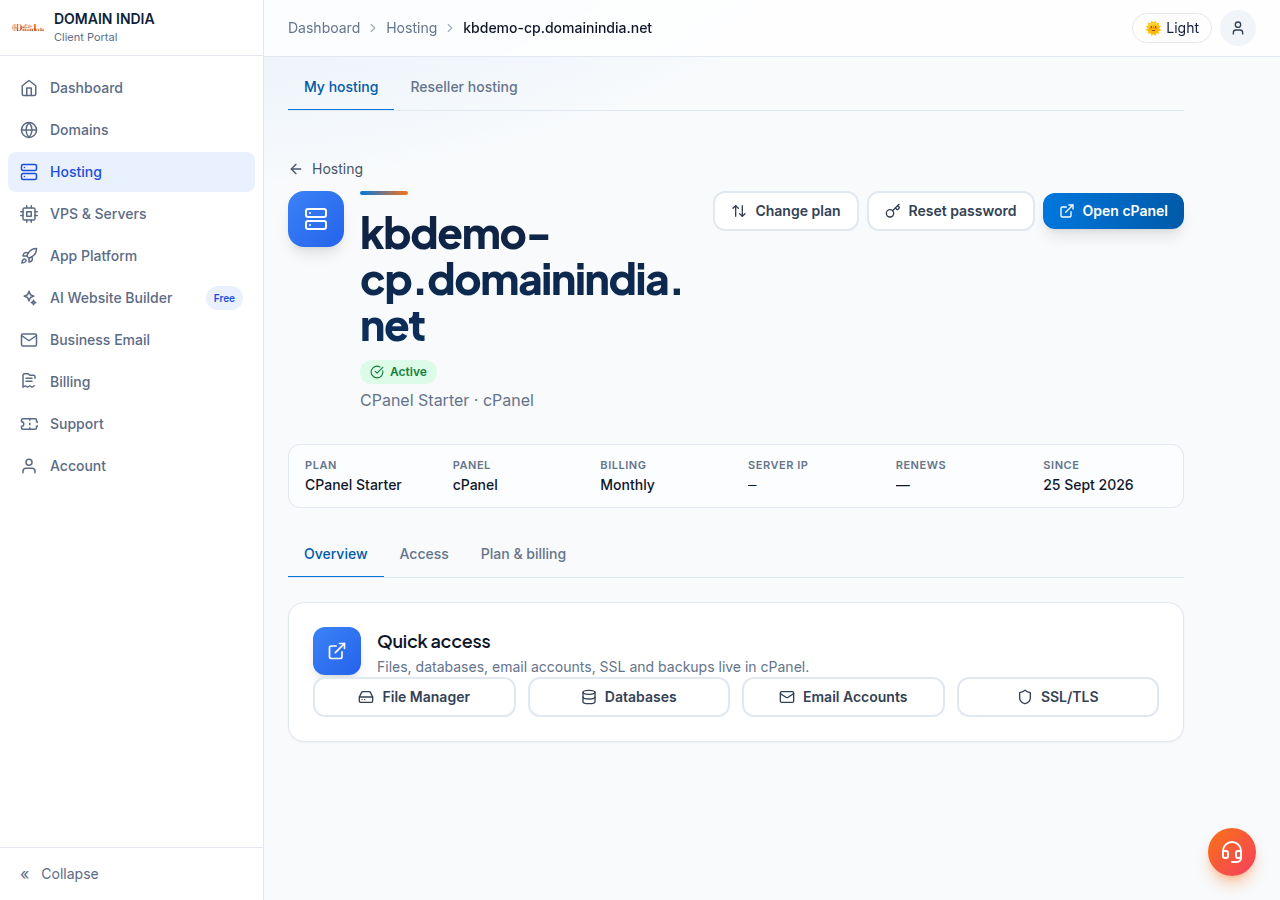
The top of the page lists the Plan, Panel, Billing cycle, Server IP, Renews date and Since date. On an active account the main button reads Open cPanel (or your panel's name), with Change plan and Reset password beside it. If the account is waiting for payment, the main button reads Pay now instead.
| Tab | What you find there |
|---|---|
| Overview | Quick access buttons for File Manager, Databases, Email Accounts and SSL/TLS, which open those tools in your panel; and "Point a domain to this hosting", with the nameservers (Option 1) or the A records for @ and www (Option 2) |
| Access | The Login details card: control panel, username, server IP and panel URL, each with a copy button, and Reset password |
| Plan & billing | Plan, billing cycle, renewal date, payment status, any scheduled plan change, Change plan and Renew now |
A new account can also show Setting up your account (it usually finishes within a few minutes; click Refresh) or Awaiting activation (activation can take up to 24 hours, and you get an email when the account is ready).
On Webuzo, log in at https://yourdomain.com:2003 with your Webuzo username and password, and use this address if the panel button doesn't open the panel. The client area's Reset password does not work for Webuzo yet. For a new Webuzo password, contact support by live chat or a ticket.
3. What you manage inside the control panel
Files, email accounts, databases, SSL certificates, backups, cron jobs and PHP versions are all managed in the panel, not the client area. So is your resource usage: in cPanel it is under Metrics › Resource Usage; see Check hosting resource usage. On cPanel and DirectAdmin, JetBackup takes a weekly backup (on Sunday, keeping 5 copies) that you can restore or download; see Backup and restore with JetBackup.
SSH, Node.js and Python. Jailed SSH access is available on every shared hosting plan (cPanel, DirectAdmin, Webuzo). It is off by default; ask support to enable it for your account, and log in with an SSH key. See enabling jailed SSH. On cPanel, Node.js and Python apps run through Setup Node.js App and Setup Python App; see deploying a Node.js app. On Webuzo, ask support.
Frequently asked questions
Where do I see my hosting account in the Domain India client area?
Sign in and choose Hosting, then My hosting, in the menu. Each account is listed with its domain, plan and status. Click Manage to open the account page with its Overview, Access and Plan & billing tabs.
My new hosting shows Failed, or stays Pending, after I paid. What should I do?
Your payment is not lost. Failed means the automatic setup didn't finish, and our team completes it by hand. Open a support ticket with the domain name and the invoice number, and don't order the same plan again meanwhile, or you may pay twice. Most accounts are created within a couple of minutes of payment, so if it is still Pending well after that, open a ticket too.
Where are my hosting username and server IP?
On the Access tab of the hosting account. The Login details card shows the control panel, username, server IP and panel URL, each with a copy button, and a Reset password button.
Can I see disk and bandwidth usage in the client area?
Resource usage is shown inside your control panel. In cPanel, open Metrics, Resource Usage to see CPU, memory, processes and any faults against your plan's limits.
Is SSH included with my shared hosting?
Jailed SSH access is available on every Domain India shared hosting plan, but it is off by default. Ask support to enable it for your account, then log in with an SSH key.
Ready to manage your hosting? Open your hosting accounts, or read Managing your hosting account for the full picture. If something is missing from your account page, open a ticket.
Open your control panel, copy your login details, change plan or renew from the account page.
Open my hosting