You can buy a new domain name and a hosting plan in one order from the Domain India client area. You start from Order New, choose the hosting service, register the domain at the Domain step, pick a plan, check the order and pay once. This guide walks through each step as it appears today and explains what happens after payment.
Log in and open Order New (/client/order). Choose a hosting service, then at the Domain step choose Register new and search for your name. Pick your plan and billing cycle, keep the recommended nameserver choice, check everything on the Review step and click Proceed to Payment. Most hosting accounts are created automatically within a couple of minutes of payment; free SSL follows once the domain points to your hosting.
1. Why order both together
- One order and one payment for the domain and the hosting.
- Less DNS work. With the recommended nameserver choice, the new domain is normally set up to point at your hosting, so you usually don't need to change anything by hand.
- Everything in one account. Renewals, invoices and support for both are in the same client area.
If you already own a domain, you don't need a new one: choose Use existing at the Domain step instead. See ordering hosting without a new domain.
2. Before you order
- Create an account or log in. Use an email address you check often; renewal invoices and domain notices go there.
- Choose the type of hosting. Compare cPanel, DirectAdmin and Webuzo plans. The main differences are the number of websites, storage and email accounts.
- Pick a name and a spare. Your first choice may be taken. The free AI Domain Advisor suggests available names.
- Decide who owns the domain. The registration contact you choose becomes the domain's registrant, so use the correct person or company.
3. Place the order
- Open Order New.Log in and go to /client/order, or start from a plan on one of the hosting pages.
- Choose the service.Select the type of hosting you want.
- Register the domain.At the Domain step, keep Register new, type the name you want and search. Choose an available extension such as .in or .com. The step also offers Transfer and Use existing if you change your mind.
- Choose the plan and billing cycle.Pick the plan, then 1 Year, 2 Years or 3 Years. Shared hosting is billed yearly at 10% off the monthly rate, or 15% off for 2 years and 20% off for 3 years; it can't be paid monthly. Longer cycles show their saving on the page.
- Choose nameservers.Keep the recommended option, Use our nameservers. Choose your own nameservers only if your DNS is managed by another provider.
- Review.Check the domain, the plan, the billing cycle, the registration contact, and the subtotal, GST and total. There is no coupon field.
- Pay.Click Proceed to Payment and choose a payment method. You choose the method each time you pay; no card is saved or charged automatically later.
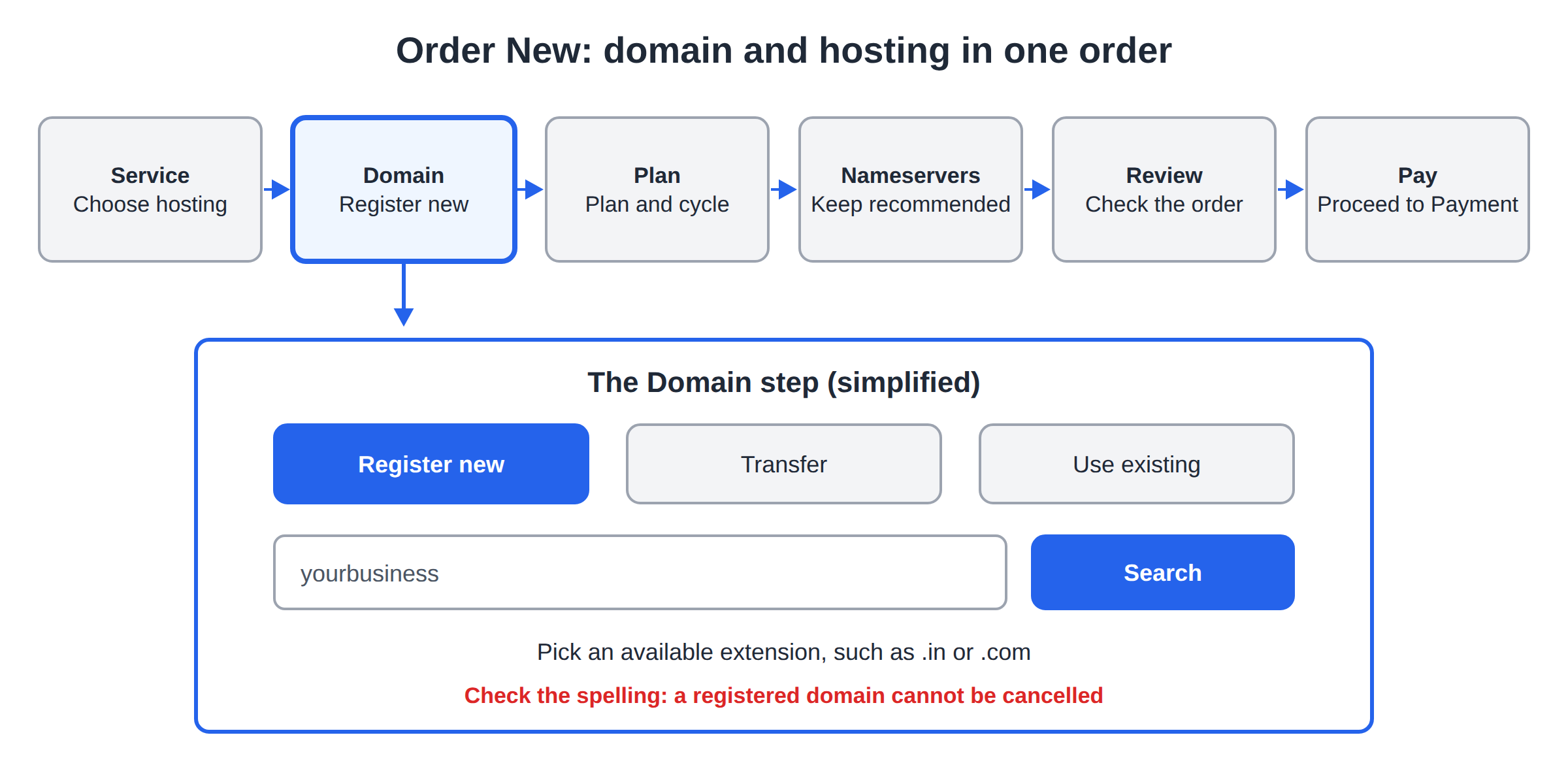
A domain is registered exactly as you type it, and once it is registered at the registry it cannot be cancelled or refunded. If you notice a mistake after paying, open a ticket at once. See I want to cancel my domain name order.
4. What it costs
Domain India list prices on 19 September 2026, excluding 18% GST, which is added at checkout:
| Item | Price | Renews at |
|---|---|---|
| .in domain | ₹575 first year | ₹625 a year |
| .com domain | ₹1,150 a year | ₹1,150 a year |
| DirectAdmin Starter hosting | ₹100 a month, billed yearly at ₹1,080 | ₹1,080 a year |
| cPanel Starter hosting | ₹125 a month, billed yearly at ₹1,350 | ₹1,350 a year |
| cPanel Growth hosting (5 websites) | ₹200 a month, billed yearly at ₹2,160 | ₹2,160 a year |
For example, a .in domain with cPanel Starter for a year is ₹575 + ₹1,350 = ₹1,925 before GST. Other extensions and plans are priced on the order page. New shared hosting purchases can be refunded in full within 30 days under our refund policy; domain registrations are not refundable.
- 25 GB NVMe SSD Storage
- 50 GB Monthly Bandwidth
- 1 Website
- 10 Email Accounts
- 10 GB NVMe SSD Storage
- 50 GB Monthly Bandwidth
- 1 Website
- 5 Email Accounts
Prices on the cards exclude 18% GST.
5. What happens after payment
- Hosting account. Most hosting accounts are created automatically within a couple of minutes of payment. A small number need a manual check and take longer, for example while a payment is still clearing or when an order is flagged for review.
- Welcome email. "Your Hosting Account is Ready" arrives with your login details. Emails with passwords are not kept in Email history; if you lose it, use the hosting service's page in the client area. See I didn't get my welcome email.
- Domain. The domain appears under Domains, with its status, expiry date and nameservers.
- .in identity verification. For a .in domain, the .IN registry may require the registrant's identity to be verified. Do it once for your account at /client/kyc with DigiLocker. If a .in domain stays on hold afterwards, open a ticket.
- Free SSL. A free Let's Encrypt certificate is issued once the domain points to your hosting server, so
https://starts working on its own.
6. Check that the domain points to your hosting
A new domain usually needs a few hours before it reaches every network. Once the hosting account is ready:
- Open your hosting service under your hosting and look at the Point a domain to this hosting card.
- Open the domain under Domains and its Nameservers tab.
- If the nameservers on the domain don't match the card, update them on the Nameservers tab. See How do I change my nameservers.
7. Build your website
- Open your control panel with the button on your hosting service. See How to log in to cPanel.
- Install WordPress with Softaculous, or upload your own files with the File Manager or FTP.
- Create email accounts for your domain, such as
[email protected]. - Add extra DNS records only if you use outside services, such as Google Workspace mail.
8. Troubleshooting
- The hosting still shows as pending. Most accounts are ready in minutes, but some need a manual check. If it is still pending an hour after payment, open a ticket with your invoice number.
- The website shows a default page. The hosting works but has no website yet. Upload your files or install WordPress.
- The browser says "Not secure". DNS is probably still updating, so the free certificate hasn't been issued yet. Check again after a few hours.
- Email doesn't arrive. Check that the domain uses the nameservers on your hosting card, and allow a few hours after a change.
Frequently asked questions
Can I buy a domain and hosting together at Domain India?
Yes. Open Order New in the client area, choose a hosting service, choose Register new at the Domain step and search for your name, then pick a plan, review the order and click Proceed to Payment. Both are paid in one order.
How long after payment is my hosting ready?
Most hosting accounts are created automatically within a couple of minutes of payment. A small number need a manual check and take longer, for example while a payment is still clearing or when an order is flagged for review.
Do I have to set the nameservers myself?
Usually not. With the recommended nameserver choice, the new domain is normally set up to point at your hosting. Compare the domain's Nameservers tab with the Point a domain to this hosting card once the account is ready, and update it if they differ.
Is SSL included when I order hosting?
Yes. Domain India shared hosting includes free SSL. A Let's Encrypt certificate is issued automatically once the domain points to your hosting server.
Can I use a coupon code when ordering?
No. The Domain India order form has no coupon field. Longer billing cycles show their saving on the order page.
Can I get a refund if I change my mind?
New shared hosting purchases can be refunded in full within 30 days, as set out in the refund policy. Domain registrations cannot be cancelled or refunded once registered.
I already own a domain. Should I still use this flow?
Use the same Order New flow, but choose Use existing at the Domain step and type your domain. Then point it at your hosting with the values on the hosting service's page.
Ready to get online? Search for your name at domain registration, compare cPanel hosting plans, or go straight to Order New. For help, use the 24/7 live chat or open a support ticket; tickets get a first response within 15 minutes.
Choose a hosting plan, register your domain at the Domain step, and pay once for both.
Start your order