cPanel's Zone Editor is where you add, change and delete the DNS records for the domains in your hosting account: the A record that points your website to a server, the CNAME for www, the MX records for email and the TXT records for SPF and domain verification. This guide walks through each record type in the current cPanel, and starts with the one check that decides whether your changes will work at all.
Open cPanel, go to Domains › Zone Editor, and use + A Record, + CNAME Record, + MX Record or Manage next to your domain. Records you save there only take effect if the domain uses your hosting nameservers; if it points to Cloudflare or another DNS provider, edit the records there instead. Changes usually take effect within a few hours and can take up to 24-48 hours, because other networks cache the old answer.
1. First check: does your domain use your hosting nameservers?
A DNS record only works on the nameservers that answer for your domain. cPanel keeps a DNS zone for every domain in your account, but that zone is read by the internet only if the domain's nameservers point to your hosting server. If they point somewhere else, you can save records in the Zone Editor all day and nobody will ever see them.
Check before you edit:
- In the client area: open Domains › My domains, select the domain and look at the Nameservers tab. Compare the entries with the nameservers on the Point a domain to this hosting card on your hosting service page.
- From any computer: run
dig NS yourdomain.in +short(macOS or Linux) ornslookup -type=ns yourdomain.in(Windows).
| Your domain's nameservers are | Where to edit DNS records |
|---|---|
| Your Domain India hosting nameservers | cPanel Zone Editor (this guide) |
| Cloudflare or another DNS provider | That provider's dashboard |
| A website platform's nameservers | The platform's DNS settings |
| Not sure, or names you don't recognise | Open a support ticket before you change anything |
If you want cPanel to manage the domain's DNS, point the domain to the nameservers shown for your hosting account, as described in How do I change my nameservers. Take the values from your hosting service page or welcome email, never from an old article or forum post. For the difference between nameservers and records, see How to change your domain DNS settings.
2. Open the Zone Editor
- Sign in to the client area.Go to Hosting › My hosting and click the cPanel button on your domain's row. cPanel opens in a new tab, already signed in. Other routes are in How to log in to cPanel.
- Find the Domains sectionon the cPanel home page.
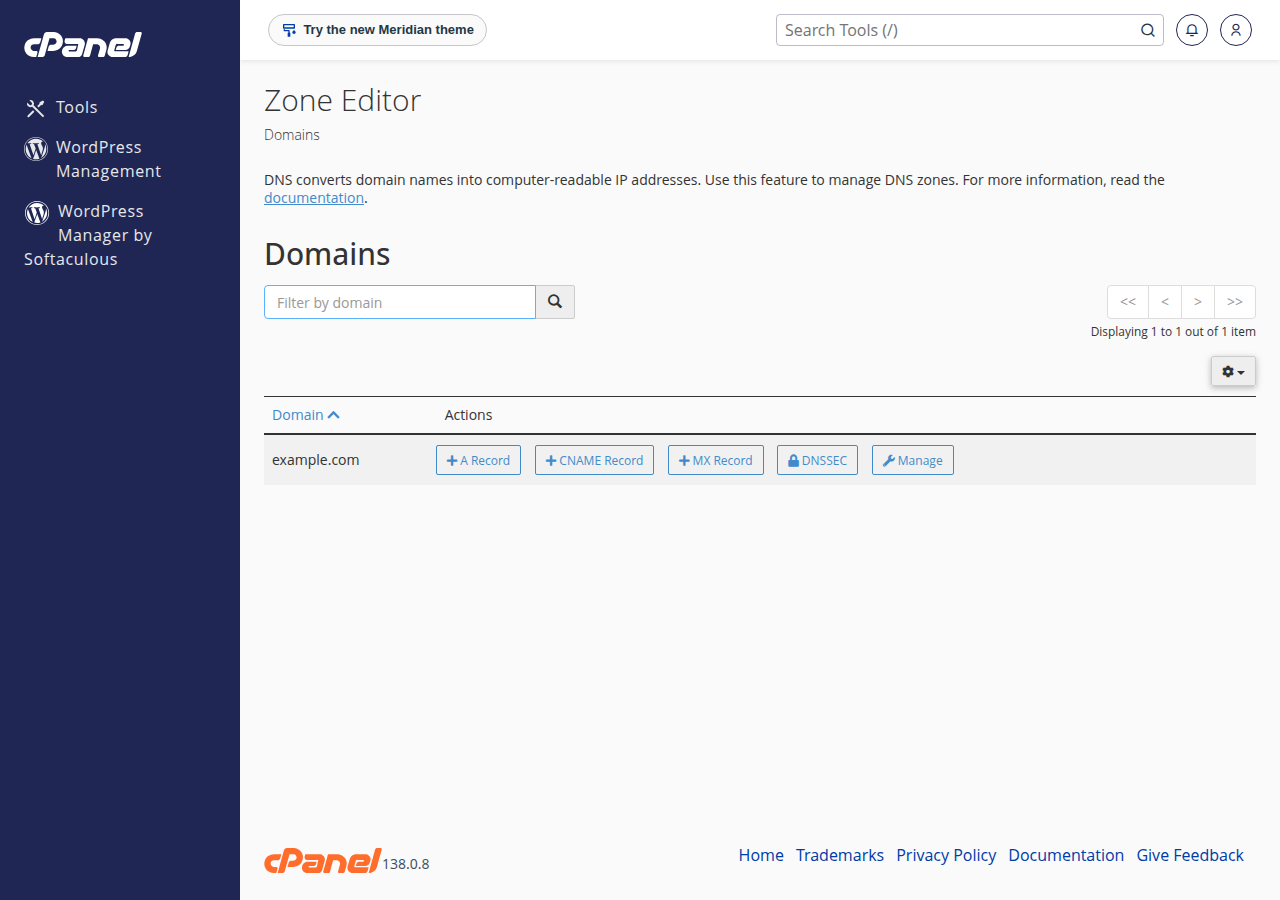
- Click Zone Editor.You see a list of every domain and subdomain zone in your account.
Each row has quick buttons: + A Record, + CNAME Record, + MX Record and Manage. The quick buttons add one record in a small form. Manage opens the full zone, where you can see every record, filter by type, edit or delete records, and add any supported type (A, AAAA, CAA, CNAME, MX, SRV and TXT) from the Add Record menu.
3. Add an A record
An A record points a name to an IPv4 address. You add one to send a subdomain such as shop.yourdomain.in to another server, or to point the domain itself at a new host.
- Click + A Recordon the domain's row (or Manage, then Add Record › A).
- Enter the name.Type just the label, such as
shop. cPanel adds the rest of the domain for you. For the domain itself, use the domain name as shown. - Enter the address.Paste the IPv4 address your host or service gave you, such as
203.0.113.10. - Save.Click Add an A Record (or Save Record on the Manage page).
If you are changing where the whole website points, edit the existing A records for both the domain and www rather than adding new ones next to them. Two A records with different addresses make visitors land on either server at random. Use an AAAA record in the same way for an IPv6 address.
4. Add a CNAME record
A CNAME makes one name an alias of another hostname. It is the usual way to connect a subdomain to an outside service, such as a store platform, a help desk or an email-marketing tool that asks you to verify with a CNAME.
- Click + CNAME Recordon the domain's row.
- Enter the name, such as
wwworhelp. - Enter the target, a fully qualified hostname such as
shops.example-platform.com. Never an IP address, a URL withhttps://, or a path such as/folder. - Save.Click Add a CNAME Record.
Two rules to remember. The domain itself (the root, @) cannot be a CNAME, because it also holds MX and other records: use an A record there. And a name that has a CNAME cannot have any other record, so delete an existing A record for www before adding a CNAME for www.
5. Change MX records and email routing
MX records say which server receives email for your domain. The priority number decides the order: the lowest number is tried first.
Moving email to Google Workspace, Microsoft 365 or Business Email
- Open Manageon the domain's row and filter by MX.
- Delete the old MX recordsyou no longer need. If old and new MX records are both present, some mail keeps going to the old mailbox.
- Add the new MX recordswith + MX Record: the priority and the mail server hostname exactly as your email provider gives them. An MX value must be a hostname, never an IP address.
- Set Email Routing.In cPanel's Email section, open Email Routing, select the domain and choose Remote Mail Exchanger. This tells the server to stop treating the domain's mail as local.
- Update the SPF record(section 6) so the new provider is allowed to send for your domain.
To use your cPanel mailboxes again later, restore the hosting MX records and set Email Routing back to Local Mail Exchanger (or Automatically Detect Configuration). For Business Email, use the records listed in DNS records for Business Email.
Before you delete or change any MX, SPF or DKIM record, copy the current values into a text file. A deleted record is not recoverable from a recycle bin, and a wrong MX record sends new mail somewhere you can't read it.
6. Add TXT records: SPF, DKIM, DMARC and verification
TXT records hold text values that other services read. Add one from Manage › Add Record › TXT, with the name and value copied exactly from the service that asked for it.
| Purpose | Name | Example value |
|---|---|---|
| SPF, who may send your email | the domain itself | v=spf1 a mx include:_spf.google.com ~all |
| Domain verification | the domain itself, or the name the service gives | google-site-verification=abc123… |
| DMARC policy | _dmarc | v=DMARC1; p=none; rua=mailto:[email protected] |
| DKIM public key | the selector the provider gives, such as selector._domainkey | v=DKIM1; k=rsa; p=MIIB… |
A domain may have only one SPF record. If you send through more than one service, merge them into a single v=spf1 record rather than adding a second one; two SPF records make SPF fail. For email sent from your cPanel mailboxes, cPanel's Email Deliverability page (in the Email section) checks your SPF and DKIM and can install the recommended records for you. For how the three work together, read Understanding SPF, DKIM and DMARC.
7. Edit or delete a record, and what TTL means
On the Manage page, each record has Edit and Delete. Edit changes the value in place; Delete removes it after you confirm. There is no undo, so note the old value first.
TTL (time to live) is how many seconds other networks may cache a record before asking again. New records on Domain India's cPanel servers get a default TTL of 14400 seconds, which is four hours. You rarely need to change it. The exception is a planned move: lower the TTL of the records you will change to 300 (five minutes) a day in advance, make the change, then raise the TTL again once everything works.
CAA records limit which certificate authorities may issue SSL certificates for your domain. They are optional. If you add one, it must allow every authority your hosting uses, or the free SSL certificate can fail to issue or renew. Ask support before adding one.
8. How long changes take, and how to check them
DNS changes usually take effect within a few hours and can take up to 24-48 hours to reach every network. There is no guaranteed time, and the delay is caching, not a queue at Domain India: until the old record's TTL expires, some networks still hand out the old answer.
Check with a lookup rather than a browser, which may show a cached page:
dig A yourdomain.in +short          # the website address
dig CNAME www.yourdomain.in +short  # where www points
dig MX yourdomain.in +short         # mail servers and priorities
dig TXT yourdomain.in +short        # SPF and verification records
dig A yourdomain.in @8.8.8.8 +short # ask a public resolver
On Windows, use nslookup -type=mx yourdomain.in, nslookup -type=txt yourdomain.in and so on. If a record you saved never shows up at all, go back to section 1: the domain is probably using other nameservers. For a deeper explanation, read Understanding DNS propagation.
9. Common mistakes to avoid
10. Where Domain India fits
Every Domain India cPanel hosting plan includes the Zone Editor, and once your domain uses the hosting nameservers the control panel manages its website and email records for you. DirectAdmin plans have their own DNS editor; see How to manage DNS records in DirectAdmin.
Domain India list prices on 19 September 2026, excluding 18% GST: cPanel hosting starts at ₹125 a month for one website, and the Growth plan hosts five websites for ₹200 a month, each domain with its own DNS zone.
- 25 GB NVMe SSD Storage
- 50 GB Monthly Bandwidth
- 1 Website
- 10 Email Accounts
- 50 GB NVMe SSD Storage
- 100 GB Monthly Bandwidth
- 5 Websites
- 50 Email Accounts
If you get stuck, support is available by 24/7 live chat and by ticket, with a first response to tickets within 15 minutes; resolution can take longer depending on the issue. There is no phone support.
Frequently asked questions
Where is the Zone Editor in cPanel?
On the cPanel home page, in the Domains section. It lists every domain in your hosting account with buttons to add A, CNAME and MX records, and a Manage button that opens the full zone for editing, deleting and adding other record types.
Why don't my Zone Editor changes work?
Most often because the domain does not use your hosting nameservers. cPanel's DNS zone is read only when the domain points to your hosting server's nameservers. If it points to Cloudflare or another provider, add the records there. If the nameservers are right, wait for the old record's TTL to expire.
How long do DNS changes in cPanel take?
They usually take effect within a few hours and can take up to 24-48 hours, because other networks cache the old record for as long as its TTL allows. New records on Domain India's cPanel servers have a default TTL of 14400 seconds (four hours).
How do I point my email to Google Workspace or Microsoft 365 in cPanel?
In the Zone Editor, delete the old MX records and add the MX records your email provider gives you, then update your SPF TXT record. Finally, open Email Routing in cPanel's Email section and choose Remote Mail Exchanger for the domain.
Can I add a CNAME record for my main domain?
No. DNS rules do not allow a CNAME at the root of a domain, because the root also holds MX and other records. Use an A record for the domain itself and a CNAME for subdomains such as www.
Can I have two SPF records?
No. A domain must have only one TXT record starting with v=spf1. If several services send email for you, combine them into one record, for example v=spf1 a mx include:_spf.google.com ~all.
Can I undo a deleted DNS record?
No. The Zone Editor has no recycle bin, so write down a record's values before you delete or change it. If you deleted a record your hosting created, such as a mail record, contact support with the domain name.
Ready to edit your DNS? Open your hosting list and click the cPanel button, check your nameservers in My domains, or compare cPanel hosting plans. If anything is unclear, open a support ticket with your domain name and the record you are trying to set.
Every cPanel plan includes the Zone Editor, email accounts and free SSL for your domains.
See cPanel hosting plans