You changed your nameservers or a DNS record, and now the website works on your phone but not on your laptop, or your colleague sees the new site while you still see the old one. This is what people call DNS propagation. This guide explains what is really happening, how long it takes, how to check progress properly, and how to make the next change faster.
DNS changes don't travel anywhere: resolvers around the world keep old answers in their cache until each record's TTL runs out, then fetch the new one. Record changes usually take effect within the old record's TTL; nameserver changes usually take effect within a few hours and can take up to 24-48 hours. There is no guaranteed time. Check with dig or nslookup against public resolvers, flush your own device's cache, and lower the TTL a day before a planned move.
1. What "propagation" actually means
When someone opens your website, their device asks a resolver (usually run by their internet provider, or a public one such as 1.1.1.1 or 8.8.8.8) for your domain's address. The resolver asks your domain's authoritative nameservers, gets the answer, and caches it so it doesn't have to ask again for a while.
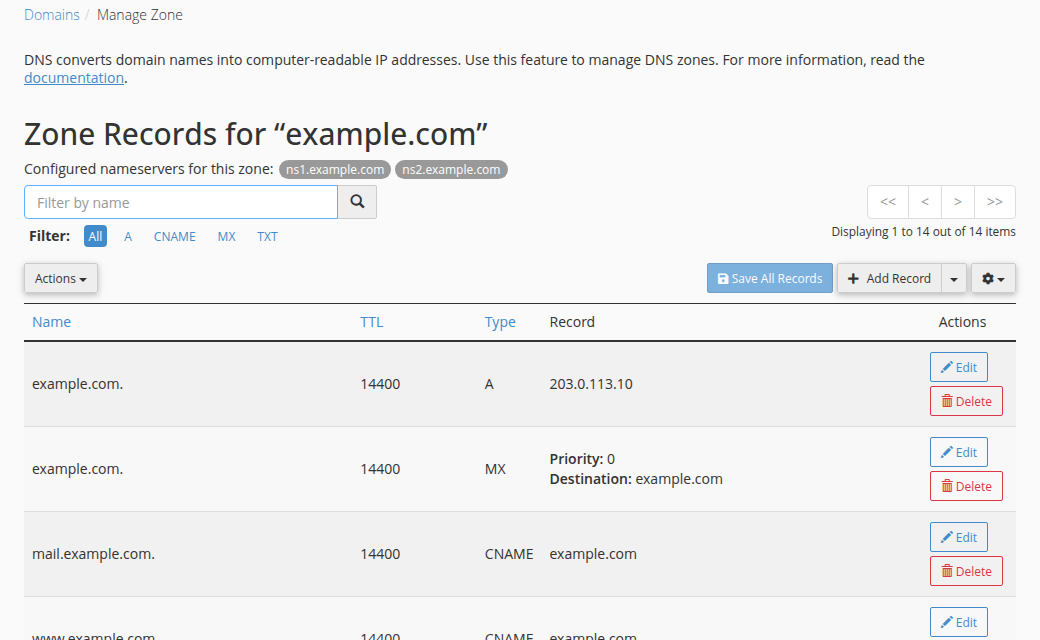
How long it may keep that answer is set by the record's TTL (time to live), in seconds. A TTL of 3600 means one hour; 14400 means four hours.
So when you change a record, your authoritative nameservers have the new answer at once. Every resolver that cached the old answer keeps using it until its copy expires. Different resolvers cached it at different times, which is why the change seems to "spread": one network sees the new site before another. Nothing is being pushed out, and there is no queue at Domain India.
2. How long does it take?
| What you changed | What decides the delay | Typical time |
|---|---|---|
| An A, CNAME, MX or TXT record | The TTL the old record had | Usually within that TTL |
| A brand-new record (a new subdomain) | Whether anyone looked it up before it existed | Usually minutes; longer if a "not found" answer was cached |
| Nameservers at the registrar | How long resolvers cache the old nameservers | Usually a few hours; can take up to 24-48 hours |
These are typical times, not promises. A few internet providers keep answers longer than the TTL says, and your own browser and operating system add their own cache on top.
If you visit shop.yourdomain.com before you create its record, resolvers cache the "does not exist" answer too. After you add the record, that negative answer can linger for a while. Test from a resolver you haven't used, such as dig A shop.yourdomain.com @1.1.1.1 +short.
3. Check what the world sees
Don't test in a browser first: browsers cache pages and DNS answers, so they can mislead you. Ask the DNS directly.
On macOS or Linux, use dig:
dig NS yourdomain.com +short          # which nameservers answer for the domain
dig A yourdomain.com +short           # the website's IPv4 address
dig A yourdomain.com @1.1.1.1 +short  # ask Cloudflare's public resolver
dig A yourdomain.com @8.8.8.8 +short  # ask Google's public resolver
dig MX yourdomain.com +short          # mail servers
On Windows, use nslookup:
nslookup yourdomain.com 8.8.8.8
nslookup -type=ns yourdomain.com 8.8.8.8
nslookup -type=mx yourdomain.com 1.1.1.1
How to read the results:
- Public resolvers all show the new value: the change is live; any remaining problem is local caching (section 4).
- Public resolvers disagree: the change is still spreading. Wait for the TTL to pass.
- Every resolver shows the old value long after the TTL: the change may have been made at a provider your nameservers don't point to. Compare
dig NSwith where you edited the record.
Online propagation checkers, which query resolvers in many countries at once, are a useful second opinion.
4. Clear the cache on your own device
If public resolvers already show the new answer but your computer doesn't, clear your local cache.
| Device | How to clear the DNS cache |
|---|---|
| Windows | Open Command Prompt as administrator and run ipconfig /flushdns |
| macOS | In Terminal, run sudo dscacheutil -flushcache; sudo killall -HUP mDNSResponder |
| Linux with systemd-resolved | Run resolvectl flush-caches |
| Chrome, Edge and other Chromium browsers | Open chrome://net-internals/#dns and click Clear host cache, then close all tabs of the site |
| Android and iPhone | Turn Airplane mode on and off, or restart the phone |
Your home or office router may also cache DNS. Restarting it clears that cache. As a quick test, switch your device to a public resolver such as 1.1.1.1 or 8.8.8.8, or try mobile data.
5. Make the next change faster
- Lower the TTL a day ahead.A day before a planned move, set the TTL on the records you will change (usually A, CNAME and MX) to
300seconds (5 minutes). Wait for the old, longer TTL to expire. - Make the change.Edit the records where your DNS is actually hosted. Because resolvers now cache for only five minutes, the switch reaches most visitors quickly.
- Keep the old server running.Leave the old website and mailboxes working for a day or two, so visitors and mail that still reach the old address are not lost.
- Raise the TTL again.Once everything works, set the TTL back to a normal value such as
3600or14400.
The TTL on your records does not control how long resolvers cache your nameservers. That delay is set by the extension's registry. For a website move, it is often faster to keep your nameservers and change only the A record.
6. Common mistakes that look like slow propagation
- Editing records at the wrong provider. Records only take effect at the provider your nameservers point to. If your nameservers point to your hosting, edit DNS in the hosting control panel, not elsewhere.
- The domain typed into the host field. Many editors add your domain automatically, so
www.yourdomain.combecomeswww.yourdomain.com.yourdomain.com. Enter justwww,mailor@. - Forgetting www. Visitors type both
yourdomain.comandwww.yourdomain.com. Set up both. - An expired or suspended domain. No DNS change helps until the domain is active again.
- SERVFAIL after a move. This is often DNSSEC: the registry still holds a DS record for the old provider. Open a ticket if you see it.
For a step-by-step diagnosis, see debugging nameserver and DNS issues.
7. DNS changes on Domain India
For a site on Domain India hosting, the easiest setup is to point your domain at your hosting nameservers, then manage records in your control panel's DNS editor, such as the Zone Editor in cPanel. The steps are in how to change your nameservers and how to change your domain's DNS settings. If you only want to point the website at us and keep email where it is, change the A record instead.
Need hosting for a domain you are moving? Prices on the card are Domain India list prices on 19 September 2026, excluding 18% GST.
- 25 GB NVMe SSD Storage
- 50 GB Monthly Bandwidth
- 1 Website
- 10 Email Accounts
How long does DNS propagation take?
A record change usually takes effect within the old record's TTL, often an hour or less. A nameserver change usually takes effect within a few hours and can take up to 24-48 hours. There is no guaranteed time, because it depends on how long resolvers cache the old answer.
Why does my website work on my phone but not on my computer?
Your computer, browser or router is still using a cached copy of the old DNS answer, while your phone's network already has the new one. Flush your computer's DNS cache, clear the browser's host cache and try again.
Can I force DNS propagation to finish faster?
No one can clear other people's caches. You can lower the TTL a day before a planned change so caches expire within minutes, and flush the cache on your own devices.
How do I check whether my DNS change has propagated?
Run dig A yourdomain.com @1.1.1.1 +short and dig A yourdomain.com @8.8.8.8 +short, or nslookup yourdomain.com 8.8.8.8 on Windows. If public resolvers show the new value, the change is live.
What TTL should I use?
Use 3600 (one hour) or 14400 (four hours) for normal operation. Lower it to 300 seconds a day before a planned move, then raise it again once everything works.
Does Domain India process DNS changes in a queue?
No. The delay comes from resolvers caching old answers for as long as each record's TTL allows, not from a queue.
Ready to point your domain? Follow how to change your domain's DNS settings, or register a new domain with Domain India. Still seeing the old answer after 48 hours? Chat with us 24/7 or open a ticket with the output of dig NS and dig A.
Find your domain, then point it at your hosting with nameservers or an A record.
Search domains