To connect a domain to Domain India hosting, you either point the domain's nameservers to your hosting server, or keep your current DNS provider and add two A records for the server's IP address. Both values are shown on your hosting service's page in the client area, so you never need to copy them from an article. This page walks you through choosing the right method for your situation.
Open your hosting service in the client area and find the Point a domain to this hosting card. Option 1 gives the nameservers: enter them on the domain's Nameservers tab if the domain is registered with Domain India, or at your registrar if it is registered elsewhere. Option 2 gives the server IP address for two A records (@ and www) if you want to keep your current DNS. Changes usually work within a few hours and can take up to 24-48 hours.
This page is a short walkthrough. For every detail of the nameserver change, read How do I change my nameservers. For DNS records, email and common mistakes, read How to change your domain DNS settings.
1. Choose your method
| Your situation | Use | Why |
|---|---|---|
| Website and email will both be on your Domain India hosting | Option 1: nameservers | Your control panel then manages every DNS record, including email |
| Email or other services stay with another provider | Option 2: A records | Only the website moves; your mail records stay untouched |
| Domain is on Cloudflare or another DNS service you want to keep | Option 2: A records | You keep managing DNS where it is today |
Changing nameservers moves all of your DNS at once. If your email works today and the hosting server doesn't have the same mail records, email stops arriving. When in doubt, use Option 2.
2. Find the values for your account
- Sign into the client area.
- Open your hosting.Go to your hosting services and select the service.
- Find the cardcalled Point a domain to this hosting. Option 1 lists the nameservers for your server. Option 2 shows the server IP address.
The same nameservers are in your hosting welcome email, "Your Hosting Account is Ready". Nameserver hostnames differ from server to server, so use only the values shown for your own account.
3. Option 1: domain registered with Domain India
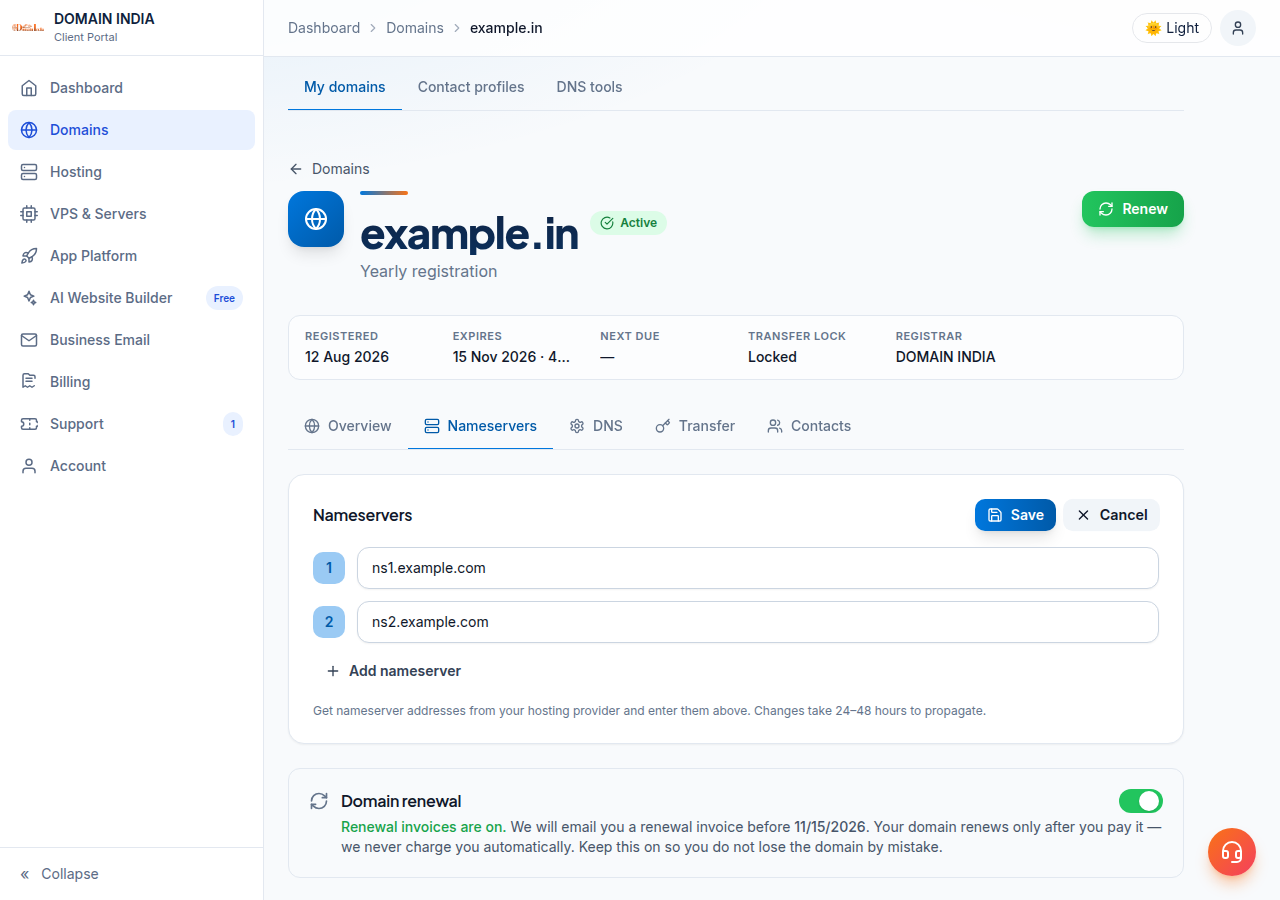
- Open the domain.In the client area, choose Domains → My domains and select the domain.
- Open the Nameservers taband click Edit.
- Enter the nameserversfrom your hosting card, one per field, exactly as shown.
- Save.The client area confirms "Nameservers updated".
You don't need to unlock the domain: the transfer lock doesn't block nameserver changes.
4. Option 1: domain registered with another company
Nameservers are always changed at the registrar where the domain is registered. Sign in to that company's control panel, open the domain's nameserver or DNS setting, choose custom nameservers, and enter the values from your hosting card.
If you'd rather manage the domain and hosting in one place, you can transfer the domain to Domain India. Read Can I transfer an existing domain to Domain India first.
5. Option 2: keep your DNS and add A records
At the provider your nameservers point to today, add or edit two records:
Type: A    Host: @      Value: <server IP from your hosting card>
Type: A    Host: www    Value: <server IP from your hosting card>
Remove any older A or AAAA records for @ and www that point elsewhere, so visitors don't reach the old site. Leave your MX and TXT records alone if your email stays where it is. For how to add records in cPanel, DirectAdmin or an outside provider, see Managing DNS records.
The domain's DNS tab may offer Activate Free DNS or Switch to Free DNS. It changes your nameservers and doesn't copy your records, so it can take your site and email offline. Use Option 1 or Option 2 above instead.
6. Check that it worked
The change usually takes effect within a few hours and can take up to 24-48 hours, because resolvers cache the old answer. Check with a DNS lookup rather than a browser:
dig NS yourbusiness.in +short   # Option 1: should show your hosting nameservers
dig A yourbusiness.in +short    # both options: should show the server IP
On Windows, use nslookup -type=ns yourbusiness.in and nslookup yourbusiness.in. Once the domain points to the server, the free SSL certificate can be issued. Keep your old hosting running until the new site and email work everywhere.
Where do I find the nameservers for my Domain India hosting?
On your hosting service's page in the client area, in the "Point a domain to this hosting" card under Option 1. They are also in your hosting welcome email. Different servers use different nameservers, so use only the values shown for your account.
Should I change nameservers or add A records?
Change nameservers if your website and email will both be on your Domain India hosting. Add two A records (for @ and www) pointing to the server IP address if your email or other services stay with another provider, or if you want to keep your current DNS service.
My domain is registered with another company. Can I still use Domain India hosting?
Yes. Change the nameservers at the company where the domain is registered, or add A records at your current DNS provider, using the values from your hosting service page. You can also transfer the domain to Domain India if you want both in one place.
How long does it take for my domain to connect to my hosting?
Usually a few hours, and up to 24-48 hours in some networks, because DNS answers are cached. There is no guaranteed time.
Ready to connect? Open your hosting services to find your values, update the domain in My domains, or open a support ticket with your domain name if you are not sure which option fits.
Every hosting plan shows its own nameservers and server IP address in the client area, so you have the values you need in one place.
See hosting plans