File Manager is the file browser inside your hosting control panel. It lets you upload, edit, rename, move and delete your website's files from a web browser, with no FTP program to install. Here are the basics for cPanel, with notes for DirectAdmin and Webuzo.
Open your control panel from your hosting service in the client area, then open File Manager (in cPanel it is in the Files section). Your main website lives in public_html. Use the toolbar to upload, edit, create and delete files, and turn on Show Hidden Files (dotfiles) in Settings to see .htaccess. Download a copy of a file before you edit it.
Permissions, zip and extract, moving files, the Trash and when to switch to FTP or SSH are all in How to use the File Manager in cPanel, DirectAdmin and Webuzo. This page follows it.
1. Open File Manager
- Open your hosting service.Sign in, open your hosting list and click the control panel button for your domain, for example cPanel. It opens in a new tab, already signed in. If nothing opens, allow pop-ups for domainindia.com.
- Open File Manager.In cPanel it is in the Files section. In DirectAdmin and Webuzo, look for File Manager on the dashboard or type "file" in the panel's search box.
- Go to your website folder.The folder tree is on the left and the open folder's contents on the right.
2. Where your website files go
| Control panel | Main domain's website folder |
|---|---|
| cPanel | /home/username/public_html |
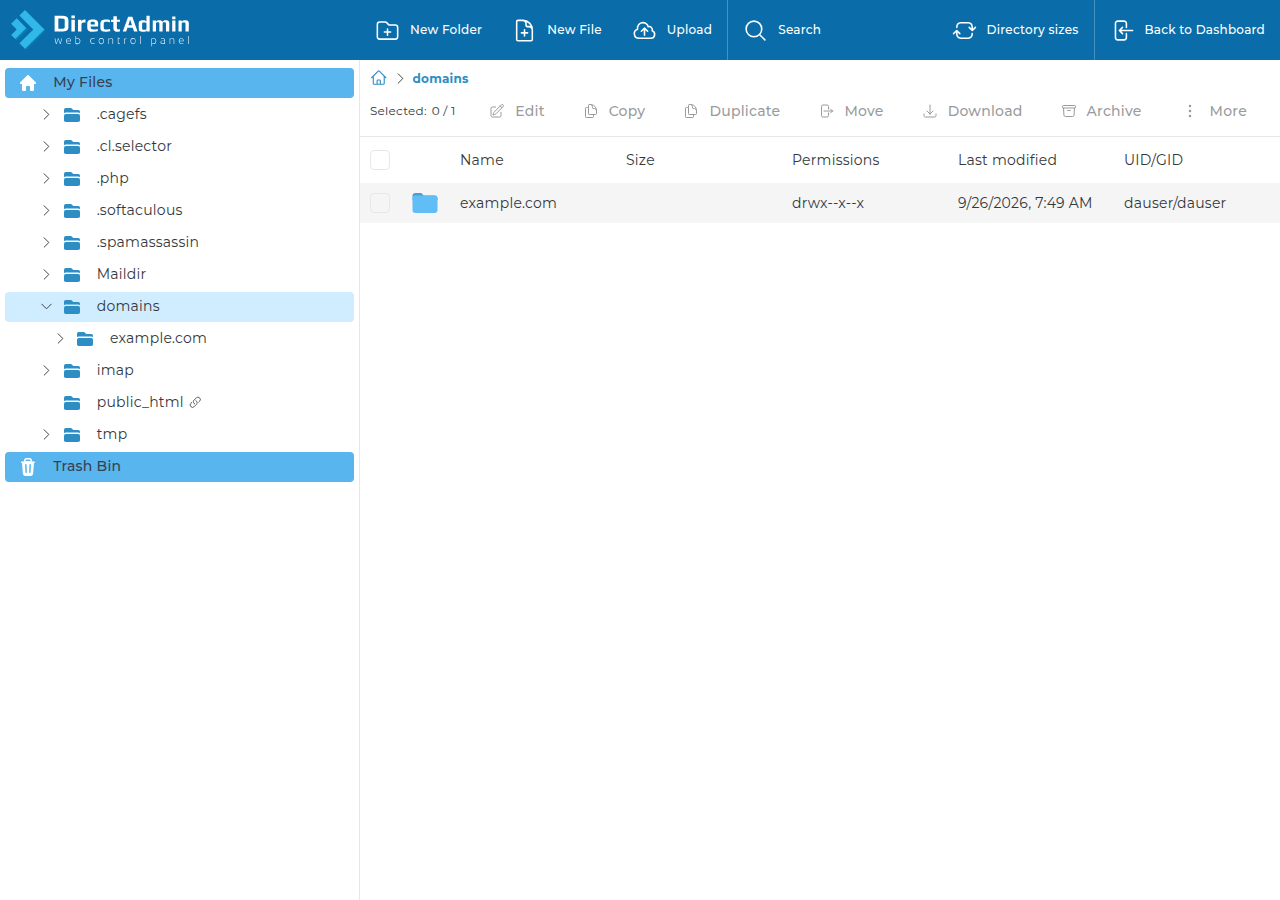
| DirectAdmin | /home/username/domains/yourdomain.com/public_html |
| Webuzo | /home/username/public_html |
Visitors only see files inside the website folder. A site uploaded anywhere else "does not show". Leave the other folders in your home directory alone: they hold your mail, logs and panel settings.
3. Everyday tasks in cPanel
- Upload: open the destination folder, click Upload, and drag files in or click Select File. Tick Overwrite existing files to replace old copies. For a whole site, upload one zip and use Extract on the server, then delete the zip.
- Edit: select a text file and click Edit, keep utf-8 and confirm, then click Save Changes.
- Create: + File or + Folder. Names are case-sensitive, so use lower case.
- Delete: select the items and click Delete. Unless you tick "Skip the trash", they go to the Trash, and View Trash › Restore brings them back. Items in the Trash still use disk space until you empty it.
One typo in .htaccess or wp-config.php can take the site offline with a 500 error. Select the file and click Download first, so you can put the original back.
4. Show hidden files
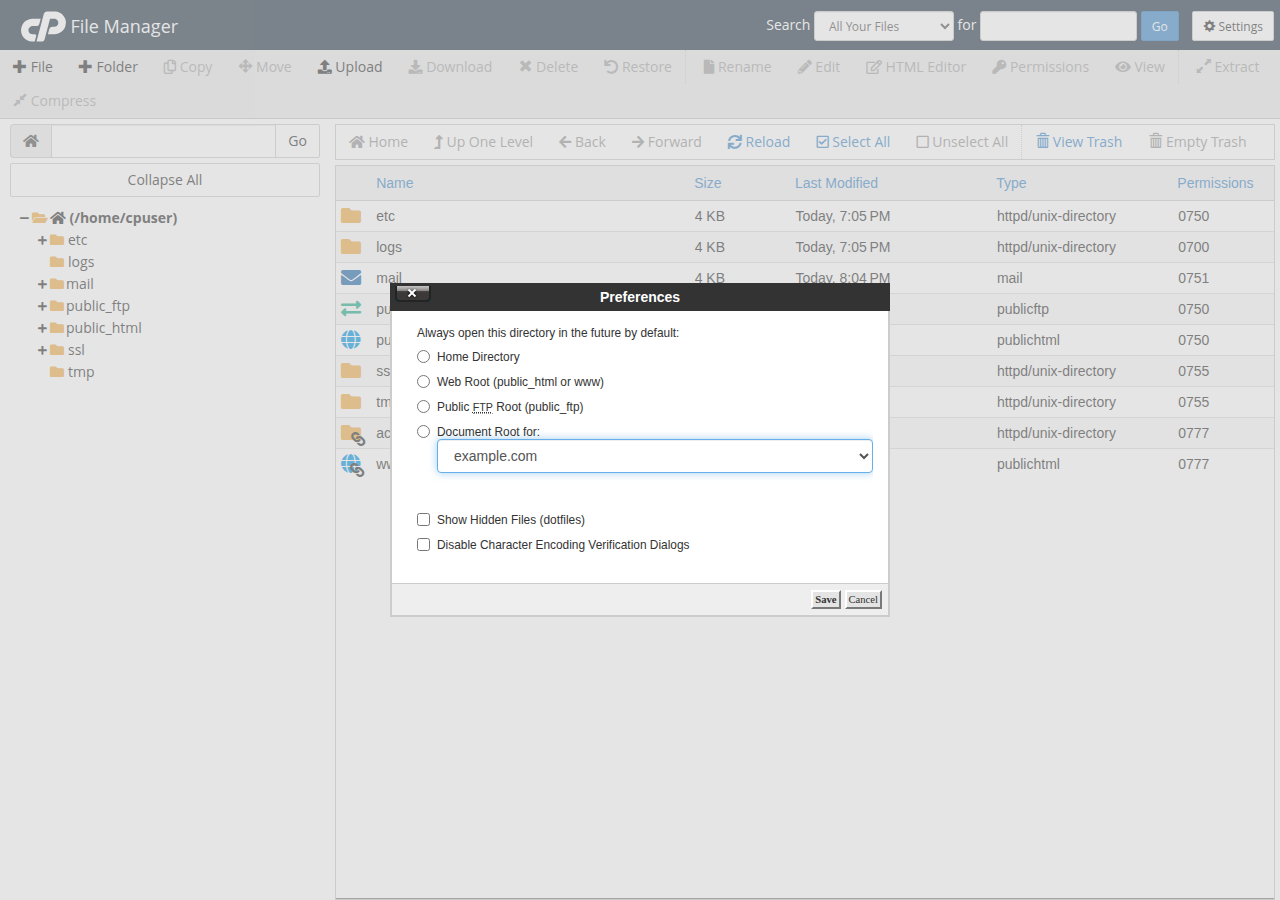
Files whose names start with a dot, such as .htaccess and .user.ini, are hidden until you ask. In cPanel's File Manager, click Settings at the top right, tick Show Hidden Files (dotfiles) and click Save. In DirectAdmin and Webuzo, look for a similar option in the file manager's settings.
5. Upload limits and DirectAdmin's Trash Bin
On our cPanel server the File Manager sets no fixed per-file cap, as long as the upload leaves at least 5 MB free in your disk quota; if you opened cPanel through a cpanel.yourdomain.com address, uploads pass a front end that accepts up to 256 MB. DirectAdmin's File Manager accepts files up to 500 MB. Large files are more reliable over FTP with TLS: see the maximum upload size guide and What settings do I need to upload my website?.
DirectAdmin's File Manager sends deleted files to a Trash Bin that keeps them for 30 days. See the DirectAdmin File Manager guide. Webuzo's File Manager also has a Trash, listed under the folder tree; still download anything important before you delete it.
6. If something goes wrong
cPanel and DirectAdmin accounts get weekly JetBackup backups (Sunday, 5 copies kept), so a file that is gone from the Trash can be restored from a backup: see backup and restore with JetBackup. Webuzo accounts are backed up every night; to get a deleted file back, open a support ticket saying which file and from which date.
Frequently asked questions
Where is File Manager in cPanel?
Log in to cPanel from your hosting service in the client area and open File Manager in the Files section. Your main website's files are in the public_html folder.
Why can't I see my .htaccess file?
Files whose names start with a dot are hidden by default. In cPanel's File Manager, click Settings at the top right, tick Show Hidden Files (dotfiles) and click Save.
What is the largest file I can upload through File Manager?
On Domain India's cPanel server the File Manager has no fixed per-file cap as long as at least 5 MB of your disk quota stays free, or 256 MB per upload if you opened cPanel through a cpanel.yourdomain.com address. DirectAdmin's File Manager accepts up to 500 MB. Very large files are more reliable over FTP with TLS.
Can I recover a file I deleted?
In cPanel, if you did not tick Skip the trash, open View Trash, select the file and click Restore. DirectAdmin keeps deleted files in its Trash Bin for 30 days. Otherwise restore it from a JetBackup backup on cPanel or DirectAdmin.
Ready to manage your files? Open your hosting list to reach your control panel, read the full File Manager guide, or open a ticket with a screenshot if File Manager shows an error.
Every Domain India shared hosting plan includes a control panel with File Manager and free SSL.
See cPanel hosting plans