JetBackup 5 is the backup tool inside your Domain India control panel on cPanel and DirectAdmin hosting. It keeps weekly copies of your account, and you can restore any part of one yourself: a single file, one database, a mailbox, or the whole account. This guide covers every restore type, the restore queue, and what to check afterwards.
Log in to your control panel and open JetBackup 5. Pick what you need back (full account, files, a database, email, DNS and more), pick a date from before the problem started, and choose Restore. The job goes into a queue; wait until it is marked complete before you test. A restore overwrites the current copy, so restore only the part that is broken, and download the current state first if you might need it.
For the schedule, downloads and keeping your own copies, see Backup and restore with JetBackup. This article goes deeper into restores.
1. What you can restore from
On our cPanel and DirectAdmin servers, JetBackup 5 takes an account backup once a week, early on Sunday morning (India time), and keeps the last 5 weekly copies. So you can go back up to about five weeks. The newest copy can be up to a week old, which matters for a site that changes daily.
Backups are included with your hosting; Domain India does not sell a separate backup add-on. cPanel's own Backup and Backup Wizard pages are switched off on our servers, so use JetBackup 5.
2. Open JetBackup 5
- cPanel: log in to cPanel (see how to log in to cPanel) and open JetBackup 5 in the Files section, or type "JetBackup" in cPanel's search box.
- DirectAdmin: log in to DirectAdmin and open JetBackup 5. If it is not on the first screen, use the search box.
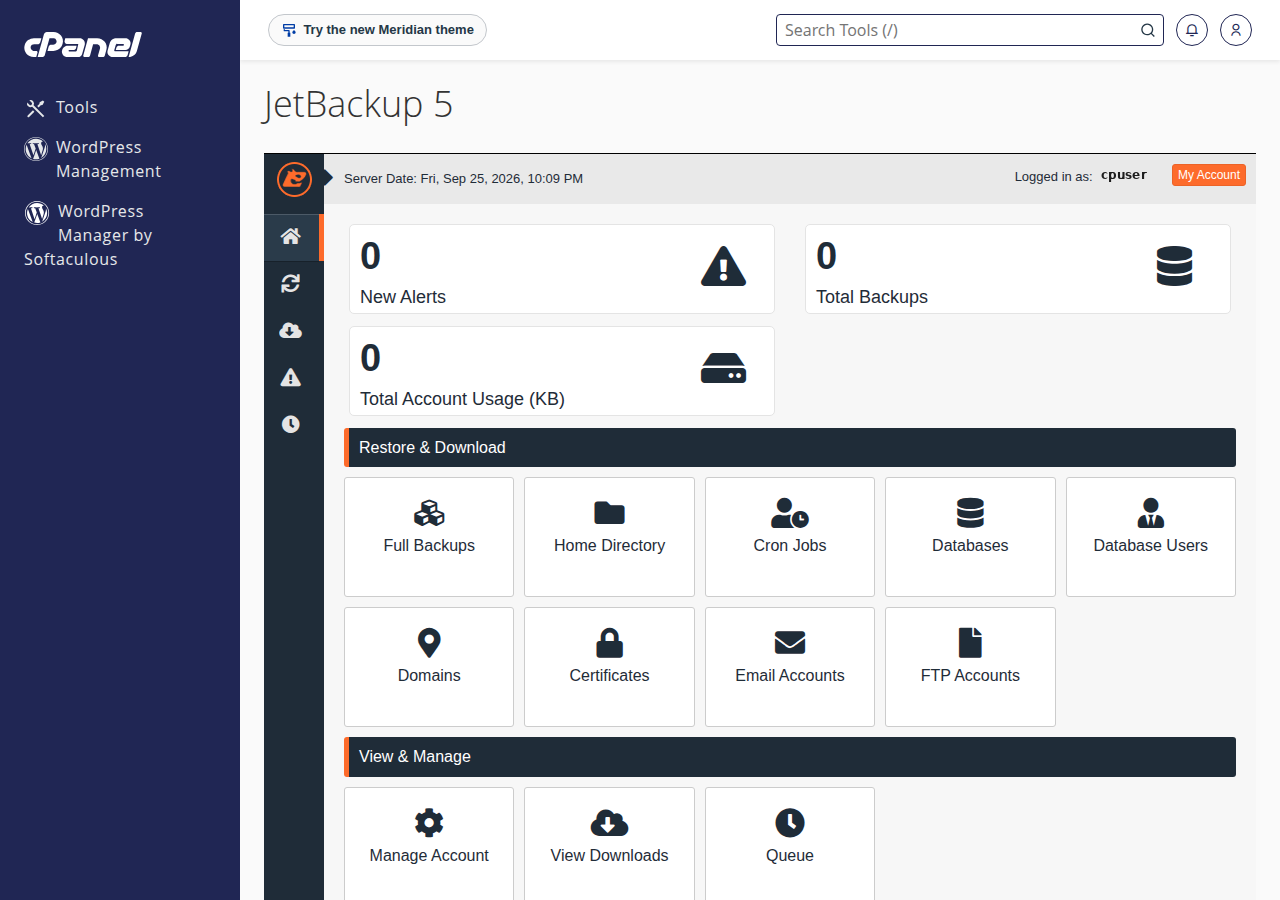
3. The restore types
Each weekly backup contains every part of your account, and JetBackup lets you restore each part on its own. These are the restore types we measured on our cPanel servers:
| Restore type | What comes back | Use it when |
|---|---|---|
| Full Account | Everything below, at once | The whole account must go back to one date |
| Home Directory (files) | Files and folders, including public_html | A file was deleted or a plugin update broke the site |
| Databases | One MySQL database | Content or orders were lost or a table is damaged |
| Database Users | Database user accounts | A database user was deleted |
| Email Accounts | Mailboxes and their messages | A mailbox or messages were deleted |
| Cron Jobs | Scheduled tasks | Cron jobs were removed or changed |
| DNS Zones | DNS records for your domains | A DNS edit broke your site or email |
| SSL Certificates | Installed certificates | A certificate was removed |
| FTP Accounts | FTP logins | An FTP account was deleted |
Labels can differ slightly between cPanel and DirectAdmin, but the list of types is the same idea. Restoring only what is broken is safer, because it leaves everything else as it is now.
4. How a restore works
- Pick the type.In JetBackup 5, open the section for what you need, such as Home Directory or Databases.
- Pick the date.Each row is one backup point. Choose a date from before the problem started. If you are not sure when it started, try the most recent date first and work backwards.
- Select the items.For files, browse to the file or folder; for databases or email, tick the one you need.
- Choose Restore and confirm.JetBackup adds the job to its queue rather than running it on the spot.
- Watch the queue.Open JetBackup's queue to see progress. Small restores finish quickly; a full account can take much longer. Wait until the job is marked complete before you test.
Restoring a database replaces the current database, and restoring files replaces the current copies of those files. Anything added since the backup date, such as new orders, posts or emails, can be lost. Download the current state first, or export the database in phpMyAdmin, if you might need anything from it.
5. Common restores, step by step
One file or folder
Open Home Directory, pick the date, and browse to the file or folder, for example public_html/wp-content/themes/yourtheme. Tick it and choose Restore. Only the selected items are replaced; the rest of your files stay as they are now.
A database
Open Databases, pick the date, tick the database (for WordPress, the one named in wp-config.php), and choose Restore. If the site then shows a database connection error, check that the database name, user and password in your configuration file match the account, and restore Database Users from the same date if the user was deleted.
A mailbox
Open Email Accounts, pick the date, tick the mailbox and choose Restore. If messages do not appear in your mail app afterwards, open webmail first to see whether they are on the server; see how to log in to webmail.
DNS records
Open DNS Zones, pick the date and restore the zone. This matters only if your domain uses our hosting nameservers. After a DNS restore, give the change time to reach other resolvers before testing from outside.
The whole account
Use Full Account only when most of the account needs to go back to one date, for example after a bad migration. It takes the longest, and it replaces files, databases and mail together.
6. After a hack: restore carefully
A backup can already contain the malware, because infections are often noticed days later. Do not restore over and over. Read what to do if your website has been hacked first, choose a date from before the attack, then change every password and update WordPress, themes and plugins straight after the restore.
7. If the restore does not work
- No backup for the date you want. Only the last 5 weekly copies are kept, so older dates have rolled out. Anything created and deleted within the same week may not be in any backup.
- The job fails. Check your disk usage: an account near its quota may not have room for the restored data. Free space and try again, or try an earlier date.
- The site looks unchanged. Clear your browser cache or use a private window. On cPanel, a cached copy of a page can be served for a while; add
?t=1to the URL to see the fresh version. - The site shows an error. Check file permissions (usually
644for files and755for folders) and your configuration file's database details. See troubleshooting a 500 internal server error.
If none of this helps, open a ticket with the domain, what you restored and the backup date.
8. Download instead of restoring
If you would rather inspect a backup first, or keep a copy off our servers, choose Download instead of Restore. JetBackup prepares the file in the background and lists it for you to save when it is ready. A full account download is usually a .tar.gz archive. The step-by-step guide is how can I download a backup of my site.
9. Where Domain India fits
Weekly JetBackup 5 backups, with self-service restore and download, are included with every Domain India cPanel and DirectAdmin shared hosting plan. Prices on the cards are live and exclude 18% GST.
- 25 GB NVMe SSD Storage
- 50 GB Monthly Bandwidth
- 1 Website
- 10 Email Accounts
- 10 GB NVMe SSD Storage
- 50 GB Monthly Bandwidth
- 1 Website
- 5 Email Accounts
Frequently asked questions
How far back can I restore with JetBackup 5 on Domain India hosting?
JetBackup 5 takes a weekly backup early on Sunday morning and keeps the last 5 copies, so you can restore from any of the last five weekly backups, roughly five weeks.
Can I restore a single file without affecting the rest of my site?
Yes. Open Home Directory in JetBackup 5, pick a date, browse to the file or folder, and restore only that. Everything else stays as it is now.
Why did my restore not start straight away?
JetBackup adds every restore to a queue. Open the queue in JetBackup 5 to watch its progress, and wait until it is marked complete before you test your site.
Will restoring a database delete new orders or posts?
It can. A database restore replaces the whole current database with the version from the backup date. Export the current database in phpMyAdmin first if you might need anything from it.
Can I restore email that I deleted?
Yes, if the messages were on the server when a weekly backup ran. Open Email Accounts in JetBackup 5, pick a date and restore the mailbox.
Is JetBackup available on Webuzo plans?
JetBackup 5 runs on our cPanel and DirectAdmin servers. Webuzo accounts are backed up every night by Domain India to a separate backup server instead; to restore something, open a support ticket saying what to restore and from which date.
Ready to restore? Open JetBackup 5 in your panel, read the full JetBackup guide, or open a support ticket if a restore does not work. Our team is on 24/7 live chat too.
Tell us the domain, what you need restored and the date it last worked, and we will help you pick the right backup.
Open a support ticket