Deploying an ASP.NET application on Domain India Windows hosting means three things: build it on your own computer, copy the output into your site's httpdocs folder, and make sure IIS runs it with the right settings in web.config. This guide covers both modern .NET (ASP.NET Core) and the older .NET Framework, using the two upload routes that work on every Windows plan: FTP and the Plesk File Manager.
Publish your app locally with dotnet publish -c Release (ASP.NET Core) or Visual Studio's folder publish (.NET Framework), then upload the output into httpdocs with FTP on port 21 using explicit TLS, or with the Plesk File Manager. Windows hosting has no SSH or SFTP. For ASP.NET Core, the web.config that dotnet publish creates tells IIS how to start your app; keep it. To update a running app without "file in use" errors, upload an app_offline.htm first and delete it when you finish.
1. What you need before you start
- A Domain India Windows (ASP.NET) hosting plan. Plesk is the control panel on every Windows plan.
- Your application building cleanly on your own computer.
- Your FTP details or one-click Plesk access from the client area. Open your hosting services, pick the Windows service and use the Plesk button. See how to log in to Plesk if that doesn't sign you in.
- A database, if your app needs one. Create it in Plesk first; see creating an MSSQL database in Plesk.
The versions installed on the server can change, so check in Plesk before you choose a target framework: open your domain's hosting or ASP.NET settings and look at the version list. If the version your app targets isn't listed, ask support before you deploy, rather than finding out from a startup error.
2. ASP.NET Core or .NET Framework: know which one you have
The deploy steps differ, so check your project file first.
| Your project | How to tell | How IIS runs it |
|---|---|---|
| ASP.NET Core (modern .NET) | The .csproj has TargetFramework like net8.0, and there is a Program.cs | Through the ASP.NET Core Module, configured by web.config |
| ASP.NET on .NET Framework 4.x | The .csproj targets v4.x, and there is a Global.asax and a bin folder of DLLs | Directly by IIS, with settings in web.config under system.web |
| Classic ASP | .asp pages, no compiled DLLs | Directly by IIS, no build step |
3. Build (publish) the app on your computer
Never upload your source folder. Upload the published output: the compiled DLLs, views, static files and web.config.
ASP.NET Core, from the project folder:
dotnet publish -c Release -o ./publishThis makes a framework-dependent build, which uses the .NET runtime already on the server and is small to upload. If the server doesn't have the runtime your app targets, either retarget to an installed version or publish self-contained for Windows:
dotnet publish -c Release -r win-x64 --self-contained true -o ./publishA self-contained build is much larger, but it carries its own runtime.
.NET Framework in Visual Studio: right-click the project, choose Publish, pick Folder as the target, and publish in the Release configuration. Upload the contents of that folder.
4. Upload the files
Your website's root folder in Plesk is httpdocs. Whatever is directly inside it is served at https://yourdomain.com/.
- Connect with FTP.In FileZilla or WinSCP use your domain as the host, port 21, and choose Require explicit FTP over TLS. Plain FTP sends your password unencrypted, so avoid it.
- Open
httpdocs.Remove the placeholder page Plesk created (for exampleindex.htmlordefault.aspx) if you don't need it. - Upload the contents of your publish folder,not the folder itself.
web.configand your main DLL must sit directly insidehttpdocs. - Or use the File Manager.In Plesk, open Files for your domain, go into
httpdocsand upload. For many files, upload one ZIP and use the File Manager's extract option. - Open the siteat
https://yourdomain.comand check that it starts.
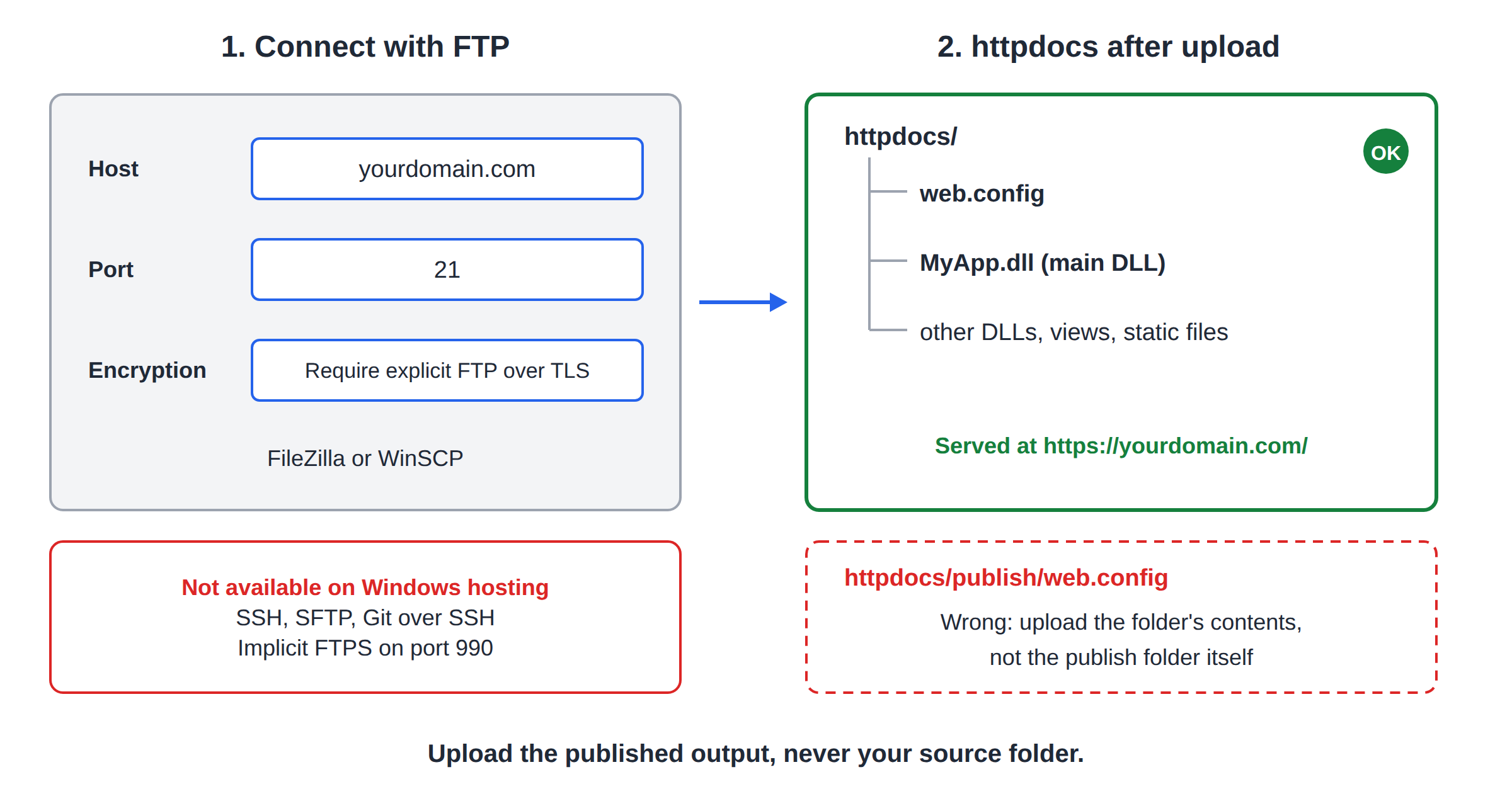
There is no SSH, SFTP or Git over SSH on Windows hosting, and implicit FTPS on port 990 is not available. The full port list is in Domain India port numbers.
Plesk can offer Web Deploy publishing, and Web Deploy is listed on the Windows plans. Before you build your workflow around it, ask support to confirm it works for your subscription and to send the publish settings. FTP and the File Manager are the standard routes and need nothing extra.
5. web.config basics
web.config is the file IIS reads to decide how to run your site. It is XML, so one missing > or an unclosed tag breaks the whole site with a 500 error.
ASP.NET Core. dotnet publish writes a web.config like this. Keep it, and check the DLL name:
<?xml version="1.0" encoding="utf-8"?>
<configuration>
  <location path="." inheritInChildApplications="false">
    <system.webServer>
      <handlers>
        <add name="aspNetCore" path="*" verb="*" modules="AspNetCoreModuleV2" resourceType="Unspecified" />
      </handlers>
      <aspNetCore processPath="dotnet" arguments=".\MyApp.dll"
                  stdoutLogEnabled="false" stdoutLogFile=".\logs\stdout"
                  hostingModel="inprocess" />
    </system.webServer>
  </location>
</configuration>
For a self-contained build, processPath is .\MyApp.exe and arguments is empty.
Setting the environment. ASP.NET Core defaults to Production when nothing is set. To set it, or any other variable, add this inside the aspNetCore element:
<environmentVariables>
  <environmentVariable name="ASPNETCORE_ENVIRONMENT" value="Production" />
</environmentVariables>
.NET Framework. Settings live under system.web, and IIS settings under system.webServer. The most common edit is the connection string (next section).
IIS refuses to serve web.config itself, but a renamed copy such as web.config.bak, or a .zip of your site, may be downloadable by anyone who guesses the name. Never leave backup copies of config files or archives in httpdocs.
6. Connect to your database
Create the database and its user in Plesk first. Then put the connection string in appsettings.json (ASP.NET Core) or web.config (.NET Framework):
<connectionStrings>
  <add name="DefaultConnection"
       connectionString="Server=DB_HOST;Database=DB_NAME;User Id=DB_USER;Password=DB_PASSWORD;"
       providerName="System.Data.SqlClient" />
</connectionStrings>
Use the database server name exactly as Plesk shows it in the database's connection details; it isn't always localhost. Your app should connect from the hosting server itself. More detail is in what to use for an MSSQL connection string.
7. Updating a live application safely
While your app runs, IIS keeps its DLLs open, so FTP may refuse to overwrite them. The clean fix is app_offline.htm:
- Take the app offline.Upload a file named
app_offline.htmintohttpdocs, with a short "Back in a few minutes" message. ASP.NET stops the app and shows that page to visitors. - Upload the new buildover the old files.
- Bring it back.Delete
app_offline.htm. The app starts again on the next request. - Testthe pages you changed and one database page.
Changing web.config also restarts the application. If your plan gives you application pool controls, you can recycle the pool instead; see the IIS application pools guide.
8. When the site doesn't start
| What you see | Most likely cause | What to check |
|---|---|---|
| HTTP 500.19 | web.config is invalid, or uses a setting that is locked on shared hosting | Validate the XML; remove the last section you added |
| HTTP 500.30 | ASP.NET Core app crashed while starting | Turn on the stdout log (section 5) and read it |
| HTTP 500.31 or 500.32 | The server lacks the runtime your app needs, or a 32/64-bit mismatch | Retarget to an installed version or publish self-contained |
| HTTP 503 | App offline, or the application pool stopped | Delete any app_offline.htm; see the 503 guide |
| Yellow ASP.NET error page | An exception in your code | Read the stack trace, fix, re-upload |
To read the ASP.NET Core startup error, set stdoutLogEnabled="true" in web.config, create an empty logs folder inside httpdocs, reload the site and download the newest file from logs. Turn it back to false afterwards, because the log grows with every start. For 503 errors see resolving 503 errors on IIS, and for finding logs in general see checking Plesk logs.
9. Where Domain India Windows hosting fits
Windows hosting is for ASP.NET, .NET Framework, classic ASP and MSSQL projects managed through Plesk. If your app is Node.js, Python or PHP, Linux hosting or the App Platform is usually a better fit.
- 10 GB Storage
- 50 GB Monthly Bandwidth
- 1 Website
- 10 Email Accounts
- 30 GB Storage
- 150 GB Monthly Bandwidth
- 5 Websites
- 50 Email Accounts
- 100 GB Storage
- Unmetered Bandwidth
- 15 Websites
- 100 Email Accounts
Compare plan limits (websites, MSSQL databases, storage) on Windows hosting. New shared hosting purchases, Windows included, have a full refund within 30 days under our refund policy. For an overview of Plesk on Windows, read the Plesk Windows hosting guide.
Can I deploy an ASP.NET Core app on Domain India Windows hosting?
Yes. Publish it with dotnet publish, upload the output into the httpdocs folder with FTP (port 21, explicit TLS) or the Plesk File Manager, and keep the web.config that the publish step creates. Check in Plesk that the .NET version your app targets is installed, or publish self-contained.
Can I use SSH, SFTP or Git over SSH on Windows hosting?
No. Windows (Plesk) hosting has no SSH, so SFTP and Git over SSH are not available. Use FTP with explicit TLS on port 21 or the Plesk File Manager.
Does Web Deploy from Visual Studio work?
Web Deploy is listed on the Windows plans. Ask support to confirm it is enabled for your subscription and to send you the publish settings before you rely on it. FTP and the File Manager work without any extra setup.
Why does FTP say a DLL is in use when I upload an update?
IIS keeps the running application's files open. Upload a file named app_offline.htm into httpdocs to stop the app, upload your new files, then delete app_offline.htm.
Which folder do my files go in?
Into httpdocs, the web root of your domain in Plesk. Upload the contents of your publish folder, so that web.config and your main DLL sit directly inside httpdocs.
What should I use as the database server in my connection string?
Use the database server name exactly as Plesk shows it in your database's connection details. It is not always localhost, and your application should connect from the hosting server.
My site shows HTTP Error 500.30. What does it mean?
The ASP.NET Core application failed while starting. Set stdoutLogEnabled to true in web.config, create a logs folder in httpdocs, reload the page and read the newest log file for the real exception. Turn the log off afterwards.
Ready to host your .NET application? Compare the Windows hosting plans, or open a support ticket if a deployment gets stuck. Support is on 24/7 live chat, and tickets get a first response within 15 minutes.
Plesk, IIS and MSSQL on every Windows plan, with a 30-day refund on new shared hosting.
See Windows plans