An .htaccess file lets you change how the Apache web server treats one folder of your website, without access to the server's main configuration. With a few lines you can redirect old pages, force HTTPS, block an IP address, protect a folder with a password or tell browsers how long to cache your images. This guide covers the rules people actually need in 2026, written in current Apache 2.4 syntax, and the few things that break sites on shared hosting.
.htaccess is a plain text file in your website folder (usually public_html) that Apache reads on every request. Use it for redirects, rewrites, access control, caching headers and custom error pages. On Domain India cPanel and DirectAdmin hosting, mod_rewrite, mod_headers and mod_expires are loaded, compression is already on, and .htaccess is allowed, but a php_value or php_flag line gives a 500 error. Back up the file before every edit, change one thing at a time, and test with curl -I.
1. What .htaccess is and where it lives
.htaccess is a per-folder configuration file. Apache checks each folder on the path to the requested file and applies every .htaccess it finds, so a file in public_html affects the whole site, and a file in public_html/blog affects only that folder and the folders below it. Rules in a deeper folder can override rules from above.
- cPanel: the main site's file is
public_html/.htaccess; an addon domain has its own folder with its own file. - DirectAdmin: each domain's file is
domains/yourdomain.com/public_html/.htaccess. - Windows (Plesk) hosting: IIS ignores
.htaccess. Rules there go inweb.config.
The name starts with a dot, so it is hidden. In cPanel's File Manager, open Settings and tick Show Hidden Files; see how to use the File Manager. WordPress, Laravel and most other applications create their own .htaccess. Add your rules above their block, never inside it, because the application may rewrite its own section.
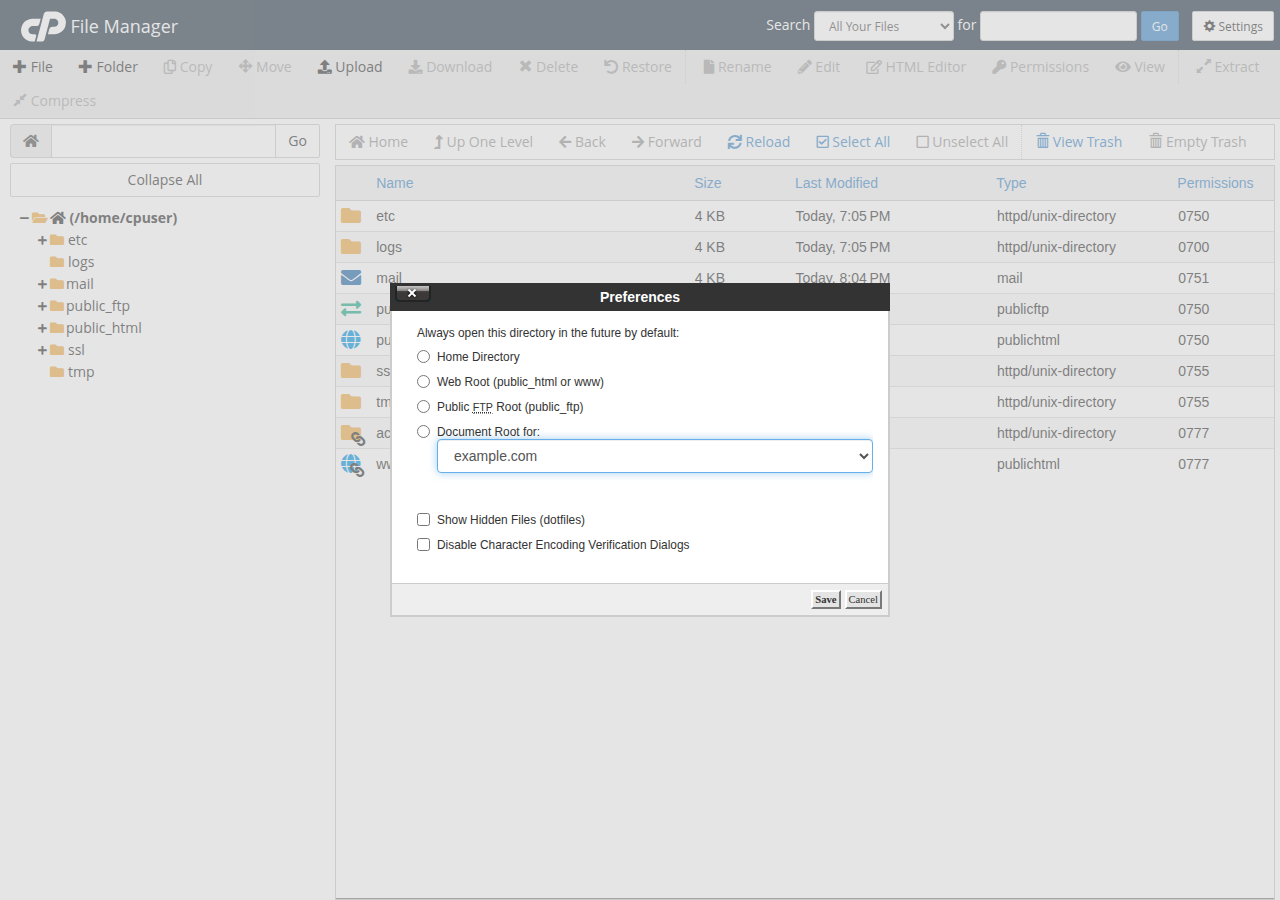
2. Edit safely
A single typo in .htaccess takes the whole site down with a 500 error, so work in small steps.
- Download a copy first.Save the current file on your computer, or copy it to
.htaccess.bakin the File Manager. - Change one thing at a time.Add one rule, save, and test before adding the next.
- Test from the command line.Run
curl -I https://yourdomain.com/old-pageand read the status line and theLocationheader. A browser caches 301 redirects and can mislead you. - Bypass the cache on cPanel.Our cPanel servers put nginx in front of Apache, and nginx keeps successful and redirect responses for up to two hours. Add
?t=123(any value) to the URL to see what Apache returns now. - Roll back if it breaks.If the site shows a 500 error, restore your copy, then read the error log to find the faulty line.
Test new redirects as a temporary 302 first. Switch them to 301 once they behave, because browsers remember a 301 for a long time.
3. Redirects
For a single page that has moved, the simple Redirect directive is enough:
Redirect 301 /old-page.html https://www.example.com/new-page/For patterns, use mod_rewrite. You don't need to enable it on Domain India shared hosting: it is loaded on our cPanel, DirectAdmin and Webuzo servers. The rule below sends every request to https://www. in a single hop, and is the same rule our non-www to www guide explains line by line:
RewriteEngine On
RewriteCond %{HTTPS} off [OR]
RewriteCond %{HTTP_HOST} !^www\. [NC]
RewriteCond %{HTTP_HOST} ^(www\.)?(.+)$ [NC]
RewriteRule ^ https://www.%2%{REQUEST_URI} [L,R=301]
Put it at the very top of the file. Your SSL certificate must cover both names, and the free certificates on our hosting do once both names point to the server. Which status code to use (301, 302, 410 and others) is covered in links and redirects: 301, 302, 404, 410 and more. On cPanel you can also add simple redirects without editing the file, under Domains › Redirects.
4. Clean URLs without .php
To serve page.php at /page and send old .php links to the clean address, you need two rules. The redirect looks at the original request line (THE_REQUEST) so the two rules don't loop:
RewriteEngine On

# Send /page.php to /page (visible 301)
RewriteCond %{THE_REQUEST} \s/+(.+?)\.php[\s?] [NC]
RewriteRule ^ /%1 [R=301,L]

# Serve /page from page.php (internal, invisible)
RewriteCond %{REQUEST_FILENAME} !-d
RewriteCond %{REQUEST_FILENAME}.php -f
RewriteRule ^(.+?)/?$ $1.php [L]
Don't add this to a WordPress site: WordPress already routes every URL through index.php, and its permalink settings control the address format. More rewrite patterns are in how to use mod_rewrite.
5. Access control: block, allow and protect
Apache 2.4 uses Require for access control. The older Order, Allow and Deny lines still work through a compatibility module, but don't mix the two styles in one file, and use Require for anything new.
Block one or more addresses while allowing everyone else:
<RequireAll>
    Require all granted
    Require not ip 203.0.113.45
    Require not ip 198.51.100.0/24
</RequireAll>
Stop anyone from downloading sensitive files directly:
<FilesMatch "^(\.env|wp-config\.php|composer\.(json|lock))$">
    Require all denied
</FilesMatch>
Password protection. In cPanel use Files › Directory Privacy, which creates the password file and the .htaccess lines for you; see can I password-protect directories. Basic authentication sends the password with every request, so use it only over HTTPS.
Hotlink protection stops other sites from embedding your images and using your bandwidth. cPanel has a Hotlink Protection tool. By hand:
RewriteEngine On
RewriteCond %{HTTP_REFERER} !^$
RewriteCond %{HTTP_REFERER} !^https?://(www\.)?yourdomain\.com/ [NC]
RewriteRule \.(jpe?g|png|gif|webp)$ - [F,NC,L]
The empty-referrer line keeps images working for visitors whose browser or privacy settings send no referrer. If you use a CDN or want images to show in Google Images, add their domains as extra allowed referrers.
6. Caching and compression
Browser caching tells returning visitors to reuse files they already have. mod_expires is loaded on our cPanel and DirectAdmin servers:
<IfModule mod_expires.c>
    ExpiresActive On
    ExpiresByType image/jpeg "access plus 1 year"
    ExpiresByType image/png "access plus 1 year"
    ExpiresByType image/webp "access plus 1 year"
    ExpiresByType image/svg+xml "access plus 1 year"
    ExpiresByType text/css "access plus 1 month"
    ExpiresByType text/javascript "access plus 1 month"
    ExpiresByType application/javascript "access plus 1 month"
</IfModule>
The correct type for JPEG images is image/jpeg, not image/jpg. Long cache times are safe only if your CSS and JavaScript file names change when their content changes, which WordPress and most build tools handle with a version in the URL.
Compression: you don't need to add anything. On our cPanel servers, the nginx layer in front of Apache already gzips HTML, CSS, JavaScript, JSON, XML and SVG responses. On our DirectAdmin servers, mod_deflate compression is already on server-wide. Adding your own mod_deflate block is unnecessary on either. To confirm, request a page with compression allowed and look for a Content-Encoding: gzip header:
curl -sI -H "Accept-Encoding: gzip" https://yourdomain.com/ | grep -i content-encodingFor speed beyond headers, a caching plugin does far more; see my website is slow.
7. Custom error pages
ErrorDocument points an error code at your own page:
ErrorDocument 404 /404.html
ErrorDocument 403 /403.html
Use a path starting with /, not a full URL: with a full URL, Apache sends a redirect instead of a real 404, and search engines treat the missing page as found. cPanel has an Error Pages tool under Advanced. On DirectAdmin there is no error-page editor; create a 404.shtml file or use ErrorDocument, as described in custom error pages in DirectAdmin. WordPress shows its own 404 page from the theme.
8. Security headers
mod_headers is loaded on our cPanel and DirectAdmin servers. These three headers are safe for almost every site:
<IfModule mod_headers.c>
    Header always set X-Content-Type-Options "nosniff"
    Header always set Referrer-Policy "strict-origin-when-cross-origin"
    Header always set Content-Security-Policy "frame-ancestors 'self'"
</IfModule>
frame-ancestors 'self' stops other sites from showing yours in a frame, which is the modern replacement for X-Frame-Options. Be careful with a full Content-Security-Policy such as default-src 'self': it blocks Google Fonts, analytics, payment widgets and inline scripts, and can break a working site. Build one up gradually. Add Strict-Transport-Security only when every subdomain works over HTTPS, because browsers remember it.
9. What doesn't work on shared hosting
Our servers run PHP through PHP-FPM or CGI, not as an Apache module, so any php_value or php_flag line in .htaccess gives a 500 error. Change PHP settings in cPanel's MultiPHP INI Editor or a .user.ini file instead. On DirectAdmin, an Options line may use only Indexes, IncludesNOEXEC, MultiViews, SymLinksIfOwnerMatch, FollowSymLinks or None; any other value also gives a 500.
Directives that belong in the main server configuration, such as KeepAlive or ServerName, aren't allowed in .htaccess either. You don't need Header set Connection keep-alive: connection handling is the server's job, and HTTP/2 forbids that header. For PHP settings, see PHP memory errors and custom php.ini.
When a site shows a 500 error after an edit, read the error log first. In cPanel open Metrics › Errors, or look for an error_log file in the site's folder. The log names the file and the line Apache didn't understand. The full checklist is in troubleshooting 500 internal server errors.
10. Hosting with Domain India
Our cPanel and DirectAdmin shared hosting runs Apache with .htaccess allowed and the common modules loaded, so every rule in this guide works without a ticket, and compression is already on. Jailed SSH access is available on every shared plan if you prefer to edit files from a terminal; it is off by default, so ask support to enable it. Compare plans on the cPanel hosting and DirectAdmin hosting pages; Domain India list prices exclude 18% GST.
Where is the .htaccess file on my hosting?
In your website's document root. On cPanel that is public_html for the main domain, or the addon domain's own folder. On DirectAdmin it is domains/yourdomain.com/public_html. The file is hidden, so turn on Show Hidden Files in the File Manager settings.
Do I need to enable mod_rewrite on Domain India hosting?
No. mod_rewrite is loaded on Domain India's cPanel, DirectAdmin and Webuzo servers and .htaccess files are allowed. Add RewriteEngine On and your rules to the .htaccess file.
Why does my site show a 500 error after I edited .htaccess?
A line in the file is invalid or not allowed. On Domain India shared hosting, php_value and php_flag lines always cause a 500, and DirectAdmin allows only a short list of Options values. Restore your backup copy, then check the error log for the exact line.
How do I change PHP settings if php_value doesn't work?
Use cPanel's MultiPHP INI Editor or a .user.ini file in your website folder. PHP runs through PHP-FPM or CGI on Domain India shared servers, so .htaccess cannot set PHP values.
Should I use Order Deny,Allow or Require?
Use Require, the Apache 2.4 syntax. The older Order, Allow and Deny lines work only through a compatibility module, and mixing the two styles in one file gives confusing results.
My redirect works in one browser but not another. Why?
Browsers cache 301 redirects, and on cPanel the nginx layer can serve a cached response for up to two hours. Test with curl -I and add a query string such as ?t=123 to the URL to see the current response.
Does .htaccess work on Windows hosting?
No. Windows (Plesk) hosting runs IIS, which ignores .htaccess. Redirects and rewrite rules go in the web.config file instead.
Ready to put your rules to work? Start with the non-www to www redirect, compare cPanel hosting and DirectAdmin hosting, or open a support ticket if a rule won't behave.
Send us the rule, the URL you tested and the result you expected, and support will check it against your server.
Open a support ticket