Forgotten the password for your Domain India account? You can reset it yourself in a couple of minutes: request a reset link at the sign-in page, open the email, and choose a new password. This page covers the reset step by step, what to do when the email does not arrive, and how to change your password while you are signed in.
This page is about the password you use to sign in at domainindia.com. For the full client-area password guide, read How to change your account password. For cPanel, DirectAdmin, email, FTP and database passwords, read How can I change my hosting account password.
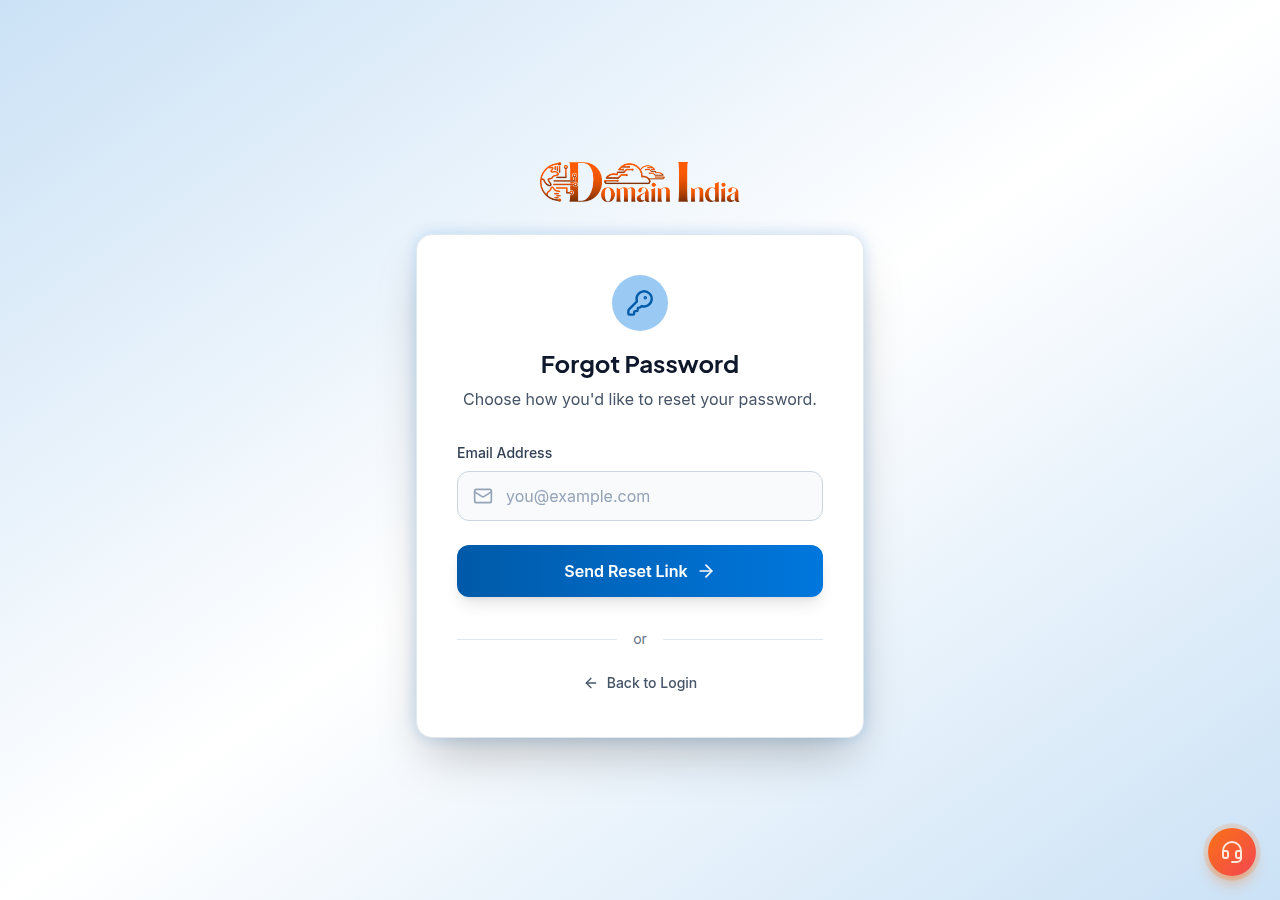
Go to /client/forgot, enter the email address on your account and click Send Reset Link. Open the email and follow the link within 1 hour, then enter your new password twice. It needs at least 8 characters with upper and lower case letters, a number and a symbol. After the reset you are signed out everywhere, and you sign in again with the new password.
1. Reset a forgotten password
- Open the reset page.Go to /client/forgot, or click the forgot password link on the sign-in page.
- Enter your account emailand click Send Reset Link. The page then shows "Check Your Email". For your security it says the same thing whether or not an account exists for that address.
- Open the email.It contains a link to set a new password. Check your spam folder and, in Gmail, the Promotions tab if it is not in your inbox.
- Follow the link within 1 hour.It opens the Set New Password page for your account.
- Enter the new password twicein New Password and Confirm Password, then submit. You see "Password Reset Successfully".
- Sign inwith your email address and the new password.
The page is protected by an invisible reCAPTCHA check, so there is no puzzle to solve. If it reports that the check failed, turn off any browser extension that blocks Google scripts, or try another browser.
2. Password requirements
Your new password must have:
- at least 8 characters;
- an upper case and a lower case letter;
- at least one number;
- at least one symbol from this set:
@ $ ! % * ? & #.
A longer password is safer. A phrase of four or five unrelated words, with a number and one of the symbols above, is strong and easy to type; a password manager can create and remember a random one for you. Do not reuse a password from another website.
3. If the reset email does not arrive
| What happened | What to do |
|---|---|
| Nothing in the inbox after a few minutes | Check spam, Promotions and any mail filters; search for "password reset" |
| You clicked Send Reset Link again straight away | Wait 5 minutes: a new link can be requested only once every 5 minutes per address |
| The link says it is invalid or has expired | It is older than 1 hour or was already used; request a new one |
| You have several reset emails | Any link under 1 hour old works; once you reset with one, all the others stop working |
| No email ever arrives, even in spam | The address may have a typo, or your account may use a different address; no email is sent to an address without an account. Try the other addresses you use, or open a ticket with your domain name and support will help you find the right account once they have confirmed you own it |
| You no longer have access to the account email | Open a ticket (see below); a reset link can only go to the address on the account |
If you mistyped your email address, no email is sent and the page will not tell you, so check the spelling and try once more.
Lost access to the account email? Open a ticket at /support/ticket from the address you want to use, with your name and the domain or service on the account. Support will verify the account with you. Never send a password in a ticket or chat; support never needs it.
4. Change your password while signed in
If you know your current password and just want a new one:
- Sign into the client area.
- Open
- Enter your current password,then the new one in New password and Confirm new password.
- Click Change password.You are signed out and sign in again with the new password.
Changing or resetting this password does not change your cPanel, DirectAdmin, Webuzo or Plesk password, or any mailbox password. Those are separate.
5. Locked out after too many attempts?
After 10 failed sign-ins within 15 minutes, sign-in for that email address is locked for up to 15 minutes. A password reset does not clear this lock, so after resetting, wait for the lock to expire before you sign in with the new password.
A block on your hosting server is a different thing: if too many wrong passwords reach cPanel, webmail, FTP or email from your connection, the server firewall can block your IP address. Contact support by chat or ticket and give your public IP address. See CSF blocklist and multiple login failures.
6. Protect the account after a reset
- Everything signs out. A reset ends every signed-in session on every device, so anyone using an old session is removed.
- Turn on two-factor authentication. It adds a six-digit code from an app on your phone at sign-in; see How to enable two-factor authentication.
- Check your account email. If someone else could read that mailbox, they could reset your password too. Keep it secure, with its own strong password.
If you receive a reset email you did not ask for, do not click the link. Your password stays the same unless the link is used, and it expires after 1 hour. If it keeps happening, change your password, turn on two-factor authentication, and tell support.
Frequently asked questions
How do I reset my Domain India account password?
Go to domainindia.com/client/forgot, enter your account email address and click Send Reset Link. Open the email, follow the link within 1 hour, and enter your new password twice. You then sign in with the new password.
How long is the password reset link valid?
One hour. After that, or once it has been used, the link stops working and you need to request a new one at domainindia.com/client/forgot.
Why did I not receive the password reset email?
Check your spam and Promotions folders first. The email is only sent if the address you typed matches an account, and you can request a new link only once every 5 minutes. If you no longer use the account email, open a support ticket.
What are the password requirements?
At least 8 characters, with an upper case letter, a lower case letter, a number and at least one symbol from @ $ ! % * ? & #.
Does resetting my account password change my cPanel or email password?
No. Your Domain India account password, your control panel password and each mailbox password are separate. Resetting one never changes the others.
Why can I still not sign in after resetting my password?
After 10 failed sign-ins within 15 minutes, sign-in for that email is locked for up to 15 minutes, and a reset does not clear the lock. Wait for it to expire, then sign in with the new password.
I sign in with Google. Can I set a password?
Yes. Use the forgot password page with your account email address to set a password, and you can then sign in either way.
Ready to get back in? Reset your password at /client/forgot, or change it at /client/security/password if you are signed in. If the email never arrives, open a support ticket.
Enter the email address on your Domain India account and we will email you a link to set a new password.
Send a reset link