DirectAdmin keeps a separate error log and access log for each domain on your account, and PHP writes its own error_log file next to any script that fails. This page shows where to find them and how to read them.
For every log on both panels, sample lines and a table of common error messages, see A guide to reviewing error logs in cPanel and DirectAdmin.
In DirectAdmin, each domain's error and access logs are under System Info & Files › Site summary & logs, and older monthly archives are normally kept in domains/yourdomain.com/logs in your home folder. PHP errors usually go to an error_log file in the folder of the failing script. Match the line to the time you reproduced the problem. If you can't find a log, open a ticket and we will read it for you.
1. Which log answers which question
| Your question | Log to open |
|---|---|
| Why did this page give a 500 or 403? | The domain's error log |
| Which PHP line crashed? | The error_log file in the script's folder |
| Who requested this page, and what status did they get? | The domain's access log |
| What went wrong inside WordPress? | wp-content/debug.log, once debugging is turned on |
| Is my account hitting its limits? | Resource usage, not a log |
A 500, 503 or 508 that comes and goes is often a resource limit rather than a code fault. See DirectAdmin CloudLinux limits and How to check your hosting resource usage.
2. Find your logs in DirectAdmin
- Reproduce the problem and note the time.Load the failing page with a unique test parameter, such as
?t=logtest1, so you can recognise your own request. - Log in to DirectAdminfrom your hosting service in the client area. The Access tab there shows your username and panel address.
- Open the domain's logs.Go to System Info & Files › Site summary & logs. Each domain has View stats, Usage log (the access log) and Error log buttons.
- Find the line that matches your time and page.Older lines are history.
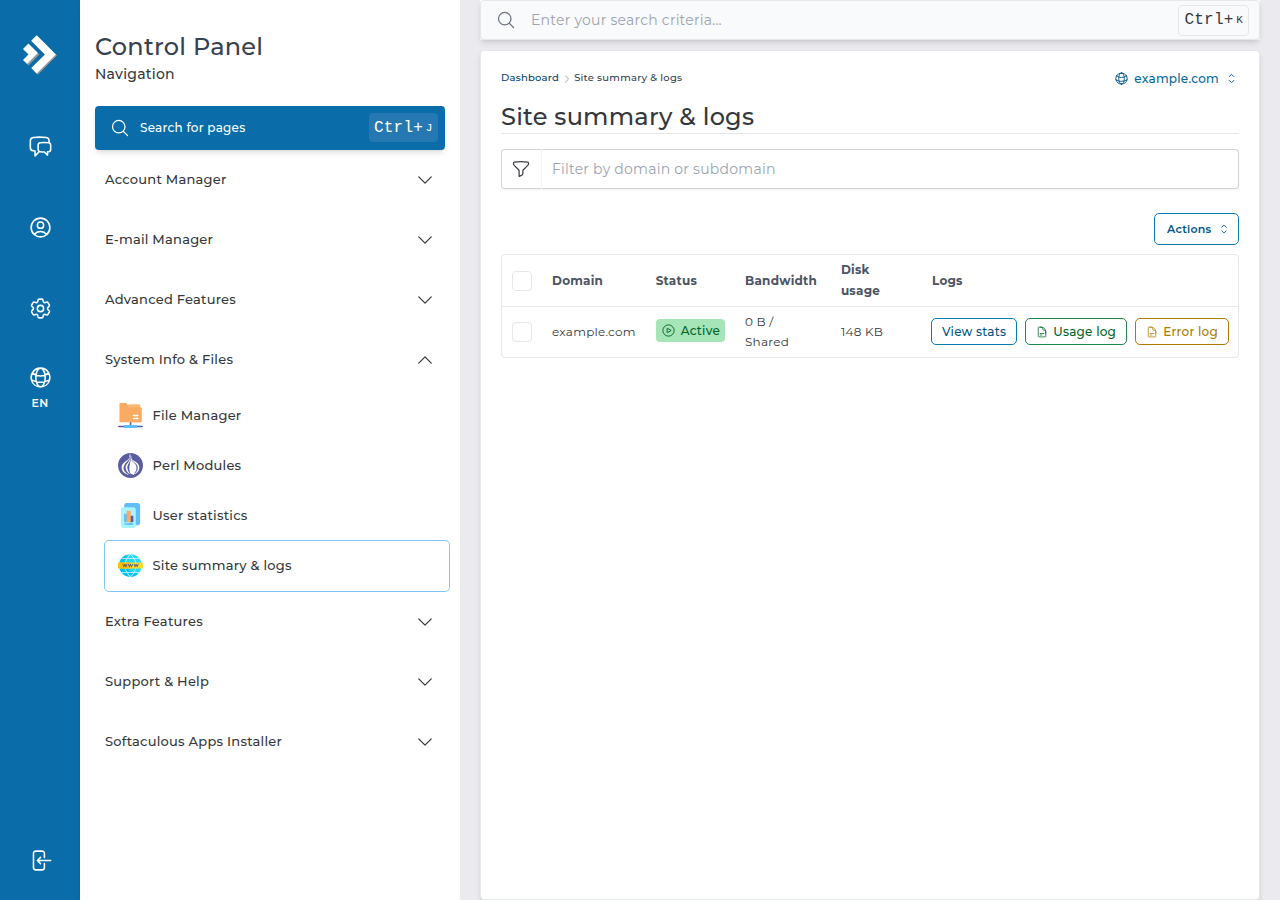
For older entries, open the DirectAdmin File Manager and look in domains/yourdomain.com/logs, next to public_html. DirectAdmin normally stores compressed monthly archives there, which you can download and unpack.
3. The PHP error_log file
When a PHP script fails, PHP often writes the message to a file called error_log in the same folder, for example domains/yourdomain.com/public_html/error_log. The newest lines are at the bottom. Delete the file once the cause is fixed; PHP creates a new one the next time something fails.
For WordPress, turn on the debug log briefly as shown in How to enable debugging in WordPress; the steps are the same on DirectAdmin. debug.log can be downloaded by anyone who knows its address, so delete it when you are done.
4. Read a log line
Every error line has four useful parts:
- The time. It follows the server's clock, which may not be Indian Standard Time.
- The severity.
Fatal errorandalertstopped the page;Warning,NoticeandDeprecatedrarely do. - The file and line number. A path inside
wp-content/plugins/orwp-content/themes/names the plugin or theme. - The message. Two are common on DirectAdmin:
Invalid command 'php_value': a PHP setting written into.htaccess. Our servers don't run PHP as an Apache module, so these lines always give a 500. Remove them and set the value in the control panel.Option ... not allowed here: DirectAdmin allows only these.htaccessOptions: Indexes, IncludesNOEXEC, MultiViews, SymLinksIfOwnerMatch, FollowSymLinks and None. Any other value gives a 500.
In the access log, look at the status code after each request: 404 is a missing page, 403 a refusal, 500 a server error.
5. Search a downloaded log
Download the log and search it rather than scrolling. On Linux, macOS or Windows with WSL:
# Only the fatal PHP errors
grep "Fatal" error_log

# The last 50 lines
tail -n 50 error_log
If SSH is enabled on your account, the same commands work on the server; ask support if you are not sure. Without SSH, File Manager and a downloaded copy do the same job.
6. When to ask us
Open a support ticket if you can't find a log or it names a file you can't change. Include the page address, the time with time zone and the log line as text, but no passwords. Support is on 24/7 live chat, and tickets get a first response within 15 minutes; how long a fix takes depends on the issue. There is no phone support.
If your site is slow rather than broken, see My website is slow for caching and optimisation.
Where are the error logs in DirectAdmin?
DirectAdmin keeps an error log and an access log for each domain, shown under System Info & Files › Site summary & logs, and normally keeps older monthly archives in domains/yourdomain.com/logs in your home folder. PHP errors often go to an error_log file in the folder of the failing script. If you can't find them, open a support ticket and we will read the logs for you.
How do I see who is visiting a page in DirectAdmin?
Open the domain's access log. Each line shows the visitor's IP address, the time, the page requested, the status code and the browser or bot name. Use it to find failing pages and bots.
Why does my .htaccess give a 500 error on DirectAdmin?
The two most common causes are php_value or php_flag lines, which always fail because PHP does not run as an Apache module, and an Options value that DirectAdmin does not allow. The allowed Options are Indexes, IncludesNOEXEC, MultiViews, SymLinksIfOwnerMatch, FollowSymLinks and None.
Do I need SSH to read my DirectAdmin logs?
No. You can read and download the logs from the control panel and the File Manager. SSH is not enabled on every account; if it is enabled on yours, tail and grep also work on the server.
Ready to find the cause? Start with the domain's error log and the error_log file, read the full error log guide, or open a ticket with the URL, the time and the log line.
Send us the page address, the time of the error and the log line you found, and we will read your account's logs with you.
Open a support ticket