Google Search Console won't show you data for a website until you prove you own it. When the check fails, Google usually says it couldn't find your record, file or tag. The cause is almost always one of a few simple things: the record went to the wrong place, the file sits in the wrong folder, or Google checked before the change had spread. This guide shows how to verify with each method on Domain India hosting and how to fix each failure.
For a Domain property, Google only accepts a DNS TXT record. Add it where your domain's DNS is actually managed (the Nameservers tab of your domain in the client area tells you where), wait, check it with dig TXT yourdomain.in +short, then click Verify. For a URL-prefix property you can instead upload Google's HTML file to the right website folder, usually public_html, and check that it opens in your browser at exactly the address Google gives you. Most failures are a record added in the wrong place, a file in the wrong folder, or checking too soon.
1. Pick the right property type first
Search Console offers two kinds of property, and they verify differently.
| Property type | What it covers | How you can verify |
|---|---|---|
Domain (for example yourdomain.in) | Every address on the domain: http and https, with and without www, and all subdomains | DNS TXT record only |
URL prefix (for example https://www.yourdomain.in/) | Only addresses that start with exactly that prefix | HTML file, HTML meta tag, Google Analytics, Google Tag Manager, or DNS TXT record |
A Domain property is the better choice for most businesses, because it doesn't split your data between www and non-www or between http and https. If you can't edit DNS, use a URL-prefix property and the HTML file.
2. Verify with a DNS TXT record
- Copy the record from Google.In Search Console, add the property and copy the TXT value it shows. It starts with
google-site-verification=. - Find where your DNS is managed.In the client area, open Domains → My domains, select the domain and look at the Nameservers tab. If it shows your Domain India hosting nameservers, the DNS editor is in your hosting control panel. If it shows another provider, such as Cloudflare, add the record there.
- Add the TXT record.Use your domain itself as the name (many editors want
@or leave the name empty for that), choose type TXT, and paste Google's value as the record. Keep the default TTL. - Wait, then check it.Run
dig TXT yourdomain.in +short(ornslookup -type=TXT yourdomain.in). When thegoogle-site-verification=line appears, the world can see it. - Click Verifyin Search Console. Leave the record in place afterwards: Google checks it again from time to time, and removing it can unverify the property.
Where the DNS editor is in each Domain India control panel:
| Control panel | Where to add the TXT record |
|---|---|
| cPanel | Domains › Zone Editor, then Manage next to the domain and Add Record |
| DirectAdmin | Account Manager › DNS Management |
| Webuzo | Domain › DNS Zone Settings |
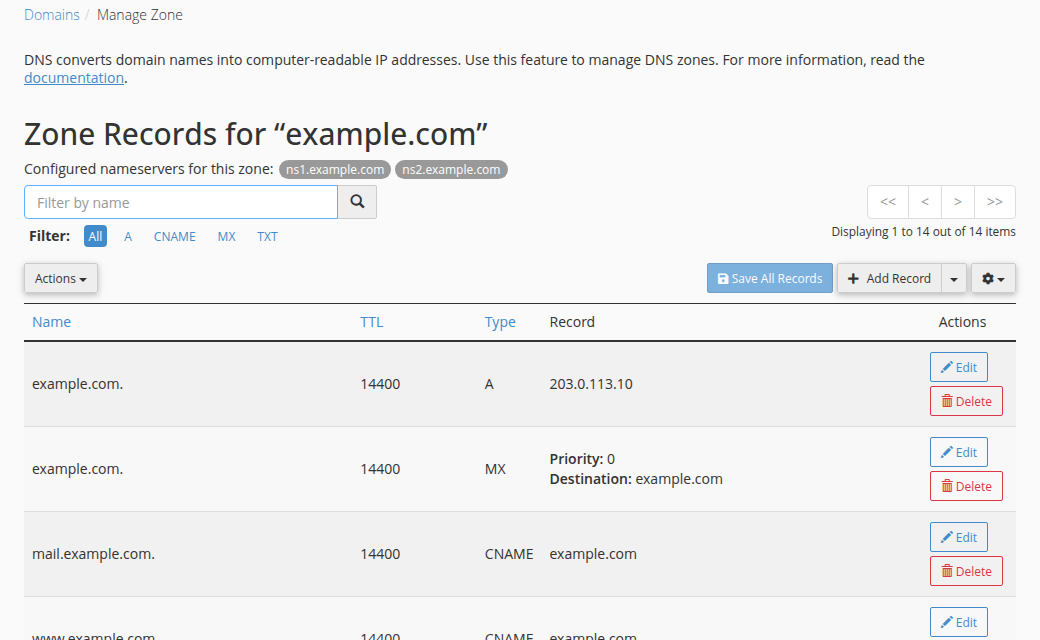
The client area's DNS tab may offer Activate Free DNS or Switch to Free DNS. It changes your domain's nameservers without copying your existing records, so your website and email can stop working. Add the TXT record wherever your DNS is managed today.
3. Verify with an HTML file (URL-prefix property)
- Download the fileSearch Console offers. Its name looks like
google1234567890abcdef.html. Don't rename it or change what's inside. - Upload it to the website's own folder.For your main domain on cPanel that is
public_html. An addon domain or a DirectAdmin domain has its own folder (on DirectAdmin,domains/yourdomain.in/public_html). Use File Manager or FTP; see How do I use the File Manager. - Open the file in your browserat the exact address Google shows, for example
https://www.yourdomain.in/google1234567890abcdef.html. You should see one line of text, not an error page and not your home page. - Click Verify.Keep the file on the site afterwards.
The meta tag method works the same way: the tag must be in the <head> of your home page as served to visitors. In WordPress, use your SEO plugin's verification field rather than editing theme files, and clear your caching plugin afterwards.
4. Why verification fails, and the fix
| What Google says or what you see | Likely cause | What to do |
|---|---|---|
| DNS record not found | The TXT record was added somewhere your domain doesn't use, such as the hosting DNS editor while the domain points at Cloudflare | Check the Nameservers tab and add the record at that provider |
| DNS record not found, but you added it in the right place | The change hasn't spread yet | Wait, check with dig TXT yourdomain.in +short, then verify again |
| Record found but the value is wrong | Extra spaces, quotes typed by hand, or part of the value missing | Delete the record and paste Google's value again exactly |
| TXT added on the wrong name | It was added for www or a subdomain instead of the domain itself | Add it on the domain itself (@, empty or yourdomain.in.) |
| HTML file not found (404) | The file is in another domain's folder, inside a subfolder, or renamed | Move it to the folder of the exact address you are verifying, with its original name |
| Google sees your home page or a different page | A redirect or rewrite rule catches the file address, or the property uses http/non-www while the site redirects | Use the address the site finally lands on as the URL prefix, or use a Domain property |
| Meta tag not found | A cache serves an older copy of the page, or the tag sits outside <head> | Clear your caching plugin and test the page source; or switch to the HTML file |
| It worked once, then Search Console lost verification | The record, file or tag was removed later | Put it back; Google rechecks it from time to time |
Our cPanel servers have a caching proxy in front of the website that can keep a stored copy of a page for up to two hours. If you opened the verification file's address before uploading it, a stored "not found" answer may still be served for a while. Wait, or test with a unique query string such as ?t=2 to see what the server answers now.
5. After it's verified
Submit your XML sitemap under Sitemaps and use URL Inspection on your most important pages. The full checklist, including robots.txt and Bing, is in Mastering search engine submission. For how long DNS changes take, see Understanding DNS propagation.
Frequently asked questions
Google Console is not able to verify the ownership of my website. What should I check?
Check three things in order: the TXT record is added where your domain's DNS is really managed (see the Nameservers tab in the client area), it is added on the domain itself and not on www, and the change has spread (dig TXT yourdomain.in +short shows it). For a URL-prefix property, make sure Google's HTML file opens in your browser at the exact address Google shows.
Why does Google Search Console say it couldn't find my DNS TXT record?
Usually the record was added somewhere your domain doesn't use, or the change hasn't spread yet. Check the Nameservers tab of your domain in the Domain India client area to see where DNS is managed, add the record there, then run dig TXT yourdomain.in +short and verify again once the google-site-verification line appears.
Where do I add the Google verification TXT record on Domain India hosting?
If your domain uses your hosting nameservers, add it in your control panel: cPanel Zone Editor, DirectAdmin Account Manager, DNS Management, or Webuzo Domain, DNS Zone Settings. If your domain uses another DNS provider such as Cloudflare, add it there.
How long does verification take after I add the record?
Often a few minutes, but it can take longer while DNS caches update. Check with dig TXT yourdomain.in +short; when the record shows, click Verify again.
Can I verify a Domain property with an HTML file?
No. A Domain property only accepts a DNS TXT record. The HTML file, meta tag, Google Analytics and Tag Manager methods are for URL-prefix properties.
Can I delete the TXT record or HTML file after verifying?
No. Google checks again from time to time, and removing the record, file or tag can make the property unverified. Leave it in place.
Should I click Activate Free DNS to fix verification?
No. It changes your domain's nameservers without copying your existing records, so your website and email can stop working. Add the TXT record where your DNS is managed today.
Still stuck? Open a support ticket with your domain, the property you added in Search Console and the exact message Google shows, and we will check your DNS and files with you. Support is by 24/7 live chat and tickets; there is no phone support.
Every Domain India hosting plan includes free SSL, a DNS editor and File Manager, everything you need to verify your site with Google.
See cPanel hosting