When something goes wrong with your website, email or domain, you want it fixed quickly and you want a record of what was said. A support ticket gives you both. This guide explains what a ticket is, how to open one with Domain India, what to write so it gets solved on the first reply, and how to follow it up.
A support ticket is one numbered conversation about one problem, kept in one place until it is solved. Open one from your client area at Open New Ticket or, without logging in, at Submit a Ticket. Name the domain or service, say what happened and when, paste the exact error and attach screenshots. Never put a password or card number in a ticket.
1. What a support ticket is
A ticket is a request for help that gets a unique number the moment you submit it. Everything about that problem then lives under that number: your first message, every reply from our team, every file you attach and every change of status.
Whoever picks it up reads the whole history first, so you never have to explain the problem again.
2. Why a ticket beats scattered emails and messages
An email, a chat message and a follow-up a day later each tell part of the story, and none of them holds all of it.
| What you need | Scattered emails and messages | A support ticket |
|---|---|---|
| History | Split across inboxes, chats and memory | One thread with every message |
| Who is on it | Unclear until someone answers | Assigned to a department and a team member |
| Status | You have to ask | Shown on the ticket |
| Attachments | Lost in long email chains | Kept on the ticket |
| Reference | "I emailed last Tuesday…" | One ticket number |
Use a ticket for anything specific to your account: a website that is down, email that is not arriving, a renewal or invoice question, a DNS change, a transfer or a refund.
3. How to open a ticket
There are two ways in. Both reach the same support team.
From your client area (recommended)
- Log in.Sign in to the Client Portal with the email address on your account.
- Go to Support.Open Support and choose Open New Ticket.
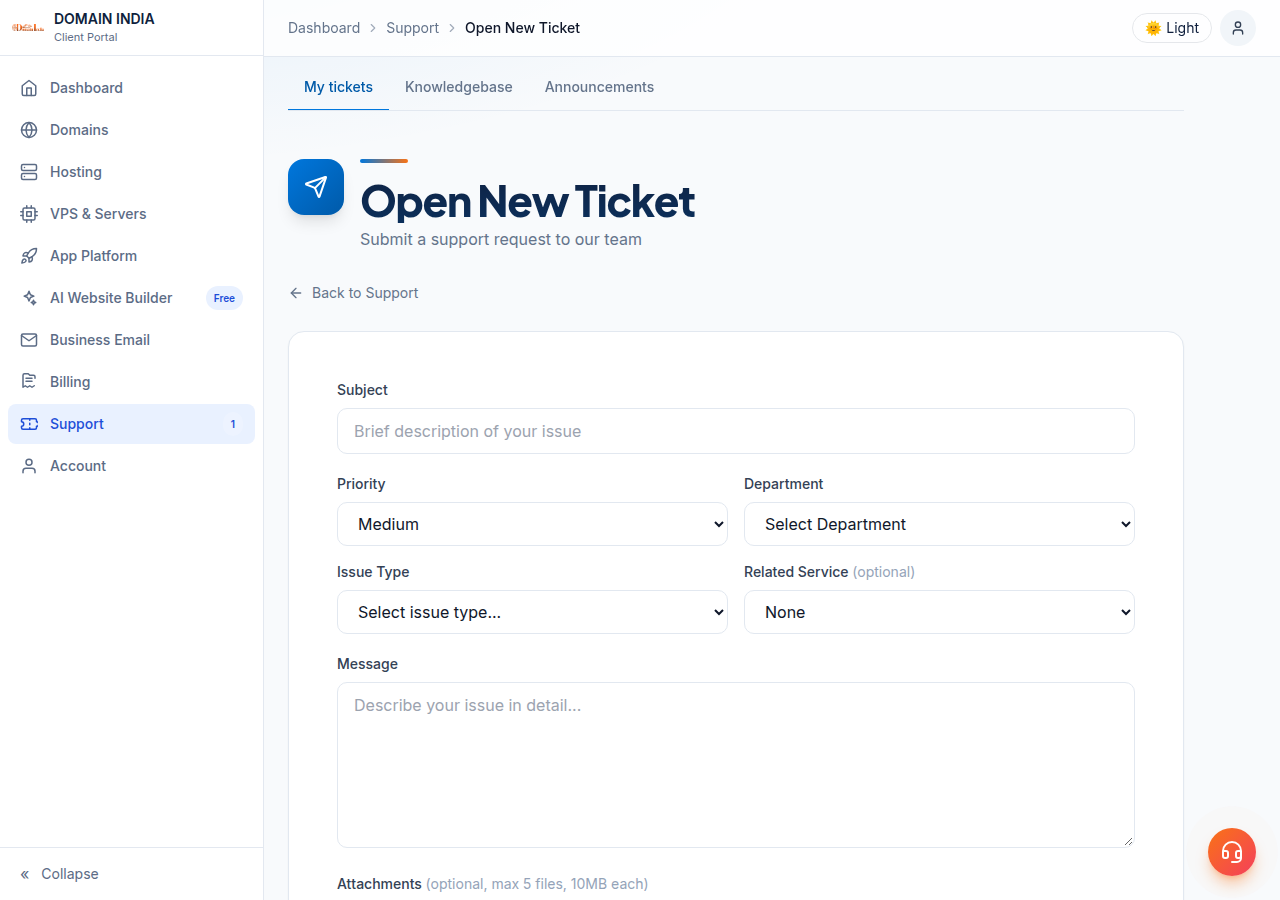
- Fill in the form.Add a subject, priority, department, issue type and your message. Under Related Service you can pick the hosting account or domain the problem is about.
- Attach files.Add up to 5 files of 10 MB each (JPG, PNG, GIF, PDF or TXT).
- Submit.Click Submit Ticket. The ticket appears in your support list with its number.
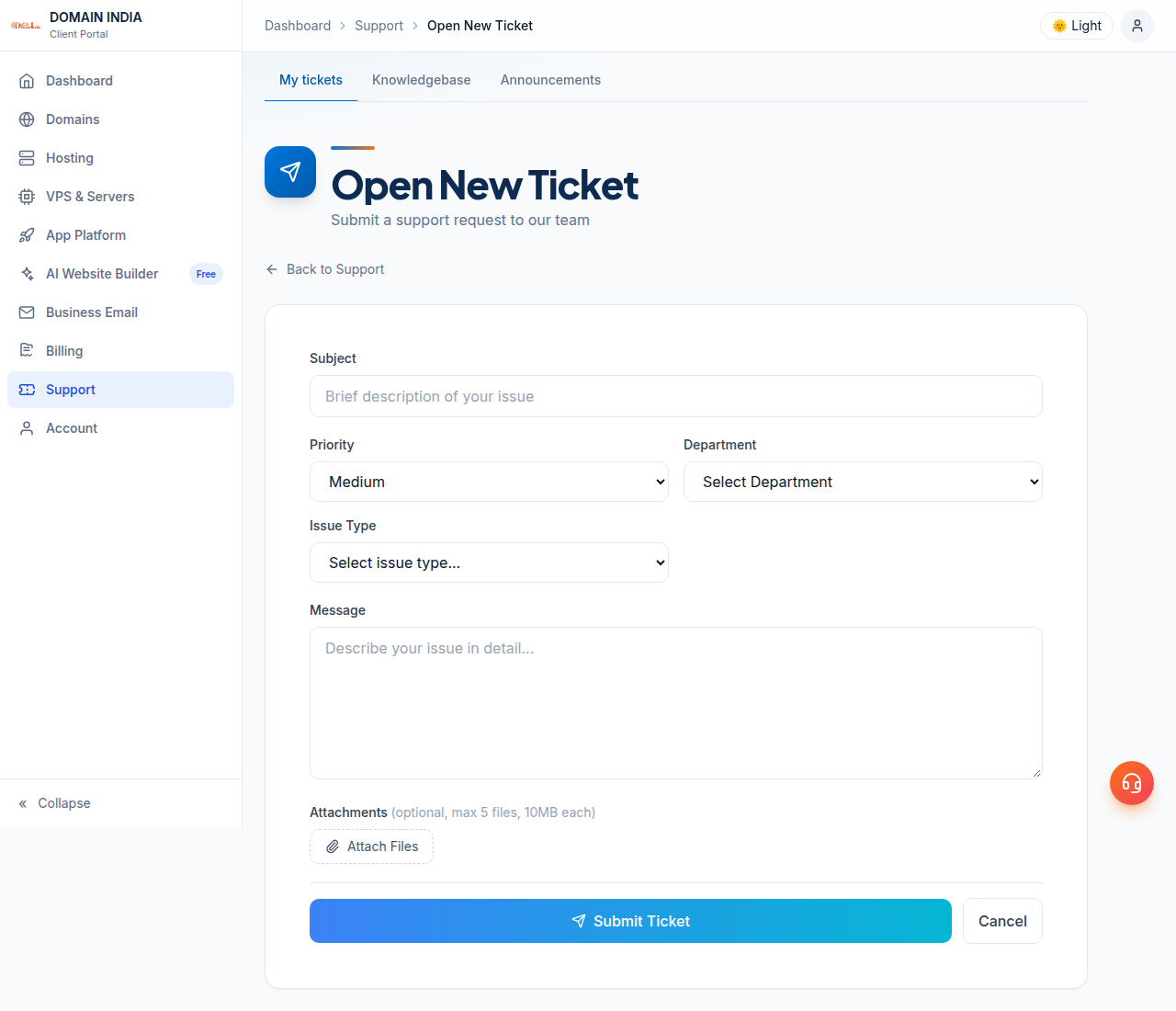
Opening the ticket while logged in links it to your account, and choosing the related service tells the team exactly which website or domain to look at.
Without logging in
If you cannot log in, or you are not a customer yet, use the public Submit a Ticket form. Enter your name and email address, choose a department and priority, write your subject and message, and attach up to 3 files of 10 MB each. You may need to complete a CAPTCHA.
After you submit, the page shows Ticket Created with your ticket reference, and a confirmation goes to the email address you entered. If you do not see it within a few minutes, check your Spam or Promotions folder.
As you type your subject, the form may show "These articles might help". A matching knowledge base guide can sometimes solve the problem before you even submit.
4. Choosing a department, issue type and priority
| Department | Choose it for |
|---|---|
| Technical Support | A website, server, hosting, email or DNS problem |
| Billing | Payments, invoices and refunds |
| Sales | Questions before you buy, new orders and upgrades |
| General Inquiry | General questions and feedback |
Issue type narrows it further: Website Down, Email Issue, Domain Issue, Hosting Problem, SSL Issue, Payment / Invoice Issue, or Other.
Priority should match the real impact. The form describes the levels like this: Low for general questions, Medium for non-critical issues, High when a service is affected, and Urgent (on the public form) when a service is down. Keep High and Urgent for real outages, so they stand out when they matter.
5. What to include so it gets solved fast
Most slow tickets are slow because the first reply has to ask for a missing detail. Give these up front:
A clear first message looks like this:
Subject: example.in shows "Error establishing a database connection"

Since about 10:30 this morning (19 Sep), example.in shows
"Error establishing a database connection" on every page.
The WordPress admin area shows the same error.
Last night I updated two plugins from the WordPress dashboard.
I have cleared my browser cache and tried on mobile data. Same result.
Screenshot attached.
One problem per ticket works best. If you have two unrelated issues, such as a billing question and an email fault, open two tickets so each goes to the right department.
If you think you are blocked, read I can't reach my server. Have I been blocked.
6. Replying to and tracking your ticket
You are notified by email when there is a reply on your ticket. To answer, you can:
- Reply in the client area. Open the ticket from Support, type your message and attach files if needed. This is the best place to follow a ticket, because you see the full conversation, the department, the priority and the status.
- Reply to the email notification. Your reply is added to the same ticket.
If you opened the ticket without logging in, use Track Ticket. Enter your ticket number, which is in your confirmation email, and the email address you used. The tracking page is read-only: it shows the status and the replies, and to add a message you log in or reply to the email notification.
While the ticket is open, add new information as a reply on the same ticket. A second ticket about the same problem splits the history in two.
In the client area you can also:
- Close the ticket when the problem is solved. A closed ticket cannot be replied to: its page hides the reply box and offers Create a new ticket instead. If the issue comes back, open a new ticket and mention the old ticket number so we can read the history.
- Escalate the ticket if you are not satisfied with how it is going. Tell us why, and a senior team member reviews it.
- Rate the support you received once the ticket is resolved.
For a fuller walkthrough, see Viewing and replying to support tickets.
7. Keep your account safe
Do not paste passwords for your client area, control panel, email or WordPress into a ticket, a chat or an email. Domain India support will never ask for your card number, CVV or a payment OTP. If anyone claiming to be support asks for them, do not share them, and report it to us through a ticket.
Also blur or crop screenshots that show passwords or API keys. If you think a password was exposed, change it straight away, then tell us in the ticket that you have changed it.
8. Other ways to reach Domain India
Domain India support has two channels: tickets and 24/7 live chat. Tickets are the right place for anything account-specific, because they keep a record and reach the right team.
- Live chat: the chat button on domainindia.com, open 24/7, for quick questions. Chat is answered by our AI assistant; if it can't solve the problem, it creates a ticket for our team to follow up.
- Knowledge base: step-by-step guides at the knowledge base.
There is no phone, WhatsApp or email support line. The address [email protected] is only for third parties reporting abuse (spam, phishing, copyright or trademark complaints) about a site we host; customers should use a ticket or live chat.
Tickets get a first response within 15 minutes; solving the problem can take longer, depending on what is involved.
What is a support ticket?
A support ticket is a numbered request for help. Every message, reply, attachment and status change about that one problem is kept under the same ticket number until the problem is solved.
How do I open a support ticket with Domain India?
Log in to the Client Portal, go to Support and choose Open New Ticket. If you cannot log in, use the public Submit a Ticket form at domainindia.com/support/ticket with your name and email address.
Do I need an account to open a ticket?
No. The public Submit a Ticket form works without logging in. If you are a customer, opening the ticket from your client area is better, because it is linked to your account and you can choose the related hosting account or domain.
How do I check the status of my ticket?
Open the ticket from Support in your client area. If you opened it without logging in, use Track Ticket at domainindia.com/support/ticket/track with your ticket number and the email address you used.
Can I reply to a ticket by email?
Yes. Reply to the email notification about your ticket and your message is added to the same ticket. You can also reply from the ticket page in your client area.
Which priority should I choose?
Choose Low for general questions, Medium for non-critical issues, and High when a service is affected. Urgent, on the public form, is for a service that is down. Matching the priority to the real impact helps real outages stand out.
How quickly does Domain India respond to a ticket?
Live chat is open 24/7, and tickets get a first response within 15 minutes. Solving the problem itself can take longer, depending on what is involved; the ticket keeps you updated until it is resolved.
Should I send my password so support can log in?
No. Never put passwords in a ticket, chat or email. Domain India support will also never ask for your card number, CVV or payment OTP.
Ready to get help? Open a ticket from your client area, use the public ticket form if you cannot log in, or track a ticket you have already opened.
Tell us the domain or service, what happened and when, and attach a screenshot. Your ticket keeps the whole conversation in one place until it is solved.
Submit a Ticket