To upload files to Domain India Webuzo hosting over FTP, connect an FTP program such as FileZilla to your server on port 21 with your Webuzo username and password, then drag your site into public_html. This page gives the Webuzo-specific details; the settings are the same as on our other Linux hosting.
Settings for every hosting type, SFTP and fixes for common errors are in FTP and SFTP access. For uploads in the browser, see how to manage files in Webuzo.
In FileZilla, use your server hostname (from the Manage › Access tab of your Webuzo service in the client area), port 21, FTP with "Require explicit FTP over TLS", passive mode, and your Webuzo username and password. Upload into public_html. SFTP on port 22 works only after support enables jailed SSH for your account, and it uses an SSH key.
1. Your FTP details
| Setting | Value on Webuzo hosting |
|---|---|
| Host | Your server hostname, from the service's Manage › Access tab or your welcome email |
| Port | 21 |
| Protocol | FTP, with "Require explicit FTP over TLS" |
| Transfer mode | Passive |
| Username | Your Webuzo username |
| Password | Your Webuzo password |
| Website folder | public_html |
Your Webuzo password is separate from your client-area password. The client area's Reset password button does not work for Webuzo accounts yet, so if you've lost it, ask support by live chat or ticket to reset it. See how to log in to Webuzo.
2. Connect and upload with FileZilla
- Install FileZillafrom
filezilla-project.org, and decline any extra software the installer offers. WinSCP and Cyberduck work too. - Create a site.Open File › Site Manager › New site and enter the details from the table. Set Logon Type to Normal.
- Set passive modeon the Transfer Settings tab.
- Connect.Your computer is on the left and the server on the right.
- Open public_htmlon the right.
- Drag your site's contents across,so that
index.htmlorindex.phpsits directly insidepublic_html. - Check the Failed transfers tab,then open your site in a browser.
FileZilla shows the server's certificate on the first connection. If it warns that the certificate is expired or doesn't match, don't accept it blindly: contact support, and use the Webuzo File Manager for uploads until it's confirmed. Never switch to plain FTP without TLS, which sends your password unencrypted.
3. Many small files? Upload one zip
Hundreds of small files upload slowly over FTP. Zip the site on your computer, upload the single zip into public_html, and extract it in Webuzo's File Manager. Delete the zip afterwards, so nobody can download your whole site. Before you install or upload a PHP application, check which PHP version it needs and ask support whether our Webuzo server supports it.
4. SFTP and extra FTP logins
SFTP (port 22). Jailed SSH access is available on every shared hosting plan (cPanel, DirectAdmin, Webuzo). It is off by default; ask support to enable it for your account. Connect with SFTP in FileZilla, Logon Type Key file, and your private SSH key. See jailed SSH on Domain India hosting.
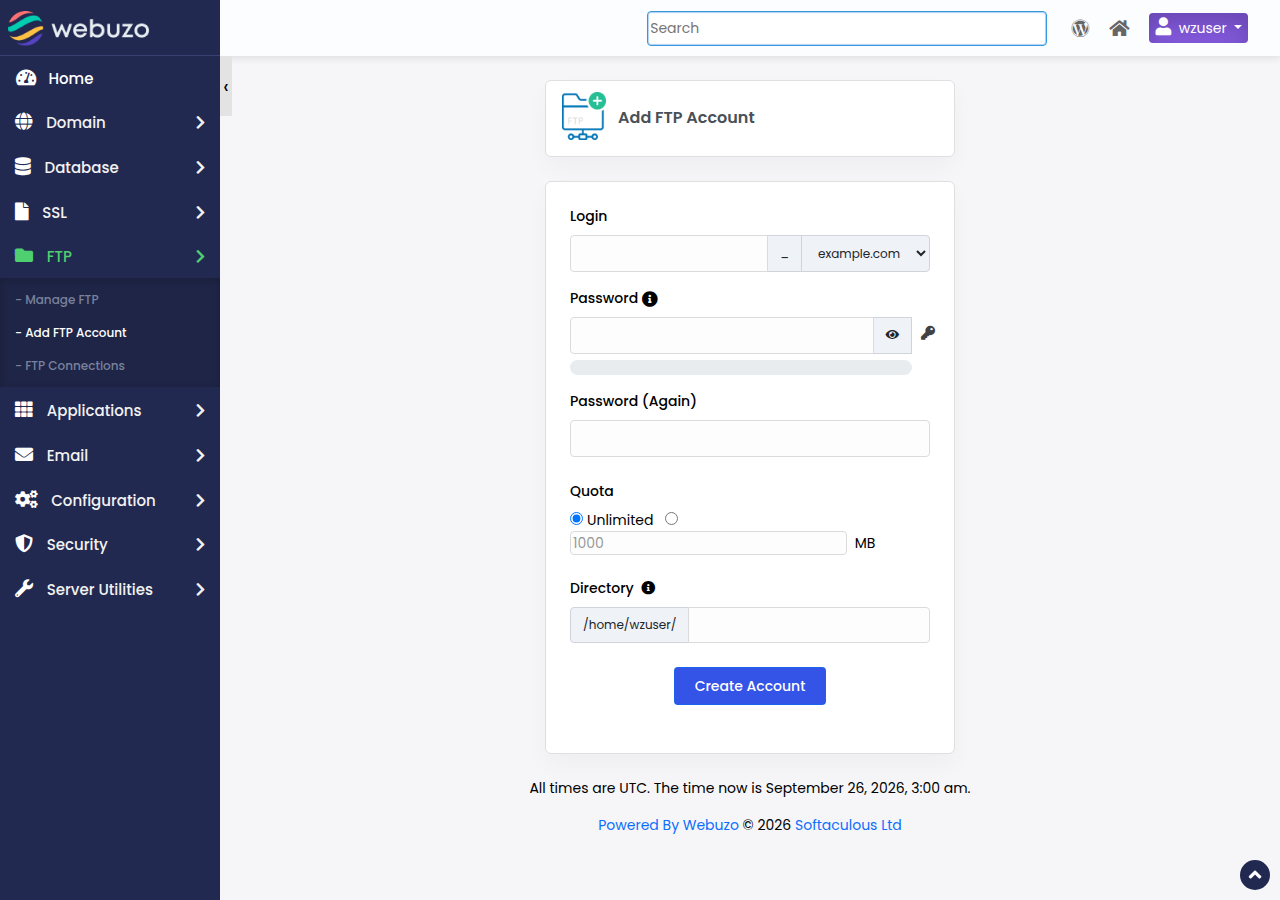
Extra FTP accounts. To give a designer their own login, look for the FTP section in Webuzo (type "FTP" into the panel's search box). If you can't find it, ask support.
5. Quick fixes
- Login fails: check the Webuzo username and password; if you've lost the password, ask support to reset it.
- Directory listing times out: make sure passive mode is set, or try another network.
- Everything stops working from one connection but works on mobile data: your IP may have been blocked after failed logins. Stop retrying and send support your public IP address.
- An upload fails: check your free disk space in Webuzo, then upload a zip and extract it.
More errors: FileZilla error messages and solutions.
Before you overwrite files on the server, download the current public_html first. See backing up in Webuzo.
Frequently asked questions
What are the FTP settings for Domain India Webuzo hosting?
Host: your server hostname from the Access tab in the client area. Port: 21. Protocol: FTP with Require explicit FTP over TLS. Transfer mode: passive. Username and password: your Webuzo login.
Which folder do I upload my website to on Webuzo?
Upload it into public_html, so that index.html or index.php sits directly inside that folder.
Can I use SFTP with Webuzo hosting?
Yes, after support enables jailed SSH for your account; it is off by default. SFTP uses port 22 and an SSH key.
I've forgotten my Webuzo password. How do I reset it for FTP?
The client area's Reset password button does not work for Webuzo accounts yet. Contact Domain India support by live chat or a ticket and they will reset it.
FileZilla shows a certificate warning. What should I do?
Don't accept it blindly. Contact support, and use Webuzo's File Manager for uploads until support confirms the connection is safe.
Ready to upload? Find your hostname in My Hosting, read the full FTP and SFTP guide, or open a support ticket if you can't connect.
Tell us your domain and the exact error. Never send a password. Support is on 24/7 live chat, and tickets get a first response within 15 minutes.
Open a support ticket