Webuzo includes a File Manager for working on your website's files in a browser: uploading, editing, extracting archives and setting permissions, with no FTP program needed. This guide covers the everyday jobs on Domain India Webuzo hosting, and when FTP or SSH is the better tool.
The cPanel version of this guide, with every button explained, is How do I use the File Manager. The ideas are the same on Webuzo; only the button names differ.
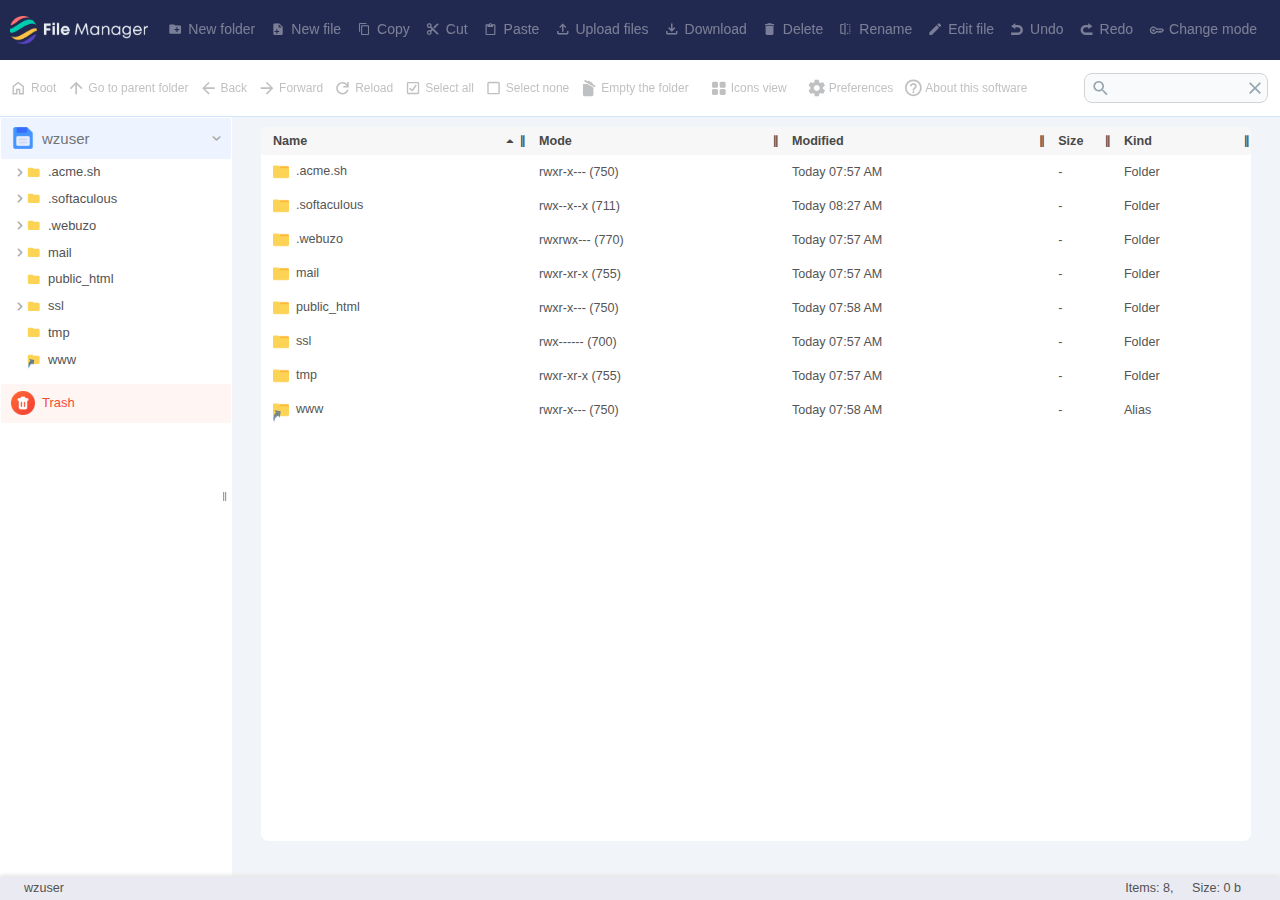
Log in to Webuzo at https://yourdomain.com:2003, open File Manager and go to public_html, the folder visitors see. Upload one zip and extract it rather than hundreds of files, keep files at 644 and folders at 755, and show hidden files to reach .htaccess. Download a copy before you edit or delete anything: on Webuzo, check the File Manager's Trash if you delete something by mistake, and keep your own copy of anything important. Domain India also backs up your account every night, and support can restore a file or folder for you.
1. Open File Manager
- Sign in to the client areaand open your hosting list.
- Open the Webuzo login page.Go to
https://yourdomain.com:2003and sign in with your Webuzo username and password. Your username is on the service's Access tab. If the Webuzo button on your domain's row doesn't open the panel, use this address. For a forgotten Webuzo password, ask support: the client-area reset button doesn't work for Webuzo yet. - Open File Managerfrom the Webuzo dashboard, or search the panel for "file".
2. Where your website files go
Your main domain's website lives in public_html inside your home folder. Visitors see only what is inside the document root, so a site uploaded anywhere else "does not show". An extra domain or subdomain uses the folder set when it was added; if you are unsure which folder a domain uses, ask support.
Your home folder also holds files the panel and mail system use. Don't delete or rename anything outside public_html unless you know what it is.
3. Everyday tasks
| Task | How | Tip |
|---|---|---|
| Upload | Open the destination folder, then use the upload option | Uploads land in whichever folder is open |
| Create a file or folder | Use the new file or new folder option | Names are case-sensitive: Index.html is not index.html |
| Edit | Select a text file and open it in the editor | Download a copy first |
| Rename or move | Select the item and choose rename or move | Renaming breaks links that use the old name |
| Compress | Select items and compress them to a zip | Zip a folder before downloading it |
| Extract | Select a .zip or .tar.gz and extract it | Check the destination folder first |
| Delete | Select and delete | Look in the Trash, under the folder tree, if you delete something by mistake |
Webuzo's menus and button names change between versions. Use the toolbar or right-click on a file; if an option is missing, ask support.
4. Upload a whole website
Browser uploads have a per-file size limit set by the server, and large files can time out on a slow connection. The reliable method for a whole site:
- Zip the site on your computer.Select the files inside your site folder, not the folder itself.
- Upload the one zipto
public_html. - Extract itthere. Check that
index.htmlorindex.phpsits directly inpublic_html, not in an extra sub-folder. If it is one level too deep, move the files up. - Delete the zip.Anyone who guesses its name could download your whole site.
For many files or regular updates, an FTP client such as FileZilla is faster and can resume interrupted transfers. FTP uses port 21; see What settings do I need to upload my website.
5. Edit files and .htaccess safely
Files whose names start with a dot, such as .htaccess and .user.ini, are hidden files. If you don't see them, look for a show-hidden-files option in the File Manager's settings or view menu.
One typo in .htaccess or wp-config.php can take the whole site offline with a 500 error. Download the file before editing, and if the site breaks after you save, put the original back. Don't add php_value or php_flag lines to .htaccess: on our servers they cause a 500 error. Use a .user.ini file for PHP settings instead.
The web server is Apache, so standard .htaccess rewrite rules work. See How can I enable the mod_rewrite module.
6. File permissions
| Item | Permission | Meaning |
|---|---|---|
| Files (.html, .php, .css, .js, images) | 644 | You can read and write; the web server can only read |
| Folders | 755 | You have full access; the web server can open and list |
| Config files with passwords, such as wp-config.php | 640 or 600 | Tighter, if your site still works |
Never set 777. It lets anything on the server change your files, and it is a common way sites get infected. Wrong permissions are also a frequent cause of "403 Forbidden"; see resolving HTTP error 403.
7. Deleting files and backups
Webuzo's File Manager has a Trash, listed under the folder tree; look there first if you delete something by mistake. Domain India also backs up your account every night; to get back a file or folder that is gone from the Trash, open a support ticket saying what to restore and from which date. As good practice:
- download or zip anything important before deleting or making big changes;
- keep your own copies of files and databases off the server, on your computer or in cloud storage;
- ask support if you need help recovering something.
8. When to use SSH instead
Jailed SSH access is available on every shared hosting plan (cPanel, DirectAdmin, Webuzo). It is off by default; ask support to enable it for your account, then log in on port 22 with an SSH key. It gives you SFTP too. The tools inside the jailed shell vary, so ask support before relying on one. See enabling and accessing jailed SSH.
Webuzo hosting at Domain India starts at ₹100 a month, excluding 18% GST; compare plans on the Webuzo hosting page. If you want self-service backup restores, cPanel hosting includes weekly JetBackup backups.
- 10 GB NVMe SSD Storage
- 50 GB Monthly Bandwidth
- 1 Website
- 5 Email Accounts
Prices on the cards exclude 18% GST.
Frequently asked questions
Where is the File Manager in Webuzo?
Log in to Webuzo at https://yourdomain.com:2003 with your Webuzo username and password, then open File Manager from the dashboard or search the panel for it. Your website's files are in public_html.
How do I upload a whole website to Webuzo?
Zip the site on your computer, upload the zip to public_html with File Manager, extract it there and delete the zip. For many files or regular updates, use an FTP client instead.
Why can't I see my .htaccess file?
Files starting with a dot are hidden. Look for a show-hidden-files option in the File Manager's settings or view menu.
What permissions should my files have?
644 for files and 755 for folders. Config files with passwords can be 640 or 600 if the site still works. Never use 777.
Can I recover a file I deleted in Webuzo?
Look in the File Manager's Trash, listed under the folder tree, first. If it is not there, open a support ticket saying which file and from which date; Domain India backs up your account every night.
Ready to upload your site? Open your hosting list to reach Webuzo, or open a ticket with your domain and a screenshot if File Manager shows an error.
Tell us your domain and what you are trying to do, and we will guide you through it.
Contact support