In DirectAdmin you create a MySQL database, and the user that connects to it, in one step under Account Manager › Databases. Your website then connects with host localhost, the full database and user names (which start with your DirectAdmin username) and the password. This page is the short version: creating the database, managing its users, and importing or exporting data.
The complete DirectAdmin walkthrough, including a secure PHP connection example, is in Creating and connecting to a MySQL database in DirectAdmin. Settings for every panel, WordPress and SSH tunnels are in How to connect to the MySQL database.
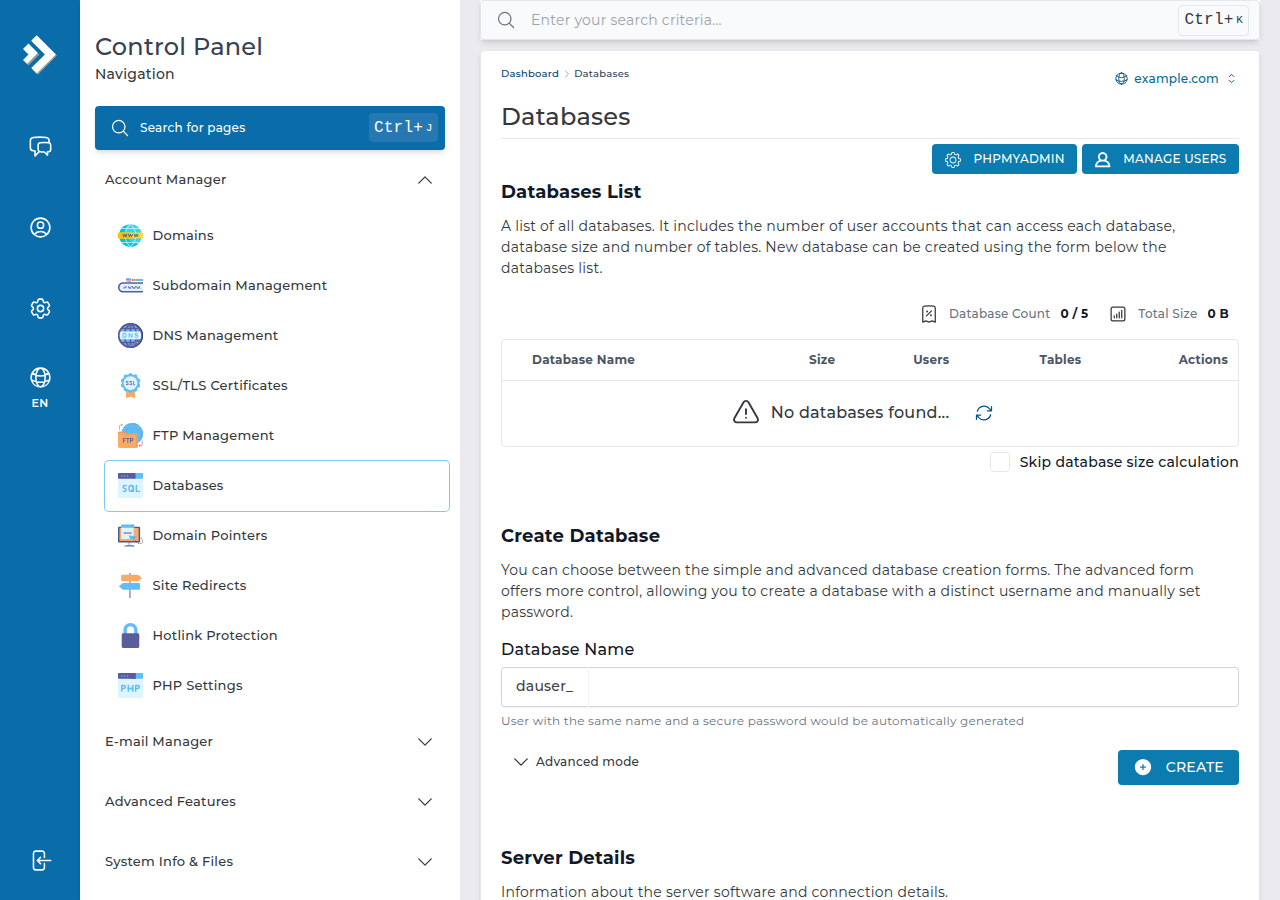
Open DirectAdmin from the client area, go to Account Manager › Databases, type a database name in the Create Database form and click CREATE. DirectAdmin creates a user with the same name and a secure password (open Advanced mode to set your own), and you copy the details it shows. Connect with host localhost and the full prefixed names. Port 3306 is closed to outside connections, so use phpMyAdmin or an SSH tunnel for remote work.
1. Create the database and user
- Open DirectAdmin.Sign in to the client area, open My Hosting and click the DirectAdmin button on your domain's row. If the button is missing, see one-click DirectAdmin login.
- Open Account Manager › Databases.Use the search box at the top if you can't see it.
- Create the database.In the Create Database form, enter a short database name and click CREATE. DirectAdmin creates a user with the same name and a secure password. To choose a different user name and your own password, open Advanced mode first.
- Copy the details.DirectAdmin shows the database name, user, password and host when it finishes. Save them somewhere safe.
DirectAdmin puts your account username and an underscore in front of every name. If your username is acme and you type shop, the real database is acme_shop, and your website must use that full name.
Installing WordPress or another app with Softaculous? The installer creates the database and user for you, so you need these steps only for custom code, a migration or a manual install.
2. Connection details for your website
| Setting | Value |
|---|---|
| Host | localhost |
| Database name | The full name, for example acme_shop |
| Database user | The full user name, for example acme_shopuser |
| Password | The database user's password, not your DirectAdmin login |
The host is localhost because the website and the database are on the same server. Use a separate, strong password for each database user.
3. Manage users and privileges
On the Databases page, click the database name. From there you can add another user to the database, change a user's password, and choose the privileges each user has.
- For WordPress, WooCommerce and most PHP applications, give the user all privileges on that application's own database.
- Give fewer privileges only when a user needs limited access, such as a reporting tool that only reads data.
If you change a password, update your website's configuration file straight away, or the site shows a database error.
4. Import and export with phpMyAdmin
phpMyAdmin is included on Domain India DirectAdmin plans; open it with the phpMyAdmin button on DirectAdmin's Databases page.
- Export: select the database, open the Export tab, choose Quick and click Export to download a
.sqlfile. - Import: select the database, open the Import tab, choose your
.sqlfile and start the import.
The PHP upload limit on our DirectAdmin servers is 64 MB, which caps the file size phpMyAdmin can import. For a bigger database, compress the export, split it into smaller files, or ask support. More detail: managing your database with phpMyAdmin and backing up a database with phpMyAdmin.
Desktop tools such as MySQL Workbench or DBeaver can't connect directly, and adding your IP address as an access host does not open the server firewall. Use phpMyAdmin, or an SSH tunnel. Jailed SSH access is available on every shared hosting plan (cPanel, DirectAdmin, Webuzo). It is off by default; ask support to enable it for your account. You log in with an SSH key, not a password.
5. Quick fixes
- Access denied for user: the name is missing its prefix, the password is wrong, or the user has no privileges on that database.
- Unknown database: use the full prefixed name exactly as the Databases page shows it.
- Import stops or times out: the file is too large for phpMyAdmin; split or compress it, or ask support.
If you can sign in to phpMyAdmin with the same user and password, the details are right and the problem is in your site's configuration. More fixes are in database troubleshooting.
6. Where Domain India fits
Every Domain India DirectAdmin plan includes MySQL databases and phpMyAdmin: 5 databases on DA Starter, 10 on DA Growth and 50 on DA Business. DA Starter is ₹100 a month (Domain India list price on 19 September 2026, excluding 18% GST). Accounts are backed up weekly with JetBackup 5, and you can restore a database yourself from JetBackup in the panel.
Frequently asked questions
Where do I create a MySQL database in DirectAdmin?
Open Account Manager › Databases in DirectAdmin, type a database name in the Create Database form and click CREATE. DirectAdmin creates a user with the same name and a secure password; use Advanced mode to choose your own user name and password. Copy the details it shows at the end.
What hostname do I use for a DirectAdmin MySQL database?
Use localhost for a website on the same hosting account. You don't need the server IP address or your domain name.
Why does my database name start with my username?
DirectAdmin adds your account username and an underscore to every database and database user name, for example acme_shop. Your website must use the full name.
How large a file can I import through phpMyAdmin on DirectAdmin?
The PHP upload limit on Domain India DirectAdmin servers is 64 MB, which caps phpMyAdmin imports. For a bigger database, compress or split the file, or ask support.
Can I connect to my DirectAdmin database from my own computer?
Not directly. Port 3306 is closed to outside connections on Domain India shared servers. Use phpMyAdmin, or an SSH tunnel once support has enabled jailed SSH on your account.
Ready to set up your site? Compare DirectAdmin hosting plans, read the full DirectAdmin MySQL guide, or open a support ticket if your database still won't connect.
Every DirectAdmin plan includes MySQL databases, phpMyAdmin, Softaculous, free SSL and weekly backups.
See DirectAdmin plans