To configure spam filters on Domain India hosting, you mostly tune what is already running: SpamAssassin checks every incoming message on our cPanel and DirectAdmin servers. You choose how strict it is, where marked spam goes, and which senders are always allowed or always blocked.
Everything here is covered in more detail in How to manage spam filters. For cPanel screens step by step, see SpamAssassin and Spam Box in cPanel; for DirectAdmin, see Easy Spam Fighter in DirectAdmin.
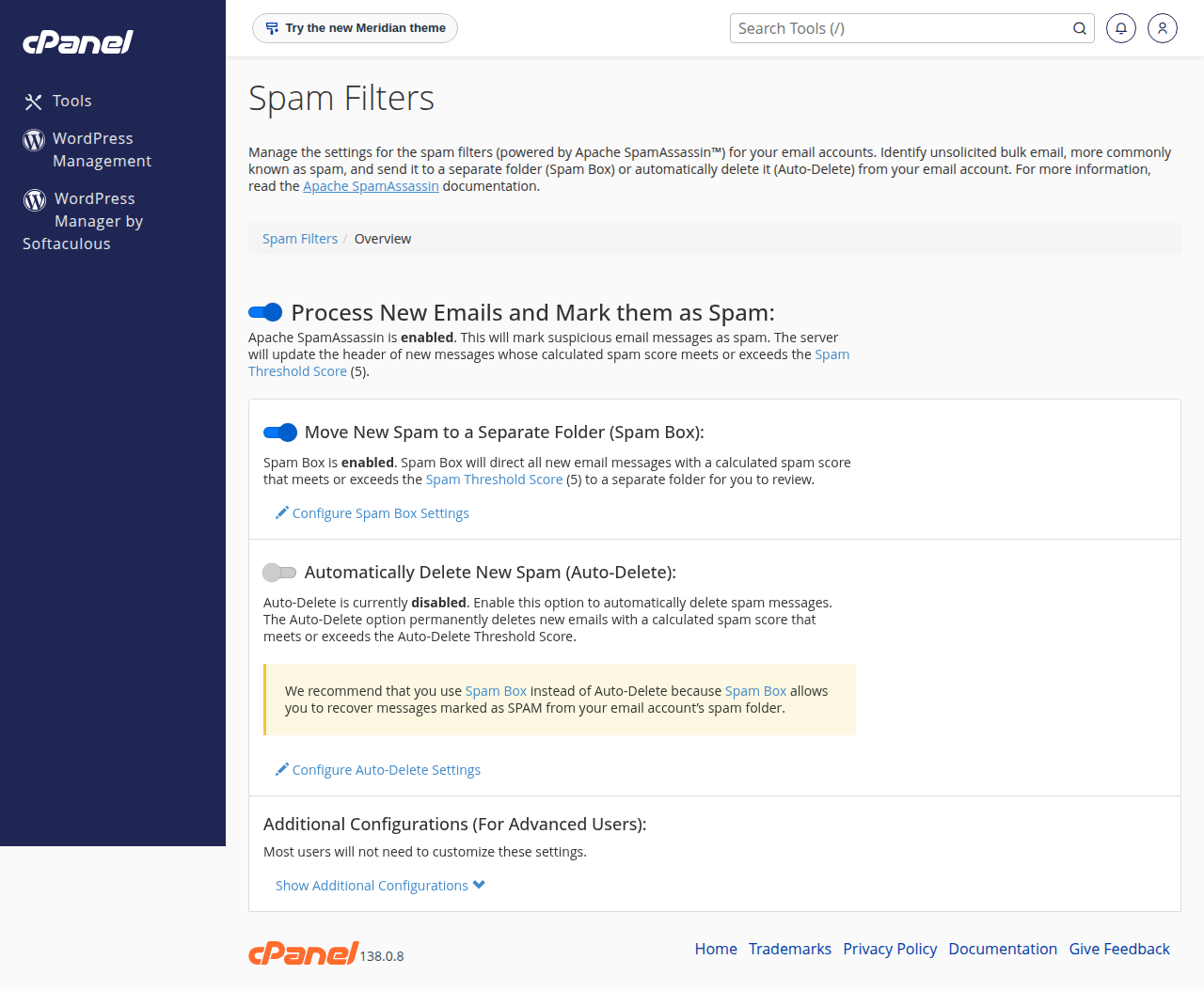
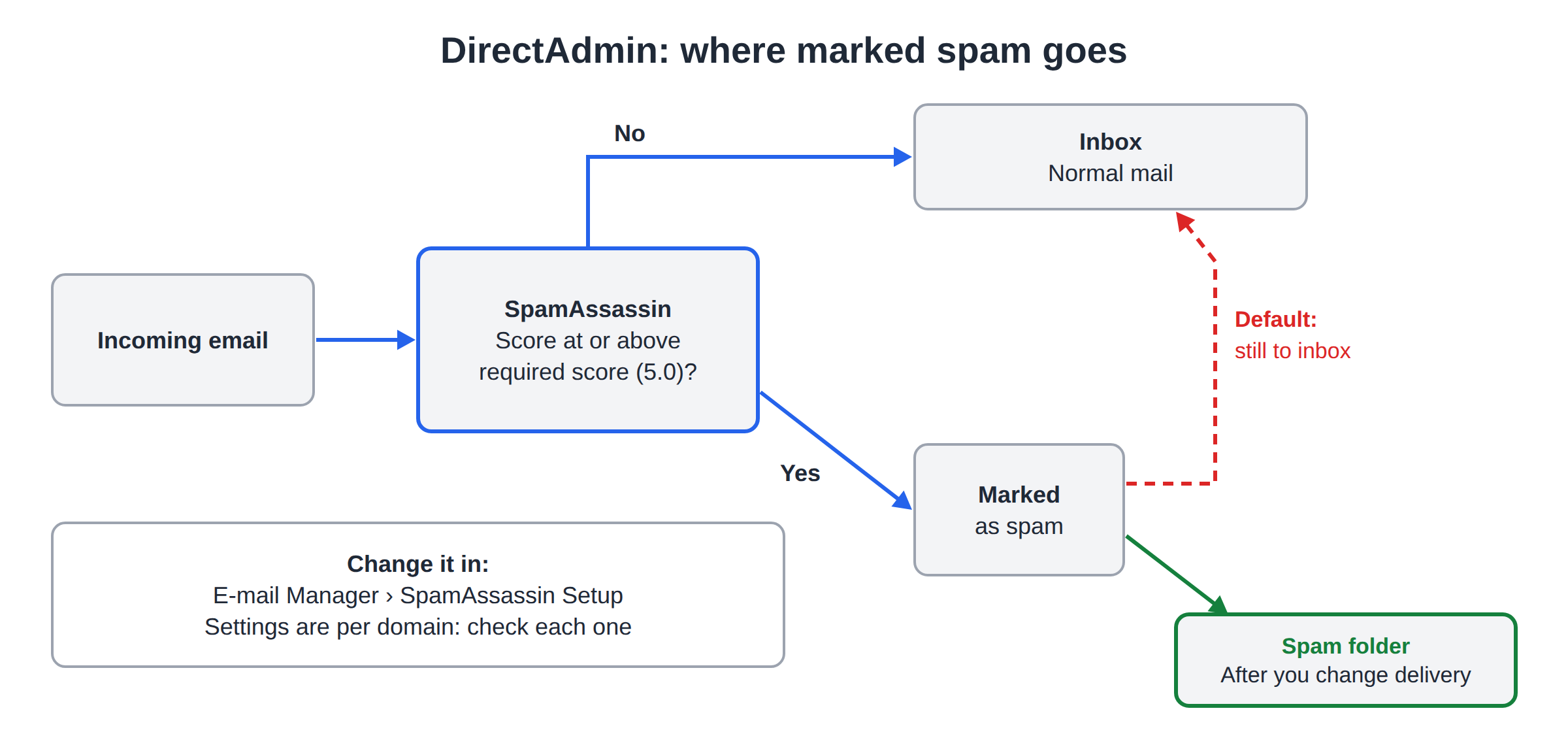
In cPanel, open Email › Spam Filters: filtering and Spam Box are already on for almost every account, with a threshold score of 5. In DirectAdmin, open E-mail Manager › SpamAssassin Setup: filtering is on with a score of 5.0, but marked spam still goes to the inbox until you choose a spam folder. Change the score one point at a time, send spam to a folder rather than deleting it, and never whitelist your own domain.
1. Configure spam filtering in cPanel
- Open Spam Filters.Log in to cPanel from your hosting services and open Email › Spam Filters. The settings apply to every mailbox on the account.
- Check the main switch."Process New Emails and Mark them as Spam" must be on. On our cPanel server it already is for almost every account.
- Keep Spam Box on.Marked spam then goes to a folder called Spam instead of the inbox, so nothing is lost.
- Tune the score if needed.Under Show Additional Configurations, change the Spam Threshold Score. Lower is stricter. Start at 5 and move one point at a time.
- Add trusted senders.In the same area, whitelist a supplier whose mail keeps getting caught, for example
*@supplier.com, and blacklist persistent spammers.
BoxTrapper, the challenge-response tool some older guides recommend, is switched off on our cPanel servers.
2. Configure spam filtering in DirectAdmin
- Open SpamAssassin Setup.In DirectAdmin, open E-mail Manager › SpamAssassin Setup. Settings are shown per domain, so check each domain you host.
- Choose where spam goes.By default, marked spam is still delivered to the inbox. Change the delivery option so spam goes to a spam folder.
- Set the score.The default required score is 5.0. Adjust it one point at a time.
- Whitelist and blacklistsenders in the same page, then save.
For blocking by sender, domain or words, DirectAdmin also has E-mail Manager › SPAM Filters; see managing email filters in DirectAdmin. For Webuzo or Windows (Plesk) hosting, ask support what spam filtering your account has.
3. Pick a sensible score
| Score | Effect | When to use it |
|---|---|---|
| 3 to 4 | Stricter; more genuine mail may be marked | Lots of spam and you check the spam folder often |
| 5 | The default and a good balance | Most businesses |
| 6 to 8 | More relaxed; only clearer spam is marked | Genuine customer mail keeps landing in spam |
Watch the spam folder for a few days after each change.
Auto-delete removes messages permanently, with no copy and no warning to you or the sender. Prefer a spam folder. If you use cPanel's Auto-Delete at all, set its score to 10 or higher, well above your threshold, never equal to it.
4. What spam filters do not fix
- Your own mail landing in other people's spam is a sending problem. Fix your domain's SPF and DKIM records; see email going to spam: how to fix.
- A message that never arrived may have been caught by a filter or an auto-delete rule. Check the spam folder and your email filters, then see emails suddenly disappearing.
Hosting email and Domain India Business Email are separate products. Business Email has its own filters and webmail at mail.yourdomain.com:8443.
Frequently asked questions
Is spam filtering already on for Domain India hosting email?
Yes. On our cPanel server, spam filtering and Spam Box are on for almost every account. On our DirectAdmin server SpamAssassin runs for every account, but marked spam is delivered to the inbox until you choose a spam folder in SpamAssassin Setup.
Where are the spam filter settings in cPanel?
Log in to cPanel and open Email, then Spam Filters. The threshold score, whitelist and blacklist are under Show Additional Configurations. The settings apply to every mailbox on the hosting account.
What spam score should I use?
Start with 5. Lower it by one point if too much spam reaches the inbox, or raise it by one point if genuine mail is being marked, and check the spam folder for a few days after each change.
Can I use BoxTrapper on Domain India hosting?
No. BoxTrapper is switched off on our cPanel servers. Use Spam Filters, the whitelist and email filters instead.
Should I whitelist my own domain?
No. Spammers often forge your own address as the sender, and a whitelist entry for your domain lets their mail straight through.
Ready to tune your filter? Log in to your panel from your hosting services, follow the full guide in How to manage spam filters, or open a support ticket if genuine mail keeps going missing.
Tell us the mailbox, the sender and the time of a message that did not arrive, and we will trace it on the server.
Open a support ticket