If one address keeps hammering your login page, scraping your site or filling your contact form with spam, you can stop it from reaching your website. On Domain India Linux hosting you do this with cPanel's IP Blocker or a few lines in .htaccess; behind Cloudflare, you block at Cloudflare. This guide shows each method, how to find the address to block, and the mistakes that lock out real visitors or yourself.
On cPanel, open Security › IP Blocker, enter the IP address or range and click Add. On DirectAdmin and Webuzo, add a Require not ip rule inside a RequireAll block at the top of public_html/.htaccess. If your site is behind Cloudflare, block there instead. These blocks cover your website only, not email, FTP or SSH. Find the address in your raw access logs first, and never block your own.
1. What a website IP block does, and what it doesn't
An IP block tells the web server to answer a chosen address with 403 Forbidden instead of your page. It is useful against one noisy source: a bot trying passwords on wp-login.php, a scraper, or a spammer using your forms.
It does not:
- block that address from your email, FTP or SSH, which are separate services;
- stop an attacker who changes address, which bots do all the time;
- replace the protection already on the server. Our cPanel servers run Imunify360, a web application firewall and malware scanner, for every account.
For password-guessing on WordPress, a password on wp-admin often helps more than chasing addresses. See how to password protect the wp-admin directory.
2. Find the address to block
Don't guess. Look at what your logs actually show.
- Open the logs.In cPanel, go to Metrics › Raw Access and download the log for your domain. The
logsfolder in your home directory, visible in File Manager, also keeps archives: one set from Apache and one from nginx. On cPanel the nginx log records most of the traffic, so start there. - Look for patterns.The first column of each line is the visitor's IP address. Look for one address making hundreds of requests to the same URL, especially
wp-login.php,xmlrpc.phpor a form handler. - Check the address.Search it on a public IP lookup site. Don't block addresses of search engines such as Google or Bing, or of your payment gateway, or your site can drop out of search results or payments can fail.
On DirectAdmin, logs are archived in domains/yourdomain.com/logs/ in File Manager. More on reading logs: reviewing error logs in cPanel and DirectAdmin.
3. Block an IP in cPanel with IP Blocker
- Open IP Blocker.Log in to cPanel and open Security › IP Blocker, or type "IP Blocker" in the search box.
- Enter the address.Type one IP address, a range, or a CIDR block (see the table below).
- Click Add.The address appears under Currently-Blocked IP Addresses.
- Test.Check your site still loads from your own connection, and on mobile data.
To unblock, click Delete next to the entry.
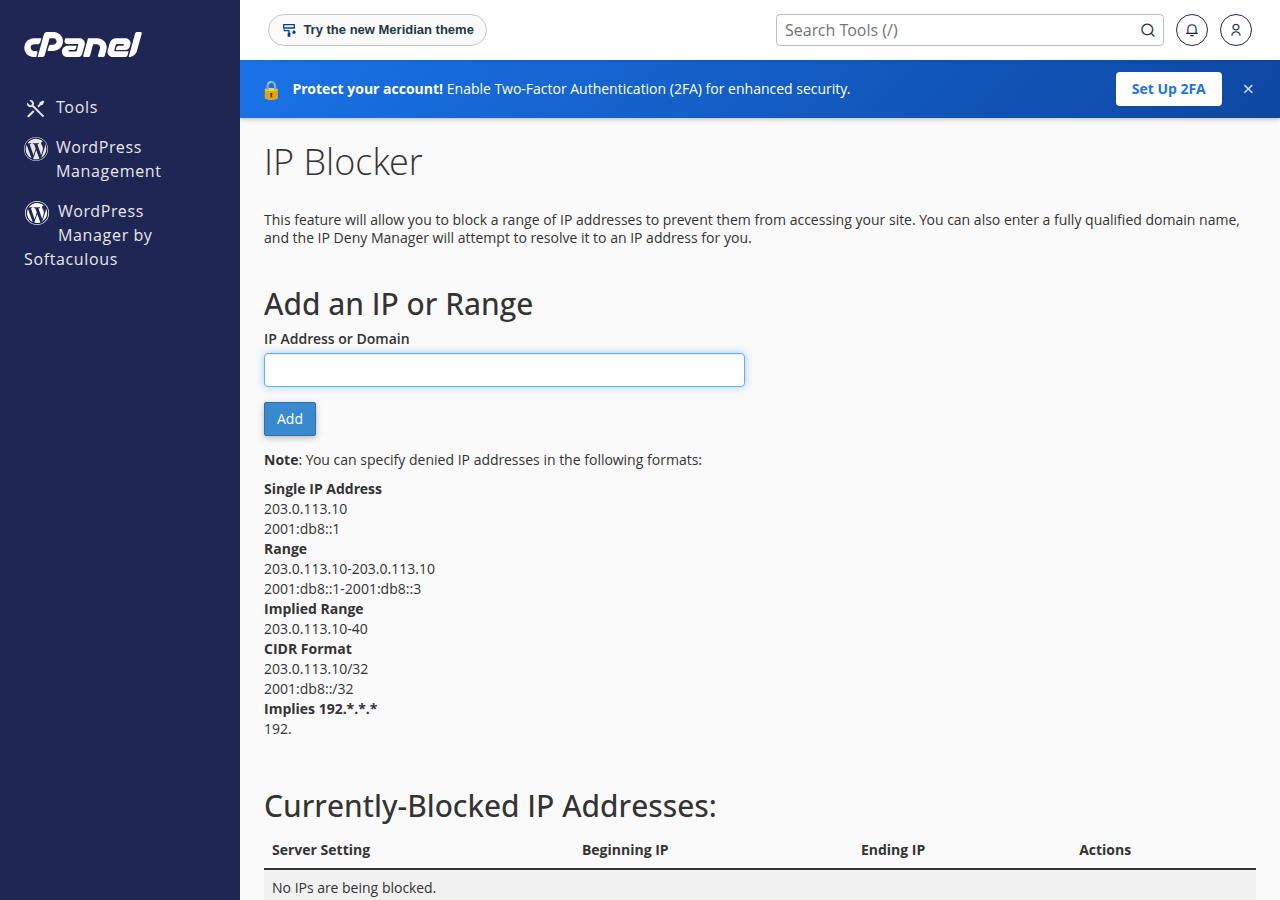
| Format | Example | Blocks |
|---|---|---|
| Single IPv4 address | 203.0.113.45 | That one address |
| CIDR block | 203.0.113.0/24 | 203.0.113.0 to 203.0.113.255 (256 addresses) |
| Range | 203.0.113.10-203.0.113.40 | Every address in the range |
| IPv6 address or block | 2001:db8::/32 | That IPv6 address or network |
IP Blocker also accepts a hostname and looks up its IP address for you. It writes its rules as deny from lines into the .htaccess file of every website folder in your account, so the block covers all your domains. Keep that in mind in section 4.
4. Block an IP with .htaccess (DirectAdmin, Webuzo or any Apache site)
Our shared servers run the Apache web server, so .htaccess rules work on cPanel, DirectAdmin and Webuzo. Open public_html/.htaccess in File Manager (turn on hidden files if you don't see it), and add this at the top, above any WordPress or rewrite rules:
# Block abusive addresses
<RequireAll>
    Require all granted
    Require not ip 203.0.113.45
    Require not ip 198.51.100.0/24
    Require not ip 2001:db8::/32
</RequireAll>
Each Require not ip line takes an address or a CIDR block. Save the file and test your site straight away.
A single Require not ip line on its own, without the RequireAll block and Require all granted, is not valid and can give every visitor a 500 error. And don't mix this modern syntax with the older deny from lines that cPanel's IP Blocker writes in the same file: Apache can then apply them in ways you don't expect. On cPanel, use IP Blocker; elsewhere, use the block above.
To block only one folder, such as an admin area, put the same block in that folder's own .htaccess. For more rules, see mastering .htaccess. If your site shows a 500 error after an edit, remove the lines you added and check them again.
5. Sites behind Cloudflare
When Cloudflare proxies your site (the orange cloud), every request reaches our server from a Cloudflare address, not from the visitor's. An IP block in cPanel or .htaccess then sees Cloudflare, not the attacker, and blocking a Cloudflare address would cut off real visitors.
Block at Cloudflare instead. In your Cloudflare dashboard, open your site's security settings and create a custom rule or an IP access rule that blocks the address. The request is then stopped before it reaches your hosting. Cloudflare can also block by country or challenge suspicious traffic, which your hosting account cannot do. Cloudflare renames its menus from time to time; look for "WAF", "custom rules" or "IP access rules".
6. Check it worked, and know the limits
- Blocked visitors see 403 Forbidden. If a real visitor reports a 403, check your list first. See understanding 403 Forbidden.
- Cached pages on cPanel. cPanel servers keep recently served pages in a short-term cache in front of Apache, so a blocked address may still receive a cached copy of a public page for a while. Logins, form submissions and other requests that change something still reach Apache and are blocked.
- Lists get old. Home and mobile connections change address often, and a blocked address may later belong to a genuine customer. Review your list every few months and remove old entries.
- Many addresses at once? Blocking one address at a time loses against a large botnet. Use Cloudflare, password-protect admin areas, and keep WordPress and plugins updated.
Blocking your own office or home address, or a range that contains it, takes your site offline for you. If that happens, remove the entry from IP Blocker or .htaccess using File Manager from another connection, such as mobile data. The client area is not affected.
7. When the server firewall has blocked you
A website IP block is something you set. A different kind of block happens when our server firewall blocks an address after repeated failed logins to cPanel, email or FTP. Then your website, webmail and cPanel all stop loading from that connection while they still work on mobile data. You can't remove a server block yourself: open a ticket or use live chat and give us your public IP address. See I can't reach my server: have I been blocked?
8. Where Domain India fits
On Domain India cPanel, DirectAdmin and Webuzo hosting you control website-level blocks yourself with the tools above, while the server firewall and Imunify360 on cPanel are run for you and can't be changed per account. If you need your own firewall rules for every service, you need a VPS, where you manage the firewall yourself. VPS plans start at ₹553 a month, excluding 18% GST (Domain India list price on 19 September 2026), and are self-managed. See VPS plans.
On Windows (Plesk) hosting, .htaccess does not apply. Ask support how to restrict an address for your site.
Frequently asked questions
How do I block an IP address in cPanel?
Log in to cPanel, open Security, then IP Blocker. Enter the IP address, range or CIDR block and click Add. Visitors from that address then get a 403 Forbidden error on your website.
How do I block an IP address with .htaccess?
At the top of public_html/.htaccess, add a RequireAll block containing Require all granted followed by one Require not ip line per address or CIDR block. A Require not ip line on its own is not valid and can cause a 500 error.
Does blocking an IP stop email or FTP from that address?
No. cPanel IP Blocker and .htaccess rules apply to your website only. Email, FTP and SSH are handled by the server firewall, which support manages.
My site uses Cloudflare. Why doesn't my IP block work?
With Cloudflare's proxy on, requests reach the hosting server from Cloudflare addresses, so a block in cPanel or .htaccess never sees the visitor's real address. Create the block in your Cloudflare dashboard instead.
I blocked my own IP address by mistake. What do I do?
Connect from another network, such as mobile data, log in to cPanel or File Manager, and remove the entry from IP Blocker or from your .htaccess file. The Domain India client area is not affected by the block.
Can I block a whole country on shared hosting?
Not from your hosting account. Use a service in front of your site, such as Cloudflare, which can block or challenge traffic by country.
Ready to block an address? Log in to your hosting and open cPanel, or edit .htaccess with the File Manager. If your site is under a wider attack, open a ticket and tell us what you see.
Tell us your domain, the addresses or URLs involved and when it started, and we will check what the server sees.
Open a support ticket