Every Domain India VPS built on our current platform has its own page in the client area. Use it to run your server yourself, without opening a ticket.
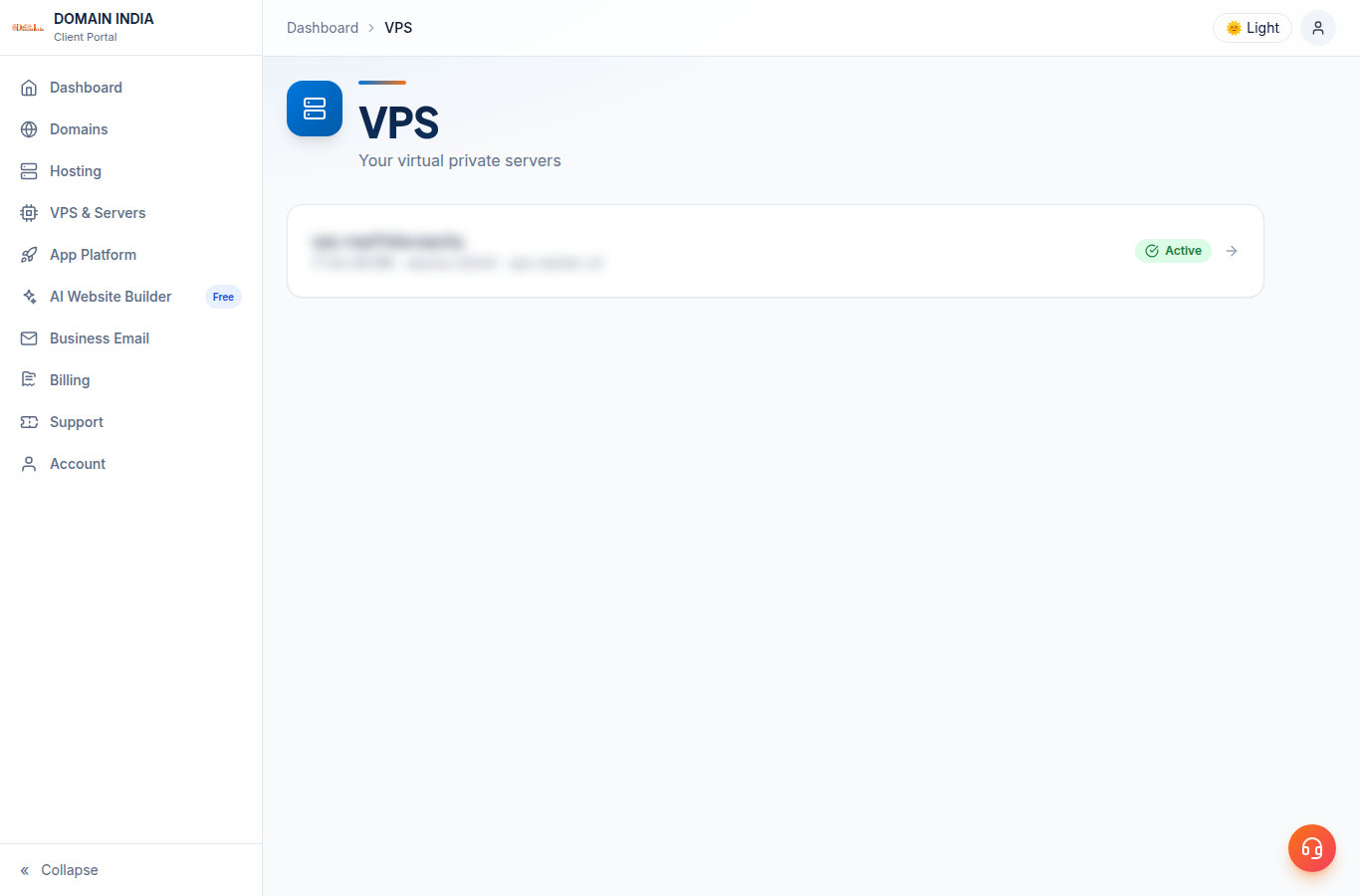
Log in to the client area, open VPS & Servers and click your VPS. The power buttons are at the top. The tabs are Overview, Console, Network, Firewall, Backups (snapshots), Rebuild and Plan & billing.
Open your VPS page
- Log in to the client area.
- Click VPS & Servers in the menu.
- Click your VPS in the list.
At the top
The VPS name, its status and the power buttons: Restart, Shut down and Force stop while it runs, Start when it is off.
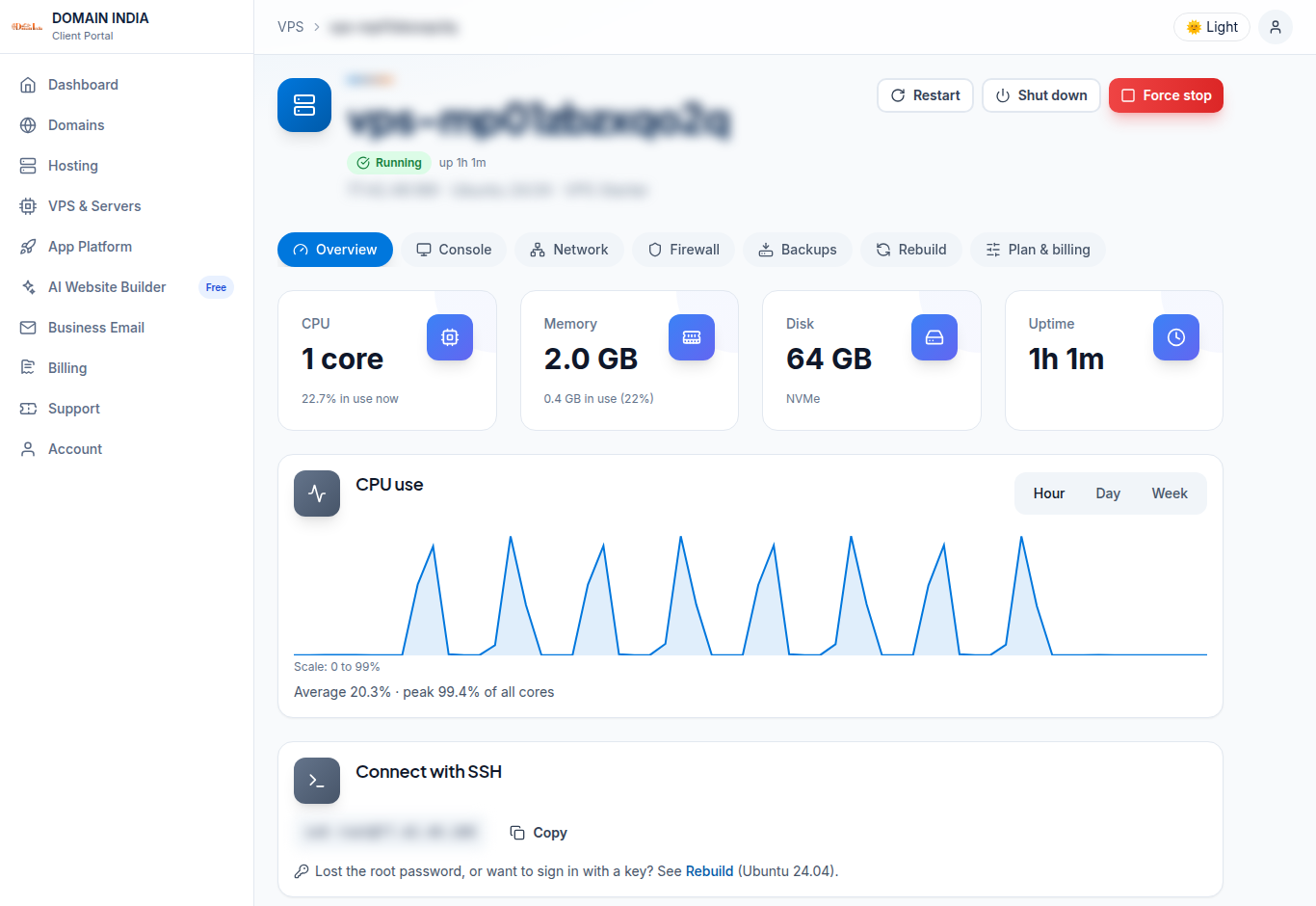
The tabs
| Tab | What you do there |
|---|---|
| Overview | Live CPU, memory, disk and uptime, a CPU graph, and the SSH command to copy. |
| Console | Open the server's screen in your browser. |
| Network | Your IPv4 address, the outgoing mail status and reverse DNS (PTR). |
| Firewall | Choose which ports the internet can reach. |
| Backups | Take, restore and delete snapshots. |
| Rebuild | Set a new root password, add SSH keys, reinstall the OS. |
| Plan & billing | Upgrade or change your plan. |
Good to know
- The figures on Overview are read live from the server each time the page loads.
- Most actions work only while the VPS is active (its invoice is paid).
- A sub-account needs the right permission to open the console.
Next steps: log in for the first time, use the browser console and set the firewall.
Older VPS without a VPS page in your client area: open a ticket with the VPS IP address and our team will do this for you.
Frequently asked questions
Where do I find my VPS in the client area?
Log in, click VPS & Servers in the menu and click your VPS.
Why are some buttons greyed out?
Most actions work only while the VPS is active, which means its invoice is paid. Some, such as setting a root password, also need the VPS to be running.
Are the figures on the Overview tab live?
Yes. CPU, memory, disk and uptime are read from the server each time the page loads.