Your VPS has a firewall on the host, outside the server. It decides which incoming traffic reaches your VPS.
Key takeaways
On the Firewall tab, click Add rule, choose Allow or Deny, the protocol, port and source, then click Save firewall. Rules apply from top to bottom; anything no rule allows is blocked.
Open on a new VPS: SSH (TCP 22), HTTP (TCP 80), HTTPS (TCP 443 and UDP 443) and ping.
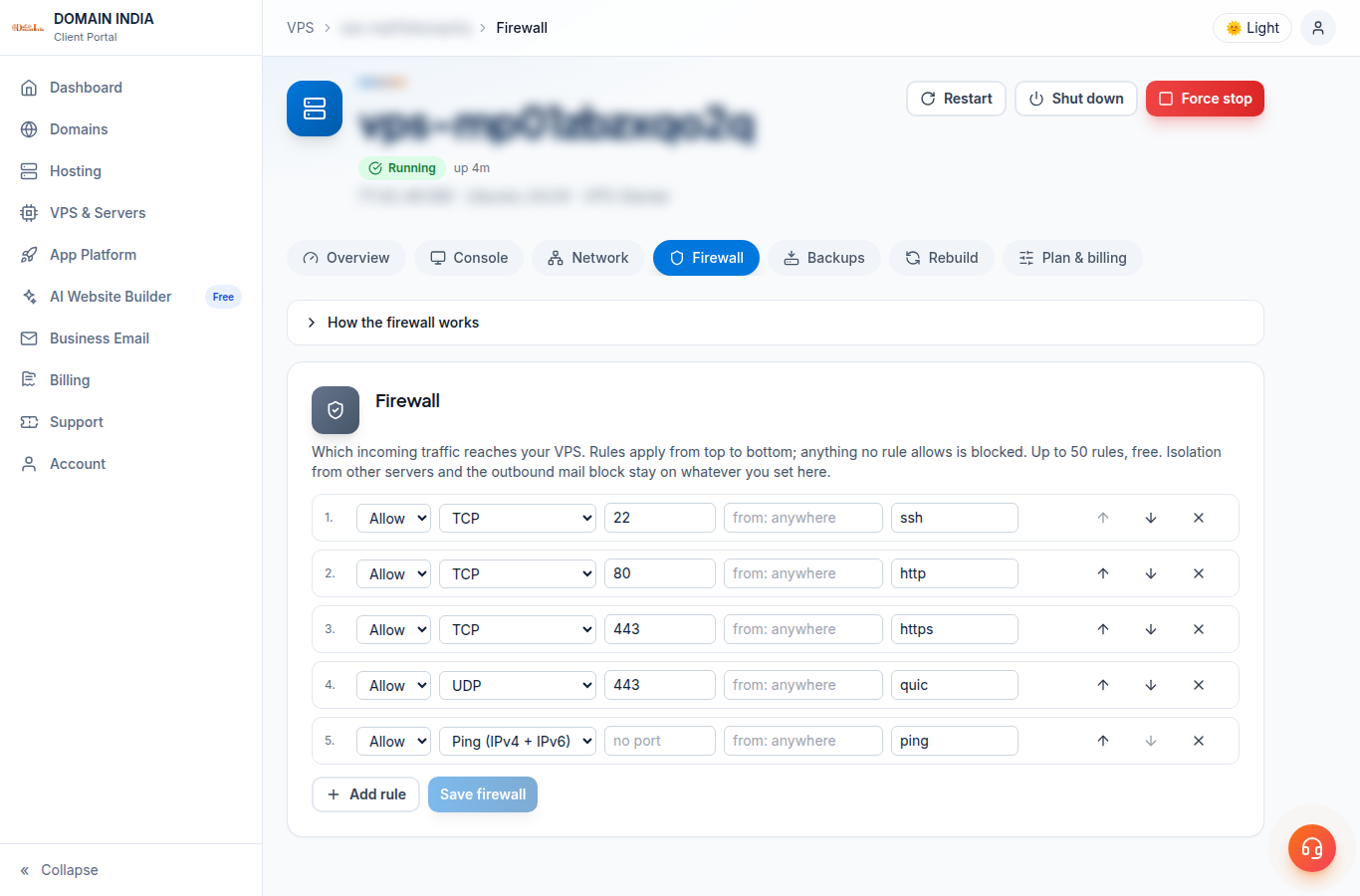
Add or change rules
- Log in to the client area, open VPS & Servers and click your VPS. Go to the Firewall tab.
- Click Add rule.
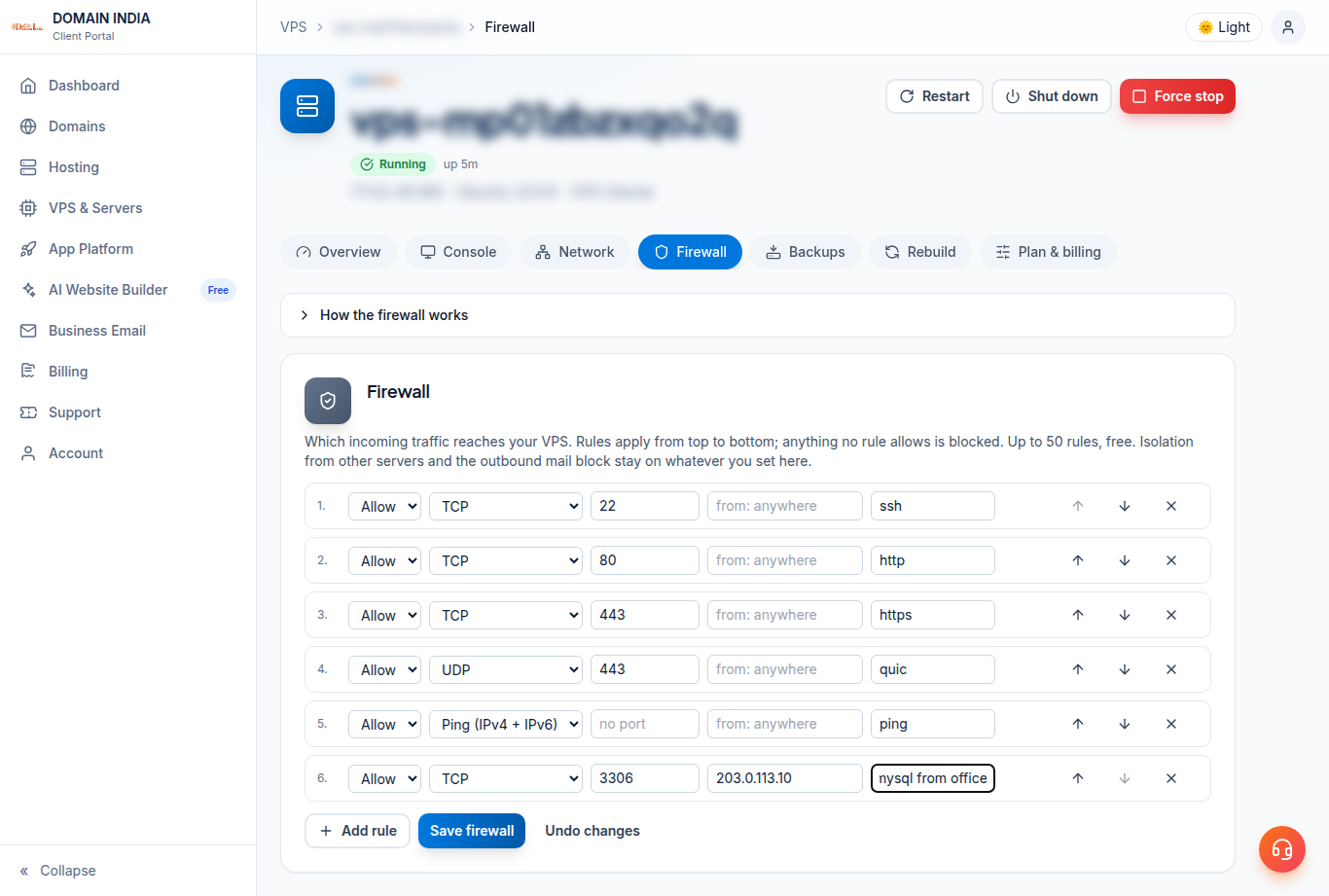
- Choose Allow or Deny, the protocol (TCP, UDP or ping), the port (
3306) or a range (8000-8100), and optionally a source IP or range (203.0.113.10or203.0.113.0/24). Leave the source empty for "from anywhere". - Add a note so you remember why.
- Use the arrows to move a rule up or down.
- Click Save firewall. To discard your edits, click Undo changes.
Rules to know
- Rules are checked from top to bottom. Anything no rule allows is blocked.
- No rules at all means all incoming traffic is blocked.
- Up to 50 rules per VPS, free.
- If you remove the SSH rule, you can still reach the server through the Console tab.
- This firewall works together with any firewall inside the server (UFW, firewalld). Traffic must pass both.
- Isolation from other servers and the outgoing mail block stay on whatever you set here.
Older VPS
Older VPS without a VPS page in your client area: open a ticket with the VPS IP address and our team will do this for you.
Frequently asked questions
Which ports are open on a new VPS?
SSH (TCP 22), HTTP (TCP 80), HTTPS (TCP 443 and UDP 443) and ping.
How many firewall rules can I add?
Up to 50 per VPS, free.
I removed the SSH rule and cannot connect. What now?
Open the Console tab on your VPS page, or add the SSH rule back on the Firewall tab and click Save firewall.