The console shows your server's screen, as if a monitor and keyboard were plugged in. Use it when SSH does not work: a firewall mistake, a network change or a boot problem.
Log in to the client area, open VPS & Servers and click your VPS. Go to the Console tab, type your account password or a 2FA code and click Confirm and open. Then log in as root with a root password you set on the Rebuild tab.
Open the console
- Log in to the client area, open VPS & Servers and click your VPS.
- Go to the Console tab.
- Type your account password (the one for the client area), or a 2FA code, and click Confirm and open.
- When the server's screen appears, type
root(or your user), press Enter, then type the password.
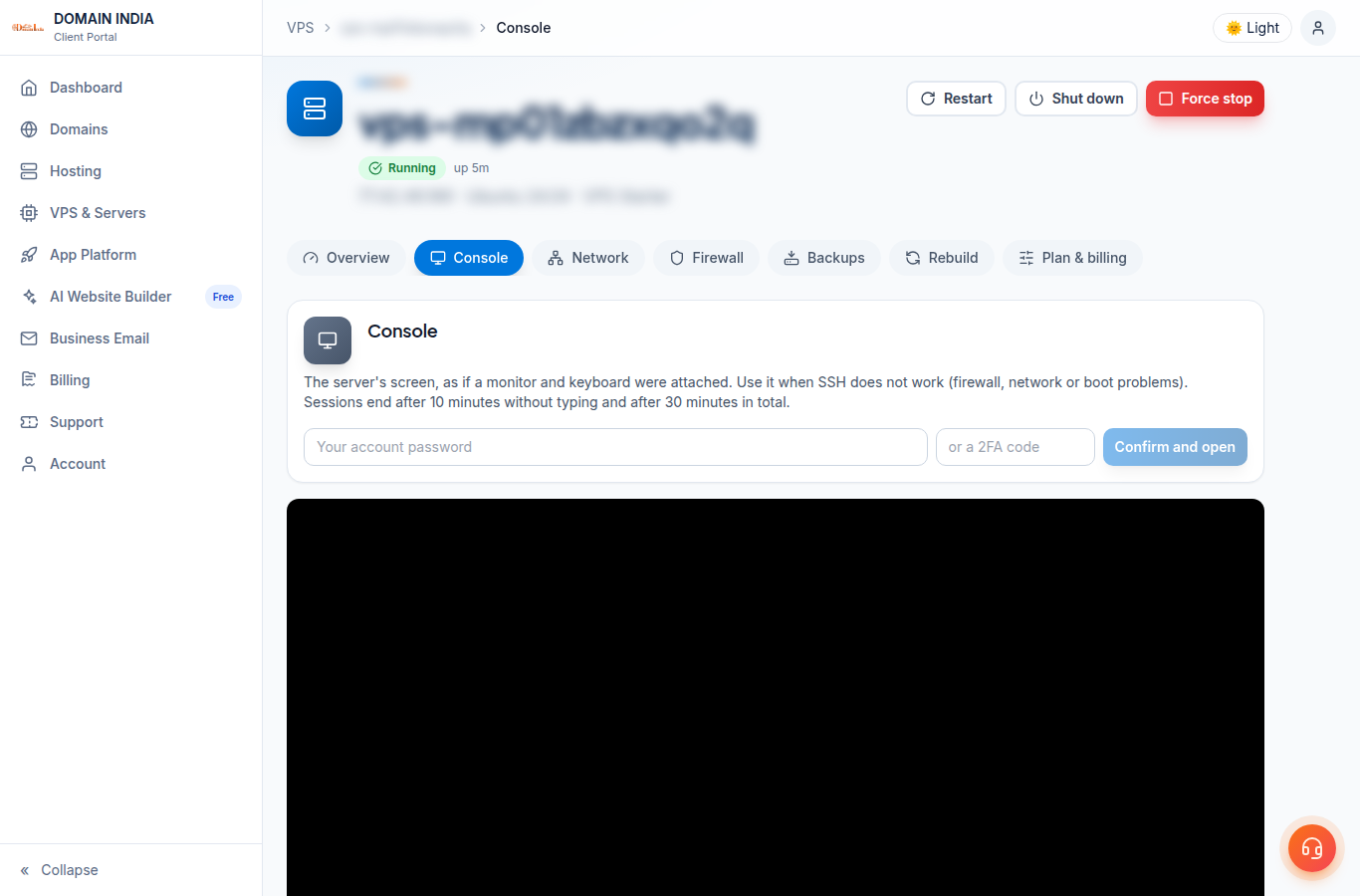
No root password yet? Set one on the Rebuild tab first; see first login.
Pasting a long password
- Click Paste, or press Ctrl+V (Cmd+V on a Mac), then press Enter. The browser asks for clipboard permission the first time.
- Nothing appears on screen while you type or paste a password. That is normal.
Good to know
- A session ends after 10 minutes without typing and after 30 minutes in total. Open it again when you need it.
- After a restart, the console reconnects by itself. If it does not, click Reconnect.
- The console is root access to your server, so it always asks for your account password or 2FA code.
- A sub-account needs the console permission to use it.
Older VPS without a VPS page in your client area: open a ticket with the VPS IP address and our team will do this for you.
Frequently asked questions
Is there a web console for my VPS?
Yes. Open the Console tab on your VPS page and confirm with your account password or a 2FA code.
Which password does the console ask for?
First your client-area account password or a 2FA code, to prove it is you. Then the server asks for its own login: root and a root password you set on the Rebuild tab.
Why did my console session close?
Sessions end after 10 minutes without typing and after 30 minutes in total. Open the console again.