You update a domain's contact information on the domain's Contacts tab in the Domain India client area. Each domain has four contacts (Registrant, Admin, Tech and Billing), and you edit and save them one at a time. The change goes to the registry as soon as you click Save.
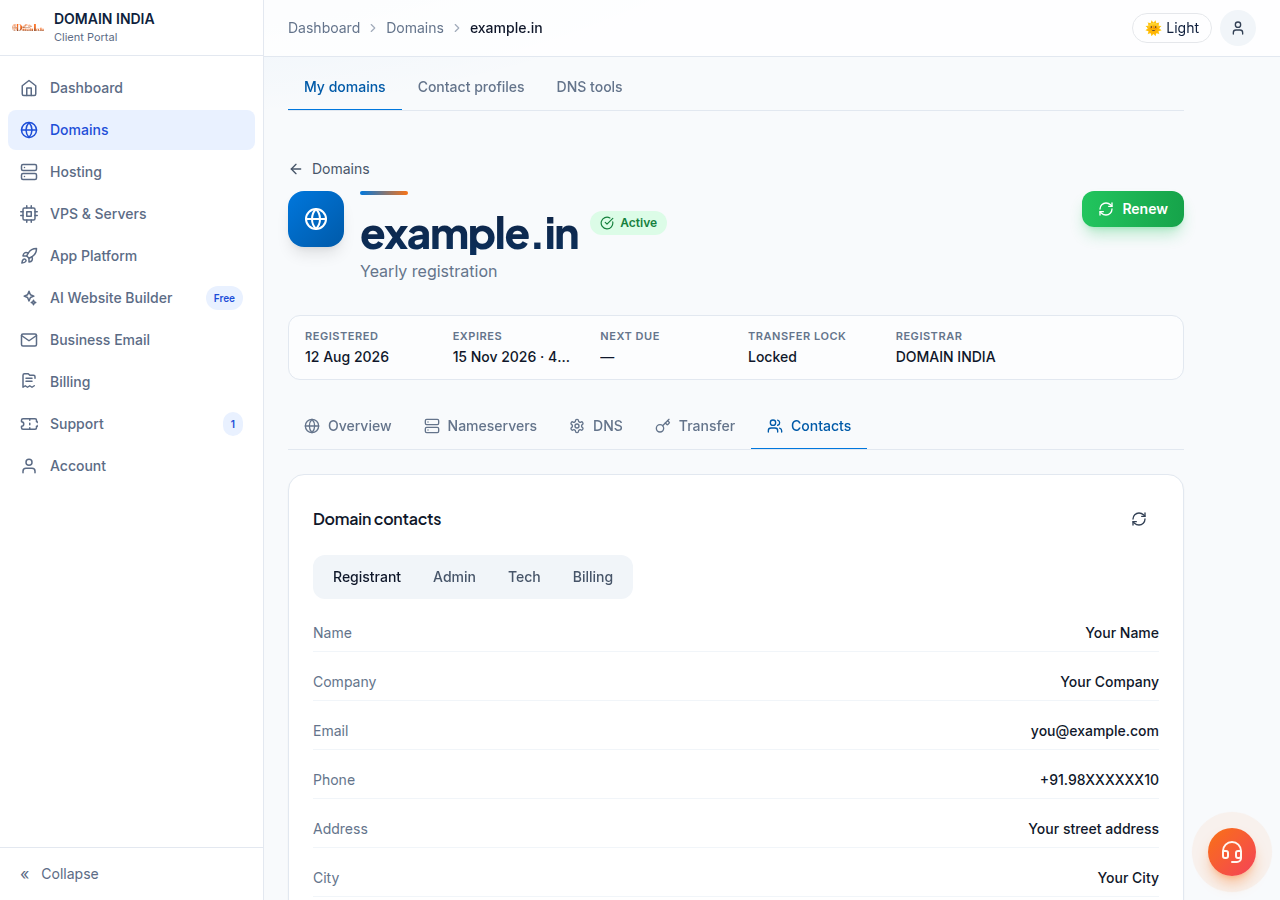
Log in, open Domains, click the domain and open the Contacts tab. Choose Registrant, Admin, Tech or Billing, click Edit contact, correct the details and click Save. Changing the registrant's name, organisation or email on a generic domain such as .com can trigger a verification email and a 60-day lock on transfers to another registrar. On .in domains, change Admin, Tech or Billing contacts through a support ticket.
Everything about the contact form, error messages and .in rules is in Change your domain's WHOIS information. This page is the short version.
1. Which contact to update
| Contact | Who it should be |
|---|---|
| Registrant | The legal owner of the domain: you or your business |
| Admin | The person who manages the domain day to day |
| Tech | Whoever runs your DNS, website or email |
| Billing | Whoever pays for the domain |
The registrant decides who owns the domain. Changing its name or organisation is a change of owner, not just a correction, so make sure the registrant is you or your business. If only one contact is correct, make it that one.
2. Update the contacts in the client area
- Log in.Sign in to the client area and open Domains.
- Open the domain.Click the domain you want to update, then open the Contacts tab.
- Choose the contact.Use the Registrant, Admin, Tech and Billing buttons to switch between the four contacts.
- Click Edit contact.Name, Email, Phone, Address, City, ZIP / PIN and Country are required. Company and State are optional.
- Click Save.You will see "Contact updated" when the registrar accepts the change. If it is rejected, the reason appears in red above the form.
- Repeat for each contact.Each contact is saved separately.
Include the country code in the phone number (for example +91), pick the country from the list, and leave Company empty if you hold the domain as an individual.
If a domain has no Contacts tab, its contacts cannot be edited from the client area, for example while it is still being registered or transferred in. Open a ticket and support will help.
3. What happens after you save
- Address, phone or other details only: usually nothing more to do.
- Registrant email changed on a generic domain such as .com: expect a verification email at the new address and click the link in it. If it is not confirmed within 15 days, the domain can be suspended. See Verification of WHOIS details.
- Registrant name, organisation or email changed on a generic domain: ICANN treats this as a change of registrant, which puts a 60-day lock on transfers to another registrar unless the owner opted out before the change. Your website, email and DNS keep working. If you plan to transfer the domain soon, transfer first or ask support before changing the registrant.
- Admin, Tech or Billing changed: no transfer lock.
On .in and other Indian domains, the registrant is tied to identity verification (eKYC). You can correct the registrant's address, phone or email on the Registrant tab, and the address must be complete, down to the PIN code. To change the owner's name or organisation, or any Admin, Tech or Billing contact, open a ticket rather than editing it yourself.
Public lookup websites often cache old results. If one still shows the old details, check the Contacts tab in the client area, and use its refresh button, before assuming the change failed.
4. Domains registered elsewhere
If the domain is registered with another registrar, you update its contacts in that registrar's panel. To manage it in the same client area as your other domains, see Can I transfer an existing domain to Domain India.
How do I update my domain contact information at Domain India?
Log in to the client area, open Domains, click the domain and open the Contacts tab. Choose Registrant, Admin, Tech or Billing, click Edit contact, update the details and click Save.
Does updating the registrant change who owns the domain?
Yes, if you change the registrant's name or organisation. The registrant contact identifies the legal owner, so whoever is named there owns the domain. Correcting the address or phone number does not change ownership.
Will updating my contact details stop my website or email?
No. Contact details are separate from DNS. The exception is a registrant email change on domains such as .com: if the verification email is not confirmed within 15 days, the domain can be suspended.
Can I update all four contacts at once?
No. Each contact is edited and saved separately on the domain's Contacts tab, so update Registrant, Admin, Tech and Billing one at a time.
How do I change the Admin or Tech contact on a .in domain?
Open a support ticket with the domain name and the new details. On .in domains, change the Admin, Tech or Billing contact through support rather than editing it yourself.
Ready to check your contacts? Open your domains and review the Contacts tab for each one, or open a ticket if something needs support's help. To register a new name, start at domain registration.
Register .in, .com and more than 500 other extensions, and manage contacts, DNS and renewals from one client area.
Search for a domain