Imunify360 is the security suite that protects Domain India shared hosting servers. It scans files for malware, blocks malicious PHP scripts as they run, filters attacks at the web server and blocks abusive IP addresses. It is set up once for the whole server by us, so it protects your cPanel account without any setup from you. This guide explains what it does, what you see in cPanel, and what to do when it finds something or blocks you.
Imunify360 runs server-wide on our cPanel servers, with the same protection for every plan. It scans changed files in real time and every account weekly, and removes malicious code from infected files automatically, keeping the original for 14 days. You can't start your own scan or change its settings, and you aren't emailed when it finds malware. The Imunify360 icon is in the Security section of cPanel. If your site was hacked or you are blocked, open a ticket.
1. What Imunify360 does on our servers
We measured the configuration on our cPanel server on 20 September 2026 and checked it again on 24 September:
Imunify360 also runs on our DirectAdmin servers. The details in this guide were measured on cPanel; for DirectAdmin, ask support what your panel shows.
2. Find Imunify360 in cPanel
- Log in to cPanelfrom your hosting service in the client area. See how to log in to cPanel.
- Scroll to the Security section.
- Click Imunify360.
The page shows Imunify360 information for your account. Because the settings are server-wide, it is not a control panel for the scanner: what you can change there is limited, and the exact screens depend on the server's configuration.
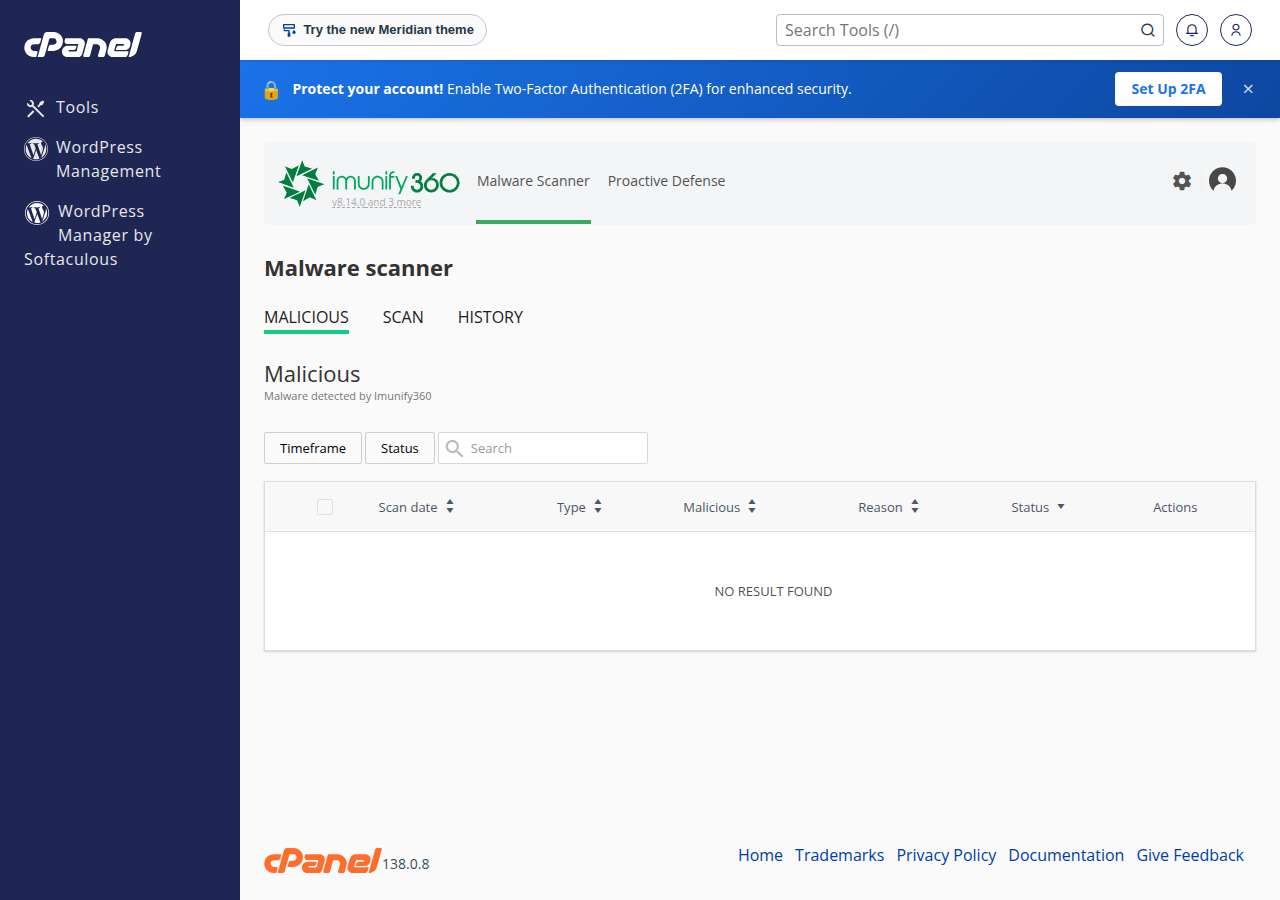
3. What you can and can't do yourself
| Action | Can you do it? |
|---|---|
| Start a malware scan of your account | No. Scans run automatically: in real time on changed files and weekly for every account |
| Choose what happens to infected files | No. Cleanup is automatic and server-wide |
| Change Proactive Defense mode | No. It is set for the whole server |
| Mark a detection as a false positive | Ask support |
| Switch off the web application firewall for a domain | No. Ask support if it blocks a legitimate action |
| Get an email when malware is found | No. Customers are not emailed when malware is detected |
Older guides, including an earlier version of this article, told you to click Start Scan, change Proactive Defense to Log mode or add files to an ignore list. None of that applies on our servers.
Imunify360 doesn't email you when it finds malware, so don't rely on silence. Watch for the signs of a hack: unknown files or admin users, redirects to other sites, a Google "dangerous site" warning, or a sudden rise in outgoing email. If you see any of them, open a ticket and ask what the scanner found on your account.
4. When Imunify360 finds malware
Automatic cleanup removes the malicious code it recognises, but it doesn't close the hole the attacker used. A site cleaned without fixing the cause is usually reinfected.
- Ask support what was found.Open a ticket from your client area and ask which files Imunify360 flagged or cleaned on your account.
- Change every password:client area, cPanel, FTP, database, CMS administrators and email accounts. Do it from a device you have scanned for malware.
- Update WordPress, every plugin and theme,and delete ones you don't use. Outdated plugins are the most common way in.
- Look for what the attacker left behind:unknown admin users, cron jobs, FTP accounts and files you didn't upload.
- Restore a clean backup if needed.JetBackup in your cPanel keeps weekly backups; pick one from before the first sign of trouble. See backup and restore with JetBackup.
The full procedure is in the security checklist for a hacked website. If Google shows a warning, also follow the Google dangerous-site guide.
Imunify360's automatic cleanup is a feature of the server software. Cleaning a hacked site by hand is not part of standard support, so plan to fix your own site files, plugins and database, or have your developer do it.
5. When cleanup breaks a file
Cleanup trims the malicious code out of a file. Occasionally that leaves a file that no longer works, or a legitimate file is flagged by mistake. Signs are a blank page, a PHP error mentioning one file, or a plugin that suddenly stops working.
- For a plugin or theme file, reinstall a fresh copy of that plugin or theme from its official source, then update it.
- For your own code, restore the file from your own copy or from JetBackup.
- If you think it was a false positive, open a ticket with the file path and the time the problem started. The original is kept for 14 days, so support can check it within that window.
6. Blocked by the firewall or the WAF
There are two different kinds of block:
- One action fails with 403 Forbidden while the rest of the site works. That is usually a WAF rule. Note the URL, the exact time and your public IP address, and send them in a ticket. See ModSecurity on cPanel.
- You can't reach the server at all (website, cPanel, email or FTP time out) while others can. Your IP address has probably been blocked, often after repeated failed logins from an old password saved in a mail app or FTP client. Find your public IP address and open a ticket or use live chat. See have I been blocked?.
Fix the stored password that caused the failed logins, or you will be blocked again.
7. Good habits that Imunify360 can't replace
- Keep WordPress, plugins and themes updated, and remove unused ones.
- Use strong, unique passwords, and turn on two-factor login for cPanel and your CMS; see enabling two-factor authentication.
- Install plugins and themes only from their official sources, never "nulled" copies.
- Keep your own backup away from the server, and take one before big changes.
For the common causes of hacked WordPress sites, read why WordPress sites get hacked.
8. Where Domain India hosting fits
Every Domain India cPanel plan runs on servers with Imunify360, the full WAF ruleset, CloudLinux account isolation and weekly JetBackup backups, whatever plan you choose. If you need to run and tune your own security software, a VPS is self-managed and gives you root access; see the Imunify360 WAF guide for installing it on your own server.
Frequently asked questions
Is Imunify360 included with Domain India cPanel hosting?
Yes. Imunify360 runs on our cPanel servers for every account, with the same configuration whatever plan you are on. There is nothing to install or switch on.
How do I run an Imunify360 scan on my account?
You can't start one yourself on Domain India shared hosting. Imunify360 scans changed files in real time and scans every account weekly. If you think your site is infected, open a support ticket and ask what the scanner has found.
Will I be told if malware is found on my site?
Not by email. Imunify360 on our servers doesn't send customers a detection email. Watch for the signs of a hack and ask support in a ticket if you are concerned.
What happens to an infected file?
Imunify360 removes the malicious code from the file automatically and keeps the original for 14 days. Infected files are trimmed rather than deleted, so a plugin file may need reinstalling if it stops working.
Does Domain India clean hacked websites?
Imunify360 removes known malicious code automatically, but cleaning a hacked site by hand is not part of standard support. You or your developer need to update the software, change passwords and remove anything the attacker left behind.
Why can't I reach my website or cPanel from my office?
Your IP address may have been blocked after repeated failed logins, often from an old password saved in a mail app. Find your public IP address and contact support by live chat or ticket, then update the stored password.
Can I turn off Imunify360 or the firewall for my site?
No. It protects the whole shared server, so it can't be switched off for one account. If it blocks a legitimate action, send support the URL, the time and your IP address.
Ready to secure your site? Follow the hacked website checklist, compare cPanel hosting plans, or open a ticket in the client area if Imunify360 has flagged your account.
Tell us your domain and what you noticed, and ask what the server-side scanner has found on your account.
Open a support ticket