A red "Dangerous site", "Deceptive site ahead" or "The site ahead contains malware" screen in front of your website means Google Safe Browsing has flagged it. Most visitors turn back at that screen, and Google Search may add a warning to your listing too. This guide explains what the warning means, how to confirm it, how to clean the site properly and how to ask Google to remove the warning.
The warning means Google found malware, phishing or hacked content on your site, usually because an attacker got in through an outdated plugin, theme or stolen password. Confirm it in Google Search Console under Security issues, take a backup for evidence, change every password, then find and remove the malicious code and the way the attacker got in. When the site is clean, click Request review in Search Console. Google says a review can take from a few days to a few weeks.
1. What the warning means
Google Safe Browsing scans the web for sites that harm visitors. When it flags a site, Chrome and Firefox (and Safari, in most regions) show a full-page red warning before the visitor reaches it. The exact wording changes between browser versions, but the common ones are:
| Warning you see | What Google found | Typical cause |
|---|---|---|
| Dangerous site | A general warning that the site may trick visitors or harm their device | Any of the problems below |
| Deceptive site ahead | Phishing or social engineering: pages that imitate a bank, a login page or a payment form | Attacker uploaded a fake login page into your hosting account |
| The site ahead contains malware | Code that tries to install harmful software on visitors' devices | Injected JavaScript or hidden redirects to malicious sites |
| The site ahead contains harmful programs | Downloads that change browser settings or bundle unwanted software | A download link or file on your site |
| "This site may be hacked" in Google Search | Spam pages or content added to your site by someone else | Pharma, casino or fake-shop pages injected into your site |
Older articles call this the "Google attack page" or "Reported attack site" warning. It is the same system.
Site owners often assume Google is wrong because the site "looks fine". Attackers usually hide malicious code from logged-in administrators and show it only to visitors from Google Search or on mobile phones. Treat the warning as real until you have checked.
2. Confirm the problem and find out what Google saw
Check two places before you change anything.
Google Safe Browsing site status
Open the Google Transparency Report site status tool and enter your domain. It tells you whether the site is currently flagged and, in general terms, why. Anyone can use it; you do not need to own the site.
Search Console "Security issues" report
Google Search Console gives the detail you need to clean up:
- Sign in and open your site's property. If you have never added the site, add it as a Domain property and verify it with the DNS TXT record Search Console gives you.
- Open Security & manual actions, then Security issues.
- Note the issue type, such as "Hacked: Malware", "Hacked: Code injection", "Hacked: URL injection" or "Deceptive pages".
- Note the sample URLs. They show you where to start looking.
Also check your email. Google sends a Search Console message when it detects a problem, and it often names the issue.
3. Emergency steps: the first hour
Do not panic, and do not start deleting files at random. Work in this order.
- Take a full backup of the site as it is now.Download the files and a database export from your control panel and keep them on your computer, not inside the website folder. This is your evidence: it shows how the attacker got in, and you can recover anything you delete by mistake. Do not restore from this backup later, because it contains the malware.
- Change every password connected to the site.Your Domain India client area, your control panel (cPanel, DirectAdmin or Webuzo), every FTP account, every database user, every CMS administrator and every email account on the domain. Use a new, unique password for each one, and change them from a computer you trust.
- Update the database password in your site's configuration file.For WordPress, that is
wp-config.php. Otherwise the site stops working after you change the database user's password. - Turn on two-factor authentication:in your Domain India client area (under security settings), in your control panel where it is offered, and on every CMS administrator account.
- Scan the site.Use the malware scanner in your control panel and a reputable security plugin for your CMS. Write down every file it reports.
- Consider maintenance mode.If the site is sending visitors to scam pages, a simple maintenance page protects your customers while you clean up.
If a password was stolen by malware on your own PC, changing it from that PC achieves nothing. Run a full antivirus scan on the computers used to manage the site before you change passwords.
4. Find and remove the malware
Attackers rarely leave just one file. Check every area below, even after the scanner reports "clean". Most examples are for WordPress because most hacked sites run it, but the same ideas apply to any CMS.
WordPress core, plugin and theme integrity
WordPress publishes checksums for its core files and for plugins from the official directory. If you have SSH access, WP-CLI compares your files against them:
cd ~/public_html
wp core verify-checksums
wp plugin verify-checksums --all
Any file reported as changed or unexpected needs attention. The simplest fix for core files is to replace them with a fresh copy of the same WordPress version: replace the wp-admin and wp-includes folders completely, and keep wp-config.php and wp-content. See Restoring and Resetting WordPress Core Files for the step-by-step method.
For plugins and themes, delete the folder and install a fresh copy from the official source. Remove any plugin or theme you do not use, and never keep "nulled" (pirated) premium plugins or themes. They are one of the most common ways malware gets in.
Unknown administrator users
Attackers add their own administrator account so they can come back. List every administrator:
wp user list --role=administratorOr check Users in the WordPress dashboard and filter by Administrator. Delete any account you do not recognise, and assign its content to a real user when WordPress asks.
Recently modified and unfamiliar files
Look for files that changed around the time the problem started, and for PHP files where they do not belong:
# PHP files changed in the last 14 days
find ~/public_html -type f -name "*.php" -mtime -14 -ls

# PHP files inside the uploads folder (there should normally be none)
find ~/public_html/wp-content/uploads -type f -name "*.php"

# Common obfuscation patterns used by malware
grep -rlE "eval\(base64_decode|gzinflate\(base64_decode|str_rot13\(|assert\(\\\$_(POST|GET|REQUEST)" ~/public_html
A search result is a lead, not proof: some legitimate plugins use these functions. Compare suspicious files with a fresh copy before you delete them. Without SSH, use your control panel's File Manager and sort by modification date.
.htaccess redirects
Malware often adds rules to .htaccess that redirect visitors from Google or on mobile phones to spam or scam sites, while you see the normal site. Check the .htaccess file in your website folder and in its subfolders. A clean WordPress .htaccess is short; compare yours with the default WordPress .htaccess file and remove any rules you did not add yourself, especially ones that check the referrer or user agent.
Database injections
Some infections live in the database rather than in files. Check these places:
- Site address: in
wp_options, thesiteurlandhomevalues must be your own domain. - Posts and pages: injected script tags or hidden links in post content.
- Widgets and theme options: injected code in
wp_options.
With WP-CLI you can search the whole database:
wp option get siteurl
wp option get home
wp db search "<script" --all-tables
wp db search "eval(" --all-tables
Your table prefix may not be wp_; check $table_prefix in wp-config.php. Take a fresh database export before you edit any row.
Other places attackers hide
- Cron jobs in your control panel that download the malware again every few minutes.
- Extra FTP accounts and SSH keys you did not create.
- Email forwarders that copy your mail to an outside address.
- Files outside the website folder, such as in your home directory.
If you have a backup from before the infection started, restoring it can be quicker than cleaning file by file. Then update everything immediately and change every password again, because the backup still has the same weakness the attacker used.
5. Close the hole and harden the site
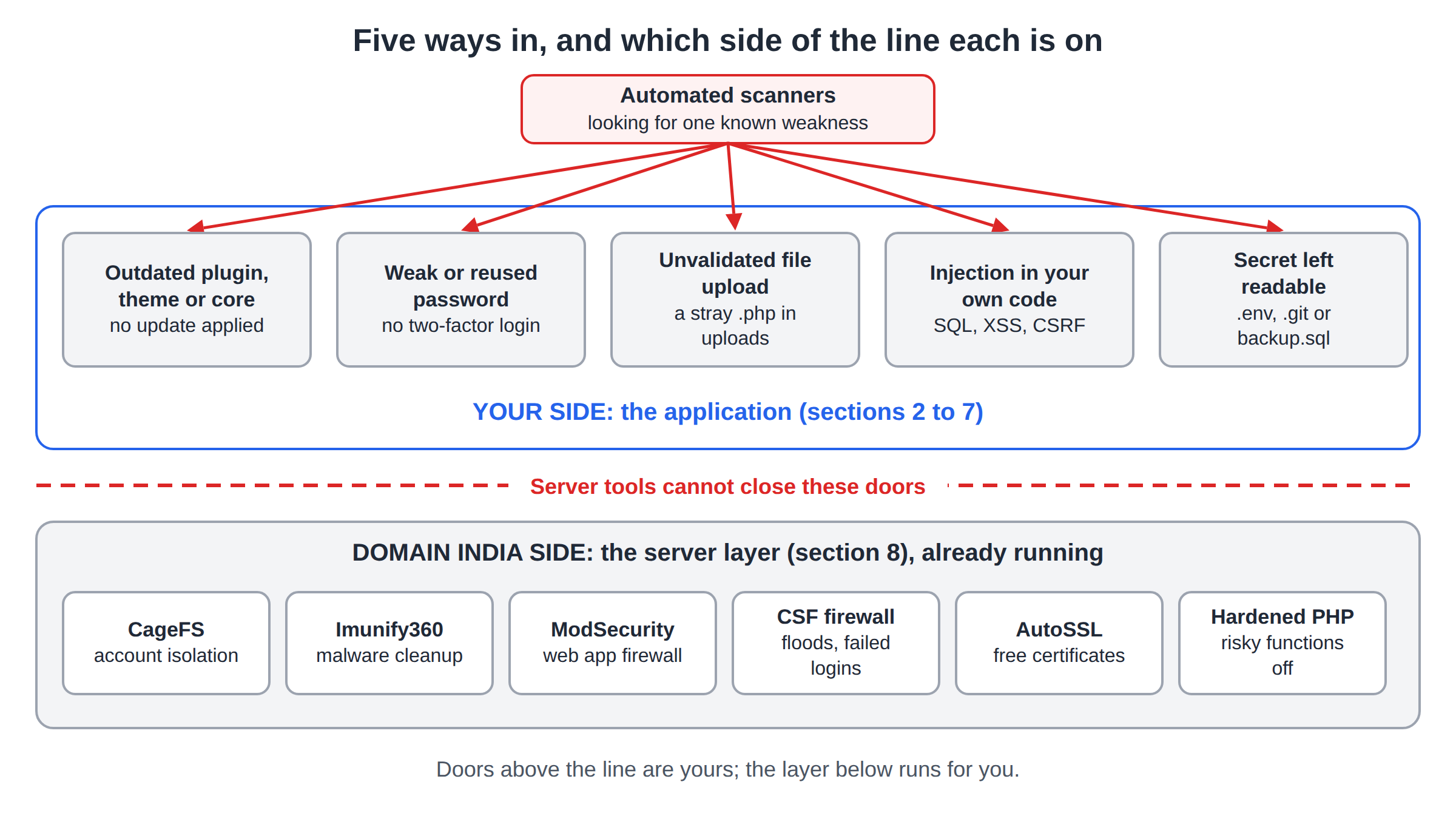
Cleaning without fixing the entry point means the site will be hacked again, often within days. The usual entry points are an outdated or pirated plugin or theme, a weak or reused password, or an old, forgotten installation in a subfolder.
- Update everything: CMS core, every plugin and every theme. Delete what you do not use, including old test installs.
- Use a supported PHP version. Choose one from the PHP selector in your control panel that your CMS and plugins support.
- Use strong, unique passwords stored in a password manager, and turn on two-factor authentication for every administrator.
- Give each person their own account with the lowest role they need. Do not share one admin login.
- Protect the login page with a security plugin that limits login attempts.
- Set safe file permissions: normally 644 for files and 755 for folders, with
wp-config.phpstricter where your host allows it. - Keep SSL on and force HTTPS.
For the full checklist, read The Complete WordPress Hardening Guide.
6. Request a review from Google
Request a review only when the site is fully clean. A failed review does not help, and Google may take longer to review the site again.
- Check again.Scan once more, open the sample URLs from the report in a private browser window, and visit the site from a Google search result on your phone.
- Open the report.In Search Console, go to Security issues and confirm you have fixed every issue listed, on every page.
- Click Request review.Describe what you found, what you removed, how the attacker got in and what you changed to stop it happening again. Be specific.
- Submit and wait.Google emails you and updates the report with the result.
How long does it take? It varies. Google's own documentation says a security review can take from a few days to a few weeks. If the review is rejected, the message tells you what Google still found. Fix it and request another review.
If the warning came only from the Safe Browsing site status and your site is not verified in Search Console, verify it first. Search Console is the only direct way to request a review.
7. Prevent a repeat
See also How to Back Up and Restore Your Website and Security Checklist: What to Do If Your Website Has Been Hacked or Defaced.
8. Help from Domain India
Domain India's cPanel and DirectAdmin shared hosting plans include server-level security: Imunify360, a web application firewall (WAF), malware removal tools, DDoS protection and CloudLinux, which keeps each hosting account isolated from the others on the server. Webuzo hosting has Imunify malware scanning but not CloudLinux. These layers block many common attacks and catch many known malware files. They do not replace keeping your own site updated: a vulnerable plugin or a stolen password can still let an attacker in.
If your site is on Domain India hosting and has been flagged:
- Open a support ticket from the client area. Tell us the domain and paste the issue type and sample URLs from Search Console.
- Support can check the server-side scan results for your account, so you can see which files the server scanner has flagged.
- Keep the cleanup of your website files, plugins and database in your own hands, or with your developer, unless support confirms otherwise in the ticket.
Read Understanding Imunify360 Security in cPanel to learn what the scanner does. If you are choosing hosting for a new or rebuilt site, these plans include the security features above:
- 25 GB NVMe SSD Storage
- 50 GB Monthly Bandwidth
- 1 Website
- 10 Email Accounts
- 10 GB NVMe SSD Storage
- 50 GB Monthly Bandwidth
- 1 Website
- 5 Email Accounts
Compare all plans on cPanel hosting, DirectAdmin hosting and Webuzo hosting. Card prices are Domain India list prices on 19 September 2026, excluding 18% GST.
Frequently asked questions
What does "Deceptive site ahead" mean on my website?
It means Google Safe Browsing found phishing or social engineering content on your site, such as a fake bank or login page, usually uploaded by an attacker who got into your hosting account. Check the Security issues report in Google Search Console to see which pages were flagged.
What does "The site ahead contains malware" mean?
It means Google found code on your site that tries to install harmful software on visitors' devices, often injected JavaScript or hidden redirects. The site has usually been hacked, commonly through an outdated plugin or theme or a stolen password.
How do I check if Google has flagged my website?
Enter your domain in Google's Safe Browsing site status tool on the Google Transparency Report, and check the Security issues report in Google Search Console. Search Console gives the issue type and example URLs.
How long does it take Google to remove the warning?
It varies. After you click Request review in Search Console, Google says a security review can take from a few days to a few weeks. The warning is removed after Google confirms the site is clean.
Why can't I see the malware when I open my site?
Many infections hide from logged-in administrators and show malicious content only to visitors who arrive from Google Search or use a mobile phone. Test from a private browser window and from a phone using a Google search result.
Should I just restore an old backup?
Restoring a backup from before the infection can be the fastest fix, but only if the backup is clean. Afterwards, update your CMS, plugins and themes and change every password, because the backup still contains the weakness the attacker used.
Will changing my passwords remove the malware?
No. Changing passwords stops the attacker logging in again with stolen details, but the malicious files, users and database entries stay until you remove them. Do both.
Does Domain India hosting include malware protection?
Yes. Domain India cPanel and DirectAdmin shared hosting plans include Imunify360, a web application firewall and malware removal tools; Webuzo plans have ImunifyAV malware scanning and a ModSecurity web application firewall. If your site is flagged, open a support ticket and support can check the server-side scan results for your account.
Ready to secure your site? Open a ticket from the client area if your Domain India site has been flagged, work through the WordPress hardening guide, or compare cPanel hosting plans with built-in Imunify360 security.
Imunify360, a web application firewall, malware removal tools and CloudLinux account isolation are listed on Domain India cPanel and DirectAdmin shared hosting plans.
See cPanel hosting plans