Razorpay is the payment option most Domain India customers use: one secure checkout for UPI, cards, net banking and wallets, opened straight from your invoice. This guide shows how to pay an invoice through Razorpay, how long confirmation usually takes, and what to do if money leaves your account but the invoice still shows as due.
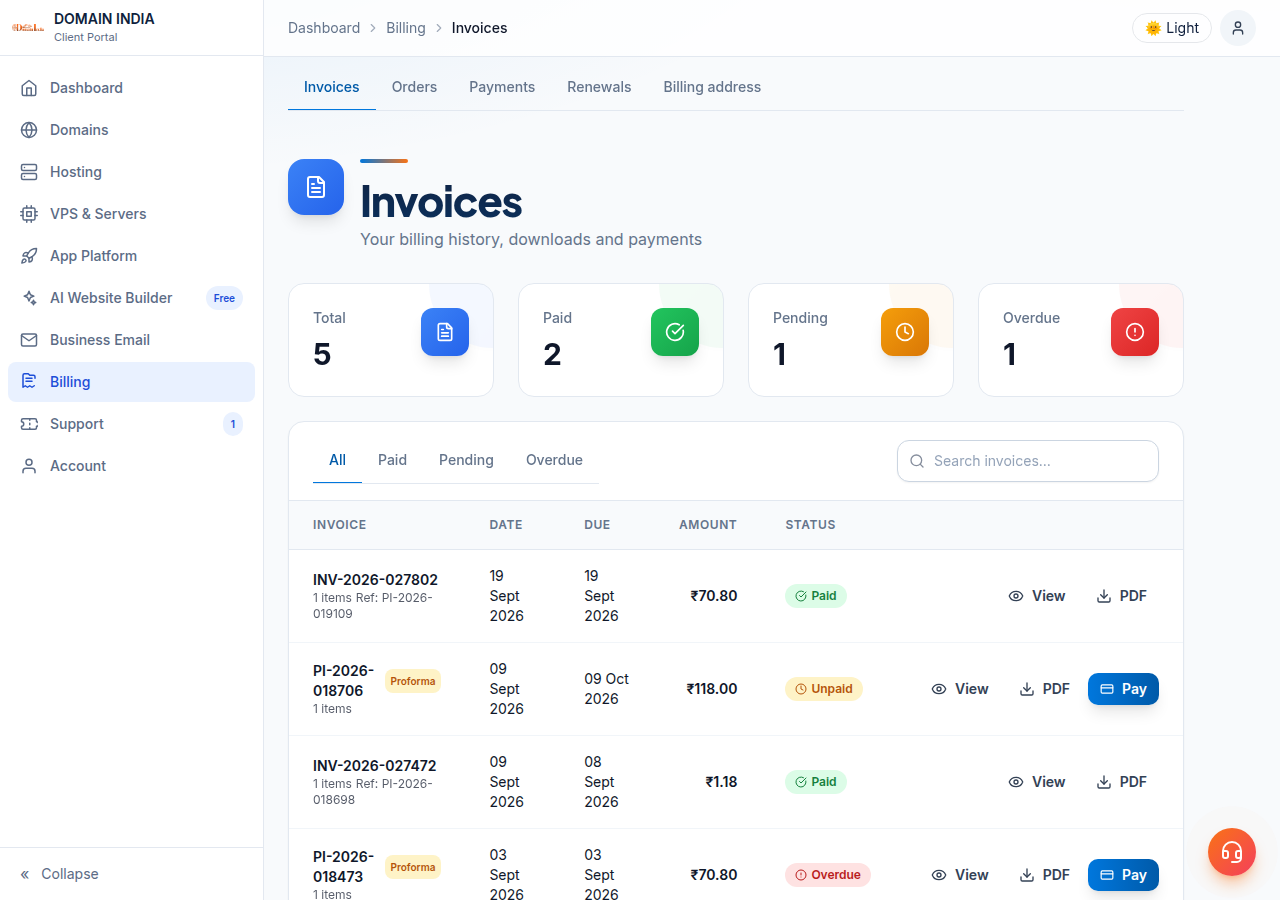
Open Invoices in the client area (/client/invoices), open the invoice and click Pay Now. On Select Payment Method, choose Razorpay, tick the terms box and click Pay. The Razorpay checkout opens on the same page; pay by UPI, card, net banking or wallet, and keep the window open until you are returned to the invoice. Most Razorpay payments show as Payment Received within about two minutes. Razorpay is one of several options, and Domain India never charges a saved card automatically.
Razorpay is not the only option. The payment page also offers other gateways and bank transfer, depending on what is enabled when you pay. For every method, step by step, see How to pay by UPI, net banking or card.
1. Find the invoice
Sign in to the client area and open Invoices. An invoice you still have to pay shows as Payment Due, or Payment Overdue after its due date. Unpaid invoices have a Pay button in the list; you can also open the invoice first to check the items and the GST before paying.
If you need your company's GSTIN on the invoice, add it before you pay, under GST information on your profile (/client/profile) or in billing settings. See how to get a GST invoice.
2. Pay with Razorpay
- Open the invoice and click Pay Now.The Complete Payment page shows the amount due.
- Choose Razorpay.Under Select Payment Method, click the Razorpay option, described as "Pay with Card, UPI, NetBanking, Wallet".
- Accept the terms.Tick the box to agree to the Terms of Service and Privacy Policy.
- Click Pay.The button shows your invoice total. The Razorpay checkout window opens on top of the page, with your name, email and phone already filled in where we have them.
- Choose how to pay inside Razorpay.Pick UPI, card, net banking or wallet and complete the payment (section 3).
- Wait to be returned.After Razorpay confirms, we check the payment and take you back to the invoice, which now shows Payment Received.
If you close the Razorpay window before paying, nothing is charged. Click Pay again when you are ready.
3. Inside the Razorpay checkout
| Method | What you do | Good to know |
|---|---|---|
| UPI | Scan the QR code with any UPI app, or enter your UPI ID if offered, then approve with your UPI PIN | Check the amount in your UPI app before approving |
| Card | Enter the card number, expiry, CVV and name, then the OTP from your bank | Many banks need online use switched on for the card first |
| Net banking | Choose your bank, sign in on the bank's page and approve | Your net banking must be enabled for online payments |
| Wallet | Choose the wallet and approve in it | The wallets shown depend on Razorpay and your device |
Which card networks, banks and wallets appear is decided by the Razorpay checkout itself. If one method fails, try another method in the same window, or choose a different payment option on our page.
After you approve the payment, keep the checkout and the invoice page open until you are returned to the invoice. Closing it at that moment doesn't cancel the payment, but it can leave you unsure whether it went through, and paying again creates a duplicate.
4. How long confirmation takes
Razorpay also confirms each payment to us directly, so the invoice updates even if your browser closes before you are returned. In our records, the median Razorpay payment is marked paid about 30 seconds after it starts, and about 90% within two minutes.
Once paid, the invoice shows Payment Received, the Paid On date and the Transaction ID, and you can use Download Tax Invoice. Every payment also appears on your Payments page with its date, invoice, gateway and transaction reference.
Paying a renewal invoice renews that service. Paying for a new order starts its setup: most hosting accounts are created automatically within a couple of minutes of payment, and a small number need a manual check and take longer.
5. Money debited, invoice still due?
- Don't pay again yet.Wait a few minutes and reload the invoice; confirmation usually arrives on its own.
- Check the Payments page.If the payment is listed there, it has been received.
- Still due after about an hour?Open a ticket with the invoice number, the amount, the date and time, and the UPI reference or bank transaction ID from your bank or UPI app.
If a payment failed but money was debited, the bank or gateway normally reverses it to your account; your bank can tell you when. If you paid the same invoice twice, open a ticket straight away with both references. The full checklist is in What to do if your payment shows pending.
6. Safety and automatic charges
Card, UPI and bank details are entered in Razorpay's own checkout, not on our invoice page. Domain India never charges a saved card automatically. For renewals we generate an invoice up to 30 days before the due date and email it to you; the service renews only when you pay it. See How auto-renewal works.
Frequently asked questions
How do I pay a Domain India invoice with Razorpay?
Open Invoices in the client area, open the invoice and click Pay Now. Choose Razorpay under Select Payment Method, tick the terms box and click Pay. Complete the payment by UPI, card, net banking or wallet in the Razorpay window, then wait to be returned to the invoice.
Is Razorpay the only way to pay Domain India?
No. The payment page also offers other gateways and bank transfer, depending on what is enabled when you pay. Razorpay is the usual choice for UPI, cards and net banking.
How long does a Razorpay payment take to show as paid?
Usually under two minutes. In Domain India's records the median Razorpay payment is marked paid about 30 seconds after it starts. The invoice then shows Payment Received with the Paid On date and Transaction ID.
Money was debited but my invoice still shows Payment Due. What should I do?
Don't pay again. Reload the invoice after a few minutes and check the Payments page. If it is still due after about an hour, open a ticket with the invoice number, amount, time and your UPI or bank reference.
Does Domain India save my card and charge it automatically?
No. Domain India never charges a saved card automatically. Renewal invoices are emailed up to 30 days before the due date, and a service renews only when its invoice is paid.
Where do I get the tax invoice after paying?
Open the paid invoice in the client area and click Download Tax Invoice. Add your GSTIN to your profile before paying if you need it on the invoice.
Ready to pay? Open your invoices, or see every payment method. If a payment needs checking, open a support ticket or use live chat, available 24/7.
Open the invoice, choose Razorpay and pay by UPI, card, net banking or wallet.
Go to my invoices