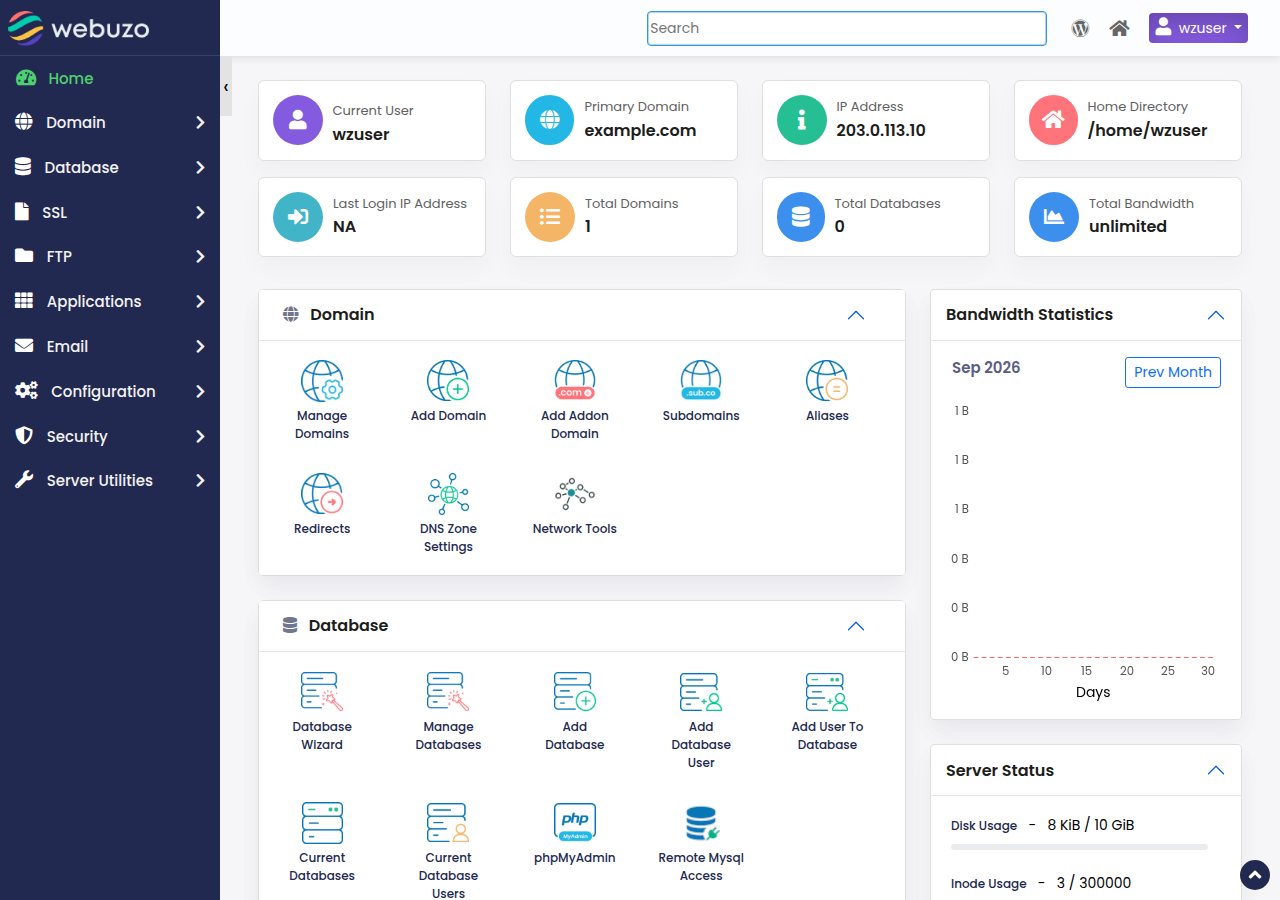
Webuzo is the control panel on Domain India's Webuzo hosting plans. From one dashboard you manage your domains, files, email accounts, databases, free SSL and one-click apps through Softaculous. This page is a quick tour of what the dashboard is for and the few things on our Webuzo server that work differently from cPanel or DirectAdmin.
Log in to Webuzo at https://yourdomain.com:2003 with your Webuzo username and password. From the dashboard you manage domains, files, email, databases, SSL and Softaculous apps. Our Webuzo server runs PHP 8.0 and 8.1 only, so check an app's PHP requirement before you install it. For a forgotten Webuzo password, PHP questions or restores, ask support.
Logging in, everyday tasks, email, security and plan choice are covered in Mastering Webuzo.
1. Opening the dashboard
- Sign into the client area and open your hosting accounts.
- Open the Webuzo login page.Once the account is Active, go to
https://yourdomain.com:2003. If the Webuzo button on your domain's row doesn't open the panel, use this address. - Enter your Webuzo username and password.Your username and server details are on the account's Access tab (click Manage, then Access).
The Reset password button in the client area does not work for Webuzo accounts yet. Contact support by live chat or open a ticket, and we will reset it for you. Never send a password in a chat or ticket.
2. What you manage from the dashboard
Menu names change between Webuzo versions, so the areas below are described by what they do rather than by an exact menu path.
Read email in a browser at https://yourdomain.com/webmail, which opens Webuzo Email. There is no webmail.yourdomain.com address on Webuzo hosting. See how to log in to webmail.
3. Installing apps: check the PHP version first
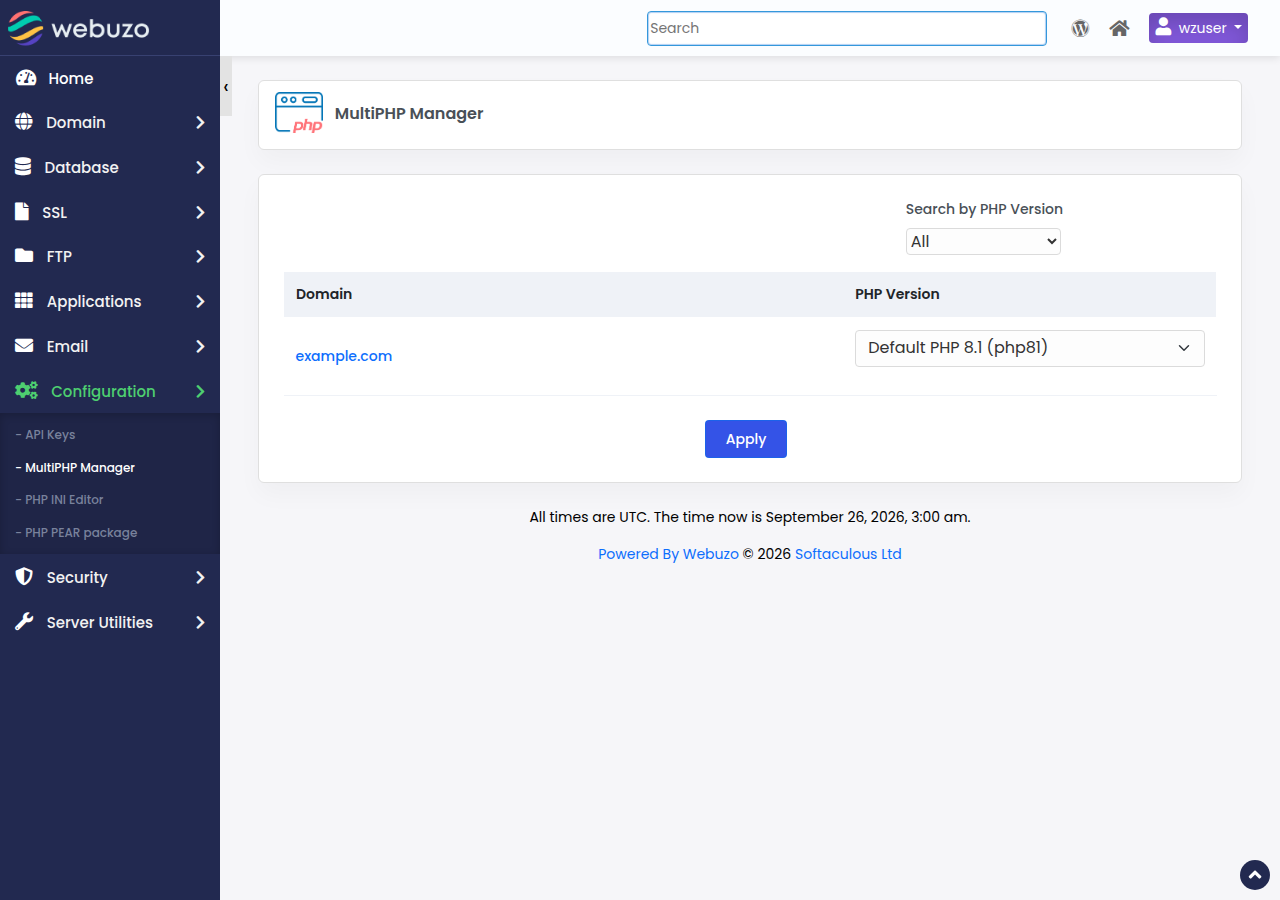
Our Webuzo server offers PHP 8.0 and 8.1. Both have reached end of life, and current versions of many apps need PHP 8.2 or newer. An app that needs a newer PHP version will fail to install or run there.
Before you install, check the app's requirements page. If it needs PHP 8.2 or later, ask support before you go ahead, or consider cPanel hosting, which offers newer PHP versions. For installing apps, see installing applications with Softaculous in Webuzo.
4. Backups and restores
Domain India backs up your Webuzo account every night to a separate backup server. If you need something restored, open a ticket saying what to restore (a file, a folder, a database or the whole account) and from which date; there is no self-service restore for these backups. The Backups section in the Webuzo panel is not Domain India's backup system, so don't rely on it. As good practice, before any big change, such as a WordPress core, theme or plugin update, download a copy of your files and export your databases, and keep them off the server.
5. SSH and developer tools
Jailed SSH access is available on every shared hosting plan (cPanel, DirectAdmin, Webuzo). It is off by default; ask support to enable it for your account, and connect with an SSH key. The tools inside the jailed shell vary, so ask support before you rely on one. Our Webuzo server has no Node.js or Python app selector; for Node.js apps, the App Platform is a better fit.
Frequently asked questions
How do I open the Webuzo dashboard at Domain India?
Log in at https://yourdomain.com:2003 with your Webuzo username and password; your username is on the account's Access tab. If the Webuzo button in the client area doesn't open the panel, use that address.
How do I reset my Webuzo password?
The Reset password button in the client area does not work for Webuzo accounts yet. Contact Domain India support by live chat or a ticket and we will reset it for you.
Which PHP versions does Domain India's Webuzo server offer?
PHP 8.0 and 8.1. Apps that need PHP 8.2 or newer will not work there, so check an app's requirements before installing and ask support if you are unsure.
What is the webmail address on Webuzo hosting?
Use https://yourdomain.com/webmail, which opens Webuzo Email. Log in with the full email address and the mailbox password.
Should I keep my own backups on Webuzo hosting?
Yes, as good practice. Download your files and export your databases before big changes, and keep the copies off the server. Domain India also backs up your account every night; ask support if you need something restored.
Ready to start? Log in at https://yourdomain.com:2003, or read Mastering Webuzo for the full walkthrough.
Tell us your domain and what you are trying to do, and we will guide you through it or make the change for you.
Contact support