SitePad is a drag-and-drop website builder that comes free with Domain India DirectAdmin hosting. You pick a template, replace the sample text and pictures with your own, and publish to your domain, with no code. This guide walks through building and publishing a site with SitePad in DirectAdmin, and what to check before you press Publish.
Open DirectAdmin from the client area (Hosting › My hosting, then the DirectAdmin button), click SitePad Website Builder, choose your domain and a template, edit the pages, and click Publish. SitePad writes the finished site into your domain's folder, so back up anything already there first. If you'd rather have the design and text written for you, the AI Website Builder is a separate option.
1. What SitePad is, and what it is not
SitePad is a template-based website builder installed on our DirectAdmin and cPanel servers (checked on the servers on 23 September 2026). You edit pages visually in the browser, and SitePad generates the website files for you.
It suits brochure-style sites: a home page, about, services, gallery and a contact page. It is not a replacement for WordPress when you need thousands of plugins, a blog with many authors or a large online shop. For those, install WordPress with Softaculous instead, which is also available on our DirectAdmin servers.
| If you want | Use |
|---|---|
| A simple business site you design yourself | SitePad (free with hosting) |
| The design, text and photos created for you from a short description | AI Website Builder (separate plans) |
| Plugins, a blog, a larger shop | WordPress through Softaculous |
2. Before you start
- Your hosting account must be active. The DirectAdmin button in the client area appears only for active accounts.
- Point the domain at your hosting if you want visitors to see the site on your own domain. Follow how to change your nameservers. You can build the site before the domain points to us; it just won't be visible on the domain until DNS is updated.
- Check what is already in the domain's folder. If WordPress or another site is installed on the same domain, publishing SitePad into it can replace the home page. Back up first, or publish SitePad to a new domain or subdomain.
3. Open SitePad from DirectAdmin
- Sign in to the client area.Go to /client/login and sign in with your Domain India account.
- Open DirectAdmin.Choose Hosting › My hosting, or go to /client/services/hosting, and click the DirectAdmin button on your domain's row. DirectAdmin opens in a new tab, already signed in. Other ways in are in how to log in to DirectAdmin.
- Find SitePad.Look for SitePad Website Builder among the extra features or plugins, or type "SitePad" in DirectAdmin's search box. The exact position depends on your DirectAdmin skin.
- Choose the domain.If your account has more than one domain, pick the one you are building for.
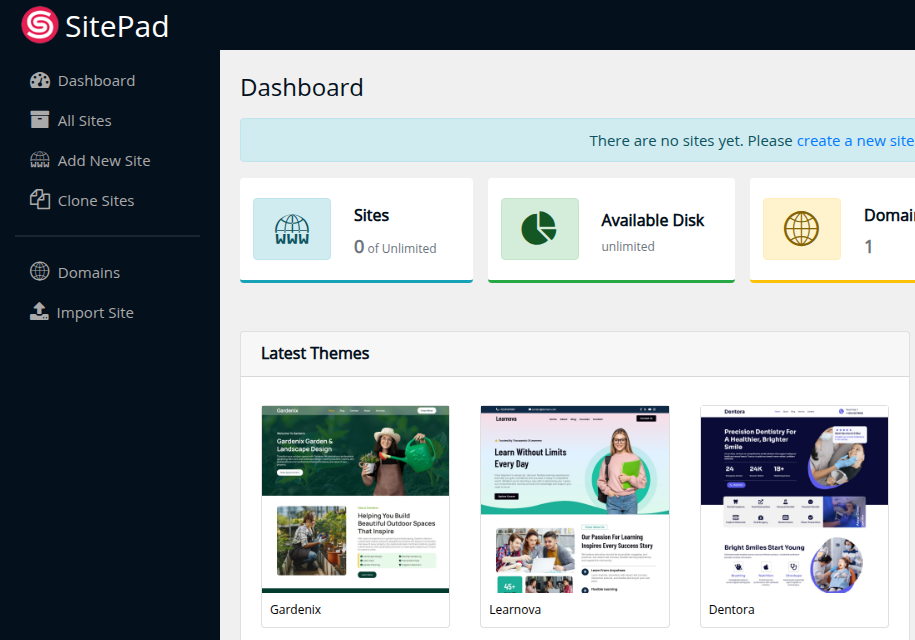
SitePad opens in its own tab. If you can't see the SitePad icon, open a ticket and we'll check that it is available on your account.
4. Choose a template
SitePad groups its templates by industry, such as business, portfolio and restaurant. Preview a few before choosing.
- Choose by layout, not colour. You can change colours, fonts and pictures later, but changing the layout of every page is slow.
- Count the pages you need. A template that already has the pages you want (services, gallery, contact) saves time.
- Look at the mobile preview. Most visitors will see your site on a phone.
Select the template to start editing. You can switch templates later, but you may have to redo some content, so settle this before writing all your text.
5. Edit your pages
The editor has the page in the middle and the settings in a side panel.
- Replace the sample text.Click any heading or paragraph and type. Write for your customer: what you offer, where you work and how to contact you.
- Replace the images.Click an image and upload your own through the media manager. Resize large photos before uploading; a 1,600-pixel-wide JPEG or WebP is enough for most sections.
- Add sections and widgets.Drag elements such as text, images, buttons, galleries, maps, forms and videos onto the page.
- Add or remove pages.Use the Pages menu to add a page, rename it or delete pages you don't need.
- Set the menu.Make sure every page you want visitors to find is in the navigation, in a sensible order.
- Set the site-wide details.Upload your logo and favicon, and check the footer for your business name, address and contact details.
Save as you go, and use the editor's device preview to check desktop, tablet and mobile views before publishing. Text that fits on a desktop banner is often too long on a phone.
6. Set up the basics for search engines
Open each page's settings in SitePad and fill in the search details. For each page:
- Page title: a short description with your main service and town, for example "Plumbing services in Pune | Your Business".
- Meta description: one or two sentences that make someone want to click.
- Headings: one main heading per page that says what the page is about.
- Image alt text: a few words describing each image.
After publishing, add your site to Google Search Console so you can see when Google indexes it. If you want visitor statistics, add an analytics tracking code only where the editor offers a place for it, and add only what you need.
7. Publish your website
When you are happy with the preview, click Publish. SitePad writes the website files into the domain's folder on your hosting account, and the site goes live on your domain once the domain points to your hosting.
If the domain already has a website, publishing SitePad can replace its home page and files. Take a backup first. You can download or restore weekly JetBackup backups from DirectAdmin; see backup and restore with JetBackup.
To make changes later, open SitePad again, edit, and click Publish again. Visitors see the new version once it is published.
HTTPS: free SSL is included with our DirectAdmin hosting. If your site shows a certificate warning after the domain starts pointing to us, see how to enable Let's Encrypt SSL in DirectAdmin.
8. Keep the site working
- Contact forms need working email. Test your form after publishing. If messages don't arrive, check the mailbox the form sends to and look in spam.
- Keep your content current. Old prices, phone numbers or opening hours cost you enquiries.
- Keep your own copy. Save your text and images on your computer as well as relying on the hosting backups.
9. Where Domain India fits
SitePad is included with every Domain India DirectAdmin plan at no extra cost. The DirectAdmin plans also include email accounts, databases, free SSL and weekly JetBackup backups, so one plan covers your website and business email.
- 10 GB NVMe SSD Storage
- 50 GB Monthly Bandwidth
- 1 Website
- 5 Email Accounts
If you would rather not design the site yourself, the AI Website Builder creates the design, text and photos from a short description, and you can try it free before choosing a plan. Our guide free website builder: steps to design your website compares SitePad, the AI Website Builder and WordPress side by side.
Frequently asked questions
Is SitePad free with Domain India hosting?
Yes. SitePad Website Builder is included with Domain India DirectAdmin and cPanel hosting at no extra cost. You pay only for the hosting plan and your domain.
Where do I find SitePad in DirectAdmin?
Open DirectAdmin from the client area with the DirectAdmin button under Hosting › My hosting, then click SitePad Website Builder or type SitePad in DirectAdmin's search box. If the icon is missing, open a support ticket.
Will publishing with SitePad delete my existing website?
It can replace the home page and files in the domain's folder. Back up first with JetBackup, or publish SitePad to a new domain or subdomain if you want to keep the existing site.
Can I build the site before my domain points to Domain India?
Yes. You can design and publish in SitePad at any time. Visitors see the site on your domain only after the domain's nameservers or A record point to your Domain India hosting.
Can I use SitePad and WordPress on the same domain?
Not for the same pages. Both write their files into the domain's folder, so publishing one can overwrite the other. Use SitePad on one domain or subdomain and WordPress on another.
What is the difference between SitePad and the AI Website Builder?
With SitePad you choose a template and edit every page yourself, and it is included with hosting. The AI Website Builder writes the design, text and photos for you from a short description and has its own plans, including a free plan to try it.
Ready to build? Open SitePad from your hosting list, compare DirectAdmin hosting plans, or try the AI Website Builder if you want the site written for you. Stuck at any step? Use our 24/7 live chat or open a ticket.
Build your site with SitePad, add business email and get free SSL on one plan.
See DirectAdmin plans