Parking a domain means registering it without running a full website on it yet. With Domain India there is nothing to switch on: a registered domain stays yours as long as you pay each renewal, and you decide later whether to leave it unused, redirect it to your main site or give it a holding page.
This is a short how-to. Our complete guide, Domain parking: what it is and how to do it, also covers parking for advertising income, selling a domain, and the trademark risks.
A registered domain is "parked" by default until you point it somewhere. To reserve a name, just register it and keep paying the renewal. To make it useful, point it at your hosting and redirect it to your main website with a 301, or show a simple holding page. In cPanel, a second domain that shows the same site as your main one is called an alias (the old "parked domain"); in DirectAdmin it is a domain pointer.
1. Three ways to use a parked domain
| What you want | What to do | Needs hosting? |
|---|---|---|
| Reserve the name only | Register it and pay each renewal invoice | No |
| Send visitors to your main site | Point it at your hosting and add a 301 redirect | Yes |
| Show a "coming soon" page | Point it at hosting or a website builder and publish one page | Yes |
For a business, redirecting spare domains, such as the .co.in and .com versions of your brand or common misspellings, to your main website is usually the most useful choice. The step-by-step method is in how to set up domain forwarding.
2. Park a new domain
Register the name on the domain registration page. If you don't order hosting with it, it is simply held for you. Domains you own are listed under Domains in the client area.
There are no special "parking nameservers" to set, and nothing to remove. Leave the domain as it is until you are ready to use it.
3. Start using a parked domain
- Open the domainin the client area and go to its Nameservers tab.
- Point it at your hosting.Enter the nameservers from the Access tab of your hosting service, or keep your DNS where it is and set A records to the hosting server IP. See how to change your nameservers.
- Add the domain in your control panelas an alias, a redirect or a separate site, as described below.
- Wait for DNS.Changes can take a few hours, sometimes up to 48 hours, to reach everyone.
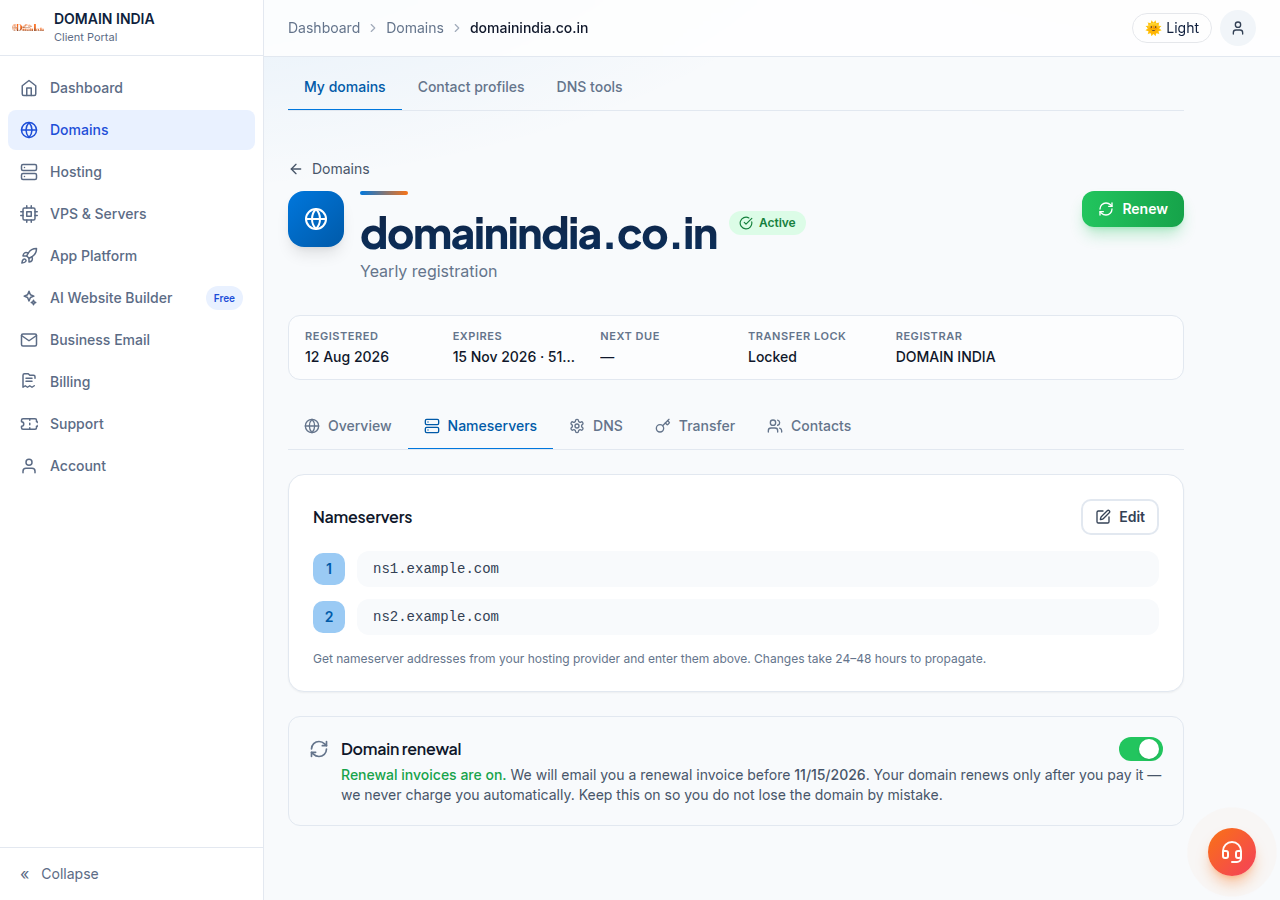
The domain page's option to switch to Free DNS doesn't make a parked domain work. Point the domain at your hosting with its nameservers or A records instead.
4. Aliases: the control-panel meaning of "parked domain"
In hosting control panels, "parked domain" used to mean a second domain that shows the same website as your main one.
- cPanel: the separate Parked Domains and Aliases icons are gone. Open Domains › Domains, click Create A New Domain and tick Share document root. To send visitors on to your main address instead, add a 301 in Redirects.
- DirectAdmin: open Domain Pointers, add the domain and leave Create as an Alias ticked to show the same site, or untick it to redirect visitors to your main domain. See managing domain aliases in DirectAdmin.
An alias shows the same pages on two addresses. If the second domain only needs to bring people to your site, a redirect is usually better for search engines. For the differences between aliases, addon domains and subdomains, see parked, addon and subdomains explained.
5. Keep the renewal paid
A parked domain must still be renewed. Domain India never charges a saved card automatically: a renewal invoice is emailed up to 30 days before the due date, and the domain renews only when you pay it. If a domain lapses, recovery is expensive, and after deletion anyone can register it. See how auto-renewal works.
How do I park a domain with Domain India?
Register it and keep paying the renewal. A domain with no hosting or website pointed at it is parked by default; there are no parking nameservers to set.
Do I need hosting to park a domain?
No. You need hosting or a website builder only when you want the domain to redirect somewhere or show its own page.
What is a parked domain in cPanel?
In cPanel it means an alias: a second domain that shows the same website as your main domain. Current cPanel creates it from Domains › Create A New Domain with Share document root ticked.
How do I start using a domain I parked?
Point its nameservers or A records at your hosting, then add it in your control panel as an alias, a redirect or a separate website.
Is my personal information public on a parked .in domain?
No. For .in and its second-level extensions, personal registrant details are not shown in public WHOIS. This is free and automatic; there is nothing to switch on.
Ready to reserve your brand's names? Search on the domain registration page, read the full domain parking guide, or open a support ticket if you need help pointing a domain.
Register the .in, .co.in and .com versions of your name and point them wherever you need, when you are ready.
Search domains