Domain India checks the identity of a .in domain's registrant through DigiLocker, the government's document wallet. Most failed checks come down to one of three things: no DigiLocker account, the wrong person's account chosen on a shared family mobile, or a DigiLocker account that is not linked to Aadhaar yet. This guide shows how to sort out each one on DigiLocker's own screens, then finish the check at Domain India.
1. You need a DigiLocker account. Open www.digilocker.gov.in (or the DigiLocker app) and sign in with your mobile number, or tap Create New Account on the same screen.
2. Family members on one mobile? DigiLocker lists every account on that number. Choose your own name.
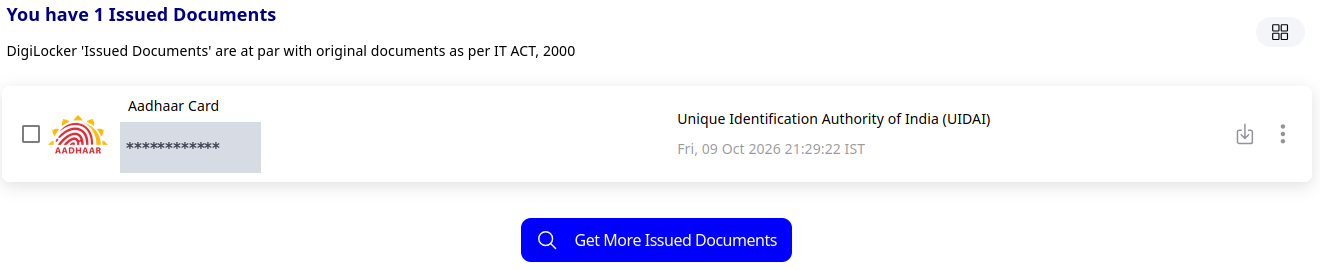
3. Your account says "Unverified"? It is not linked to Aadhaar yet. In DigiLocker, click Verify Now, enter your Aadhaar or VID number, then the OTP sent to your Aadhaar mobile. It is done when Aadhaar Card appears under Issued Documents.
4. Go back to Domain India and click Try again on the Identity verification page, or open your verification link again.
1. Why a check fails, and what you will see
When a check does not complete, the Identity verification page shows Your last verification attempt did not complete with a Try again button. The three most common causes:
| What happened | Why it fails | Fix |
|---|---|---|
| You have no DigiLocker account | There is nothing to confirm your identity from | Section 2 |
| You chose a family member's account on a shared mobile | DigiLocker sent someone else's name, so it does not match the domain's registrant | Section 3 |
| Your DigiLocker account shows "Unverified" | The account is not linked to Aadhaar, so DigiLocker has no Aadhaar name to share | Section 4 |
Your Aadhaar number never goes to Domain India. The Aadhaar step happens on the DigiLocker site, and DigiLocker shares only your confirmed name and address with us.
2. You need a DigiLocker account
Open www.digilocker.gov.in in your browser, or the DigiLocker app on your phone (Google Play or App Store). DigiLocker's sign-in screen is headed Login or Create Account. Enter your mobile number and click Continue. If you already have an account on that number, DigiLocker signs you in after an OTP. If you don't, the same screen lets you create one.
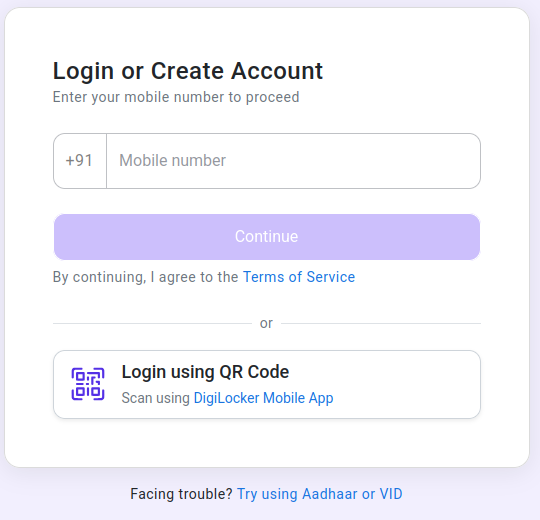
If your mobile number is not accepted, use Facing trouble? Try using Aadhaar or VID at the bottom of the same screen.
3. Family members on one mobile: choose your own name
Many families register several DigiLocker accounts on one mobile number. After the OTP, DigiLocker shows a Select Account list with every account on that number, each marked Verified or Unverified.
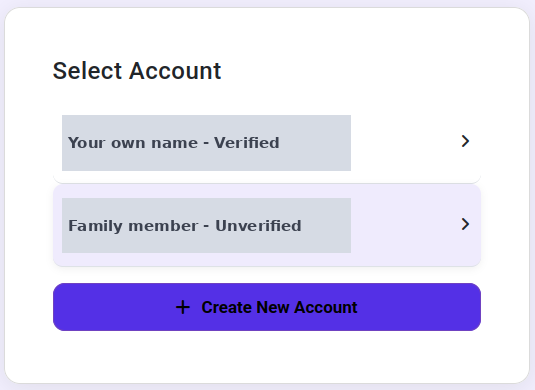
- Choose the account in your own name: the person the .in domain is registered to.
- If you choose a parent's, spouse's or child's account, DigiLocker sends their name, and the check cannot match it to your domain.
- No account in your name on the list? Click Create New Account and create one for yourself.
4. "Unverified" means Aadhaar is not linked yet
An Unverified DigiLocker account has not been linked to Aadhaar, so it has no Aadhaar name to share and the check fails. Link it once:
- Sign in to DigiLockerat www.digilocker.gov.in (or in the DigiLocker app) with your own account. The home page shows a red notice: Your profile information is not complete… verify your Aadhaar. Click here to Verify Now. Click Verify Now.
- Enter your Aadhaar or VID number.On the Verify Yourself page, type your 12-digit Aadhaar number or your 16-digit VID, tick the consent box, and click Update.
- Enter the OTP.UIDAI sends a one-time password to the mobile number linked to your Aadhaar. It is valid for 10 minutes. Type it in and click Update. If it doesn't arrive, wait for the countdown and resend it.
- Check that it worked.Open Issued Documents. When Aadhaar Card from the Unique Identification Authority of India (UIDAI) appears there, your account is linked and DigiLocker now shows it as Verified.

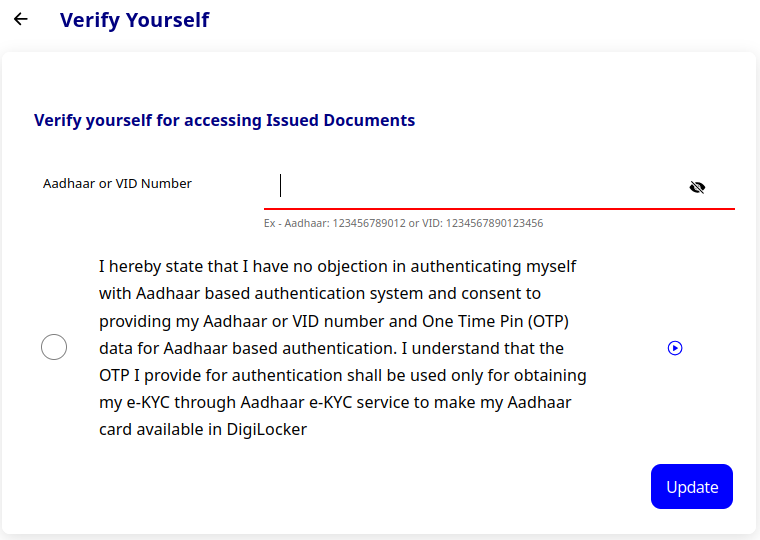
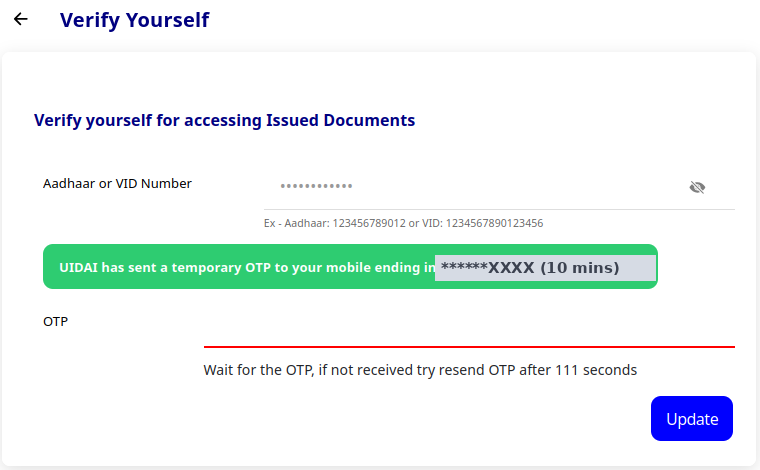
The OTP is sent to the mobile number registered with your Aadhaar, which may not be the number you use for DigiLocker. If that number is no longer yours, update it with UIDAI first, then link DigiLocker.
5. Go back to Domain India and try again
Once your own DigiLocker account is linked to Aadhaar:
- Log in and open Account › Identity verification (/client/kyc).
- Click Try again (or Verify my identity).
- On DigiLocker, choose your own name if the account list appears, and complete every screen, including the consent to share your details.
If someone sent you a verification link for a domain, open that link again instead. When you return, the page shows the result. For a .in domain you already hold, open the domain and choose Use my verification for this domain, as explained in How to complete eKYC verification.
If the name on your Aadhaar differs from the domain's registrant name (a missing middle name, initials, a company name), don't verify again. Open a support ticket with the domain name, the name exactly as it appears on your Aadhaar, and the registrant name shown for the domain.
Do I need a DigiLocker account to verify a .in domain at Domain India?
Yes. The identity check runs on the government DigiLocker site. If you don't have an account, create one on DigiLocker's Login or Create Account screen with your mobile number.
My family uses one mobile number for DigiLocker. Which account should I choose?
Choose the account in your own name: the person the .in domain is registered to. Choosing a family member's account sends their name, and the check cannot match it to your domain. If there is no account in your name, use Create New Account.
What does "Unverified" mean on my DigiLocker account?
The account is not linked to Aadhaar yet, so DigiLocker has no Aadhaar name to share. In DigiLocker, click Verify Now, enter your Aadhaar or VID number and the OTP sent to your Aadhaar mobile. It is linked when Aadhaar Card appears under Issued Documents.
How do I know my Aadhaar is linked in DigiLocker?
Open Issued Documents in DigiLocker. If Aadhaar Card from the Unique Identification Authority of India (UIDAI) is listed there, the link is done.
The Aadhaar OTP goes to an old number I no longer have. What can I do?
The OTP always goes to the mobile number registered with your Aadhaar. Update that number with UIDAI first, then link DigiLocker and try the verification again.
I linked Aadhaar in DigiLocker. What do I do next?
Go back to Domain India, open Account › Identity verification (/client/kyc) and click Try again, or open your verification link again. Choose your own name if DigiLocker shows the account list, and complete every screen.
Does Domain India see my Aadhaar number?
No. You enter your Aadhaar number only on the DigiLocker site. DigiLocker shares your confirmed name and address with Domain India; the client area may show the last four digits of your Aadhaar for reference.
Linked your own DigiLocker account to Aadhaar? Go back and click Try again to complete the check.
Open Identity verification