A cron job is a command your hosting server runs for you on a schedule, such as a PHP script every 15 minutes or a database export every night. On Domain India shared hosting you set one up in your control panel: choose the schedule, type the command with full paths, and save. You don't need SSH.
This page is the quick version. For output and logging, a WordPress cron replacement, a nightly database backup script and a troubleshooting table, read how to set up a cron job. For DirectAdmin details, see setting up cron jobs in DirectAdmin.
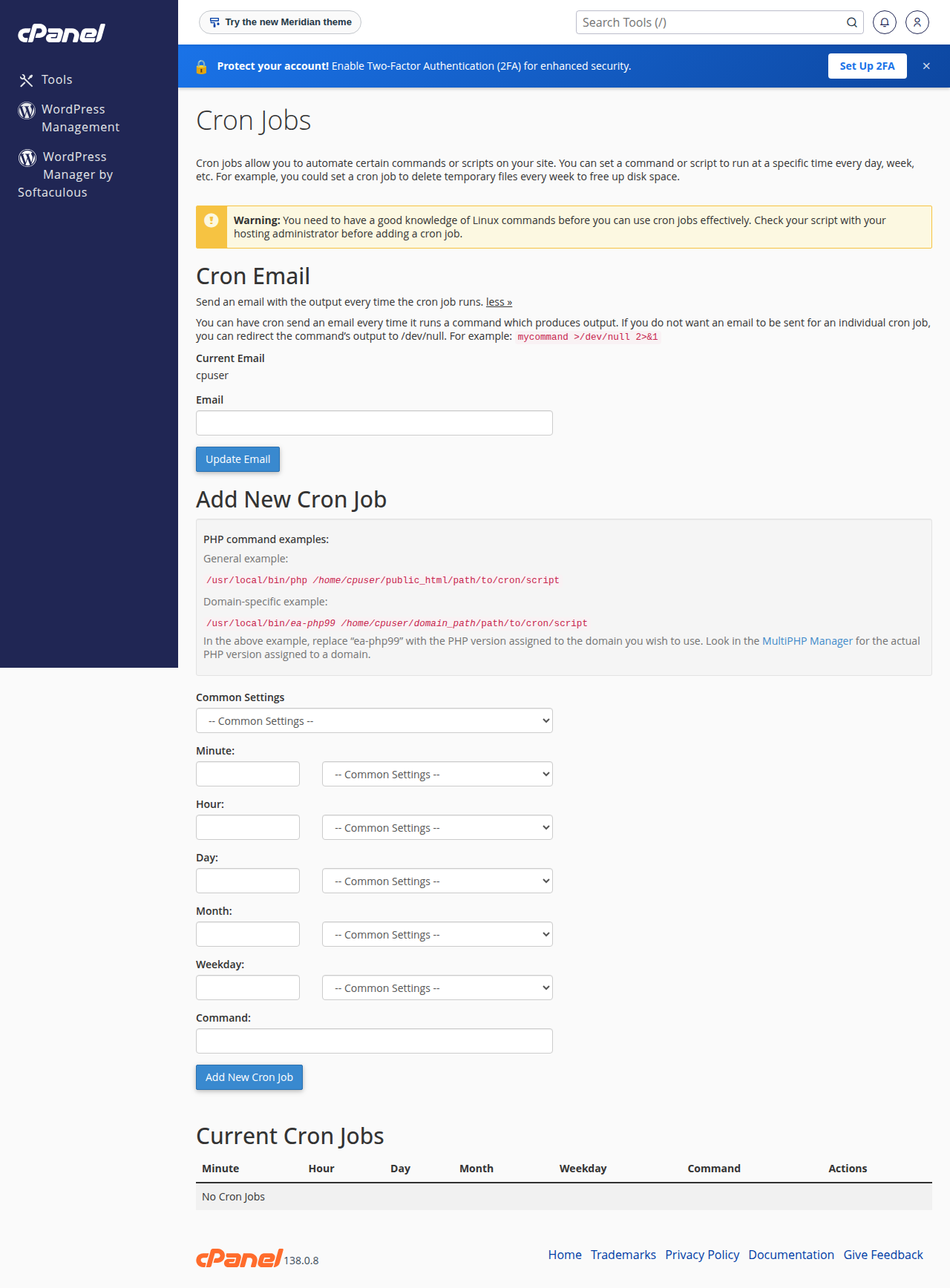
In cPanel, open Cron Jobs in the Advanced section, pick a schedule from Common Settings, enter a command such as /usr/local/bin/ea-php83 /home/USERNAME/public_html/cron.php, and click Add New Cron Job. The shortest interval that actually runs on our cPanel and DirectAdmin servers is every 4 minutes, and schedules run in Indian Standard Time (IST).
1. Add a cron job in cPanel
- Log in to cPanel.From the client area, open your hosting service and use the login button, or follow how to log in to cPanel.
- Open Cron Jobs.It is in the Advanced section, or type "cron" in the search box at the top.
- Choose the schedule.Pick a preset from Common Settings, such as "Once Per Hour", or fill in the five time fields yourself.
- Enter the command.Use full paths for the program and the script (section 3).
- Click Add New Cron Job.The job appears under Current Cron Jobs, where you can edit or delete it later.
On DirectAdmin and Webuzo the Cron Jobs page has the same five fields and a command box. In DirectAdmin it is under Advanced Features › Cron Jobs; in Webuzo, type "cron" in the search box at the top of the panel to open Cron Job.
2. The five schedule fields
Each job is five time fields followed by the command: minute (0-59), hour (0-23), day of month (1-31), month (1-12) and weekday (0-6, where 0 is Sunday). * means "every".
| Schedule | Runs |
|---|---|
/15 * | Every 15 minutes |
0 | At the start of every hour |
30 2 * | Every day at 2:30 a.m. IST |
0 9 1 | Every Monday at 9 a.m. IST |
0 0 1 | At midnight on the 1st of every month |
Our cPanel and DirectAdmin shared servers run on Indian Standard Time, so write the hour as IST. For more patterns, see the cron expression guide.
On our cPanel and DirectAdmin shared servers, an hourly check rewrites any job set to run every 1, 2 or 3 minutes to /4, every 4 minutes. cPanel's "Once Per Minute" preset, or a Laravel scheduler set to "every minute", therefore runs every 4 minutes. Use /5 or longer if you want the timing to be exactly what you typed. If your application truly needs a job every minute, or a process that runs all the time, use a VPS.
3. Write the command with full paths
Cron starts with an almost empty environment, so name every program and file in full.
A PHP script on cPanel. Name the PHP version explicitly. Replace USERNAME with your cPanel username and 83 with the version your site uses (MultiPHP Manager shows it):
/usr/local/bin/ea-php83 /home/USERNAME/public_html/cron.phpA PHP script on DirectAdmin. The PHP builds are at /usr/local/php83/bin/php (and php82, php81 and so on):
/usr/local/php83/bin/php /home/USERNAME/domains/example.com/public_html/cron.phpA cron URL. Add a changing value so the request is never answered from the cPanel server's page cache, and write every % as \%, because cron treats a bare % as a line break:
/usr/bin/curl -s "https://example.com/cron.php?t=$(date +\%s)" >/dev/null 2>&1On Webuzo, ask support for the right PHP path before you schedule a PHP script.
4. Stop the emails and keep a log
Anything a job prints is emailed to the Cron Email address at the top of the page. While you test, send the output to a log file outside public_html. Once the job works, discard it:
# keep a log while testing
/usr/local/bin/ea-php83 /home/USERNAME/public_html/cron.php >> /home/USERNAME/logs/cron.log 2>&1

# discard all output once it works
/usr/local/bin/ea-php83 /home/USERNAME/public_html/cron.php >/dev/null 2>&1
Cron jobs run inside your account's CPU and memory limits, and the PHP functions disabled on shared hosting stay disabled in cron too. See PHP disabled functions on shared hosting.
Frequently asked questions
Where do I find Cron Jobs in cPanel?
In the Advanced section of cPanel, or type "cron" into the search box at the top. The page has a Cron Email setting, an Add New Cron Job form and a Current Cron Jobs list.
Do I need SSH access to set up a cron job?
No. Cron jobs are created in the control panel and run for your account whether or not SSH is enabled. You can create the scripts they run with the File Manager.
What is the shortest cron interval on Domain India shared hosting?
Four minutes. An hourly check on our cPanel and DirectAdmin shared servers changes jobs set to every 1, 2 or 3 minutes to every 4 minutes. For a job every minute, use a VPS.
What time zone do cron jobs use?
Our cPanel and DirectAdmin shared servers run on Indian Standard Time, so a job scheduled for 2:30 runs at 2:30 a.m. IST.
How do I stop cron jobs sending me emails?
Add >/dev/null 2>&1 to the end of the command, or send the output to a log file instead. You can also clear the Cron Email address at the top of the Cron Jobs page.
Ready to schedule your first job? Follow the full guide, how to set up a cron job, or compare cPanel hosting plans if you need hosting. If a job still won't run, open a support ticket with the exact command and the error from your log file.
Cron jobs, several PHP versions and weekly backups on every shared hosting plan, managed from your control panel.
See cPanel hosting plans