You can download any Domain India invoice as a PDF from the client area, as often as you need. For a paid invoice, the button is Download Tax Invoice and it saves the GST tax invoice your accountant needs; for an unpaid one, Download PDF saves the proforma invoice. This page gives the steps and fixes the usual problems.
Sign in, open Billing › Invoices at /client/invoices and click the invoice. On a paid invoice, click Download Tax Invoice; on an unpaid one, Download PDF saves the proforma. Print works on both. For GST filing, always use the tax invoice, not the proforma.
What PI-, INV- and TAX- numbers mean, and how GST appears on the invoice, is explained in Understanding your invoice (PI vs INV).
1. Download an invoice
- Sign in.Go to the client area with your account email and password.
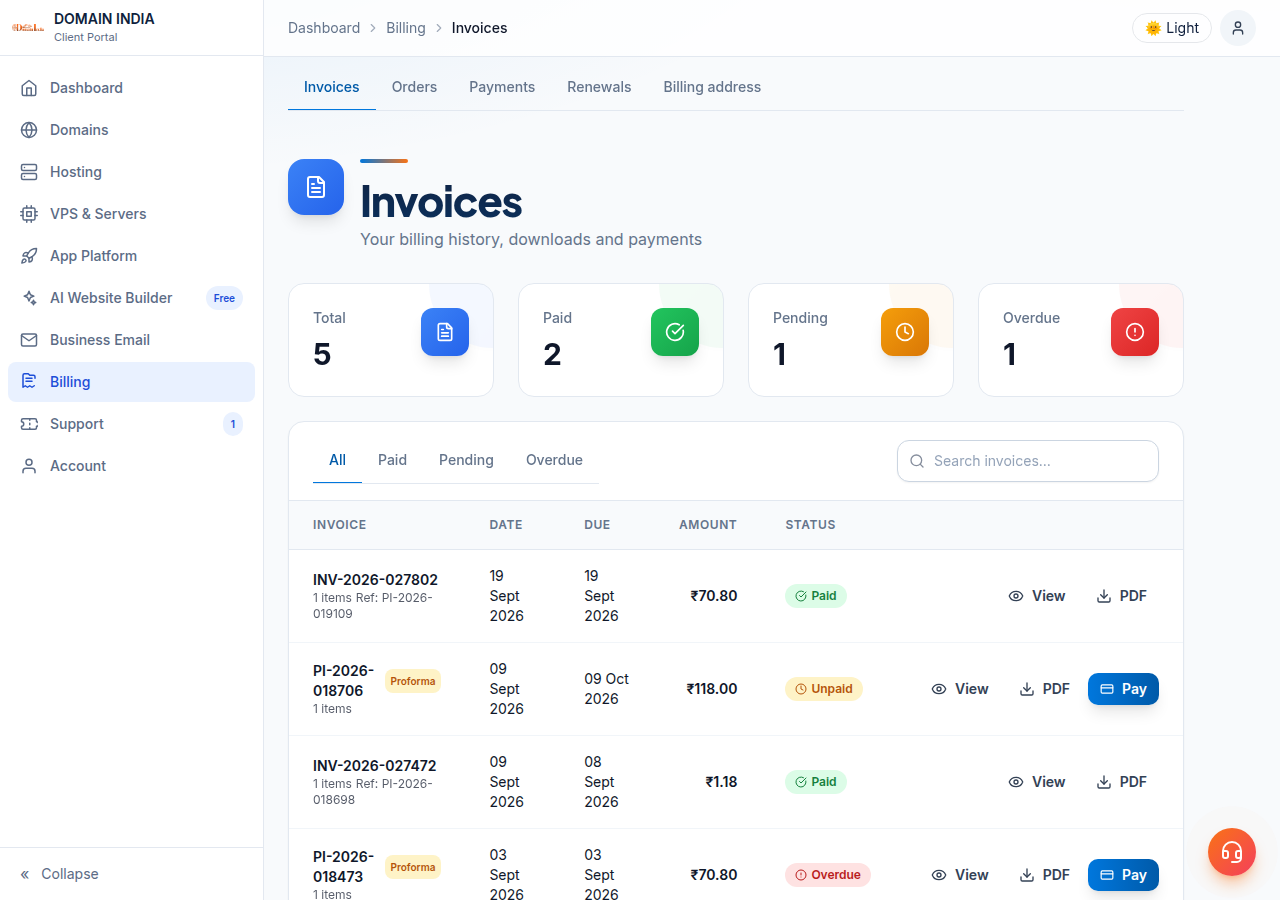
- Open Billing › Invoices.Or go straight to /client/invoices. Use the tabs at the top to filter the list by status.
- Open the invoice.Click its row. A paid invoice opens as a Tax Invoice; an unpaid one opens as a Proforma Invoice.
- Download it.Click Download Tax Invoice on a paid invoice, or Download PDF on an unpaid one. The file goes to your browser's downloads folder.
- Print, if you need paper.Click Print on the invoice page.
2. Which button you will see
| Invoice | Page title | Download button | Use it for |
|---|---|---|---|
| Unpaid or overdue | Proforma Invoice | Download PDF | Knowing what to pay; not a tax document |
| Paid | Tax Invoice | Download Tax Invoice | Your GST records and accountant |
Each row in the invoice list also has View, PDF and, on unpaid invoices, Pay buttons. The row's PDF button saves the invoice itself; for the GST tax invoice, open the invoice and click Download Tax Invoice.
The tax invoice carries Domain India's GSTIN (33AAFCD9427N1Z9), your GSTIN if it was on your account when you paid, the place of supply, SAC 998315 and the GST breakup.
3. Downloading several invoices
There is no bulk download. For a year's records, open Invoices, filter to paid invoices, open each one and click Download Tax Invoice. The list shows each invoice's date, so you can work through a financial year, April to March. Your payment records are under Billing › Payments at /client/payments.
4. When something goes wrong
- You can't find an invoice. Check that you are signed in to the account that placed the order; invoices are visible only in the account that owns them.
- The invoice still shows Unpaid after you paid. Don't pay again. Most Razorpay payments show as Paid within a couple of minutes. If it hasn't changed after you have been charged, open a ticket with the invoice number and payment reference.
- A paid invoice has no Download Tax Invoice button. Open a ticket with the invoice number and we will check it.
- The download doesn't start. Allow downloads and pop-ups for the site, or try another browser.
- Your GSTIN is missing from the tax invoice. The tax invoice uses the details on your account at the moment you pay. Open a ticket with the tax invoice number, and add your GSTIN on your Profile before future payments.
Download each tax invoice when you pay and file it with your accounts. Don't rely on email for your records; the client area is where the tax invoice lives.
Frequently asked questions
How do I download an invoice from Domain India?
Sign in to the client area, open Billing, then Invoices, and click the invoice. Click Download Tax Invoice on a paid invoice, or Download PDF on an unpaid one.
Which PDF should I use for GST filing?
The tax invoice, downloaded with the Download Tax Invoice button on a paid invoice. The PDF of an unpaid invoice is a proforma invoice, which is a request for payment and not a tax document.
Can I download all my invoices at once?
No, there is no bulk download. Filter the Invoices list to paid invoices and download each tax invoice in turn.
Can I download the same invoice more than once?
Yes. Open the invoice in Billing, Invoices and download it again whenever you need a copy.
My paid invoice has no Download Tax Invoice button. What should I do?
Open a support ticket with the invoice number, and we will check why the tax invoice is not showing.
Ready to get your invoices? Open Invoices in the client area, check your GSTIN on your Profile, or open a support ticket if an invoice is missing or wrong.
Every Domain India invoice, proforma and tax invoice, is in Billing, Invoices in the client area.
Open Invoices