AutoSSL is the cPanel feature that gives every site on your Domain India cPanel hosting a free SSL certificate and renews it without you lifting a finger. On our cPanel servers it uses Let's Encrypt. This guide explains how AutoSSL decides which names to cover, how to read the Status tab of the SSL/TLS Certificates page, and how to fix the handful of problems that stop a certificate being issued.
AutoSSL is on for every Domain India cPanel account and issues free Let's Encrypt certificates on its own. The server checks all accounts every three hours, so a new domain is usually covered within a few hours of pointing it at your hosting. To see what is covered, open Security › SSL/TLS Certificates in cPanel and choose the Status tab. If a name shows "An error occurred the last time AutoSSL ran", it is almost always DNS: the name must point to our server. Fix it and wait for the next run; if it is urgent or keeps failing, open a support ticket with the domain and the exact error line.
1. What AutoSSL does for you
AutoSSL looks at every domain on your cPanel account, checks that each name really reaches our server, and then requests a certificate from Let's Encrypt and installs it. When a certificate gets close to expiry, AutoSSL renews it the same way. You never buy, upload or renew anything for an ordinary website.
The certificates are domain validated (DV). They encrypt the connection and remove the browser's "Not secure" warning, and browsers trust them exactly as they trust a paid DV certificate. They prove that you control the domain, not who your company is. Let's Encrypt certificates are short-lived, 90 days or less, which is why automatic renewal matters.
2. Which names AutoSSL covers
For each domain on your account, AutoSSL tries to include:
- the domain itself and its
wwwname, for exampleyourbusiness.inandwww.yourbusiness.in; - addon domains, subdomains and aliases (parked domains), each with
www; - service names such as
mail.,webmail.andcpanel., when they point to our server.
A name is covered only if its DNS answer leads to your hosting server at the moment AutoSSL checks. If www has no DNS record, or a subdomain points somewhere else, that one name is left out and the rest still get their certificate.
AutoSSL does not issue wildcard certificates (*.yourbusiness.in). Each subdomain is listed by name instead, which works just as well for a normal site. If you believe you need a wildcard, ask support before you buy one elsewhere.
3. Check your status on the Status tab
- Open cPanel.In the client area, open your hosting services, choose the service and open cPanel. See How to log in to cPanel for other routes.
- Open SSL/TLS Certificates.It is in the Security section. Type "SSL" in the cPanel search box if you can't see it. Then choose the Status tab.
- Read each row.Every domain and service name has its own row with its certificate status and expiry date.
- Wait for the next run.There is no button to run AutoSSL yourself. After fixing DNS, wait for the next scheduled run and check the Status tab again. If you need it sooner, or a name still fails after DNS is right, open a ticket with the domain name and the exact error line from the Status tab, and support can run AutoSSL for you.
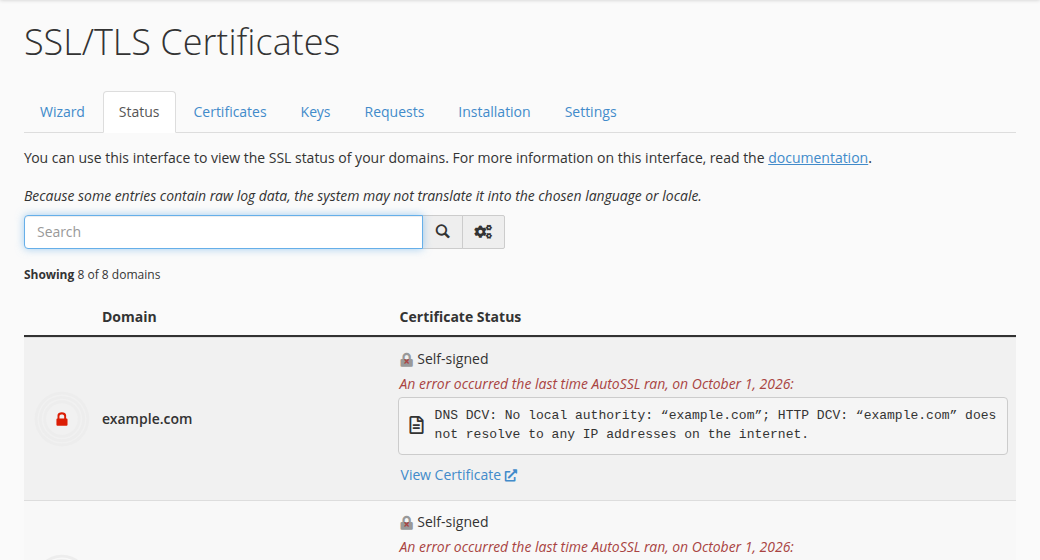
| Status on the page | What it means | What to do |
|---|---|---|
| AutoSSL Domain Validated | A valid AutoSSL certificate covers this name | Nothing |
| Expires on (a date) | The date the current certificate ends | Nothing; AutoSSL renews it before then |
| An error occurred the last time AutoSSL ran | The last check for this name failed; the line gives the reason (the Has AutoSSL Problems filter lists these names) | Fix the cause (section 5), then wait for the next run |
| Self-signed or no certificate | No trusted certificate covers this name yet | Check DNS, then wait for the next run |
| Excluded | AutoSSL has been set to skip this name | Ask support to include it again |
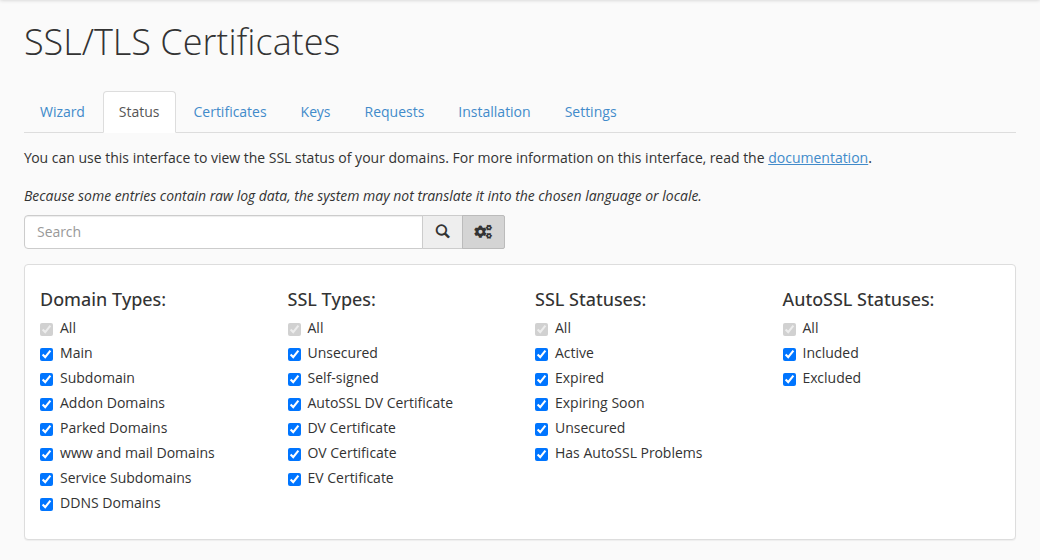
The page also says when AutoSSL last ran for your account.
4. Excluding and including names
Sometimes you don't want AutoSSL to try a name, for example a subdomain that points to another service which issues its own certificate. You can't exclude a name yourself in cPanel on our servers: open a ticket and ask support to exclude it, giving the hostname. AutoSSL then skips it on every run, and the Excluded filter on the Status tab lists it. To bring it back, ask support to include it again.
Ask to exclude only names you are sure about. An excluded name that later points to your hosting will not get a certificate until support includes it again.
5. When AutoSSL fails for a domain
AutoSSL can only secure a name that resolves to our server. If the domain still points to your old host, or www has no record, the check fails for that name. Fix the DNS first; everything else comes after.
The domain doesn't point to our server yet. Use the nameservers or server IP shown in the Access tab of your hosting service in the client area, as described in How do I change my nameservers. Check the answer with dig A yourbusiness.in +short and dig A www.yourbusiness.in +short, then wait for the next AutoSSL run once the IP matches.
A proxy or CDN answers instead of us. If the domain is proxied through Cloudflare or a similar service, the check may reach the proxy rather than our server. Set the record to DNS only while the certificate is issued, or follow the SSL settings in our Cloudflare guide.
A CAA record blocks Let's Encrypt. A CAA record lists which certificate authorities may issue for your domain. If your domain has one, it must include letsencrypt.org, or remove it. Check with dig CAA yourbusiness.in +short.
Your own rules block the check. Let's Encrypt fetches a small file under /.well-known/ on your site. Custom .htaccess rules that deny access, redirect everything to another domain, or a security plugin that blocks unknown requests can make that fetch fail. Let requests to /.well-known/ through, then wait for the next AutoSSL run.
The name was just added. New addon domains and subdomains are picked up on the next run. If you can't wait, open a ticket with the domain name and support can run AutoSSL for you.
If a name still shows a problem after DNS is correct, open a ticket with the domain and the exact error line from the Status tab, and support can run AutoSSL for you.
6. After the certificate: send visitors to HTTPS
A certificate makes https:// work, but it doesn't move visitors there by itself. In cPanel, open Domains and turn on Force HTTPS Redirect for the domain once its certificate is valid. You can also do it in .htaccess; see How to enable free SSL for the rule, and redirecting non-www to www if you also want one preferred name.
In WordPress, set both addresses under Settings › General to https://. A padlock with a warning means the page still loads some images or scripts over http://; update those links.
7. Your own certificate and AutoSSL
You can still install a certificate you bought elsewhere on the Installation tab of SSL/TLS Certificates in cPanel. AutoSSL leaves a valid certificate you installed yourself alone. If that certificate expires or stops being valid, AutoSSL can step in and secure the domain again. Domain India's hosting includes the free certificate; if you need a paid certificate for a specific reason, ask support first.
For DirectAdmin and Windows hosting, the free certificate works differently: see Let's Encrypt in DirectAdmin and Installing SSL in Plesk.
8. Where Domain India fits
Every Domain India cPanel plan includes AutoSSL with Let's Encrypt, and the same free SSL comes with DirectAdmin and Windows hosting. Domain India list prices on 19 September 2026, excluding 18% GST: cPanel Starter ₹125 a month, cPanel Growth ₹200 a month and cPanel Business ₹350 a month. Compare plans on cPanel hosting.
- 25 GB NVMe SSD Storage
- 50 GB Monthly Bandwidth
- 1 Website
- 10 Email Accounts
Frequently asked questions
Is AutoSSL free on Domain India cPanel hosting?
Yes. AutoSSL is included with every Domain India cPanel plan and issues free Let's Encrypt certificates for the domains on your account. There is nothing to buy or enable.
How long does AutoSSL take to secure a new domain?
The server checks every account every three hours, so a new domain is usually covered within a few hours of its DNS pointing to our server. If you need it sooner, open a support ticket with the domain name, and support can run AutoSSL for you.
Do I need to renew AutoSSL certificates?
No. AutoSSL renews each certificate automatically before it expires, as long as the domain still points to your Domain India hosting server.
Why does the SSL/TLS Certificates Status tab show an AutoSSL error?
The last check for that name failed. Usually the name does not point to our server yet, a proxy such as Cloudflare answers instead, a CAA record does not allow Let's Encrypt, or a rule blocks the /.well-known/ check. Fix the cause, then wait for the next AutoSSL run, or open a support ticket with the domain and the exact error line if it is urgent or keeps failing.
Does AutoSSL cover www and subdomains?
Yes, as long as each name has a DNS record pointing to our server. AutoSSL includes the domain, www, addon domains, subdomains and service names such as mail and webmail. It does not issue wildcard certificates.
Will AutoSSL replace a certificate I installed myself?
No, not while your certificate is valid. If it expires or becomes invalid, AutoSSL can secure the domain again with a free certificate.
Is a free AutoSSL certificate less secure than a paid one?
No. The encryption is the same, and browsers trust Let's Encrypt certificates like any other. Paid certificates differ in validation type and extras, not in the strength of the encryption.
Ready to check your certificates? Open your hosting services to reach cPanel, and read How do I change my nameservers if a domain doesn't point to us yet. Still stuck? Open a support ticket or use live chat, available 24/7.
Send us the domain and the exact error line shown on the Status tab, and we will check the DNS and the AutoSSL log with you.
Open a support ticket