On Domain India's cPanel shared hosting you rarely need to manage SSL certificates by hand. AutoSSL issues a free Let's Encrypt certificate for every domain that points to your hosting and renews it on its own. This page covers the few jobs you may still do yourself in cPanel: checking which names are covered, getting AutoSSL to try again, removing an old certificate and installing one you bought elsewhere.
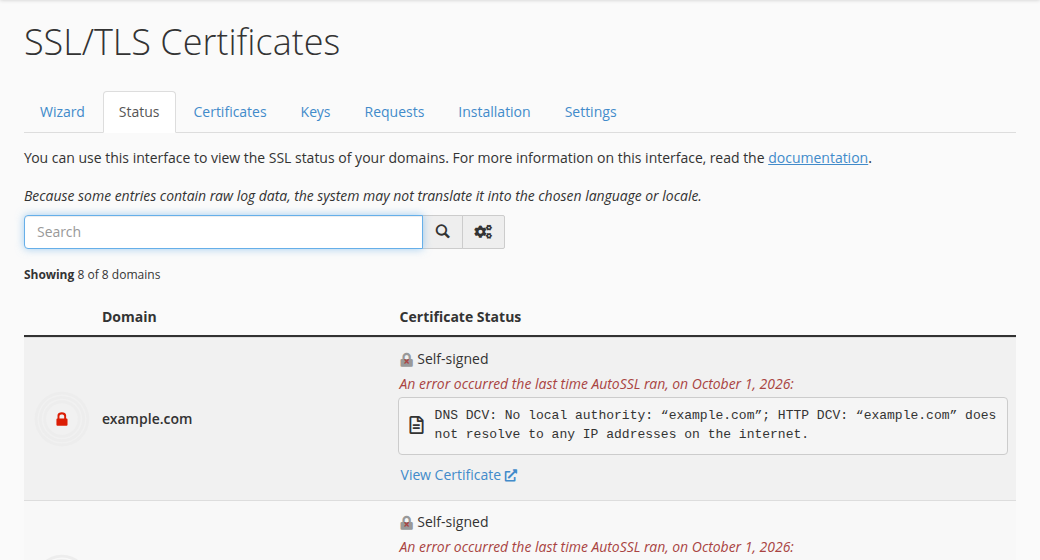
Point your domain and www at your hosting, then open SSL/TLS Certificates in cPanel's Security section and choose the Status tab. It shows which names have a certificate and why AutoSSL failed for any that don't; AutoSSL asks for new ones on its own. You don't need to renew the free certificate; cPanel does it. To remove an old or self-signed certificate, or install one bought elsewhere, use the Installation tab.
This page is the short cPanel version. For how free SSL works on every Domain India panel, why a certificate fails to issue and how to redirect visitors to HTTPS, see How to enable free SSL with Let's Encrypt on Domain India web hosting.
1. What cPanel does for you
AutoSSL is switched on for our cPanel server, and its certificate provider is Let's Encrypt. Every Domain India shared hosting plan includes this free SSL; there is nothing to buy or renew. Let's Encrypt certificates are domain validated and last 90 days or less, and AutoSSL replaces them before they expire as long as the domain still points to our server.
The one thing AutoSSL needs from you is correct DNS. Let's Encrypt checks each name over plain http://, so the domain and www must open your hosting account first. Use the nameservers or server IP shown on the Access tab of your hosting service in the client area, as explained in How do I change my nameservers.
2. Check your certificates on the Status tab
- Open cPanel.In the client area, open your hosting services, choose the service and open cPanel. See how to log in to cPanel if you need help.
- Open the Status tab.Click SSL/TLS Certificates in the Security section, then the Status tab. It lists every domain and subdomain on the account with its certificate status.
- Wait for AutoSSL.AutoSSL runs on its own and requests certificates for any name that doesn't have one yet, so after fixing DNS wait for the next run and check the Status tab again. If you need it sooner, or a name still fails after DNS is right, open a ticket with the domain name and the exact error line from the Status tab, and support can run AutoSSL for you.
- Read the status.A name marked as validated by AutoSSL is covered. A name where AutoSSL failed shows the red line "An error occurred the last time AutoSSL ran" with the reason, which is usually that it doesn't point to our server.
- Test in a browser.Open
https://yourdomain.comand check for the padlock.
3. Remove an old or self-signed certificate
A self-signed certificate, or one left from an earlier host, can block a valid certificate. To remove it:
- Open SSL/TLS Certificates.In cPanel's Security section, click SSL/TLS Certificates.
- Open the Installation tab.Installed certificates are listed under Manage Installed SSL Websites.
- Uninstall the certificate.Find the domain and click Uninstall, then confirm.
- Let AutoSSL replace it.AutoSSL secures the name again on its next run; check the Status tab afterwards. If it is urgent, open a ticket with the domain name and support can run AutoSSL for you.
The Certificates, Keys and Requests tabs hold stored copies. Deleting unused entries there is tidy but optional.
Only delete a private key when no installed certificate uses it. If you remove the key of a certificate you bought elsewhere, you will need to request that certificate again.
4. Install a certificate you bought elsewhere
For almost every website the free certificate is enough. If you need a certificate from another provider, generate the CSR on the Requests tab, send it to that provider, then install what they give you on the Installation tab: choose the domain, paste the certificate and the CA bundle, and click Install Certificate. If you are unsure which certificate you need, ask support first.
5. After the certificate is in place
A certificate doesn't move visitors to https:// on its own. Add a redirect and update your site's address, as shown in the free SSL guide. You can also test the certificate with a public checker such as SSL Labs.
Frequently asked questions
Is SSL free on Domain India cPanel hosting?
Yes. Every Domain India shared hosting plan includes free SSL. On cPanel, AutoSSL issues and renews Let's Encrypt certificates automatically for domains that point to your hosting.
Do I need to renew my SSL certificate in cPanel?
No. Let's Encrypt certificates last 90 days or less and AutoSSL renews them automatically, as long as the domain keeps pointing to the hosting server.
How do I run AutoSSL in cPanel?
On our servers you can't run AutoSSL yourself; it runs on its own. Open SSL/TLS Certificates in the Security section of cPanel and choose the Status tab to see which names are covered and the reason for any that failed. If you need it sooner, or a name still fails after DNS is right, open a support ticket with the domain name and the exact error line, and support can run AutoSSL for you.
How do I remove a self-signed certificate in cPanel?
Open SSL/TLS Certificates in the Security section, choose the Installation tab, find the domain and click Uninstall. AutoSSL replaces it with a trusted certificate on its next run; check the Status tab afterwards, and open a support ticket if it is urgent.
Why does AutoSSL not issue a certificate for my domain?
Usually the domain or www does not point to the hosting server yet, a proxy or CDN answers instead, or a CAA record allows only another certificate authority. Fix the DNS, wait for it to spread, then wait for the next AutoSSL run. If it still fails, open a support ticket with the domain name and the exact error line from the Status tab.
Ready to secure your site? Check your DNS with How do I change my nameservers, then open your hosting services to reach cPanel.
Send us the domain and the exact error line the Status tab shows, and we will check the DNS and the certificate request with you.
Open a support ticket