The quickest way to set up WordPress on Domain India hosting is the one-click installer in your control panel: it creates the database, installs WordPress and sets up your admin login in a couple of minutes. You can also install it by hand if you want full control. This page is the short version; each control panel has its own step-by-step guide, linked below.
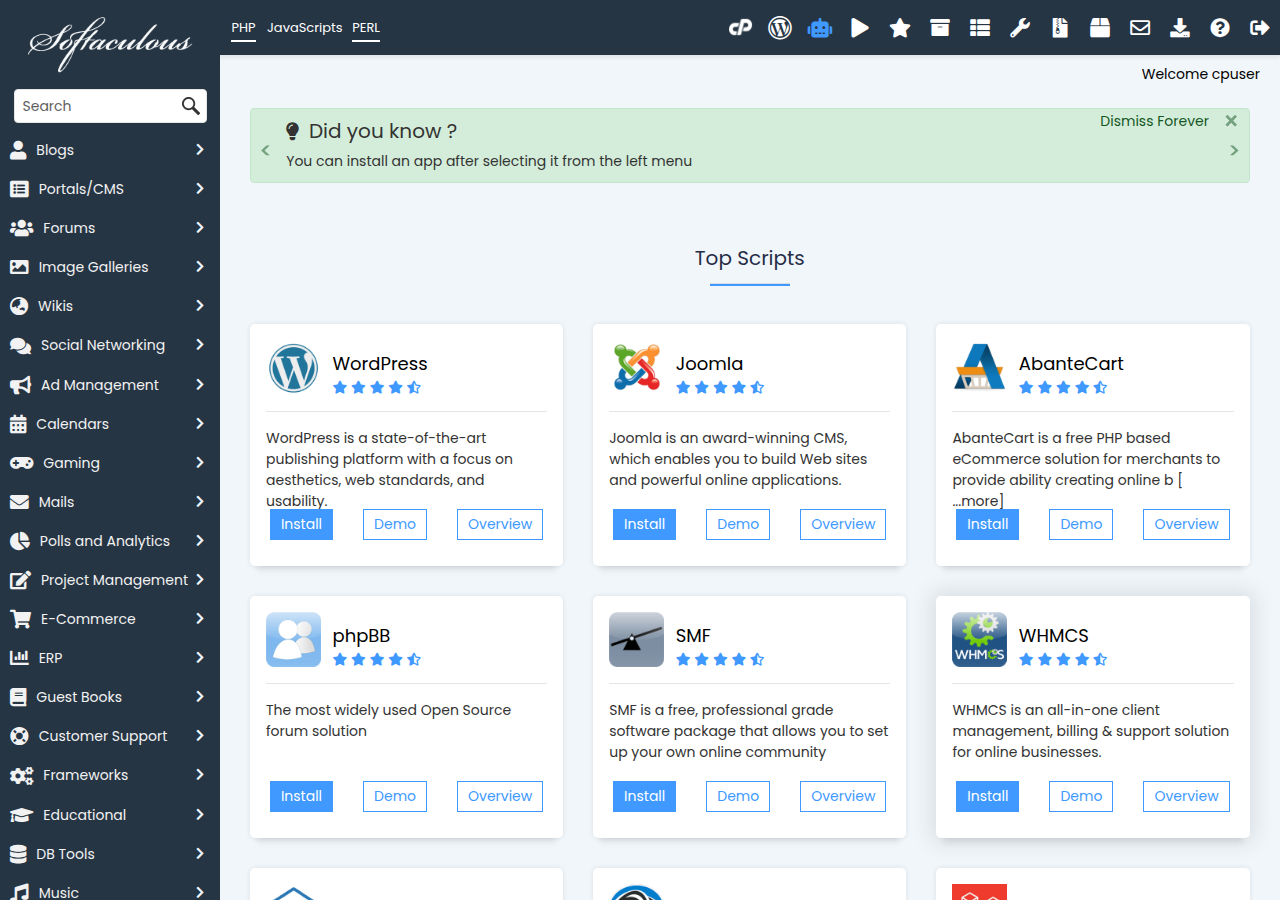
Point your domain at your hosting, open your control panel from the client area, and install WordPress with Softaculous (cPanel, DirectAdmin, Webuzo) or WP Toolkit (cPanel). Leave the folder empty for the main site and choose an admin username that isn't "admin". Afterwards, set permalinks to Post name, add one caching plugin such as WP Super Cache, and keep your own backup copy off the server.
Detailed step-by-step instructions are in install WordPress on cPanel, install WordPress on DirectAdmin and install WordPress on Webuzo. To install by hand, see how to install WordPress the do-it-yourself way.
1. Before you start
- Point the domain at your hosting. WordPress installs either way, but the site opens, and free SSL is issued, only once the domain points to your server. See how do I change my nameservers.
- Make sure the folder is empty. Installing over an existing site can overwrite its files. Back up anything already there first.
2. Which installer you have
| Control panel | One-click installer | Good to know |
|---|---|---|
| cPanel | Softaculous and WP Toolkit | WP Toolkit adds bulk updates, a security checklist and staging |
| DirectAdmin | Softaculous | JetBackup weekly backups you can restore yourself |
| Webuzo | Softaculous | Only older PHP versions for now; nightly backups, restored by support |
Open your panel with the cPanel or DirectAdmin button on your service in your hosting list; on Webuzo, log in at https://yourdomain.com:2003. On cPanel, manage each site's updates with either WP Toolkit or Softaculous, not both.
3. Install in one click
- Open the installer.In your panel, open Softaculous (or WP Toolkit on cPanel), choose WordPress and click Install.
- Choose the domain and folder.Pick your domain. Leave the directory empty for
yourdomain.com, or type a folder such asblogforyourdomain.com/blog. - Set the admin account.A username that isn't "admin", a long unique password and an email address you read.
- Click Install.Then bookmark
yourdomain.com/wp-admin, your WordPress login.
A manual install takes about 15 minutes: upload WordPress from wordpress.org, create a MySQL database and user in your panel, and run the WordPress installer with localhost as the database host. The do-it-yourself guide covers every step.
4. First steps after installing
For security, see WordPress security plugins and the WordPress hardening guide.
5. What to know about our servers
- PHP version. On cPanel, new accounts default to PHP 8.3 and you can change it in MultiPHP Manager. Our Webuzo servers currently offer only older PHP versions, so check what your theme and plugins need, and ask support if an install fails.
- Backups. JetBackup takes weekly backups on cPanel and DirectAdmin (Sunday, five copies kept), which you can restore yourself; see backup and restore with JetBackup. Webuzo accounts are backed up every night, and support restores them on request.
- Email from WordPress. On cPanel, SMTP plugins can't connect because the socket functions they need are disabled; WordPress's built-in mail works. See PHP sendmail settings.
- 25 GB NVMe SSD Storage
- 50 GB Monthly Bandwidth
- 1 Website
- 10 Email Accounts
Prices on the cards exclude 18% GST.
Frequently asked questions
How do I install WordPress on Domain India hosting?
Open your control panel from the client area, open Softaculous (or WP Toolkit on cPanel), choose WordPress, pick your domain, leave the folder empty for the main site, set an admin username and password, and click Install.
Do I need to create a database first?
Not with Softaculous or WP Toolkit; they create the database and user for you. For a manual install you create them yourself in the control panel and use localhost as the database host.
Which caching plugin should I use?
Domain India shared hosting runs the Apache web server, so use a standard caching plugin such as WP Super Cache or W3 Total Cache, and only one at a time.
Are my WordPress sites backed up?
On cPanel and DirectAdmin, JetBackup takes weekly backups on Sundays and keeps five copies. Webuzo accounts are backed up every night, and support restores them on request. On any plan, keeping your own copy off the server is good practice too.
Ready to build your site? Open your hosting list to reach your control panel, compare cPanel hosting if you still need a plan, or open a support ticket if an install fails. Live chat is available 24/7, and tickets get a first response within 15 minutes.
One-click WordPress with Softaculous and WP Toolkit, free SSL and weekly JetBackup backups.
See cPanel hosting plans