A website is never finished: prices change, you add services, and new photos come in. In the AI Website Builder you update your live site the same way you built it, by chat or by editing on the page, and then republish. This guide explains the workflow, which changes go live straight away, and how to undo a mistake.
Make your change by asking the chat, editing text on the page, or using the editor's panels. Check it in the preview. If the status reads Published · may be out of date, click Republish to put it live. Some panel changes publish as soon as you save them, and the editor says so. Undo this change reverses a chat edit, and the editor keeps content versions and published versions you can restore.
1. Edit, preview, republish
- Edit.Open your site from AI Website Builder in the client area. Make your change in the chat, on the page, or in a panel (see section 2).
- Preview.Every change appears in the live preview beside the editor. Switch to the Mobile or Tablet view to check it on smaller screens.
- Republish.Watch the status next to the Publish button. "Published · may be out of date" means you have saved edits that aren't live yet. Click Republish, or type "publish my changes" in the chat.
- Check the live site.Click Open live site and look at the pages you changed.
The editor's statuses at a glance:
| Status | What it means |
|---|---|
| Draft · not published yet | The site has never been published; visitors can't see it |
| Draft · saved | Saved here, but not published |
| Published · saved | The live site matches your latest edits |
| Published · may be out of date | You've made edits that aren't live yet: republish |
| Parked — plan lapsed | The plan's renewal is unpaid; visitors see a short "back soon" page |
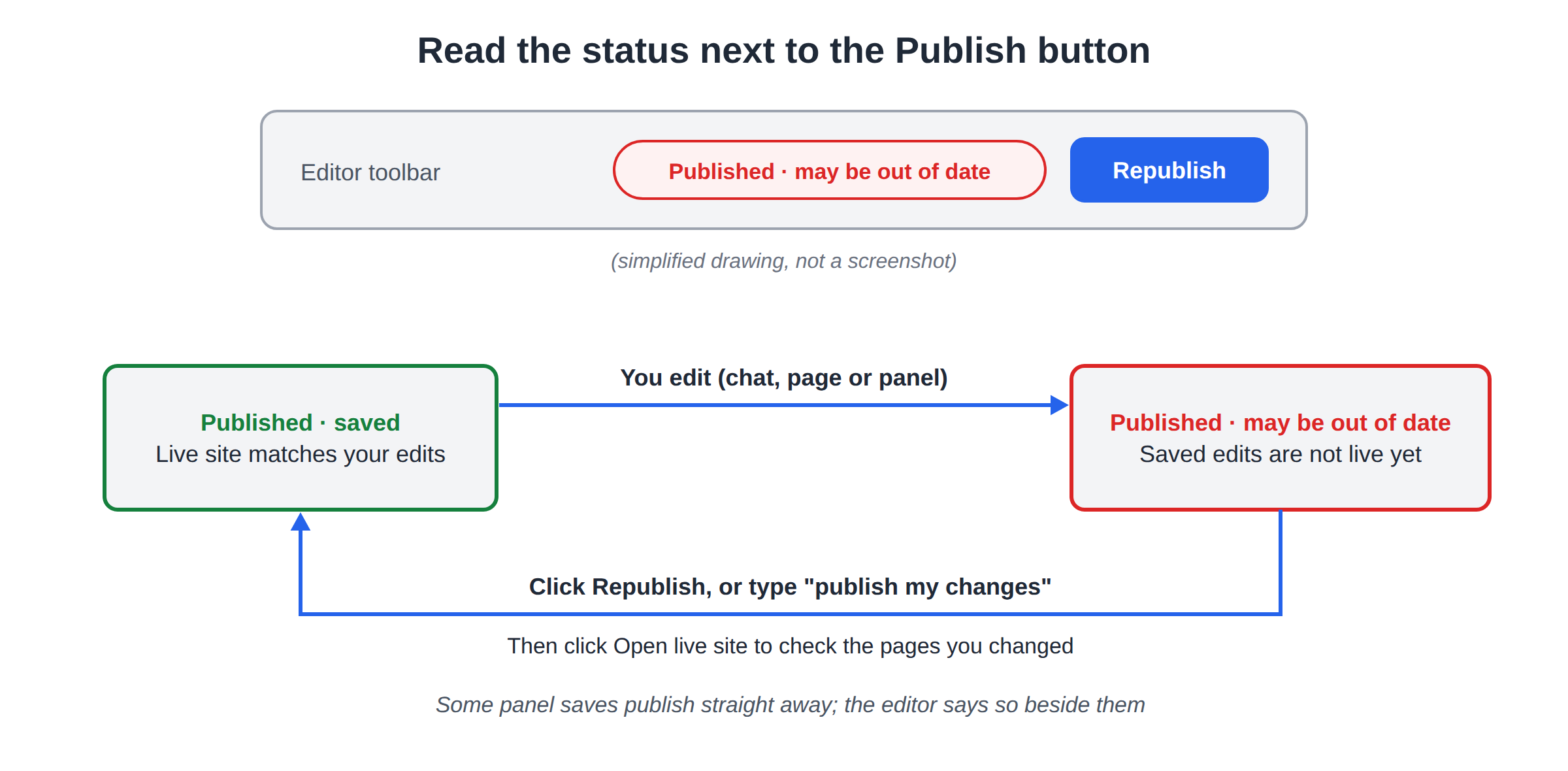
2. Three ways to make a change
Ask the chat. The Chat tab is the fastest way to change anything. The assistant, Sia, understands plain requests:
- "Change our opening hours to 10am to 9pm."
- "Rewrite the about section to mention our 15 years of experience."
- "Add a pricing section with three packages."
- "Remove the stats bar."
Edit on the page. Click text in the preview and type over it. Editing text directly, and in the Content tab, doesn't use your monthly AI allowance.
Use the panels. Each tab holds settings you fill in yourself:
- Content: your sections, including FAQs, team and pricing, and the blog.
- Design: template, colour, font, hero, logo, photos and the order of homepage sections.
- Grow: SEO, enquiries, visitor stats, the chatbot, bookings, selling and social links.
- Settings: contact details, languages, custom domain and versions.
3. Changes that publish straight away
On a published site, some saves go live immediately, and the editor tells you beside the setting. For example:
- changing the template or colour re-publishes your site;
- saving the FAQs, Team, Pricing, Timeline or Menu lists in the Content tab publishes that section live (an empty list removes it);
- adding or removing a language re-publishes the site.
Everything else waits for Republish. If you're not sure, check the status: "Published · saved" means the live site is current.
For a redesign or several page changes, make all the edits first, check each page in the preview on desktop and mobile, then republish once. Visitors never see a half-finished site.
4. Undo and restore
- Undo this change. After a chat edit, click Undo this change to reverse it.
- Content versions. The editor keeps a history of your content. Restoring a version replaces your current content, and the version you replaced stays saved in history.
- Published versions. In the Settings tab, every publish is saved. Restoring one reverts your live site's files to that state instantly. Publishing again re-applies your current content.
Because every version is kept, it's safe to experiment.
5. A simple maintenance routine
- Every week: reply to enquiries in the Grow tab and check the contact details are still right.
- Every month: update prices, offers and opening hours; write a blog post (type a topic and the AI writes it); glance at your visitor stats.
- Every few months: refresh photos and testimonials, and check each page's SEO title and description.
- Once a year: consider a fresh look with a new template. Your content moves with you.
6. If your plan lapses
If a renewal invoice isn't paid, your site is parked: visitors see a short "back soon" page, and editing and the visitor chat pause. Nothing is deleted. Pay the open invoice and everything resumes. Domain India never charges a saved card automatically; a renewal invoice is emailed for you to pay. See How auto-renewal works.
7. Where Domain India fits
Editing by hand is always free, and version history and undo come with every paid plan; the live pricing card lists "Version history & undo" on Starter. AI edits have a monthly allowance: about 30 AI generations a month on Starter, 100 on Pro and 300 on Business, freeing up on a rolling 30-day basis.
- 1 website
- Publish on your own domain + free SSL
- AI creates your website
- AI chat editor
- 5 websites
- Everything in Starter
- Online cart: WhatsApp and UPI orders
- Priority publishing
Frequently asked questions
Do my changes go live as soon as I make them?
Not always. Most edits wait until you click Republish. Some panel saves, such as template and colour changes or the FAQ and pricing lists, publish immediately, and the editor says so beside them.
How do I know if my live site is up to date?
Look at the status next to the Publish button. "Published · saved" means it's current; "Published · may be out of date" means you have edits to republish.
Can I undo a change?
Yes. Click Undo this change after a chat edit, restore an earlier content version, or restore an earlier published version from the Settings tab.
Does editing text use my AI allowance?
No. Editing text directly on the page and in the Content tab is always free. Chat requests to the AI use your monthly AI allowance.
What happens to my site if I stop paying?
It is parked with a short "back soon" page and editing pauses. Nothing is deleted; pay the open invoice and it comes back.
Ready to update your site? Open AI Website Builder in the client area, or read How to publish your website. Need help? Open a ticket or use our 24/7 live chat.
Change anything by chat or on the page, check it in the preview, and republish in one click.
Open the builder