Your Domain India hosting plan includes email accounts at your own domain, such as [email protected]. You create and manage them in your control panel: passwords, storage quotas, forwarders and autoresponders are all on the email accounts page. This page is the quick version, for each panel.
Every task on a mailbox, including quotas, forwarders, aliases, spam filters, deleting safely and mail app settings, is explained in managing your email accounts. To create your first addresses, see how to create email accounts for your domain.
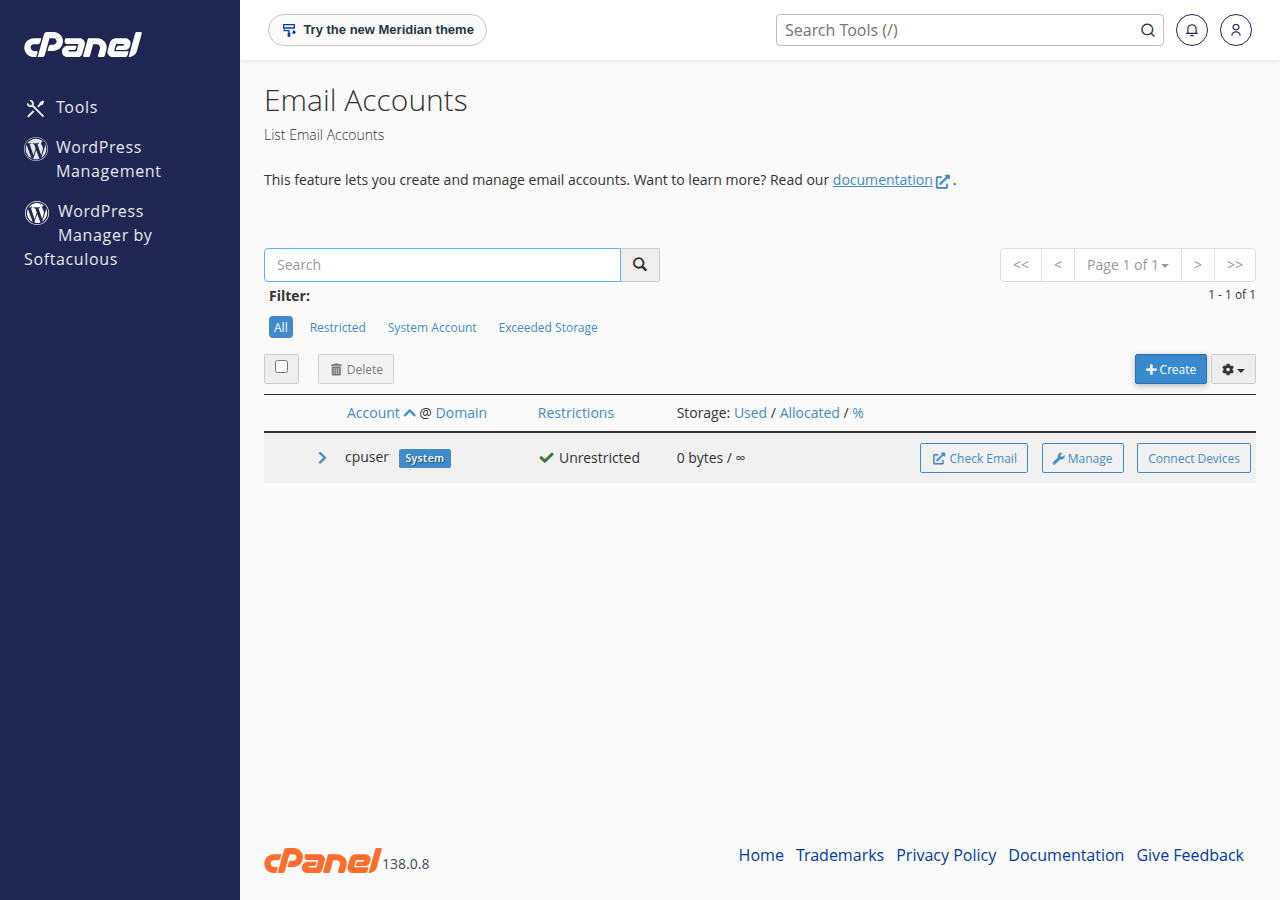
Open your control panel from the client area, then Email › Email Accounts in cPanel, E-mail Manager › E-mail Accounts in DirectAdmin, or Email › Email Account in Webuzo. There you create an account, change its password, set its quota and delete it. Read mail in webmail at yourdomain.com/webmail, or add the account to a mail app with IMAP on port 993 and SMTP on port 465, using the full email address as the username.
1. Where your email accounts are
| Panel | Where to go | Webmail address |
|---|---|---|
| cPanel | Email › Email Accounts | yourdomain.com/webmail, webmail.yourdomain.com or yourdomain.com:2096 |
| DirectAdmin | E-mail Manager › E-mail Accounts | yourdomain.com/webmail or yourdomain.com/roundcube |
| Webuzo | Email › Email Account | yourdomain.com/webmail |
Open the panel with the button on your account in Hosting › My hosting. On Webuzo, log in at https://yourdomain.com:2003; if you need a new Webuzo password, ask support.
2. Create an account
- Open the email accounts pagefor your panel (above) and choose Create (CREATE ACCOUNT in DirectAdmin).
- Enter the name(the part before the @) and pick the domain.
- Set a strong password,or use the generator, and keep a copy somewhere safe.
- Set the storage quota.A new cPanel mailbox defaults to 1,024 MB. Give each mailbox a fixed size rather than Unlimited, so one inbox can't fill your whole plan.
- Create it,then sign in to webmail to check it works.
Your plan sets how many email accounts you can create. All mailboxes share your plan's disk space with your website and databases.
3. Everyday tasks
- Change a password: open the account (Manage in cPanel) and set a new one. It takes effect at once, so re-enter it on every phone and mail app.
- Change the quota: same page. When a mailbox is full, new mail bounces back to the sender, and it is not delivered later.
- Forward mail: Email › Forwarders in cPanel, or Forwarders under E-mail Manager in DirectAdmin. See email forwarding setup.
- Out-of-office replies: Email › Autoresponders in cPanel, or the autoresponder or vacation message tools in DirectAdmin. Always set an end date. See setting up email autoresponders.
- Delete an account: this removes the mailbox and every message in it, with no undo. Save the mail you need first, and add a forwarder if people still write to that address.
4. Sending limits
Hosting mailboxes are for normal business mail, not newsletters. On our cPanel servers each account can send 200 messages per hour; on DirectAdmin the limit is 1,000 per day per account (200 per mailbox by default). For bulk mail, use a dedicated mailing service.
5. Mail app settings
| Setting | Value |
|---|---|
| Incoming server | mail.yourdomain.com |
| IMAP (recommended) | Port 993, SSL/TLS |
| POP3 | Port 995, SSL/TLS |
| Outgoing (SMTP) | mail.yourdomain.com, port 465, SSL/TLS (587 with STARTTLS also works) |
| Username | Your full email address |
Use IMAP so your phone, computer and webmail show the same mailbox. On Windows (Plesk) hosting, port 587 is closed, so use 465; mailboxes there are managed in Plesk, as explained in creating email in Plesk. For step-by-step app guides, see managing your email accounts, and for webmail sign-in, how to log in to webmail.
Where do I manage my email accounts on Domain India hosting?
In your control panel: Email, Email Accounts in cPanel; E-mail Manager, E-mail Accounts in DirectAdmin; or Email, Email Account in Webuzo. Open the panel from your hosting account in the Domain India client area.
How do I change an email account's password?
Open the account on the email accounts page of your control panel, choose Manage in cPanel or the account itself in DirectAdmin, set a new password and save. The change is immediate, so update it on every device.
What happens when a mailbox is full?
New mail is refused and the sender gets a bounce saying the mailbox is full. Nothing already stored is lost. Free space or raise the quota, then ask important senders to send again.
How many emails can I send per hour?
On Domain India cPanel hosting, each account can send 200 messages per hour. On DirectAdmin hosting, the limit is 1,000 messages per day per account (200 per mailbox by default).
What are the mail app settings?
Use mail.yourdomain.com for incoming and outgoing mail, IMAP on port 993 with SSL/TLS, and SMTP on port 465 with SSL/TLS. The username is your full email address.
Ready to set up your mailboxes? Open your control panel from your hosting list, read managing your email accounts, or open a support ticket with your domain and the exact error if something isn't working.
Tell us the email address and the exact error you see, and we will check the mailbox with you. Live chat is available 24/7, and tickets get a first response within 15 minutes.
Open a support ticket