A sudden slowdown, a flood of 508 or 503 errors, or a bandwidth graph that jumps overnight can mean an attack, an aggressive bot, or simply a popular day. This guide shows how to tell which it is from your logs and connections, and how to block or slow the traffic. Most commands here are for a server you run yourself, such as a VPS; section 1 explains what you can and cannot do on shared hosting.
Find out who is sending the traffic before you block anything: count requests per IP, URL and user agent in the access log, and count live connections with ss. Block single abusive IPs with your firewall (CSF, firewalld or nftables), rate-limit the rest in the web server, and put a CDN or DDoS-filtering service in front of the site for large attacks, because no single server can absorb a big flood. On Domain India shared hosting the server firewall is managed for you; you can read your access logs, block IPs for your site, and ask support for help.
1. Shared hosting or your own server?
| Task | Shared hosting (cPanel, DirectAdmin, Webuzo) | Your own VPS or server |
|---|---|---|
| Read your site's access log | Yes, from the control panel | Yes, on disk |
| See live network connections | No | Yes, with ss and tcpdump |
| Block an IP for your website | Yes, cPanel IP Blocker or .htaccess | Yes, in the firewall |
| Change firewall or flood settings | No, managed server-wide | Yes, you manage them |
| Put a CDN or DDoS filter in front | Yes, by changing DNS | Yes, by changing DNS |
On our cPanel and DirectAdmin shared servers, the CSF firewall and Imunify360 run server-wide, and Imunify360's DOS protection is enabled on the cPanel servers. You cannot change those settings, and you do not need root commands. If you are on shared hosting, read sections 2, 3 and 7, then open a ticket if the traffic keeps coming.
2. Attack, bot or real visitors?
Not every spike is an attack. Check which pattern you see before you act:
- Real visitors: many different IPs, normal browser user agents, requests spread over your pages, often after a promotion or a social post. Do not block these; make the site cheaper to serve with caching.
- An aggressive crawler or scraper: one or a few IPs or one user agent requesting thousands of pages. Search engine bots are usually fine; unknown scrapers and AI crawlers can be blocked.
- A login or form attack: many requests to
wp-login.php,xmlrpc.php,/administrator/or a contact form from many IPs. - An application-layer flood: a very high rate of requests to one URL, often a search or other expensive page.
- A network flood: the server or its network link is saturated before requests even reach the web server. Logs may look quiet while the site is unreachable.
3. Read the access log
On shared hosting, download your raw access log from the control panel (in cPanel, Raw Access in the Metrics section) and run the same commands on your own computer. On your own server the logs are usually here:
- Apache on AlmaLinux or Rocky Linux:
/var/log/httpd/access_log - Apache on Ubuntu or Debian:
/var/log/apache2/access.log - nginx:
/var/log/nginx/access.log - A cPanel server: per-domain logs under
/var/log/apache2/domlogs/(older servers:/usr/local/apache/domlogs/)
Top 20 IP addresses by number of requests:
awk '{print $1}' access.log | sort | uniq -c | sort -rn | head -20Most requested URLs, and the busiest user agents:
awk '{print $7}' access.log | sort | uniq -c | sort -rn | head -20
awk -F'"' '{print $6}' access.log | sort | uniq -c | sort -rn | head -20
Requests per minute, to see when the spike started:
awk '{print substr($4, 2, 17)}' access.log | sort | uniq -c | tail -30Everything one suspicious IP did:
grep '^203.0.113.45 ' access.log | awk '{print $4, $7, $9}' | tail -50Look an address up with whois or an online IP lookup. A Googlebot or Bingbot IP with a matching reverse DNS name is a search engine; blocking it can hurt your rankings. Your own office IP or your payment gateway's callback IP can also look busy.
4. Check live connections (your own server)
netstat is deprecated on current Linux distributions; use ss. Connections per remote IP on ports 80 and 443:
ss -Htn state established '( sport = :80 or sport = :443 )' \
  | awk '{print $4}' | sed -E 's/:[0-9]+$//' | sort | uniq -c | sort -rn | head -20
A large number of half-open connections suggests a SYN flood:
ss -Htn state syn-recv | wc -lTo see what the packets actually are, capture a short sample. Stop after a few hundred packets so the file stays small:
tcpdump -nn -i any -c 300 'tcp port 80 or tcp port 443'Also watch the load with top or htop. If CPU and memory are fine but the site is unreachable, the flood may be saturating the network link, which only an upstream filter can fix (section 6).
5. Block and rate-limit (your own server)
Use one firewall tool and stick to it. If CSF is installed, do not add raw iptables rules alongside it, because CSF rewrites the rules when it restarts.
With CSF:
csf -d 203.0.113.45 "Flooding /search"      # permanent deny
csf -td 203.0.113.45 3600 "Temporary block"  # deny for one hour
csf -g 203.0.113.45                          # is it blocked, and why?
Check the LFD log for what the firewall has already blocked: grep -i 'blocked' /var/log/lfd.log | tail -50. For connection-level limits, CSF has CT_LIMIT, CONNLIMIT, PORTFLOOD and SYNFLOOD in /etc/csf/csf.conf; change them carefully and test, because a limit set too low blocks real visitors behind shared networks. See mitigating DDoS attacks using CSF.
With firewalld (AlmaLinux and Rocky Linux default):
firewall-cmd --permanent --add-rich-rule='rule family="ipv4" source address="203.0.113.0/24" drop'
firewall-cmd --reload
Rate limiting in nginx limits each IP to a steady request rate with a short burst:
# in the http block
limit_req_zone $binary_remote_addr zone=perip:10m rate=10r/s;

# in the server or location block
limit_req zone=perip burst=20 nodelay;
In Apache, mod_reqtimeout protects against slow-request attacks, and mod_evasive or a ModSecurity rule set can throttle floods. Aim the tightest limits at expensive URLs such as search, login and checkout, not the whole site.
6. Large attacks: filter before the traffic reaches you
Blocking IPs one by one works for a single scraper. It does not work for a flood from thousands of addresses, and nothing on the server helps when the network link itself is full. For that, the traffic has to be filtered upstream:
- A CDN with DDoS protection or a reverse proxy service sits in front of your site. You change your DNS so visitors reach the provider, which filters bad traffic and passes clean requests to your server. Many providers have a free or low-cost tier and an "under attack" mode that challenges visitors.
- Your hosting provider's network filtering handles volumetric floods before they reach your server.
- Dedicated appliances or scrubbing services are for large organisations with their own networks.
Once a CDN is in front, allow only the CDN's published IP ranges to reach your web ports, or attackers can bypass it by hitting your server's IP directly. Also configure the web server to log the real visitor IP from the header the CDN sends. Pricing and features change often, so compare current plans on the providers' own sites.
7. On shared hosting: what you can do
- Download the raw access logfrom your panel and run the commands in section 3 on your computer.
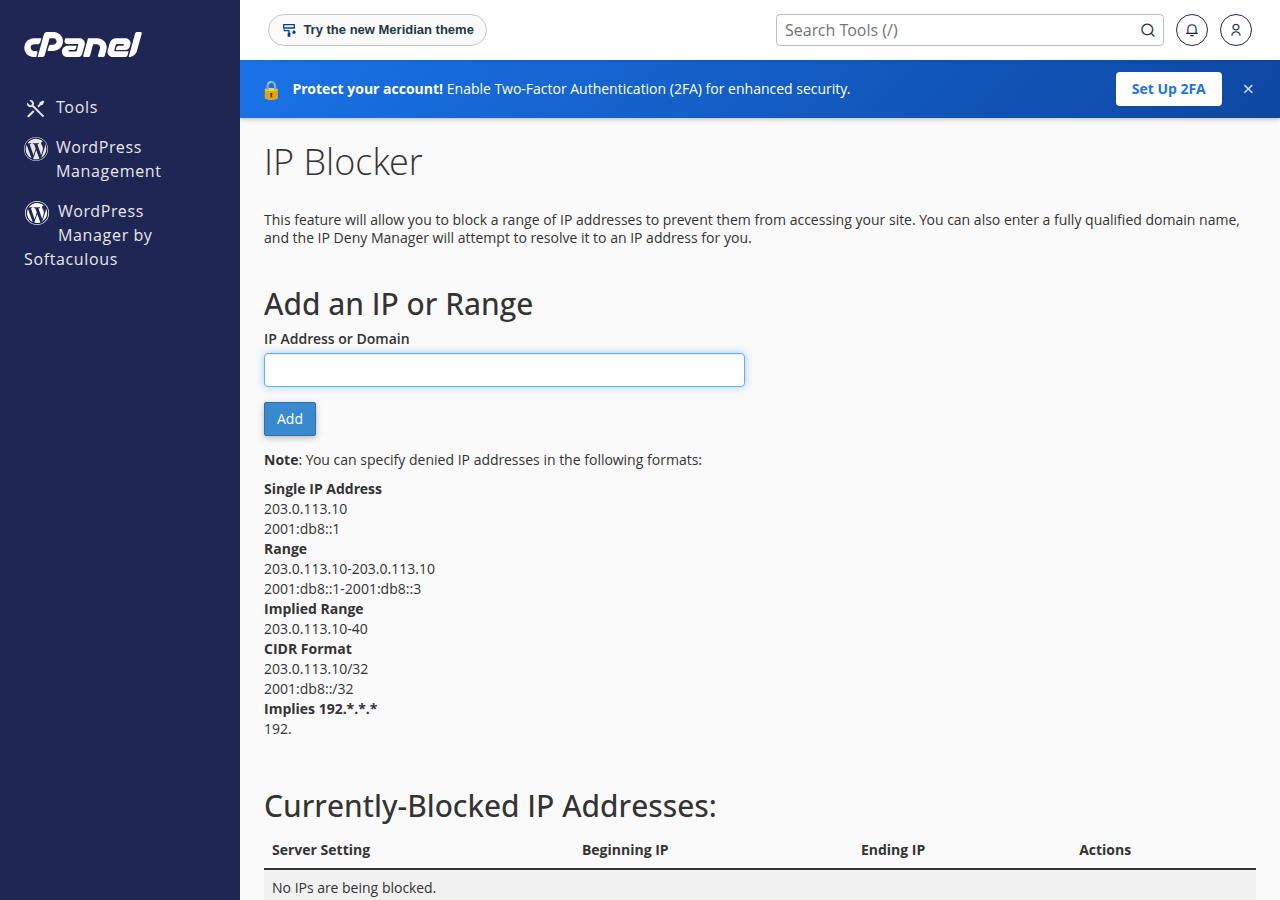
- Block the worst IPs for your site.In cPanel, open IP Blocker in the Security section. On any panel you can add rules to
.htaccess. - Protect login pages.Limit login attempts in your CMS, disable
xmlrpc.phpon WordPress if you do not use it, and add a CAPTCHA to forms. - Cache pagesso each request costs less. Our shared servers run Apache, so use WP Super Cache or W3 Total Cache on WordPress.
- Tell us.Open a ticket with the IPs, the URLs and the times you found. We can check the server-level firewall for the same traffic.
A .htaccess block for Apache 2.4 looks like this:
<RequireAll>
    Require all granted
    Require not ip 203.0.113.45
    Require not ip 198.51.100.0/24
</RequireAll>
If traffic causes resource-limit errors on your account, see the "Resource Limit Is Reached" error.
8. Where Domain India fits
On our shared hosting, the server firewall and Imunify360 are managed for you; you handle your site's own blocks, logins and caching. On a VPS you are the administrator: it is self-managed, so the firewall, web server limits and monitoring in sections 4 and 5 are yours to run. Our VPS plans list DDoS protection among their features; ask support what it covers for your plan before you rely on it for a large attack.
- 1 vCPU
- 2 GB DDR4 RAM
- 64 GB NVMe SSD Storage
- 2 TB Monthly Bandwidth
Prices on the card are Domain India list prices and exclude 18% GST.
How do I know whether my website is under a DDoS attack?
Count requests per IP, per URL and per user agent in your access log, and on your own server count live connections with ss. Many requests from a few IPs, a flood to one URL, or a huge number of half-open connections point to an attack. Many different IPs with normal browsers and varied pages usually means real visitors.
Can I block an IP address on Domain India shared hosting?
Yes, for your own website. In cPanel use IP Blocker in the Security section, or add Require not ip rules to .htaccess. The server firewall itself is managed by Domain India and cannot be changed from your account.
Should I use netstat to find attacking IPs?
On current Linux distributions netstat is deprecated. Use ss, for example ss -Htn state established with a filter on ports 80 and 443, and count connections per remote address.
Can a firewall on my server stop a large DDoS attack?
Not a large one. A firewall can drop traffic from specific IPs, but a flood that fills the server's network link has to be filtered upstream, by a CDN or DDoS-filtering service or by the network provider.
Is a VPS from Domain India managed for me?
No. Domain India VPS plans are self-managed: you configure the firewall, the web server and monitoring yourself.
Ready to act? Download your access log and run the checks above, read mitigating DDoS attacks using CSF if you run your own server, or open a ticket with the IPs and times you found.
Send us the IP addresses, the URLs and the times from your access log. We will check the server-level firewall for the same traffic.
Open a support ticket