A Node.js app on Domain India shared hosting can use the MySQL databases that come with your plan. You create the database in your control panel, create the app with the panel's Node.js tool, and connect to the database on localhost. This guide covers the database side in detail and the app setup in brief, and shows where a larger app belongs.
Create a database and user in cPanel's Database Wizard (or DirectAdmin's Account Manager › Databases). Create the app in Setup Node.js App, choose Node.js 22 or 24, and put the database details in the app's environment variables. Connect with the mysql2 package to host localhost, port 3306, using the full prefixed database and user names. Your app must listen on process.env.PORT. Port 3306 is closed to outside connections, so the app must run on the same account as the database.
This page focuses on connecting to MySQL. For every step of creating, starting and troubleshooting the app itself, read How to deploy a Node.js app on shared hosting.
1. What you need
| Item | On our cPanel servers | On our DirectAdmin servers |
|---|---|---|
| Node.js app tool | Setup Node.js App | Node.js selector plugin |
| Node.js versions (measured 23 September 2026) | 20, 22 and 24 | 14 to 24 |
| Database | MariaDB, MySQL-compatible, reached on localhost | MySQL-compatible, reached on localhost |
| Database management | phpMyAdmin | phpMyAdmin |
Node.js 20 and older have reached end of life, so choose 22 or 24 if your app supports them. On Webuzo we could not confirm a Node.js tool, so ask support. The panel always shows the current version list.
2. Create the database and user
- Open the wizard.In cPanel, under Databases, click Database Wizard. In DirectAdmin, open Account Manager › Databases and use the Create Database form; open Advanced mode so you can name the user yourself.
- Name the database,for example
shop. The panel adds your username as a prefix, so it becomescpaneluser_shop. - Create a usersuch as
shopappwith a generated password, and save the password somewhere safe. - Grant privileges.Tick only what the app needs, or ALL PRIVILEGES if it also creates its own tables.
- Note the four details:host
localhost, the full database name, the full user name and the password.
Always use the full prefixed names in your code. A missing prefix is the most common cause of "Access denied" and "Unknown database" errors. See How to connect to your MySQL database for the details.
3. Prepare your app
Install the mysql2 driver in your project and commit package.json:
npm install express mysql2A minimal app.js that reads its settings from environment variables and uses a small connection pool:
const express = require('express');
const mysql = require('mysql2/promise');

const pool = mysql.createPool({
  host: process.env.DB_HOST || 'localhost',
  port: Number(process.env.DB_PORT || 3306),
  user: process.env.DB_USER,
  password: process.env.DB_PASS,
  database: process.env.DB_NAME,
  connectionLimit: 5,
  charset: 'utf8mb4'
});

const app = express();
app.use(express.json());

app.get('/api/products', async (req, res) => {
  try {
    const [rows] = await pool.query(
      'SELECT id, name FROM products WHERE category = ?',
      [req.query.category || '']
    );
    res.json(rows);
  } catch (err) {
    console.error(err);
    res.status(500).json({ error: 'Database error' });
  }
});

const port = process.env.PORT || 3000;
app.listen(port, () => console.log(`Listening on ${port}`));
Three rules matter on shared hosting:
- Listen on
process.env.PORT. The server runs your app behind Apache using Phusion Passenger and passes the port in. A fixed port won't work. - Keep the pool small. Your account has a limit on simultaneous database connections. A handful is plenty for a small app.
- Use placeholders (
?) for every value that comes from a visitor, as above. Never build SQL by joining strings.
If you have a React or other front end, run npm run build on your own computer and upload the output, not the source.
4. Create the app and add your settings
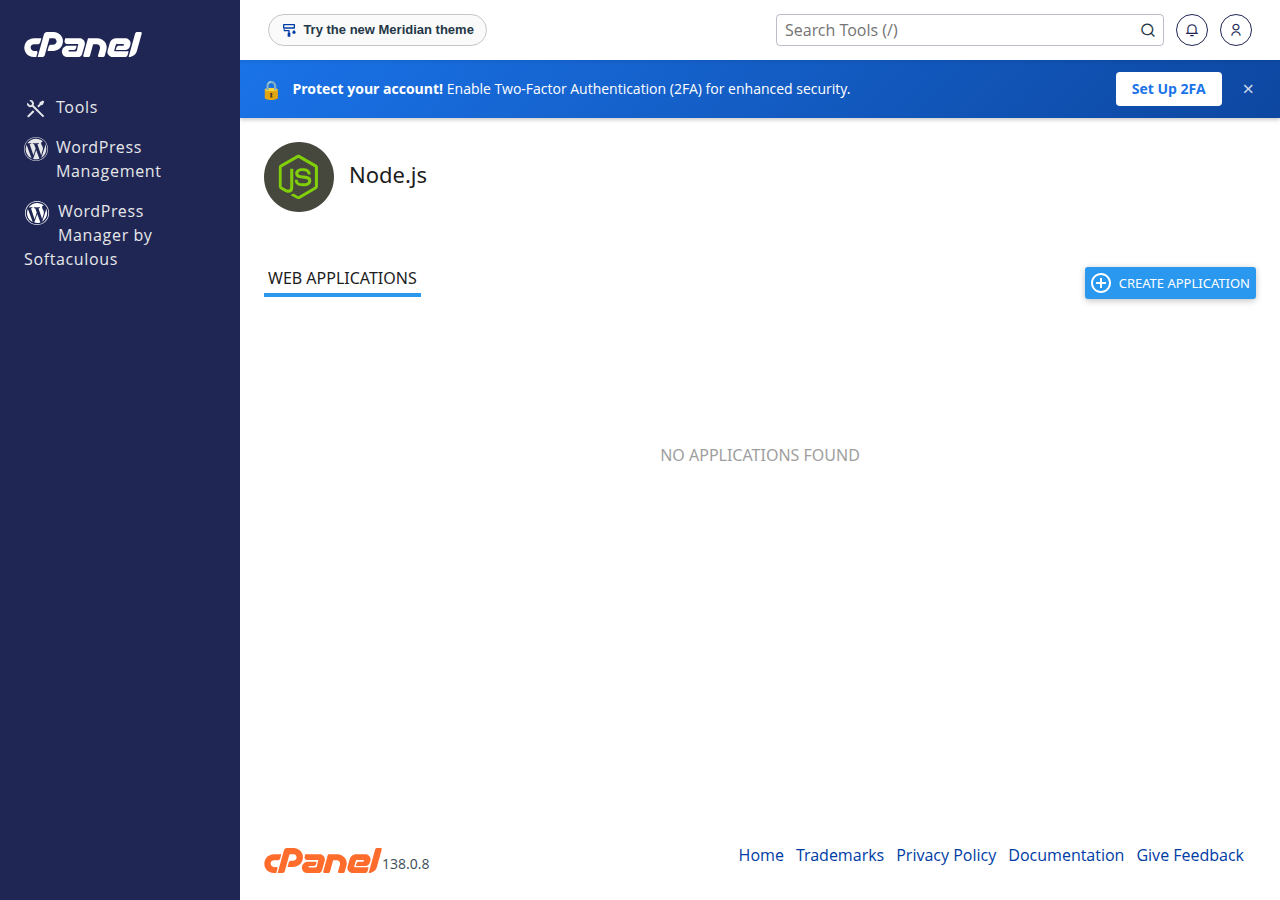
- Create the app.In cPanel, open Setup Node.js App and click Create Application. Choose the Node.js version, set Application mode to Production, set Application root to a folder such as
shopappoutsidepublic_html, pick the Application URL and enterapp.jsas the startup file. - Add environment variablesin the same form:
DB_HOST=localhost,DB_PORT=3306,DB_NAME=cpaneluser_shop,DB_USER=cpaneluser_shopapp,DB_PASS=…andNODE_ENV=production. Save. - Upload your codeto the application root with File Manager or FTP, including
package.jsonbut notnode_modules. - Install and start.Click Run NPM Install, then Start App, and open your application URL.
Keeping the password in the panel's environment variables means it never sits in a file inside public_html. Restart the app after every change to the code or the variables.
5. Create your tables
Open phpMyAdmin from your control panel, select the database and run your SQL in the SQL tab, or import a .sql file with Import. The cPanel phpMyAdmin import limit is 50 MB, so split larger files or ask support. If your app uses a migration tool, you can run it from the app's environment over SSH once jailed SSH is enabled (section 7); the app page shows the command that enters that environment.
6. Troubleshooting
| Error | Usual cause | Fix |
|---|---|---|
| Access denied for user | Wrong password, or a name without the prefix | Reset the user's password in the panel and use the full prefixed names |
| Unknown database | Database name without the prefix | Copy the exact name from the panel's database list |
| ECONNREFUSED or ETIMEDOUT | Host set to an IP address or remote hostname | Use localhost, with the app on the same account as the database |
| Too many connections | Pool too large, or connections never released | Lower connectionLimit and use the pool rather than new connections |
| 503 on the app URL | The app failed to start | Check the startup file and the log named on the app's page, then restart |
If you can log in to phpMyAdmin with the same user and password, the credentials are right and the problem is in your environment variables or code.
7. Working from your own computer
Port 3306 is closed to outside connections on our shared servers, and adding your IP under Remote Database Access doesn't open it. Use phpMyAdmin, or an SSH tunnel. Jailed SSH access is available on every shared hosting plan (cPanel, DirectAdmin, Webuzo). It is off by default; ask support to enable it for your account. You log in with an SSH key, and tunnels work:
ssh -N -L 3307:localhost:3306 [email protected]Then point your local tool at 127.0.0.1, port 3307. See Enabling and accessing jailed SSH.
8. Where Domain India fits
Shared hosting suits a small Node.js app with a MySQL database next to your website. Your app shares the account's CPU and memory limits, and it is not a place for background workers. Prices on the cards are live and exclude 18% GST.
- 25 GB NVMe SSD Storage
- 50 GB Monthly Bandwidth
- 1 Website
- 10 Email Accounts
For a production app, the App Platform builds and deploys Node.js apps automatically and includes a PostgreSQL database and SSL. It has no MySQL and no SSH. If you need MySQL with full control, choose a self-managed VPS.
- 512 MB RAM per app
- 1 vCPU
- 5 GB NVMe SSD
- PostgreSQL Database
What database host should my Node.js app use on Domain India shared hosting?
Use localhost, port 3306, with the full prefixed database name and user name from your control panel. The app must run on the same hosting account as the database.
Which Node.js MySQL driver should I use?
The mysql2 package is the common choice. Use its promise API with a small connection pool and placeholders for every value that comes from a visitor.
Which port should my Node.js app listen on?
Use process.env.PORT. The server runs your app behind Apache with Phusion Passenger and routes traffic to that port, so a fixed port does not work.
Where do I put the database password?
In the environment variables section of Setup Node.js App, then restart the app. That keeps the password out of files inside public_html.
Can I connect to my shared hosting MySQL database from my computer?
Not directly, because port 3306 is closed to outside connections. Use phpMyAdmin, or an SSH tunnel once jailed SSH is enabled on your account. Jailed SSH is off by default; ask support to enable it.
Which Node.js versions can I use?
When we checked on 23 September 2026, cPanel offered Node.js 20, 22 and 24, and DirectAdmin offered 14 to 24. Choose 22 or 24, because 20 and older have reached end of life.
Ready to deploy? Follow the Node.js deployment guide, compare cPanel hosting plans, or look at the App Platform for a production app. If your app still can't reach the database, open a support ticket with the exact error.
Deploy from GitHub or with a deploy token, with a PostgreSQL database and free SSL included.
See App Platform plans