Yes, you can run a Node.js app on Domain India DirectAdmin hosting. The server's Node.js selector creates the app, starts it with Phusion Passenger behind Apache and connects it to your domain, so you don't manage ports or a process manager yourself. This page is the short DirectAdmin version; the full guides are linked below.
Every form field, preparing your code and general troubleshooting are in how to deploy a Node.js app on shared hosting. For an Express API on DirectAdmin, with database, secrets, SSL and logs, see the Node/Express API playbook for DirectAdmin.
Open the Node.js selector in DirectAdmin, create an application with Node.js 22 or 24, point it at a folder outside public_html, set the startup file, then click Run NPM Install and start the app. Your app must listen on process.env.PORT. SSH is not needed; jailed SSH is available on request if you want a command line. For production apps with steady traffic or background workers, use the App Platform or a VPS.
1. What our DirectAdmin server offers
| Item | On Domain India DirectAdmin (measured September 2026) |
|---|---|
| Node.js versions | 14, 16, 18, 19, 20, 22 and 24 in the Node.js selector |
| How the app runs | Phusion Passenger behind Apache; no public port of your own |
| SSH | Jailed shell, off by default; ask support. Key login only |
| Moving files | FTP with TLS, File Manager, or scp and SFTP once SSH is on. rsync is not available |
| Scheduled jobs | Cron; the shortest effective interval is 4 minutes |
Node.js 20 and older have reached end of life, so choose 22 or 24 unless your code needs something older.
2. Set up the app
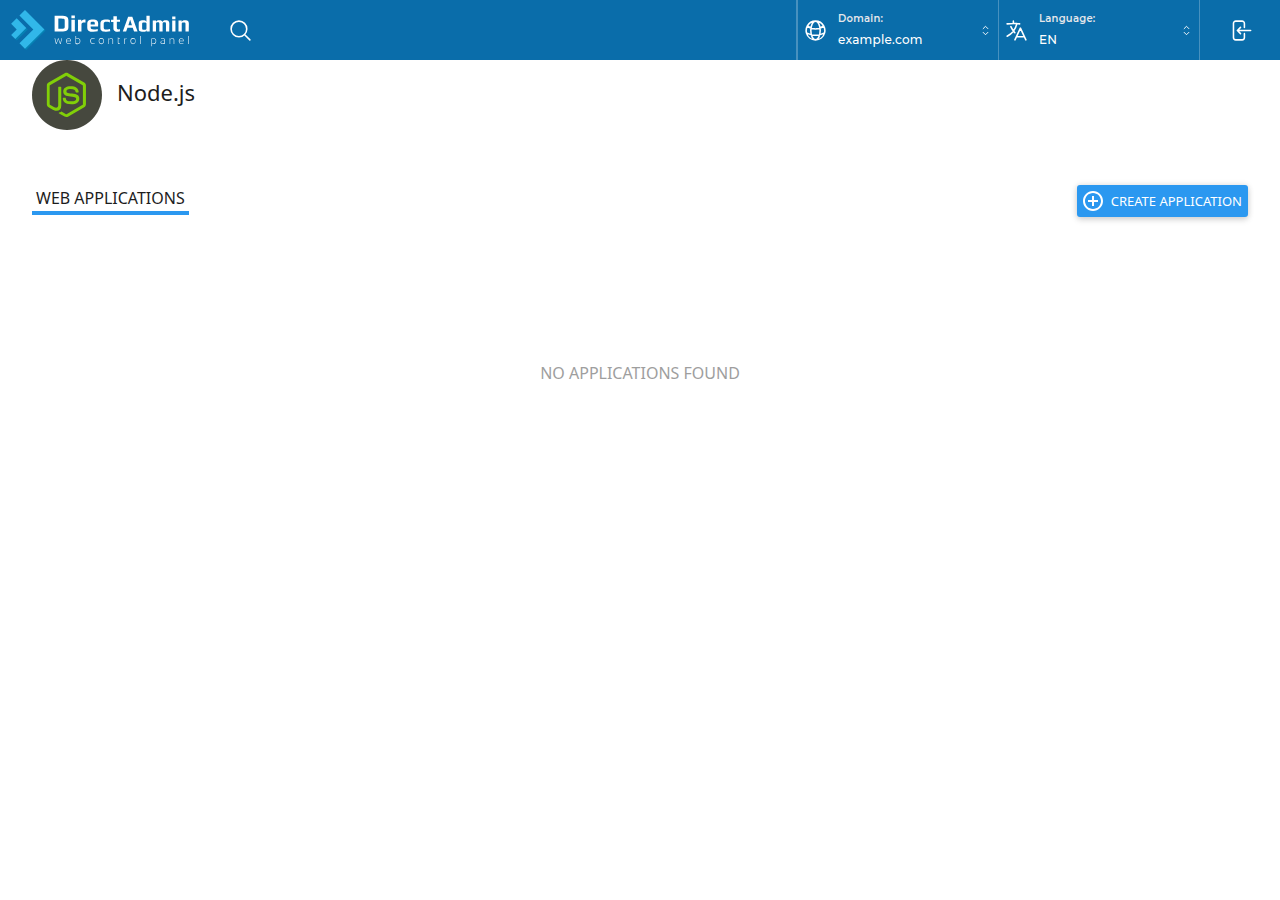
- Open the Node.js selector.Log in to DirectAdmin, type "node" in the Search for pages box at the top of the menu (Ctrl+J) and open Setup Node.js App.
- Create the application.Choose the Node.js version, set the mode to Production, set the application root to a folder such as
myapp(outsidepublic_html), choose the application URL (your domain or a path such as/app), and enter the startup file, for exampleapp.js. - Upload your code.Put your files, including
package.jsonand your lock file, into the application root. Leave outnode_modules. - Install dependencies.Click Run NPM Install in the selector.
- Start and check.Start or restart the app from the selector and open the application URL.
Your start file must use the port Passenger gives it:
const port = process.env.PORT || 3000;
app.listen(port);
Put settings such as NODE_ENV=production, database details and API keys in the selector's environment variables section, then restart. Never keep a .env file inside public_html.
3. Deploying updates over SSH (optional)
Jailed SSH access is available on every shared hosting plan (cPanel, DirectAdmin, Webuzo). It is off by default; ask support to enable it for your account. Login is by SSH key only. See enabling and accessing SSH on DirectAdmin.
rsync is not available inside the jail, so deploy with an archive. Replace SERVER with the server hostname or IP shown on your hosting service's Access tab in the client area:
# on your computer, after building
tar -czf release.tar.gz --exclude=node_modules app.js package.json package-lock.json routes/
scp release.tar.gz USERNAME@SERVER:myapp/

# on the server
cd ~/myapp && tar -xzf release.tar.gz && rm release.tar.gz
Then click Run NPM Install if dependencies changed, and restart the app from the selector. Build TypeScript or front-end bundles on your own computer or in CI, not on the server.
4. Quick troubleshooting
- 503 or "error starting web application": the app crashed at startup. Read the log named on the app's page in the selector, check the startup file name, and restart.
- "Cannot find module": run Run NPM Install again and check that
package.jsonis in the application root. - Changes don't appear: restart the app after every code or environment change.
- Out of memory during install or build: build locally and upload the result, or move to the App Platform or a VPS.
- Background workers stop or WebSockets fail: shared hosting runs your app to answer web requests, within your account's resource limits. Use a VPS for long-running workers and WebSockets.
5. When to use the App Platform or a VPS
Shared hosting suits small apps and APIs. The App Platform detects and builds Node.js apps automatically, deploys from GitHub or with a deploy token, and includes PostgreSQL and SSL; it does not support WebSockets. See getting started with the App Platform. A VPS gives you root access for workers, WebSockets, Docker or anything else, and is self-managed.
Frequently asked questions
Can I run Node.js on Domain India DirectAdmin hosting?
Yes. DirectAdmin has a Node.js selector that creates the app, installs dependencies with npm and runs it with Phusion Passenger behind Apache. You manage it from the panel without SSH.
Which Node.js versions does DirectAdmin offer?
When we checked in September 2026, the selector offered Node.js 14, 16, 18, 19, 20, 22 and 24. Choose 22 or 24, because 20 and older have reached end of life.
Which port should my Node.js app listen on?
Use process.env.PORT. Passenger assigns the port and routes traffic to your app, so a fixed port will not work.
Is SSH included for Node.js on DirectAdmin?
Jailed SSH access is available on every shared hosting plan. It is off by default; ask support to enable it. Login is by SSH key only, and rsync is not available, so deploy with an archive and scp or with the panel.
Where are my Node.js app's error logs?
The Node.js selector shows the log file for your app on the app's page. Read it after a failed start, fix the problem and restart the app.
Should I use the App Platform instead of shared hosting?
For a production app with steady traffic, builds or several services, yes. The App Platform builds Node.js apps automatically and includes PostgreSQL and SSL. For WebSockets or background workers, use a VPS.
Ready to deploy? Follow the full Node.js deployment guide, compare DirectAdmin hosting and the App Platform, or open a support ticket to have jailed SSH enabled.
Deploy from GitHub or with a deploy token, with automatic Node.js builds and free SSL.
See App Platform plans