Free SSL in DirectAdmin needs no installing once your domain points to your Domain India hosting. DirectAdmin issues a Let's Encrypt certificate by itself, so the certificate costs nothing and renews itself. This page shows how to check that it was issued and gives the fixes for the usual failures; the full guide goes deeper.
Step-by-step screens, a full failure table and wildcard advice are in How to enable Let's Encrypt SSL certificates in DirectAdmin.
Point your domain's A record or nameservers to your DirectAdmin hosting and wait. DirectAdmin issues the free Let's Encrypt certificate automatically, with nothing to request, and renews it automatically well before it expires. To confirm, open Account Manager › SSL/TLS Certificates in DirectAdmin. If a name is listed there as failed, the cause is almost always DNS.
1. Before you start: DNS must point to us
Let's Encrypt checks that your domain really points to the server asking for the certificate, by fetching a small file over plain http:// on port 80. So:
- the domain's A record, or its nameservers, must point to your DirectAdmin hosting; use the values on your hosting service's page in the client area, as explained in How do I change my nameservers;
wwwneeds its own DNS record if you want it covered;- a proxy in front of the site, such as a proxied Cloudflare record, must be paused so that the check reaches our server.
Once the domain opens your DirectAdmin site over http://, DirectAdmin can issue the certificate.
2. Check that the certificate was issued
There is no request form, no provider to choose and no names to tick. DirectAdmin tries the domain, www, mail, ftp, pop and smtp on its own, and a name gets a certificate only if it reaches our server.
- Point the domain at your hosting and wait.DirectAdmin issues the certificate by itself once the domain reaches our server.
- Open DirectAdminfrom your hosting services in the client area.
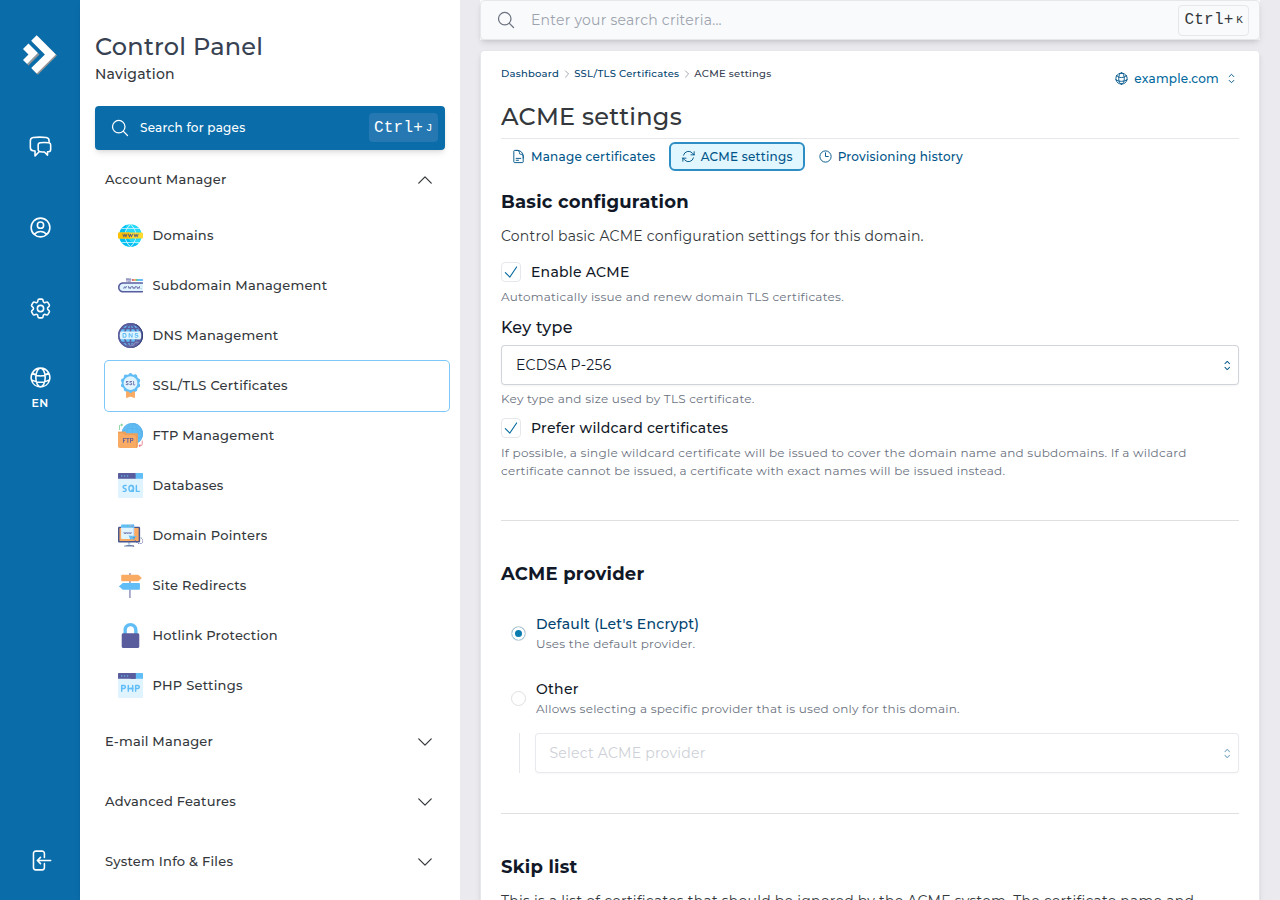
- Open Account Manager › SSL/TLS Certificates.The page has three tabs: Manage certificates, ACME settings and Provisioning history.
- Read the Certificate liston the Manage certificates tab. It shows each certificate with its DNS names, validity, expiry date and renewal mode.
- Check for names left out.A name with no certificate is listed under DNS names without TLS certificate; a name DirectAdmin tried and could not secure is listed under Automatic certificate provisioning with the reason. See section 6.
Check the result by opening https://yourdomain.com and clicking the padlock: the certificate should be issued by Let's Encrypt.
3. Send visitors to HTTPS
The certificate does not redirect anyone by itself. Turn on DirectAdmin's HTTPS redirect for the domain if your panel shows it, or add this to the .htaccess file in public_html:
RewriteEngine On
RewriteCond %{HTTPS} off
RewriteRule ^ https://%{HTTP_HOST}%{REQUEST_URI} [L,R=301]
Use one method, not both. In WordPress, also change both addresses under Settings › General to https://. If the browser still warns, the page loads images or scripts over http://; see Loading mixed (insecure) display content.
4. Renewal
| What | On our DirectAdmin server |
|---|---|
| Renewal | Automatic, well before the certificate expires |
| Failed name | Listed under Automatic certificate provisioning with the reason |
| Usual cause of a failure | DNS moved to another host or a proxy, or a rule blocks /.well-known/acme-challenge/ |
You do not need to renew by hand while the domain keeps pointing to the server. If a renewal fails, fix DNS first and wait: DirectAdmin retries on its own. If it still fails, ask support.
Security plugins, .htaccess rules that deny dotted folders, and redirects of all traffic to another domain can block /.well-known/acme-challenge/. That breaks the first certificate and every later renewal.
5. If you already bought a certificate elsewhere
A free Let's Encrypt certificate is enough for almost every website. If you need a paid certificate for a specific reason and have bought one from another provider, you can upload it: on the Manage certificates tab, open the "⋯" menu on the hostname's row and choose Upload custom certificate, then paste your private key, the certificate and the chain (intermediate certificates). Keep the private key safe, and remember that an uploaded certificate does not renew automatically. The steps are in How to install an SSL certificate in DirectAdmin. If you are unsure, ask support before you replace a working certificate.
6. Quick fixes when a name is listed as failed
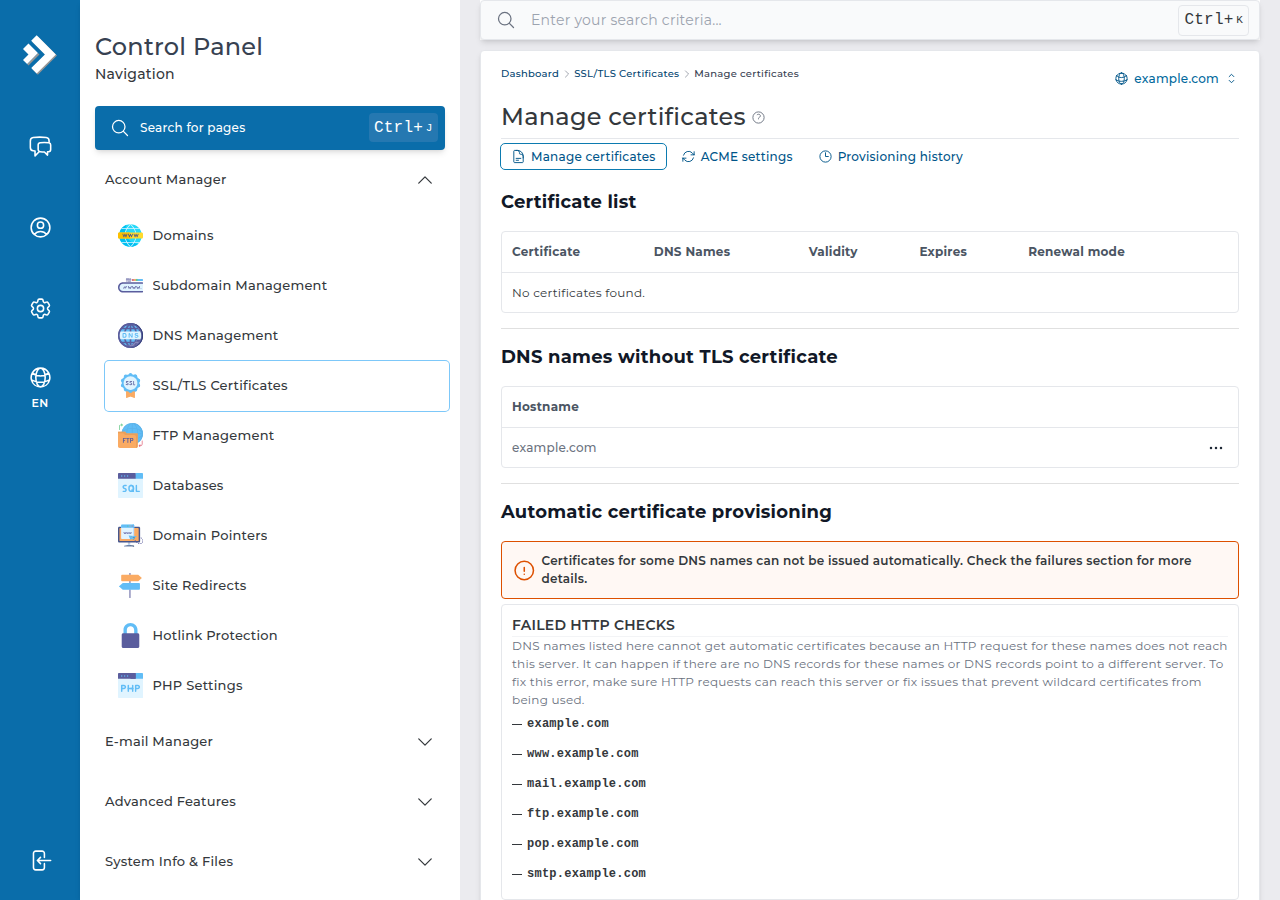
- Failed HTTP checks: an HTTP request for the name does not reach our server, because the name has no DNS record, still points to another host, or a proxy answers. Point the A record to our server and wait for DNS.
- Only
wwwis listed:wwwhas no DNS record. Add one that points to your hosting if you wantwwwcovered. - CAA error: a CAA record allows only another certificate authority. Add
letsencrypt.orgto it. - Nothing is issued although DNS is right: if automatic issuing keeps failing, DirectAdmin can switch it off for that domain. Open the ACME settings tab and check that Enable ACME is still ticked.
After a fix, wait: DirectAdmin retries on its own. If the name still fails, open a support ticket with the domain name.
On cPanel hosting, certificates are handled by AutoSSL instead; see AutoSSL in cPanel.
- 10 GB NVMe SSD Storage
- 50 GB Monthly Bandwidth
- 1 Website
- 5 Email Accounts
Prices on the cards exclude 18% GST.
Frequently asked questions
Is SSL free on Domain India DirectAdmin hosting?
Yes. DirectAdmin issues a free Let's Encrypt certificate automatically once your domain points at your Domain India DirectAdmin hosting. You do not request it, and it renews automatically.
How do I install a Let's Encrypt certificate in DirectAdmin?
You do not install it by hand. Point the domain at your DirectAdmin hosting and DirectAdmin issues the certificate by itself. To confirm, open Account Manager › SSL/TLS Certificates and check the certificate list. If DNS was changed recently, allow time for it to spread.
Do I need to renew the certificate myself?
No. DirectAdmin renews Let's Encrypt certificates automatically, well before they expire, as long as the domain still points to the server.
Why has DirectAdmin not issued my free SSL certificate?
Usually because the domain or www does not point to the DirectAdmin server yet, a proxy or CDN answers instead, or a CAA record allows only another certificate authority. Fix the DNS and wait; DirectAdmin retries on its own. If it still fails, open a support ticket with the domain name.
Can I install a certificate I bought from another company?
Yes. In Account Manager › SSL/TLS Certificates, open the menu on the hostname's row and choose Upload custom certificate, then paste the private key, the certificate and the chain. An uploaded certificate does not renew automatically, so you must replace it before it expires.
Can I get a wildcard certificate in DirectAdmin?
DirectAdmin decides this by itself. Prefer wildcard certificates is ticked by default, so one wildcard certificate is issued when possible; otherwise DirectAdmin issues a certificate with the exact names.
Ready to secure your site? Check your DNS with How do I change my nameservers, open DirectAdmin from your hosting services, or compare DirectAdmin hosting plans.
Send us the domain and the reason DirectAdmin shows for the failed name, and we will check the DNS and the certificate with you.
Open a support ticket