Search engine optimisation (SEO) helps people find your business on Google. The AI Website Builder does much of the technical work for you when you publish, and gives you one panel for the parts that need your input. This guide shows what is automatic, what to fill in, and how to get your site into Google Search Console.
Open the editor's Grow tab and find SEO & Analytics. Set a Page title and Meta description for the site (or let the AI write them), add a title and description for each page under Per-page SEO, and save. Once published, copy your sitemap URL into Google Search Console. The sitemap, canonical links and structured data are generated for you.
1. What the builder does automatically
When you publish, the builder generates the technical SEO a small business site needs. On a published site we checked, it produced:
- a sitemap at
/sitemap.xmllisting every page and blog post; - a robots.txt file that points search engines to the sitemap;
- a canonical link on each page, so Google knows the main address;
- social sharing tags, so links to your site show a title, description and picture;
- structured data describing your business, such as your name, city and phone number.
The live product page also lists FAQ, Menu and Product schema markup. When you add languages, search engines get proper hreflang tags for each version.
Your free preview link is not a published site. Search engines are welcomed in only when you publish on a paid plan.
2. Set your site title and description
- Open the editor.Go to AI Website Builder in the client area and open your site.
- Open Grow → SEO & Analytics.This is where every search setting lives.
- Page title. Write your business name and what you do, for example `Arogya ClinicFamily Doctor in Hyderabad`. Keep it under about 60 characters so Google shows it in full.
- Meta description.Write one or two sentences, about 120 to 155 characters, saying what you offer, where, and why someone should click.
- Or let the AI draft them.Click Generate title & description with AI. The AI writes both; review them and edit anything that isn't right.
- Save.Click Save SEO.
Setting an SEO title ticks off one of the steps in the editor's setup checklist.
3. Give each page its own title
Every page should have its own title and description, so Google doesn't see duplicates.
- In SEO & Analytics, find Per-page SEO.
- Choose a page, such as your About, Services or Contact page.
- Type a title and description for that page, or click Generate this page's SEO with AI.
- Leave a field blank to use your site-wide default.
- Click Save SEO. Per-page settings are saved together with the site-wide fields.
For how to write titles and descriptions that get clicks, see Adding meta tags and descriptions.
4. Connect Google Search Console and Analytics
Google Search Console shows which searches bring people to your site and warns you about problems.
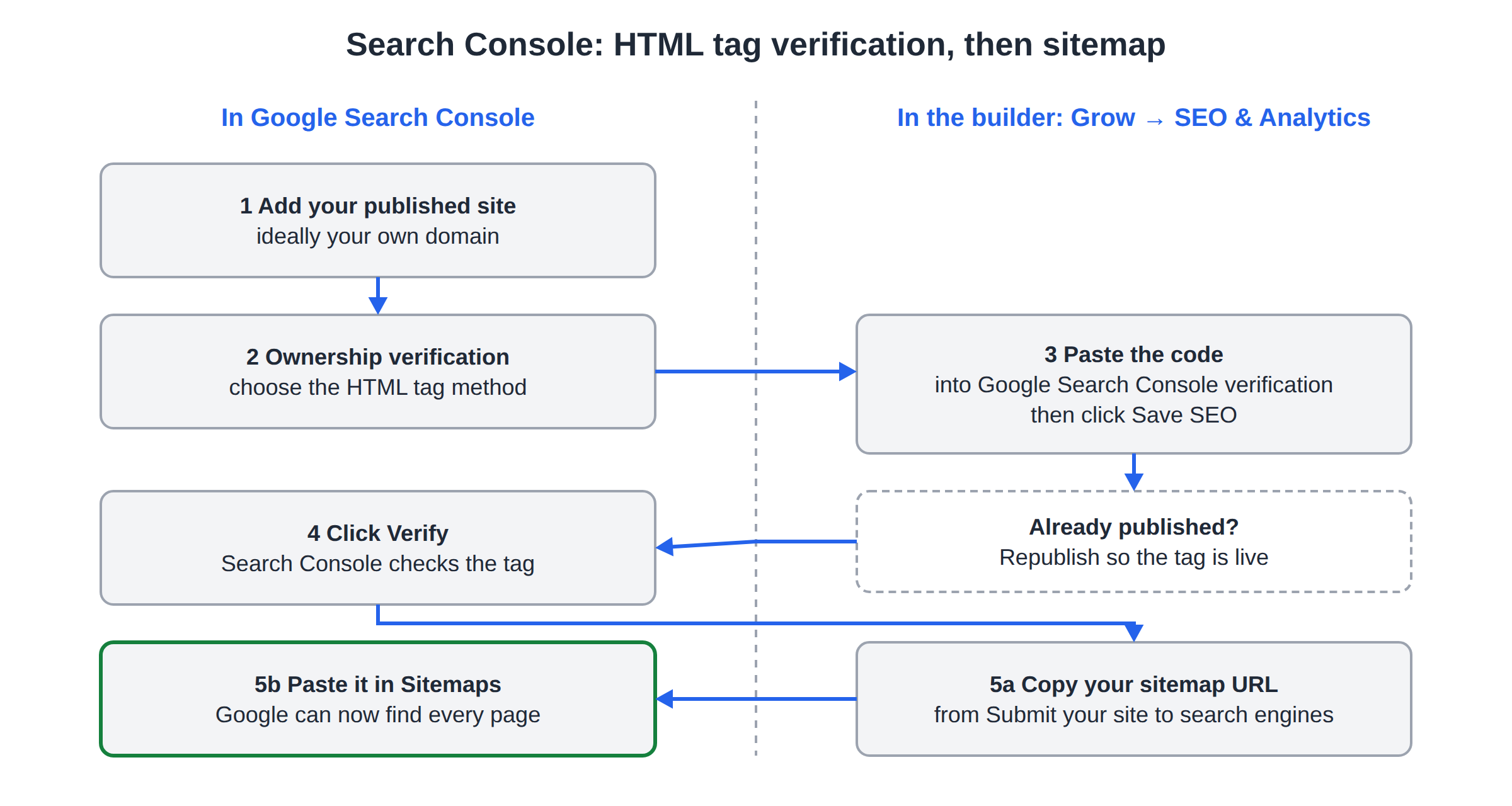
- Add your site in Search Console.Use your published address, ideally your own domain.
- Choose the HTML tag method.In Search Console, go to Ownership verification and pick HTML tag.
- Paste the code into the builder.In SEO & Analytics, paste the content code (or the full meta tag) into Google Search Console verification, then click Save SEO. The tag is added to every page.
- Verify in Search Console.Go back to Search Console and click Verify. If your site was already published, republish after saving so the tag is live.
- Submit your sitemap.Once your site is published, the panel shows Submit your site to search engines with your sitemap URL and a Copy button. Paste it into Search Console's Sitemaps page. The panel also links to Bing Webmaster Tools.
Google Analytics is optional. The builder already shows page views, top pages and traffic sources in the Grow tab with no setup. If you use Google Analytics, paste your Measurement ID (it starts with G-) into Google Analytics ID and save.
Search Console tracks one address. If you plan to move to your own domain, connect it first, then add that domain to Search Console. See How to connect your domain.
5. Content that ranks
The settings above help Google understand your site. What makes it rank is useful content:
- Say where you are. Local customers search with a place name, so your city and area should appear in your text and contact details.
- Check the AI's first draft. The AI writes example details such as numbers, ratings and hours. Replace them with your real facts before you publish.
- Use the blog. In the Content tab, type a topic and the AI writes a post. The blog page, navigation and sitemap update automatically.
- Add your real photos. Your own photos of your shop, team and work build trust.
- Keep your contact details complete. The address you enter powers the Google map and directions on your contact page.
For a deeper guide, read our complete SEO guide.
6. Where Domain India fits
SEO settings, Google Analytics and the automatic sitemap are part of every paid plan. The live pricing card lists "SEO & Google Analytics" on Starter, and Pro and Business include everything in Starter. Publishing, which is what lets search engines index your site, needs a paid plan.
- 1 website
- Publish on your own domain + free SSL
- AI creates your website
- AI chat editor
Frequently asked questions
Where are the SEO settings in the AI Website Builder?
In the editor's Grow tab, under SEO & Analytics. There you set the page title, meta description, per-page SEO, Google Analytics ID and Google Search Console verification.
Does the builder create a sitemap?
Yes. A published site gets a sitemap at /sitemap.xml that lists every page and blog post. The SEO panel shows the sitemap URL with a Copy button once the site is published.
Will Google index my free preview?
No. Search engines index your site once you publish it on a paid plan.
How do I verify my site with Google Search Console?
Choose the HTML tag method in Search Console, paste the code into Google Search Console verification in the builder's SEO panel, save, and click Verify in Search Console.
Can the AI write my SEO title and description?
Yes. Click Generate title & description with AI for the whole site, or Generate this page's SEO with AI for a single page. Review the result before saving.
Do I need Google Analytics?
No. The Grow tab shows page views, top pages and traffic sources with no setup. You can add a Google Analytics ID if you prefer it.
Ready to get found? Open AI Website Builder and go to the Grow tab, or open a ticket if Search Console won't verify. Our team is on 24/7 live chat too.
Sitemap, canonical links and structured data are generated for you. Add your titles and publish.
See AI builder plans