When something breaks on a server, the fastest route to a fix, whether you solve it yourself or ask for help, is the server's logs. This guide shows how to read the logs on a Linux VPS in 2026, which files matter for the most common problems, and what to send support so your ticket can be answered on the first reply.
On a modern Linux VPS, start with systemctl --failed and journalctl -p err -b to see what failed, then read the service's own log, such as journalctl -u httpd or the files in /var/log. Check disk space with df -h and memory with free -h before anything else. A Domain India VPS is self-managed, so you run its software; support helps with provisioning, access, and the network and hardware it runs on. Send the exact error lines and times in your ticket.
1. Who this guide is for
This guide is for a VPS or server where you have root access. On a Domain India VPS you choose the operating system and manage everything installed on it.
If you have shared hosting (cPanel, DirectAdmin or Webuzo), you don't have access to server-wide logs. Use your control panel's error log instead, as described in reviewing error logs in cPanel and DirectAdmin.
The original version of this guide was written for CentOS 8, which stopped receiving updates at the end of 2021. For a new server, choose AlmaLinux or Rocky Linux (the same commands work) or a current Ubuntu LTS release. Everything below applies to all of them; where the file names differ, both are shown.
2. Connect to your VPS
Connect over SSH from a terminal (macOS, Linux and Windows 10 or 11 all include an ssh command), or from a client such as PuTTY:
ssh [email protected]Use the IP address and login details from your VPS welcome email. If you have set up a normal user with sudo, log in as that user and put sudo in front of the commands below. For key-based login and a safer setup, follow the SSH hardening checklist for VPS.
3. First checks: the three causes behind most outages
Before reading any log, rule out the three most common causes. Each takes a few seconds.
- Is a disk full? Run
df -h. A partition at 100% stops databases, mail and log writing. Find what is using the space with `du -xh / --max-depth=1sort -h`. - Is memory exhausted? Run
free -h, then `journalctl -kgrep -i "out of memory"`. If the kernel's out-of-memory killer stopped your database or web server, the log names the process it killed. - Which services have failed?Run
systemctl --failed, thensystemctl status servicenamefor each one. The status output shows the last few log lines, which often name the problem.
4. Read the system journal with journalctl
Modern Linux distributions log through systemd's journal. journalctl reads it.
# Everything, newest last (use arrow keys, q to quit)
journalctl

# Only errors and worse since the last boot
journalctl -p err -b

# One service, for example Apache on AlmaLinux/Rocky or nginx
journalctl -u httpd
journalctl -u nginx

# A time window
journalctl --since "1 hour ago"
journalctl --since "2026-09-20 10:00" --until "2026-09-20 11:00"

# Follow new entries live (Ctrl+C to stop)
journalctl -f -u mariadb
Useful extras: -r shows newest first, -n 100 shows the last 100 lines, and --no-pager prints straight to the terminal so you can copy it. The Apache service is called httpd on AlmaLinux and Rocky Linux, and apache2 on Ubuntu and Debian.
Keep logs after a reboot. On some installations the journal lives only in memory and is lost on reboot. To keep it, create the folder /var/log/journal and restart the logging service with systemctl restart systemd-journald. Limit its size with journalctl --vacuum-size=500M if disk space is tight.
5. Application log files
Many programs also write their own log files in /var/log. The main ones:
| What | AlmaLinux / Rocky Linux | Ubuntu / Debian |
|---|---|---|
| General system messages | /var/log/messages | /var/log/syslog |
| Logins and sudo | /var/log/secure | /var/log/auth.log |
| Apache | /var/log/httpd/ | /var/log/apache2/ |
| nginx | /var/log/nginx/ | /var/log/nginx/ |
| MariaDB or MySQL | /var/log/mariadb/ or the journal | /var/log/mysql/ or the journal |
| Mail (Postfix) | /var/log/maillog | /var/log/mail.log |
Control panels keep their own logs too. On a DirectAdmin server, for example, each domain's web logs are in /var/log/httpd/domains/.
Read log files with these commands:
# The last 50 lines
tail -n 50 /var/log/httpd/error_log

# Watch a log live while you reload the page that fails
tail -f /var/log/nginx/error.log

# Search for a word, case-insensitive, with line numbers
grep -in "denied" /var/log/secure

# Page through a large file (q to quit)
less /var/log/messages
Avoid cat on large logs: it floods the terminal. Old logs are rotated into files ending .1 or .gz; read compressed ones with zless or zgrep.
6. What to look for
- The first error, not the last. One failure often causes many later errors. Find the earliest line near the time the problem started.
- Exact messages. "Permission denied", "Address already in use", "No space left on device" and "Too many connections" each point to a specific fix.
- Repeated login failures in the login log. Hundreds of failed SSH attempts mean you should switch to key-only login and add a firewall; see the SSH hardening checklist.
- Timestamps. Match log times to when users saw the problem. Server logs are usually in UTC unless you changed the time zone; check with
timedatectl.
Logs can contain passwords in URLs, API keys, email addresses and customer data. Remove them before pasting a log into a ticket, a forum or an AI chat.
7. When to contact Domain India support, and what to send
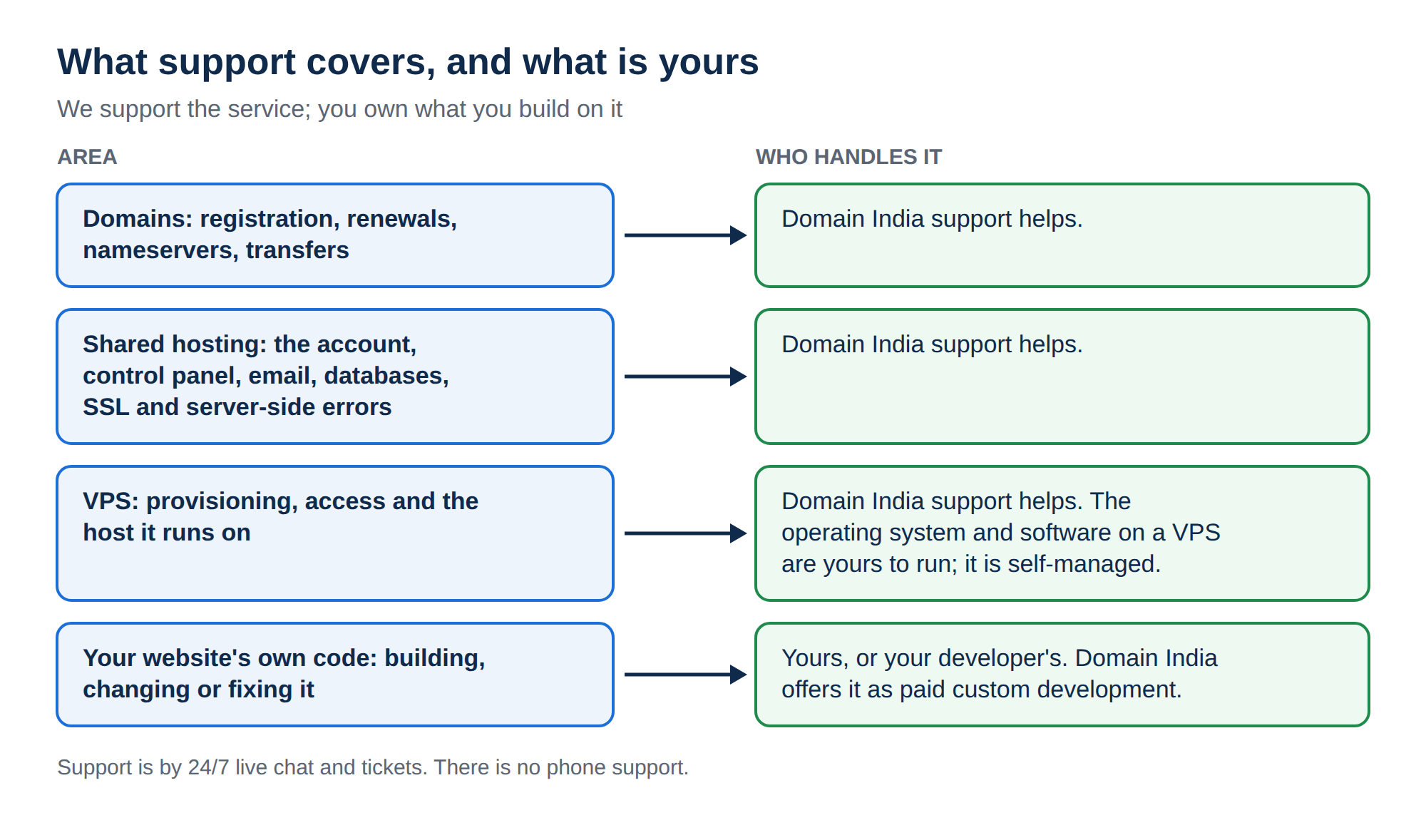
A Domain India VPS is self-managed by default. Support covers provisioning the VPS, getting access to it, and problems caused by our network or host hardware. The operating system, its updates, the firewall and the software you install are yours to run; support can still advise by ticket. The full split is in scope of support.
Contact support straight away if:
- the VPS is unreachable even though it is running and its firewall allows your IP;
- the kernel log (
journalctl -k) shows disk or hardware errors; - you can't log in at all and need help regaining access.
To get a useful first reply, include:
- The VPS (its IP address or the service name in the client area).
- What happened and when, with the time and time zone.
- What you already checked, such as the output of
df -h,free -handsystemctl --failed. - The exact log lines around the time of the problem, with secrets removed.
- Any recent change: an update, a new package or a configuration edit.
Use 24/7 live chat for quick questions, or open a ticket at /client/support/new when logged in, or at /support/ticket if you can't log in. Tickets get a first response within 15 minutes; how long a fix takes depends on the problem. There is no phone support. Read what a support ticket system is for how tickets are handled.
8. Where Domain India fits
A Domain India VPS gives you root access, KVM virtualisation, NVMe storage and a choice of Linux distribution, including AlmaLinux, Rocky Linux, Ubuntu and Debian. It is self-managed by default; the VPS page also describes a fully managed option on request.
- 1 vCPU
- 2 GB DDR4 RAM
- 64 GB NVMe SSD Storage
- 2 TB Monthly Bandwidth
If you would rather not read server logs at all, shared hosting keeps the server side managed for you, and the App Platform runs your app without a server to maintain. For ongoing monitoring on a VPS, see production observability with Prometheus, Grafana and Loki.
Frequently asked questions
How do I check error logs on a Linux VPS?
Run journalctl -p err -b to see errors since the last boot, and journalctl -u servicename for one service. Then read the service's own log files in /var/log, for example /var/log/httpd on AlmaLinux or /var/log/apache2 on Ubuntu, with tail -n 50.
Where are the Apache logs on AlmaLinux and Ubuntu?
On AlmaLinux and Rocky Linux they are in /var/log/httpd/, as access_log and error_log. On Ubuntu and Debian they are in /var/log/apache2/, as access.log and error.log. Control panels can add per-domain logs elsewhere.
Why are my logs gone after a reboot?
The systemd journal may be stored in memory only. Create the /var/log/journal folder and restart systemd-journald to keep logs across reboots, and limit their size with journalctl --vacuum-size.
Is a Domain India VPS managed?
A Domain India VPS is self-managed by default. You have root access and manage the operating system, updates, firewall and software. Support covers provisioning, access, and the network and hardware it runs on, and can advise by ticket. A fully managed option is available on request.
What should I include in a support ticket about my VPS?
The VPS IP address, what happened and when, what you already checked (df -h, free -h and systemctl --failed), the exact log lines around the time of the problem with secrets removed, and any recent change you made.
Does Domain India offer phone support?
No. Support is by 24/7 live chat and support tickets. Tickets get a first response within 15 minutes, and how long a fix takes depends on the problem.
Can I see server logs on shared hosting?
Not the server-wide logs. On cPanel and DirectAdmin shared hosting you can read your own site's error and access logs from the control panel, which is usually enough to find the cause of a website error.
Ready to dig in? Start with systemctl --failed and journalctl -p err -b on your server, compare VPS plans if you need more room, and open a ticket with the log lines if you get stuck.
Self-managed KVM VPS with NVMe storage and your choice of Linux.
See VPS plans