A domain name is your address on the internet, such as yourbusiness.in. Registering your first one with Domain India takes a few minutes: search for the name, choose how many years, sign in and pay. This page is the beginner's checklist, with what to decide before you start and what to do in the first week after.
The screen-by-screen order steps, with prices of every popular extension, are in How to register a new domain. For choosing a good name and extension, read The ultimate guide to domain name registration.
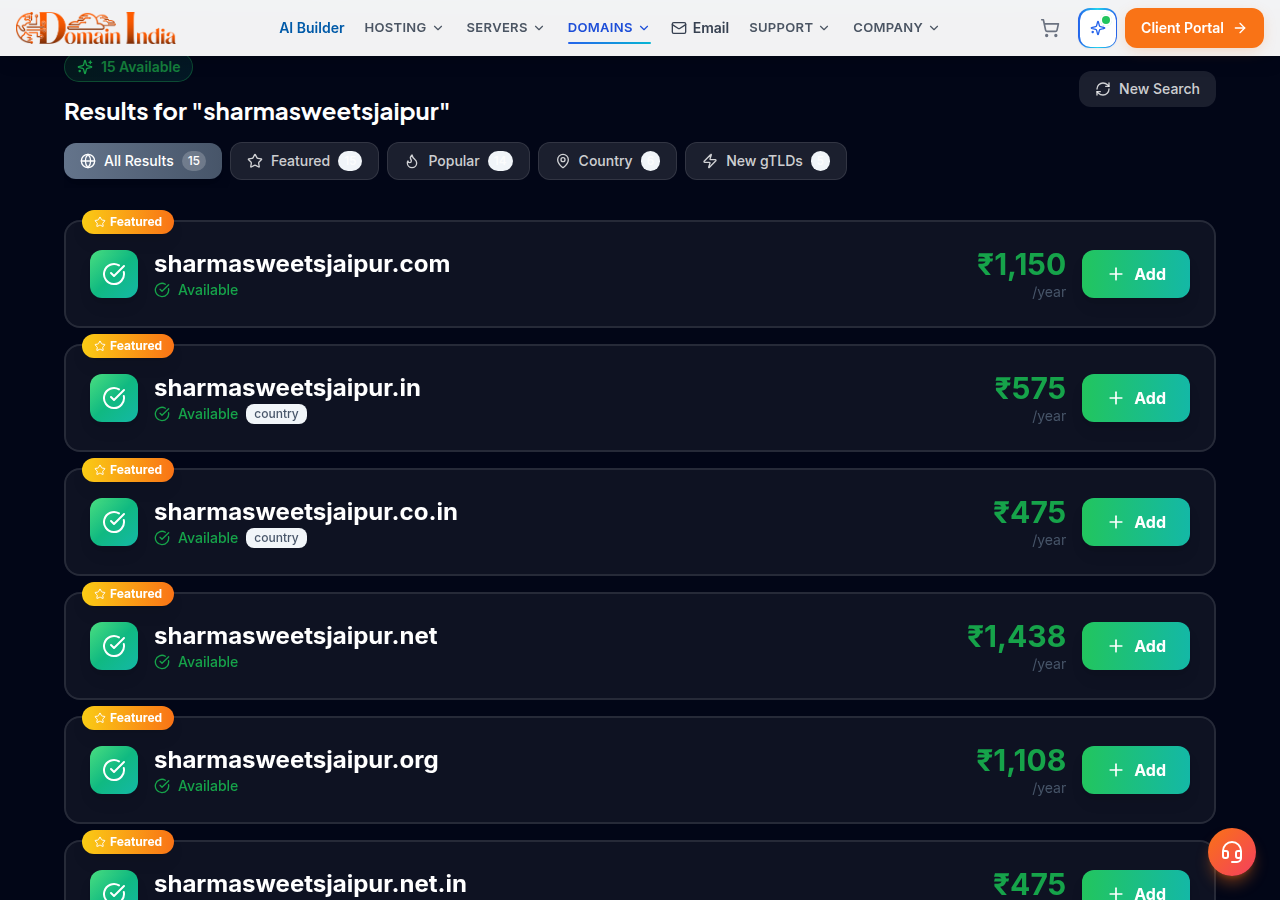
Search on domain registration, select the name, choose 1 to 10 years, pick Domains Only or With Hosting, sign in or create an account, check the nameservers and pay. A .in costs ₹575 for the first year and ₹625 a year to renew; a .com costs ₹1,150 a year (Domain India list prices on 19 September 2026, excluding 18% GST). Afterwards, complete identity verification for a .in, or click the registrant verification email for a .com.
1. Decide three things before you search
- The name. Short, easy to spell and easy to say on the phone. Avoid hyphens and numbers that people have to be told about. The free AI Domain Advisor suggests available names from a short description of your business.
- The extension. A .in tells visitors you are an Indian business; a .com is the global default. Many businesses register both of the same name.
- Who the owner is. The registrant, the person or company in the contact details, is the legal owner. Use your own name or company and an email address you will keep for years, not a designer's or an employee's.
2. What your first domain costs
Domain India list prices on 19 September 2026, per year, excluding 18% GST:
| Extension | First year | Renewal per year | WHOIS privacy |
|---|---|---|---|
| .in | ₹575 | ₹625 | Free and automatic |
| .co.in | ₹475 | ₹525 | Free and automatic |
| .com | ₹1,150 | ₹1,150 | Optional, ₹300 a year |
Every other extension is on the domain pricing page. Some renew at a higher price than the first year, so check the renewal column too.
3. Register it
- Search.Open domain registration, type the name and select every extension you want, then click Checkout.
- Choose the period.Pick 1, 2, 3, 5 or 10 years for each domain.
- Choose Domains Only or With Hosting.Pick With Hosting if you want a website and email on the domain straight away; the domain and hosting go into one order.
- Sign in or create an account.You can also continue with Google. Check that your profile contact details are accurate: they become the domain's registrant details.
- Check the nameservers.Keep the default nameservers if you have no website yet. If you already have hosting, enter the nameservers shown on that hosting service's page.
- Pay.Click Continue to Payment and pay with a method offered on the payment page. You receive a GST invoice.
Already logged in? You can also start from Order New (/client/order) and choose Get a Domain. Domain registrations are not refundable once the domain is registered, so check the spelling before you pay.
4. Verify the owner
What you have to do next depends on the extension:
- .in, .co.in and other Indian extensions: the registrant's identity must be verified once with eKYC on the Identity verification page, which uses DigiLocker. See How to complete eKYC verification. If a domain stays on hold after you have verified, open a ticket.
- .com, .net, .org and other generic extensions: the registrant email receives a verification email. Click the link within 15 days, or the domain can be suspended until you do. See Verification of WHOIS details.
Registry and verification emails go to the registrant email on the domain. If it belongs to someone else, or uses a mailbox on the new domain that doesn't exist yet, the email can't reach you. Use an address you already read.
5. Point it at your website
A new domain shows nothing until it points somewhere. If you host with Domain India, use the nameservers or server IP shown on your hosting service in the client area; see How do I change my nameservers. A nameserver change usually takes effect within a few hours and can take up to 24-48 hours to reach every network. If you ordered the domain with hosting, this is set up for you.
For .in and its second-level extensions, personal registrant details are not shown in public WHOIS. This is free and automatic; there is nothing to switch on. For .com and other generic domains, privacy is an optional add-on; see WHOIS privacy explained.
6. Keep it
Domain India never charges your card automatically. Before the expiry date you receive a renewal invoice by email, and the domain renews when you pay it; see How auto-renewal works. Keep your account email current so the invoice reaches you, and pay it before the expiry date.
Frequently asked questions
How much does it cost to register my first .in domain?
A .in domain costs ₹575 for the first year and ₹625 a year to renew, excluding 18% GST (Domain India list prices on 19 September 2026). A .co.in costs ₹475, then ₹525 a year.
Do I need hosting to register a domain?
No. Choose Domains Only when you order. You can add hosting, the AI Website Builder or email later, or point the domain at a website you already have.
Why was I asked to verify my identity for a .in domain?
Every .in domain needs a verified registrant. Complete eKYC once on the Identity verification page in the client area, which uses DigiLocker. If a domain stays on hold afterwards, open a ticket.
I registered a .com and got a verification email. Is it genuine?
A new .com registration triggers a registrant email verification. Open it and click the link within 15 days; otherwise the domain can be suspended until the address is verified. If you are unsure, check the domain in your client area first.
Do I have to pay for WHOIS privacy on a .in domain?
No. For .in and its second-level extensions, personal registrant details are not shown in public WHOIS. This is free and automatic, and there is nothing to switch on.
Will my domain renew automatically?
Domain India never charges a saved card. You receive a renewal invoice by email before the expiry date, and the domain renews when you pay it.
Ready to claim your name? Search on domain registration, compare extensions on domain pricing, or ask the AI Domain Advisor for ideas. The full order walkthrough is in How to register a new domain.
Type the name you want and see which extensions are available, with first-year and renewal prices.
Search domains