To show your AI Website Builder site on your own domain, you add one or two DNS records. You don't move your whole domain. This guide explains which records the builder needs, how to find out where your DNS is managed, and how to keep your email working while you do it.
In the editor's Settings → Custom domain box, the builder shows the exact records to add. A main domain or its www form uses A records, and a subdomain uses a CNAME. Add them wherever your domain's DNS is managed today, remove any old records for the same names, and leave MX and other email records alone. Don't change nameservers.
1. What DNS does here
DNS tells browsers which server answers for your domain. For the builder, you change only the records for your website address. Your email and other services keep using their own records.
| Record | What it does | Needed for the builder? |
|---|---|---|
| A | Points a name at an IP address | Yes, for your main domain and its www form |
| CNAME | Points a name at another name | Yes, if you connect a subdomain such as shop.yourbusiness.in |
| MX | Sends email to your mail server | No: leave it alone |
| TXT | Holds text such as SPF or verification codes | No: leave existing ones alone |
2. Get the records from the editor
You can add a custom domain only after your site is published on a paid plan.
- Open the editor.Go to AI Website Builder in the client area and open your site.
- Go to Settings → Custom domain.Type your domain and click Save.
- Read the table.The editor lists each record's Type, Host and Value. For a main domain it also shows a recommended second record so that both
yourbusiness.inandwww.yourbusiness.inwork.
Use the values from your own screen. The target addresses can differ from site to site, so never copy them from someone else's guide.
3. Find out where your DNS is managed
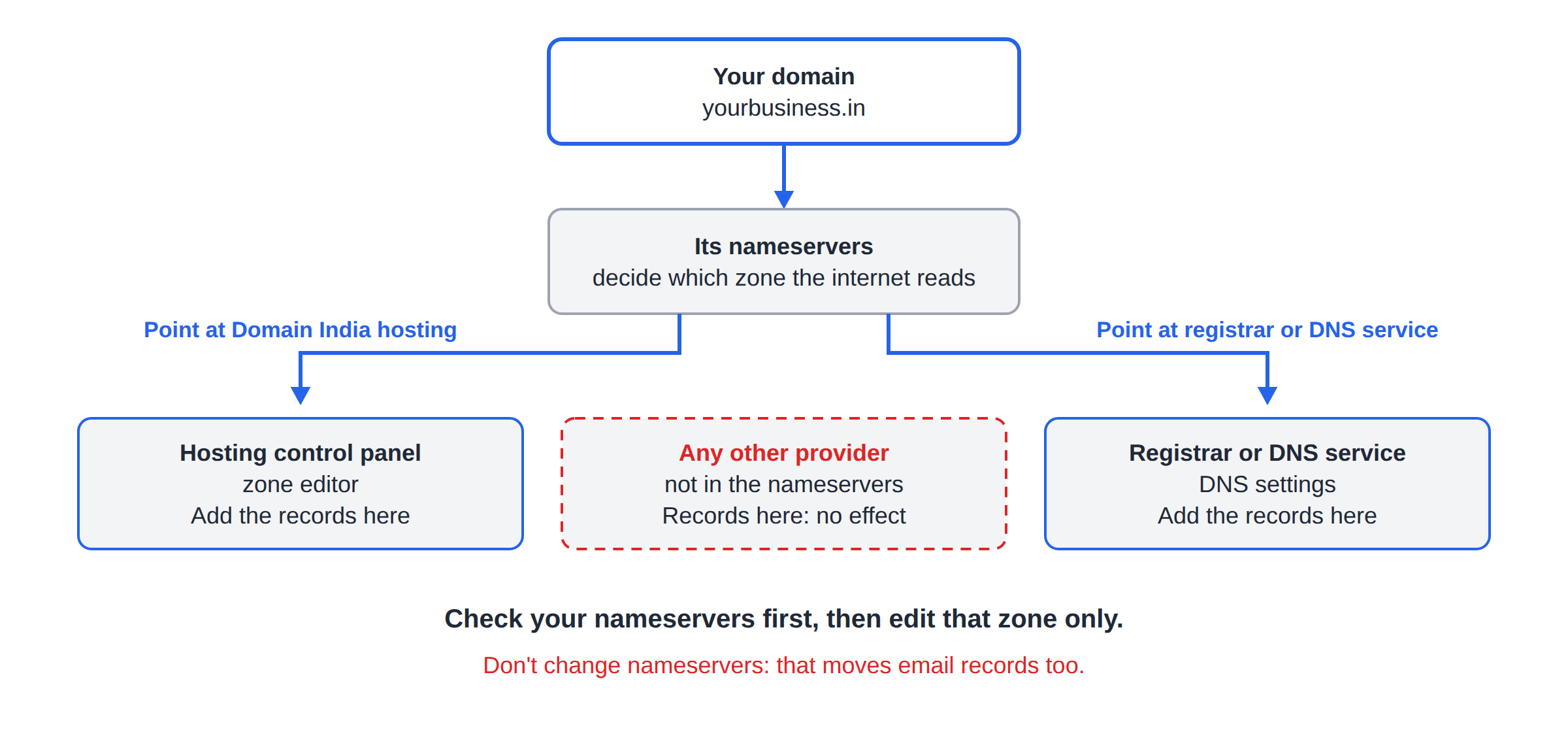
Your records must go into the DNS zone that the internet actually reads. That is decided by your domain's nameservers:
- Nameservers point at your Domain India hosting: add the records in your hosting control panel's zone editor.
- Nameservers point at your registrar or a DNS service: add the records in that provider's DNS settings.
To check your nameservers, read What is a nameserver and why do I need it. If you're still unsure, ask support and we'll tell you where your DNS is.
Adding records at a provider your domain doesn't point to has no effect. If you add the records and nothing changes after a few hours, check your nameservers first.
4. Add the records step by step
- Open your DNS zone.Sign in wherever your DNS is managed (section 3).
- Remove conflicting records.Delete any old A, AAAA or CNAME records for the same host (for example
@orwww) that point at an old website. A name can't have a CNAME alongside other records. - Add the new records.Create each record exactly as the editor shows: same type, host and value.
- Keep a sensible TTL.Your provider's default is fine. If you choose, a lower TTL such as 300 seconds makes later changes show sooner.
- Save and wait.Changes usually show within a few hours but can take up to a day or two.
- Verify in the editor.Go back to Settings → Custom domain and click Verify. The label changes from Pending to Active once the records are right.
If the editor sees that your domain is registered with Domain India and already uses our DNS, it can add the records for you with one button, without touching email or nameservers. If you don't see that button, add them yourself as above.
5. Keep your email working
Your website records and email records are separate. While you set up the builder:
- Don't delete or edit MX records. They route your email.
- Keep your SPF, DKIM and other TXT records. They stop your mail being marked as spam.
- Don't change nameservers. A nameserver change moves every record, email included, to a new zone. If those records aren't copied first, email stops.
The AI Website Builder doesn't include mailboxes. If you need email on your domain, see Business Email or a hosting plan with email accounts.
6. Check your records yourself
You can confirm what the world sees with a DNS lookup from your computer:
nslookup yourbusiness.in
nslookup www.yourbusiness.in
The addresses returned should match the values in the editor. If you see an old address, an old record is still in place or the change hasn't reached your network yet.
7. Common mistakes
| Mistake | What happens | Fix |
|---|---|---|
| Old A or AAAA record left in place | Some visitors see the old site | Remove old records for that host |
| CNAME added on the main domain | Most DNS providers refuse it, or it breaks email | Use the A records the editor shows for the main domain |
| Only one of www or the plain domain added | One address works, the other doesn't | Add the recommended second record |
| Records added at the wrong provider | Nothing changes | Add them where your nameservers point |
| Nameservers changed instead | Email and other records stop working | Restore the old nameservers and add only the records |
Frequently asked questions
Which DNS records does the AI Website Builder need?
A main domain and its www form use A records. A subdomain uses one CNAME record. The editor's Settings → Custom domain box shows the exact values for your site.
Will this affect my email?
No, as long as you only add the records the editor shows and leave MX and TXT records alone. Changing nameservers would affect email, so don't.
Where do I add the records?
Wherever your domain's DNS is managed today: your hosting control panel's zone editor if the domain uses our hosting nameservers, or your registrar's or DNS provider's settings otherwise.
How long do DNS changes take?
Usually a few hours, and occasionally up to a day or two. Click Verify in the editor once the records are saved.
Can I use a CNAME for my main domain?
No. Use the A records the editor shows for the main domain. A CNAME is only for subdomains such as shop.yourbusiness.in.
Ready to connect? Follow How to connect your domain to the AI Website Builder, or open a ticket and we'll help you find where your DNS is managed.
Add the records the editor shows, keep your email records as they are, and your site goes live on your own address.
Open the builder