A new VPS can be reached from the whole internet the moment it goes live, and automated bots start trying its SSH port within minutes. This checklist is the short version: ten things to do, in order, before you put a website or app on it. It applies to a VPS where you have root access; on Domain India shared hosting (cPanel, DirectAdmin, Webuzo) the server is managed for you and you can't change its firewall or SSH settings.
The complete walk-through, with commands for Ubuntu, Debian, AlmaLinux and Rocky Linux, is in Essential security and optimization tips for your VPS. Every SSH setting is explained in the SSH security hardening checklist.
Update the operating system and turn on automatic security updates, create a sudo user, log in with an SSH key, then switch off root and password logins. Allow only the ports you use through a firewall, add fail2ban, remove services you don't need, keep databases private and keep tested backups off the server. A Domain India VPS is self-managed, so every step here is yours to carry out.
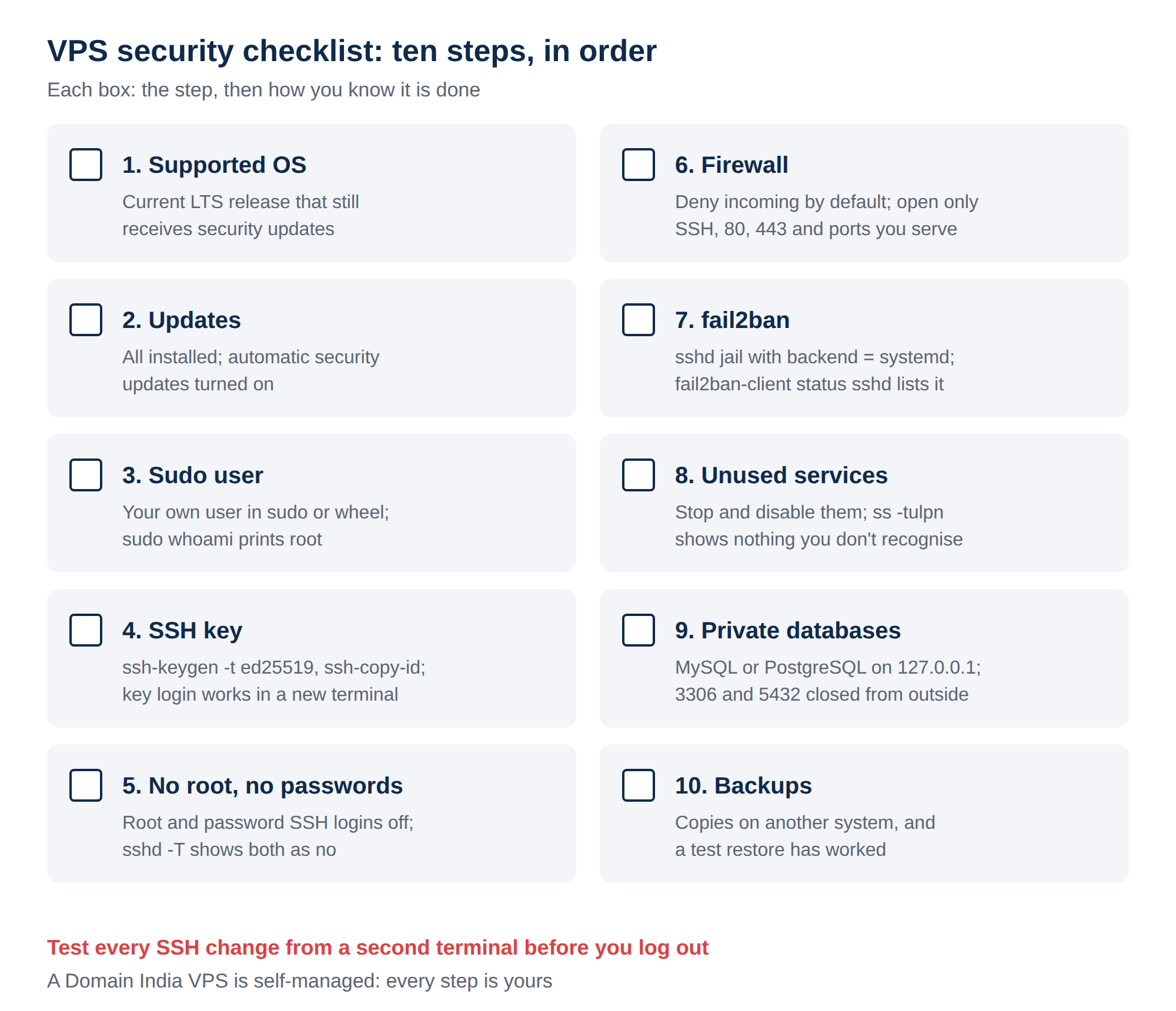
1. The ten-step checklist
| Step | What to do | Done when |
|---|---|---|
| 1. Supported OS | Use a current LTS release such as Ubuntu 24.04, Debian 12 or 13, AlmaLinux 9 or 10, or Rocky Linux 9 or 10 | The release still receives security updates |
| 2. Updates | Install all updates, then turn on unattended-upgrades (Ubuntu, Debian) or dnf-automatic (AlmaLinux, Rocky) | No security updates are waiting |
| 3. Sudo user | Create your own user and add it to the sudo or wheel group | sudo whoami prints root |
| 4. SSH key | Run ssh-keygen -t ed25519 on your computer, then ssh-copy-id | Key login works in a new terminal |
| 5. No root, no passwords | Set PermitRootLogin and PasswordAuthentication to no | sshd -T shows both as no |
| 6. Firewall | ufw or firewalld, deny incoming by default | Only SSH, 80, 443 and ports you really serve are open |
| 7. fail2ban | Enable the sshd jail with backend = systemd | fail2ban-client status sshd lists the jail |
| 8. Unused services | Stop and disable what you don't use | ss -tulpn shows nothing you don't recognise |
| 9. Private databases | Bind MySQL or PostgreSQL to 127.0.0.1 | Ports 3306 and 5432 can't be reached from outside |
| 10. Backups | Copies on another system, restored at least once | A test restore has worked |
2. SSH: the settings that matter
Put your SSH settings in a drop-in file such as /etc/ssh/sshd_config.d/00-hardening.conf, so a file like 50-cloud-init.conf can't switch password login back on:
PermitRootLogin no
PasswordAuthentication no
KbdInteractiveAuthentication no
PubkeyAuthentication yes
MaxAuthTries 3
Then check the file and the settings sshd will actually use, and reload it:
sudo sshd -t
sudo sshd -T | grep -Ei '^(permitrootlogin|passwordauthentication)'
sudo systemctl reload sshd # the service is called ssh on Ubuntu and DebianKeep your current session open and log in again from a new terminal. There is no console page for your VPS in the client area, so if you lock yourself out you have to open a ticket and wait for support. For the same reason, use reboot, never poweroff: a VPS powered off from inside stays off until support starts it.
3. Firewall and brute-force protection
Deny incoming traffic by default and open only SSH, 80, 443 and the ports you really serve, with ufw on Ubuntu and Debian or firewalld on AlmaLinux and Rocky Linux. Add fail2ban with an sshd jail and your own static IP in ignoreip. If a control panel you install brings its own firewall, use that one and don't run two side by side. For a new server, don't start with CSF: ConfigServer stopped developing it in 2025. The exact commands are in the full VPS security guide.
4. Older advice you can drop
Many checklists online, including the earlier version of this page, still carry dated or risky steps:
| Older advice | What to do now |
|---|---|
Set UsePAM no | Leave UsePAM at the distribution default. Key-only login doesn't need it switched off |
| Copy jail.conf to jail.local and edit it | Put only your own changes in jail.local, with backend = systemd |
| Point fail2ban at /var/log/auth.log | Debian 12 and later log to the systemd journal and have no auth.log by default |
yum update on CentOS | CentOS Linux is end of life; migrate to AlmaLinux or Rocky Linux and use dnf |
| Add a /run/shm line to /etc/fstab | Not needed on current releases, and a wrong fstab line can stop the server booting |
| Nightly rkhunter scans | Run a Lynis audit every few months instead; it reports what to fix |
5. Running this on a Domain India VPS
Domain India VPS plans use KVM virtualisation with full root access and NVMe storage, and they are self-managed: updates, firewall rules, backups and the software you install are yours to look after. At checkout you can choose no control panel, CyberPanel, Webuzo or DirectAdmin; cPanel isn't offered on a VPS. To reboot, use SSH from inside the server. For a start, stop, reinstall or console access, open a ticket and support will do it.
- 1 vCPU
- 2 GB DDR4 RAM
- 64 GB NVMe SSD Storage
- 2 TB Monthly Bandwidth
Prices on the cards exclude 18% GST.
Rather not manage a server? Shared hosting keeps server security on our side, and the App Platform runs Node.js apps, or any app with a Dockerfile, without a server to maintain.
What should I do first on a new VPS?
Update the operating system, create a sudo user, add an SSH key, switch off root and password logins over SSH, and enable a firewall that allows only the ports you use. Test each SSH change from a second terminal before you log out.
Does Domain India secure my VPS for me?
No. Domain India VPS plans are self-managed. You are responsible for updates, firewall rules, backups and the software you install on the server.
What if I lock myself out of my VPS?
There is no console page for the VPS in the client area, so open a support ticket from the client area or the support page and support will help you regain access.
Ready to harden your server? Work through the full VPS security guide, lock down SSH with the SSH hardening checklist, or compare VPS plans. Questions first? Open a support ticket or use the 24/7 live chat.
KVM virtualisation, full root access and NVMe storage, with your choice of Linux and an optional control panel.
See VPS plans