A reinstall gives you a fresh OS. Everything on the disk is erased. Your IP address, VPS name and plan stay the same.
Key takeaways
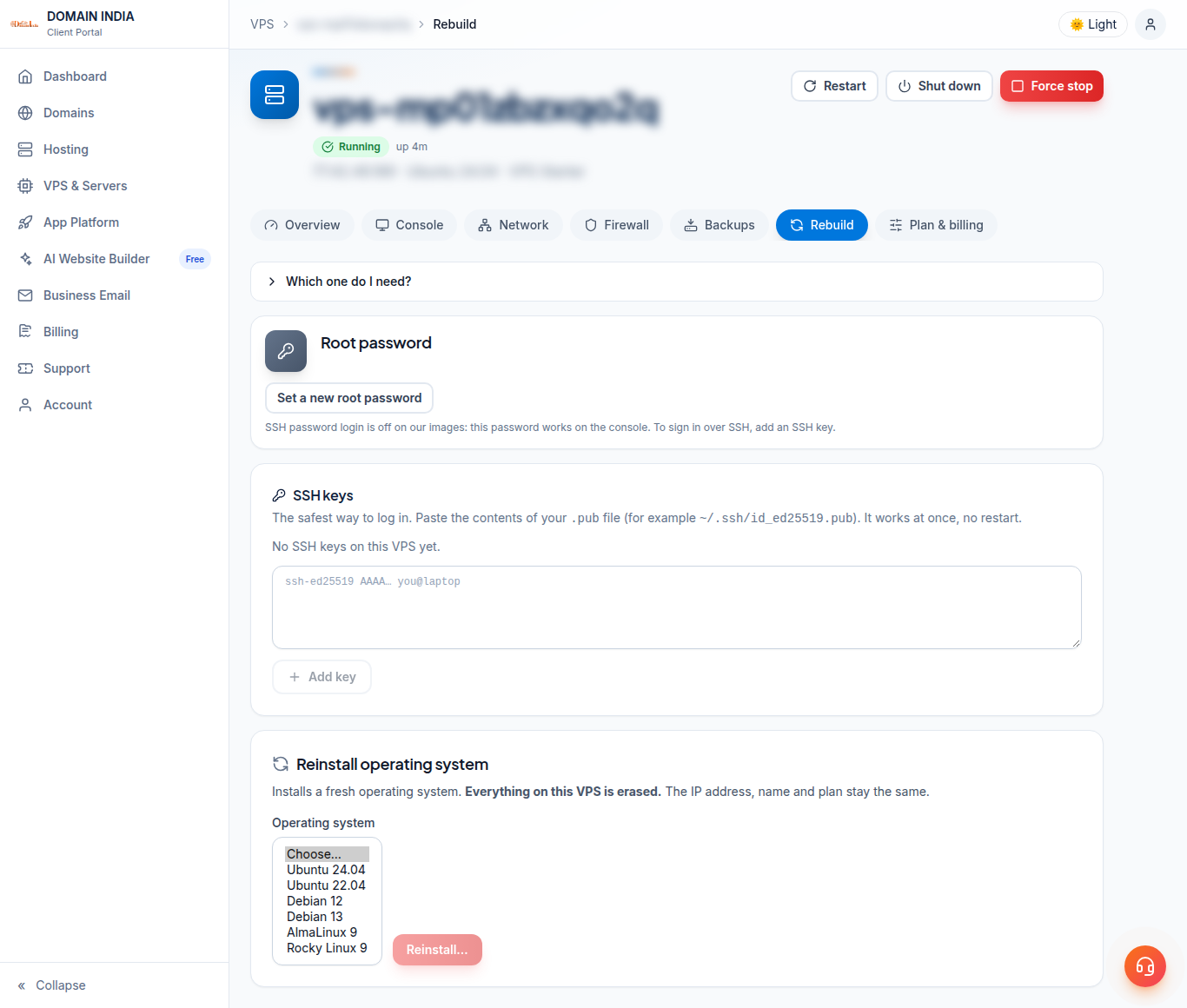
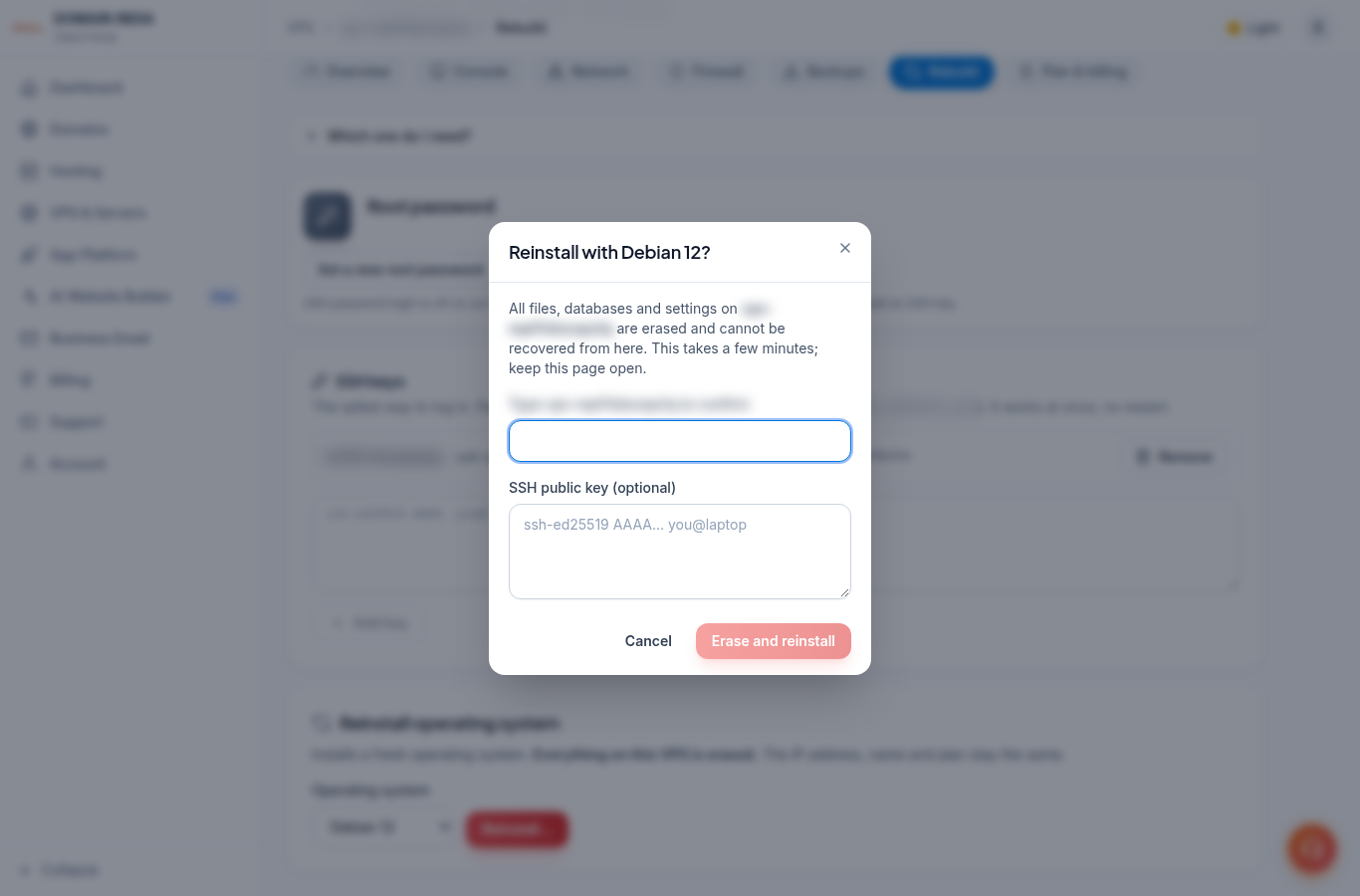
On the Rebuild tab, choose an OS under Reinstall operating system, click Reinstall…, type your VPS name to confirm and click Erase and reinstall.
Before you start
- Copy anything you need off the server.
- Snapshots of this VPS are deleted with the old disk.
- Your firewall rules carry over to the new install.
Steps
- Log in to the client area, open VPS & Servers and click your VPS. Go to the Rebuild tab.
- Under Reinstall operating system, choose one: Ubuntu 24.04, Ubuntu 22.04, Debian 12, Debian 13, AlmaLinux 9 or Rocky Linux 9.
- Click Reinstall….
- Type your VPS name exactly as shown. Optional: paste an SSH public key so you can log in over SSH straight away.
- Click Erase and reinstall and keep the page open; it takes a few minutes.
- When the VPS is back, log in with your key, or set a root password for the console; see first login.
Good to know
- Up to 3 reinstalls an hour.
- If the reinstall fails, your VPS is started again as it was. Nothing is lost.
- Your SSH client may warn that the host key changed. Remove the old line with
ssh-keygen -R YOUR-VPS-IP. - Windows is not offered on our VPS.
Older VPS
Older VPS without a VPS page in your client area: open a ticket with the VPS IP address and our team will do this for you.
Frequently asked questions
Will a reinstall change my IP address?
No. Your IP address, VPS name and plan stay the same. Everything on the disk is erased.
Which operating systems can I install?
Ubuntu 24.04, Ubuntu 22.04, Debian 12, Debian 13, AlmaLinux 9 and Rocky Linux 9.
What happens to my snapshots?
Snapshots of the VPS are deleted with the old disk. Copy anything you need off the server first.