A snapshot is a quick copy of your VPS disk at one moment. Take one before an upgrade, then roll back if something breaks.
On the Backups tab, under Snapshots, type a label and click Take snapshot. To roll back, click Restore and type the VPS name. A snapshot is kept on the same server: it is an undo point, not a backup.
How many you get: VPS Starter 1 · VPS Basic 2 · VPS Standard 2. The card shows your plan's number.
Take a snapshot
- Log in to the client area, open VPS & Servers and click your VPS. Go to the Backups tab.
- Under Snapshots, type a label, for example "before PHP upgrade".
- Click Take snapshot.
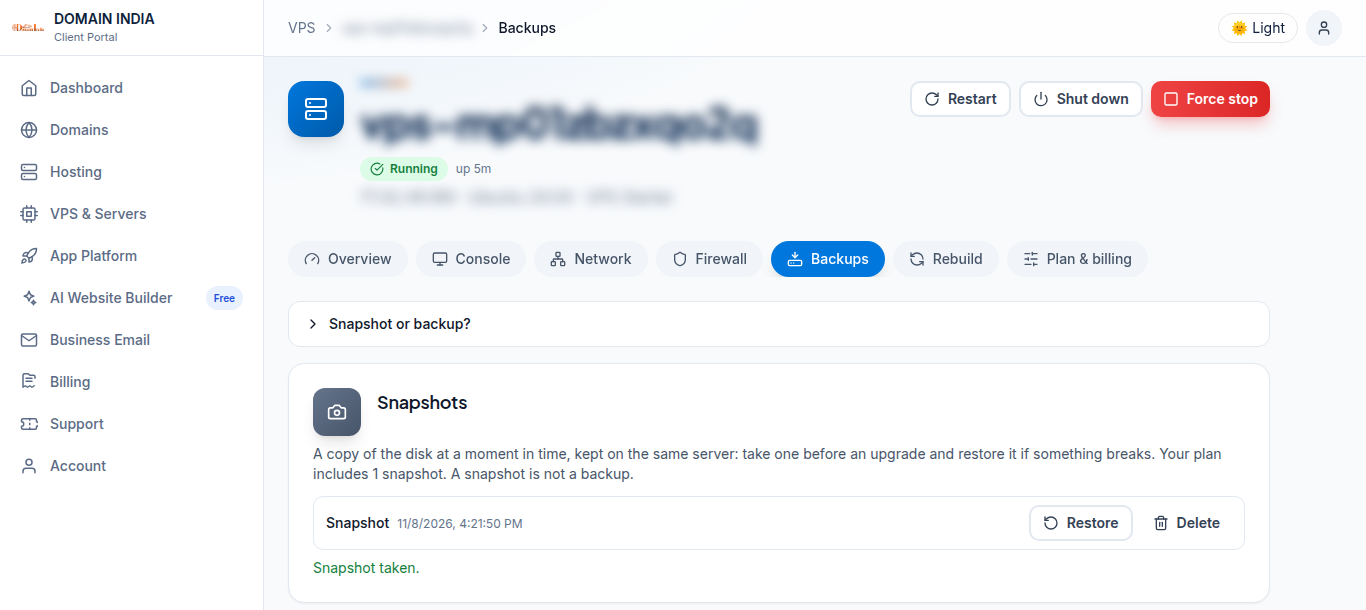
Restore (roll back)
- Next to the snapshot, click Restore.
- Type your VPS name to confirm. Everything written after the snapshot is lost.
- The VPS restarts on the snapshot.
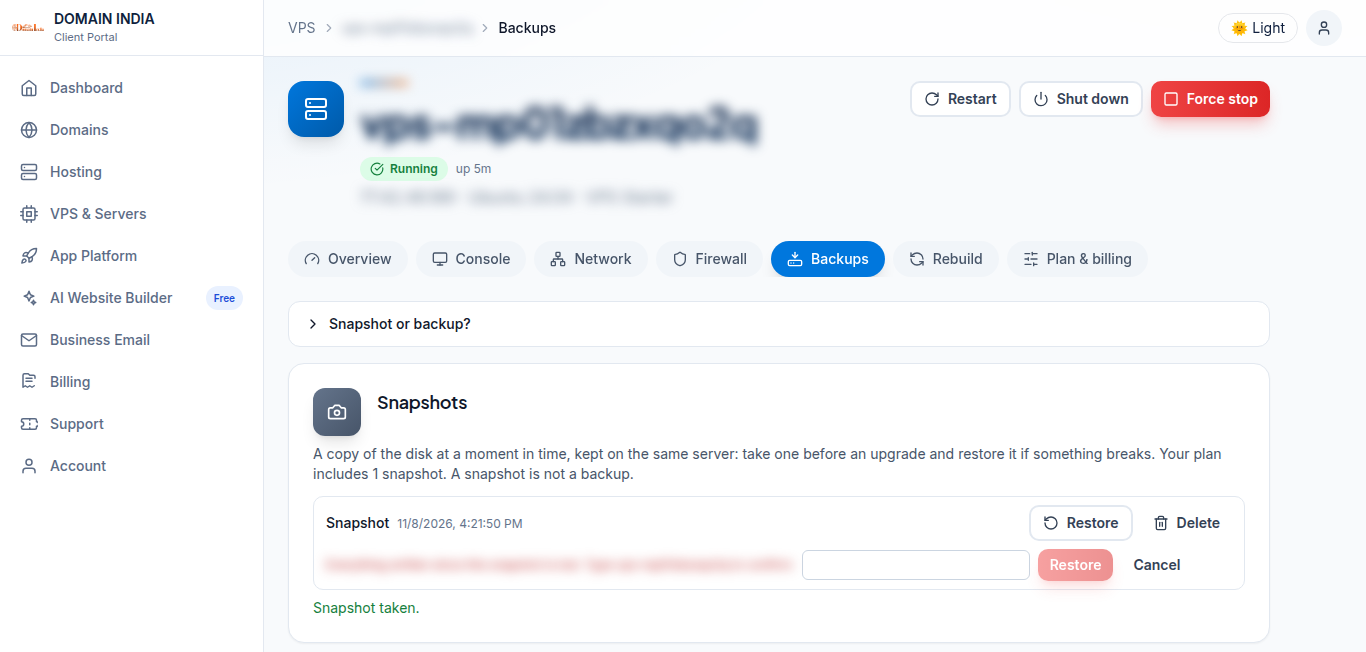
Delete: click Delete next to a snapshot. Delete an old one when you reach your plan's limit.
A snapshot is kept on the same server. Keep your own copy of important data somewhere else, for example with rclone to S3.
Good to know
- One snapshot action runs at a time.
- A reinstall deletes your snapshots.
Older VPS without a VPS page in your client area: open a ticket with the VPS IP address and our team will do this for you.
Frequently asked questions
How many snapshots does my VPS plan include?
VPS Starter 1, VPS Basic 2 and VPS Standard 2. The Snapshots card on the Backups tab shows your number.
Is a snapshot a backup?
No. It is kept on the same server, so it is an undo point. Keep your own copy of important data off the server.
What is lost when I restore a snapshot?
Everything written to the disk after the snapshot was taken.