Mail servers check that your IP points back to a proper host name. That is reverse DNS (PTR).
Point an A record for your host name at the VPS IP first. Then, on the Network tab, enter the host name under Reverse DNS and click Set reverse DNS. Our team sets it within one business day.
First: the A record
Create an A record for your host name (for example mail.example.com) pointing to your VPS IP, and wait until it resolves. Check with dig +short mail.example.com.
Then request the PTR
- Log in to the client area, open VPS & Servers and click your VPS. Go to the Network tab.
- Under Reverse DNS, enter the full host name, for example
mail.example.com. - Click Set reverse DNS.
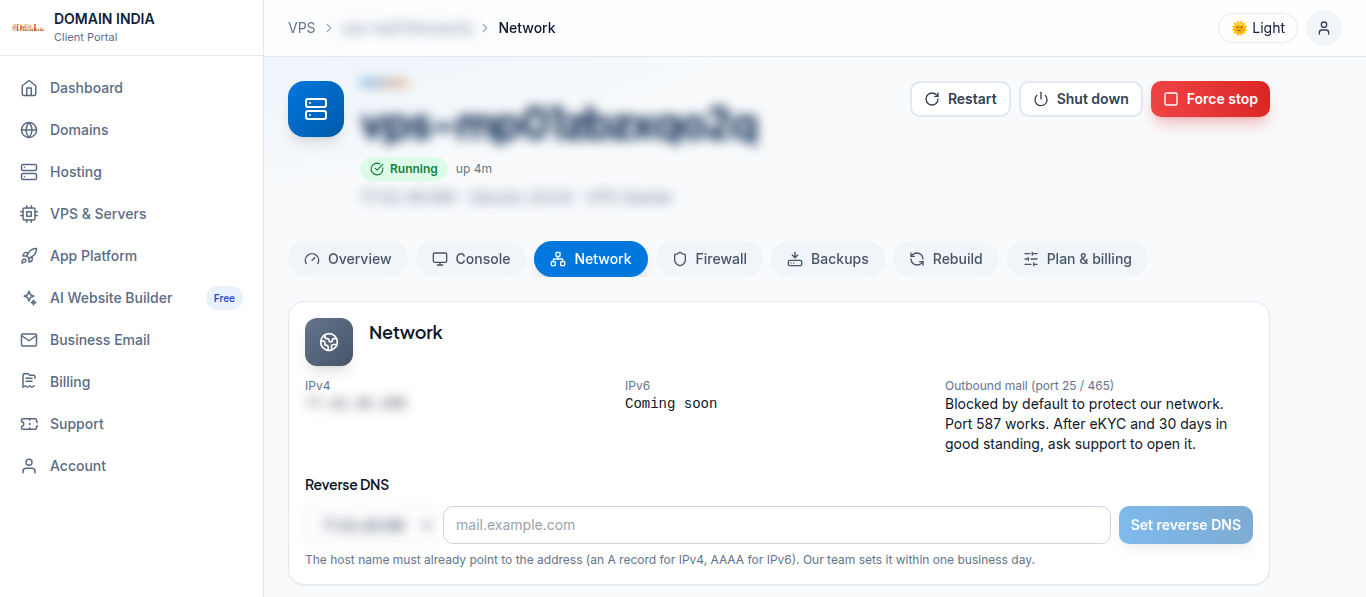
Our team sets it within one business day. Check the result with dig -x YOUR-VPS-IP +short.
Why it can be refused
- The host name does not resolve to this IP yet.
- It is not a full host name (it needs at least one dot).
- The IP is not on this VPS.
Older VPS without a VPS page in your client area: open a ticket with the VPS IP address and our team will do this for you.
Frequently asked questions
How long does reverse DNS take?
Our team sets it within one business day of your request on the Network tab.
Why was my PTR request refused?
Usually the host name does not resolve to the VPS IP yet. Create the A record first, check it with dig, then ask again.