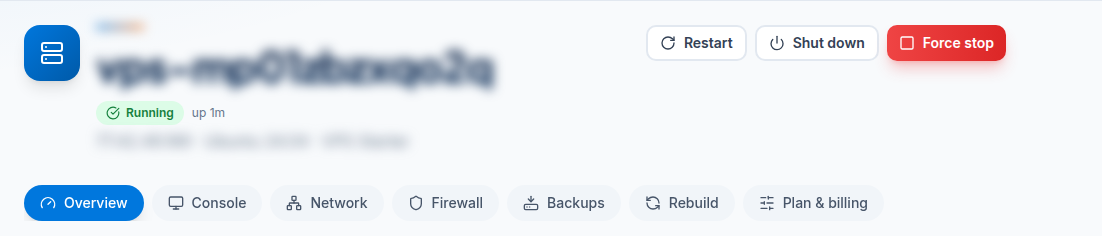
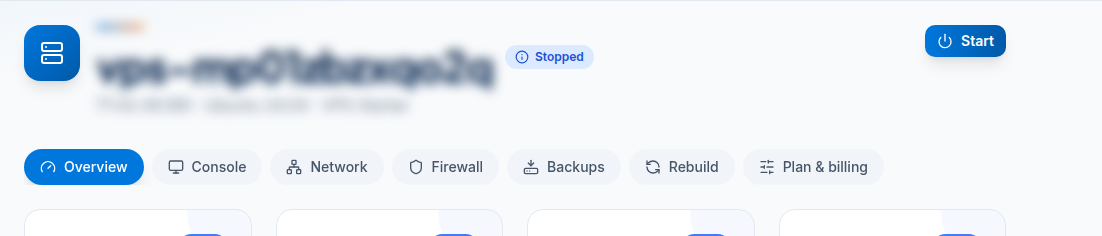
The power buttons are at the top of your VPS page, on every tab.
Key takeaways
Use Restart for a clean reboot, Shut down before planned work, Force stop only when the server is frozen, and Start to switch it back on.
| Button | What it does | When to use it |
|---|---|---|
| Restart | A clean reboot. | After updates, or when a service is stuck. |
| Shut down | Asks the OS to shut down cleanly. | Before planned work. |
| Force stop | Cuts the power at once. | Only when the server is frozen and Shut down does nothing. |
| Start | Powers the VPS on. | After a shut down or force stop. |
Steps
- Log in to the client area, open VPS & Servers and click your VPS.
- Click the button you need and confirm.
- Wait a few seconds; the status at the top changes.
Tips
- You can also restart from SSH with
sudo reboot. - If you run
poweroffinside the server, it stays off. Click Start to bring it back. - Force stop can lose unsaved data. Try Restart or Shut down first.
- If an invoice is unpaid and the VPS is paused, Start is not available until you pay.
Older VPS
Older VPS without a VPS page in your client area: open a ticket with the VPS IP address and our team will do this for you.
Frequently asked questions
How do I restart my VPS?
Click Restart at the top of your VPS page, or run sudo reboot over SSH.
My VPS is off after I ran poweroff. How do I start it?
Open your VPS page and click Start.
When should I use Force stop?
Only when the server is frozen and Shut down does nothing. It cuts the power at once, so unsaved data can be lost.