SSH key authentication means you log in with a key pair instead of a password: the public key sits on the server, the private key stays on your computer. On Domain India shared hosting it is not optional. Password login over SSH is already switched off, so setting up a key is how you log in at all. This page shows the three steps: create a key, add it to your account, and test it.
To create the key on Windows, macOS or Linux, see how to generate SSH keys. For everything about getting SSH switched on and connecting, see enabling and accessing jailed SSH.
Jailed SSH access is available on every shared hosting plan (cPanel, DirectAdmin, Webuzo). It is off by default; ask support to enable it for your account. Create a key with ssh-keygen -t ed25519, add the public key to your account (cPanel: import, then Authorize; DirectAdmin and Webuzo: .ssh/authorized_keys; or send it to support), then connect on port 22 with your control panel username.
1. How key login works on our servers
On our cPanel and DirectAdmin servers, SSH has password authentication off and key authentication on (measured 23 September 2026). Use a key on Webuzo as well. That is why the usual shortcut, ssh-copy-id, does not help here: it needs a password login to copy the key across. You add the public key through the control panel, the File Manager or support instead.
You do not need to change any server setting yourself. Shared hosting is a jailed (restricted) shell with no root access, and the server is already configured for keys.
2. Set it up in three steps
- Create the key pair on your computer.Run
ssh-keygen -t ed25519 -C "office-laptop"in Terminal or PowerShell, accept the default location and set a passphrase. PuTTY users can use PuTTYgen. Full steps: how to generate SSH keys. - Add the public key to your hosting account.Use the method for your panel in the table below. Only the
.pubfile is added. - Test the login.Run
ssh -i ~/.ssh/id_ed25519 -p 22 [email protected]. You should be asked for the key's passphrase, not a server password. Your username and server IP are on the Access tab of your hosting service at /client/services/hosting.
| Panel | Where the public key goes | Extra step |
|---|---|---|
| cPanel | Security › SSH Access › Manage SSH Keys › Import Key | Click Manage next to the key, then Authorize |
| DirectAdmin | File Manager: .ssh/authorized_keys in your home folder, one key per line | Folder permission 700, file permission 600 |
| Webuzo | File Manager: .ssh/authorized_keys in your home folder, one key per line | Folder permission 700, file permission 600 |
| Any panel | Send the public key to support | Never send the private key |
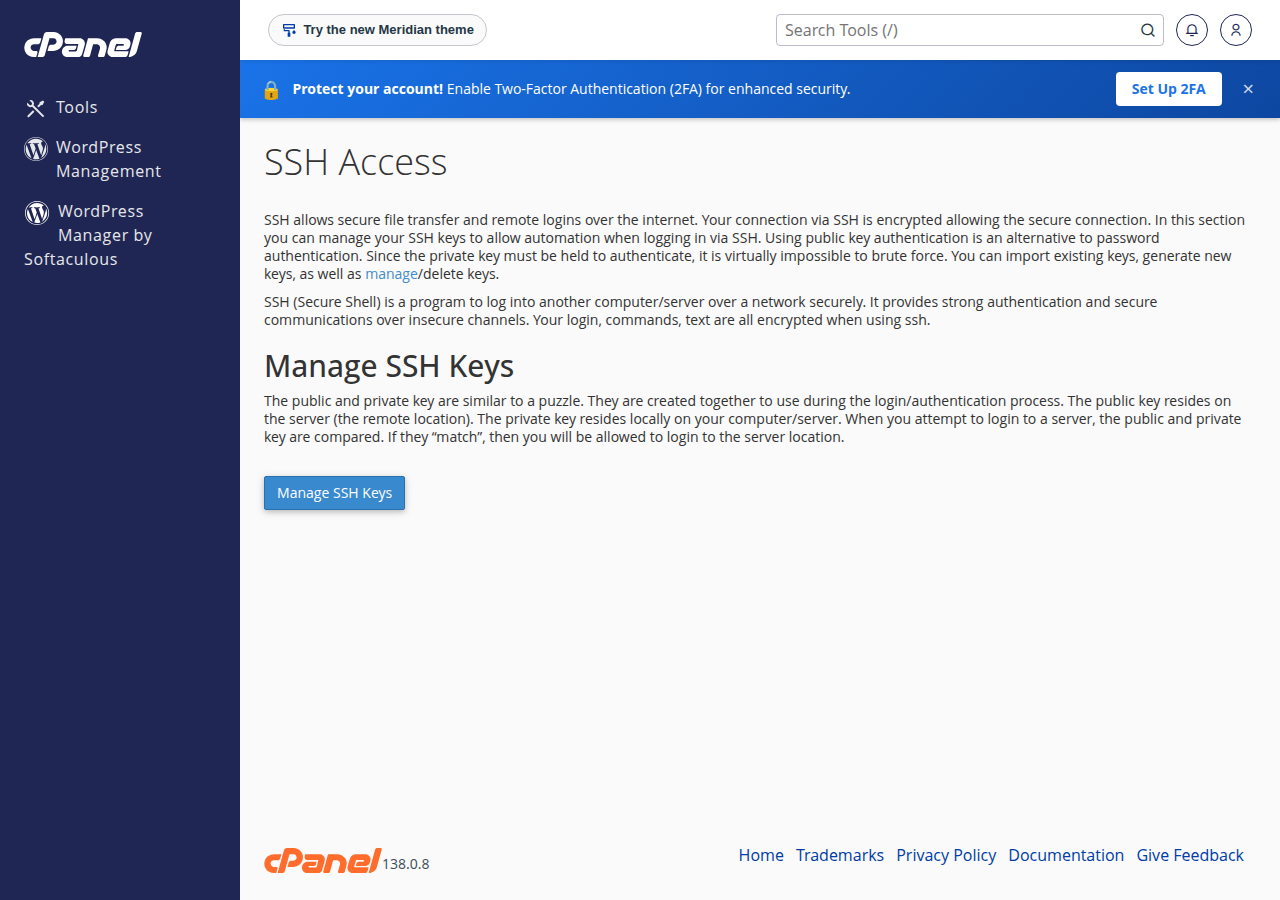
cPanel lists an imported key as "not authorized" until you click Manage and Authorize. Until then, SSH rejects it with "Permission denied (publickey)".
3. More than one key or person
You can add several public keys, one per device or per developer. In cPanel, import and authorise each one; in authorized_keys, put each key on its own line. To remove someone's access, delete or de-authorise their key. Nobody should share one private key.
A ~/.ssh/config entry on your computer saves typing:
Host myhosting
    HostName yourdomain.com
    User yourusername
    Port 22
    IdentityFile ~/.ssh/id_ed25519
After that, ssh myhosting connects. SFTP in FileZilla or WinSCP uses the same key.
4. Troubleshooting key login
- Permission denied (publickey): the public key is not on the account, not authorised in cPanel, or SSH is offering a different key. Add
-iwith the right key path, or runssh -vto see which keys are tried. - PuTTY says "No supported authentication methods available": PuTTY tried a password. Load your
.ppkkey under Connection › SSH › Auth › Credentials. - "UNPROTECTED PRIVATE KEY FILE": run
chmod 600on the private key on your computer. - Login accepted, then the connection closes: SSH is not enabled for the account yet; ask support.
- Everything times out after several failed tries: your IP may be blocked. See have I been blocked?.
5. Where Domain India fits
Every cPanel, DirectAdmin and Webuzo plan can have jailed SSH with key login on request. Prices on the card are live and exclude 18% GST.
- 25 GB NVMe SSD Storage
- 50 GB Monthly Bandwidth
- 1 Website
- 10 Email Accounts
On a VPS you have root access and manage the SSH server's settings yourself, including whether passwords are allowed.
Can I log in to Domain India shared hosting SSH with a password?
No. Password login over SSH is switched off on our cPanel and DirectAdmin servers, and you should use a key on Webuzo too. Add your public key to the account and log in with the key.
Why does ssh-copy-id not work on my hosting account?
ssh-copy-id logs in with a password to copy the key, and password login is off. Add the public key in cPanel's SSH Access page, in .ssh/authorized_keys with the File Manager, or send it to support.
My key is imported in cPanel but login still fails. Why?
The key must also be authorised. In SSH Access, Manage SSH Keys, click Manage next to the key and choose Authorize.
Do I need to disable password authentication myself?
Not on shared hosting. It is already off, and you have no access to server settings. On a VPS, you manage the SSH server configuration yourself.
Is SSH switched on for my account automatically?
No. Jailed SSH access is available on every shared hosting plan (cPanel, DirectAdmin, Webuzo), but it is off by default. Ask support by live chat or a ticket to enable it.
Ready to set up your key? Ask support to enable SSH by opening a ticket or on live chat, and generate your key while you wait.
Tell us your domain and, if you like, your public key. Support switches on jailed SSH for your account and confirms when it is ready.
Ask support to enable it